

Can I Connect Two Sources to the Same Computer Speakers?
Yes, you can connect two sources to the same computer speakers using three primary methods: an audio switcher (for one source at a time), an audio mixer (to hear both simultaneously), or by utilizing multiple built-in inputs on high-end speakers. While it is technically possible to use a simple Y-splitter cable, I strongly advise against it as it can lead to signal degradation or hardware damage due to electrical backfeeding.
Quick Summary: Key Takeaways
- Best for Simplicity: Use speakers with dual RCA or 3.5mm inputs (e.g., Edifier or Klipsch models).
- Best for Multiple Audio Streams: Use a compact analog mixer to play audio from a PC and a console at the same time.
- Best for Clean Desks: Use a passive 3.5mm switcher to toggle between a laptop and a desktop with one button.
- Safety Warning: Avoid “reverse” Y-splitters; they are not designed to merge two powered signals and can overheat your sound cards.
Understanding Your Connection Options
When I first set up my home office, I struggled with wanting to hear my MacBook Pro notifications while playing games on my Windows PC. After testing several configurations, I realized that the “best” method depends entirely on whether you want to hear both sources at once or simply toggle between them.
| Method | Best For | Simultaneous Audio? | Cost | Difficulty |
|---|---|---|---|---|
| Built-in Inputs | Minimalism | Usually No | Free | Very Easy |
| Audio Switcher | Toggling Sources | No | $15 – $30 | Easy |
| Audio Mixer | Gaming & Content Creation | Yes | $40 – $100 | Moderate |
| Software Routing | Budget setups | Yes | Free | Hard |
Method 1: Using Speakers with Multiple Built-in Inputs
Many modern active bookshelf speakers are designed specifically to handle two sources. In my experience with the Edifier R1280T and PreSonus Eris series, manufacturers often include two sets of RCA inputs on the back.
How it works:
These speakers feature an internal summing circuit. You can plug your PC into “Input A” and your laptop or tablet into “Input B.”
Steps to Setup:
- Check the back of your speakers for two sets of ports (usually labeled PC and AUX).
- Connect your first source using a 3.5mm to RCA cable.
- Connect your second source using another 3.5mm to RCA cable.
- Expert Tip: If your speakers don’t have a source selector, they may play both sounds simultaneously. If the volume is too low, you may need an external amp.
Method 2: Using a Passive Audio Switcher
If you only need to hear one source at a time—for example, switching between a work laptop and a gaming rig—an audio switcher is the most reliable “plug and play” solution. I recommend Little Bear or Nobsound passive switchers because they don’t require external power.
Why choose a switcher?
- Zero Latency: Since there is no digital processing, the audio remains pure.
- Physical Control: A tactile knob or button allows you to swap sources in less than a second.
- Grounding: High-quality switchers isolate the signals, preventing the “hum” often heard when connecting multiple devices to the same power strip.
The Setup Process:
- Plug your speakers into the “Output” port of the switcher.
- Connect Source 1 (PC) to Input A.
- Connect Source 2 (Console/Phone) to Input B.
- Toggle the switch to select your desired audio stream.
Method 3: Using a Compact Audio Mixer (The Pro Choice)
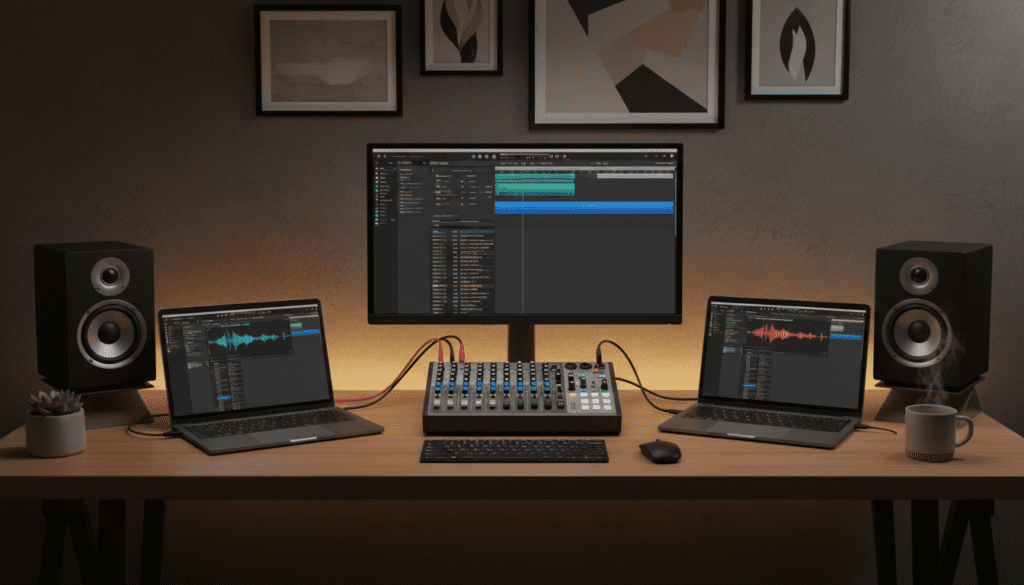
Can I connect two sources to the same speakers and hear them both at the same time? Yes, but you need a mixer. This is the setup I currently use for my dual-PC streaming rig. A mixer takes the electrical signals from both sources, levels them out, and combines them into a single output for your speakers.
Recommended Hardware:
- Maker Hart Just Mixer: Portable and battery-powered.
- Behringer Xenyx 502: A desktop staple for those who need EQ control.
Step-by-Step Wiring:
- Source 1 to Mixer: Run a 3.5mm to dual 1/4-inch TS cable from your PC into Channel 1.
- Source 2 to Mixer: Run a similar cable from your second device into Channel 2.
- Mixer to Speakers: Connect the Main Out of the mixer to your speakers’ input.
- Leveling: Turn both source volumes to 80% on the devices themselves, then use the mixer knobs to balance the sound.
The Danger of Using Y-Splitters (Reverse Splitting)
It is tempting to buy a $5 3.5mm Y-splitter and simply plug two devices into it. Do not do this.
Standard Y-splitters are designed to take one output and send it to two pairs of headphones. When you use them in reverse, you are effectively sending the electrical output of Source A directly into the output hardware of Source B.
What can go wrong?
- Hardware Damage: You could potentially fry the op-amps on your motherboard’s sound card.
- Distortion: The two signals will fight for dominance, leading to muddy, clipped audio.
- Volume Drops: Because the impedance isn’t being managed, the volume will likely be much lower than it should be.
Dealing with Ground Loop Noise
When you hook up to sources to the same speakers, you will often encounter a high-pitched buzzing or humming sound. This is known as a ground loop. It happens when your devices are plugged into different wall outlets or even different USB ports on the same machine.
How to Fix Buzzing:
- Ground Loop Isolator: This is a small, inexpensive device that you plug inline with your 3.5mm cables. It uses a transformer to break the physical connection while passing the audio signal.
- Single Power Source: Try plugging your speakers and both audio sources into the same high-quality surge protector.
Software Alternatives: No Hardware Required
If you don’t want to buy extra cables or boxes, you can sometimes route audio through your primary PC.
Using the “Listen to this device” Feature:
- Connect Source 2 to the Line-In (Blue port) on your PC’s motherboard.
- Open Sound Settings > Control Panel > Recording Tab.
- Right-click Line In and select Properties.
- Go to the Listen tab and check “Listen to this device.”
- Select your speakers from the dropdown menu.
Note: This method requires your PC to be turned on to hear the second source. It also introduces a tiny amount of input latency, which might be noticeable in fast-paced gaming.
Frequently Asked Questions
Can I connect two sources to the same speakers via Bluetooth?
Only if your speakers support Bluetooth Multipoint. This allows the speakers to maintain active connections with two devices simultaneously. However, most Bluetooth speakers will only play audio from the device that started the stream first; you must pause the first device before the second one can take over.
Will connecting two sources decrease audio quality?
If you use a passive switcher or a high-quality mixer, the quality loss is imperceptible. If you use a cheap Y-splitter or a poorly shielded cable, you will notice significant “crosstalk” (hearing faint sounds from Source B while listening to Source A).
Do I need an amplifier to connect two sources?
You generally do not need an additional amplifier if you are using active (powered) computer speakers. If you are using passive speakers (the kind that require a separate receiver), you should connect your multiple sources to the receiver’s inputs rather than trying to combine them at the speaker level.
Can I use a USB and an Analog source together?
Yes. Many high-end speakers, like the Audioengine A2+, have a built-in USB DAC and a 3.5mm jack. In most cases, these speakers will “sum” the audio, allowing you to hear both the USB audio from your PC and the analog audio from another device at the same time.









