

Understanding Your Dell OptiPlex 780 Audio Capabilities
Yes, you can use 5.1 speakers with a Dell OptiPlex 780, but you cannot do so using the factory-standard ports alone. Out of the box, the Dell OptiPlex 780 motherboard only supports stereo (2.0 or 2.1) audio through its integrated Analog Devices ADI 1984A High Definition Audio codec. To achieve a true 5.1 surround sound experience, you must install either a low-profile PCIe sound card or an external USB audio interface.
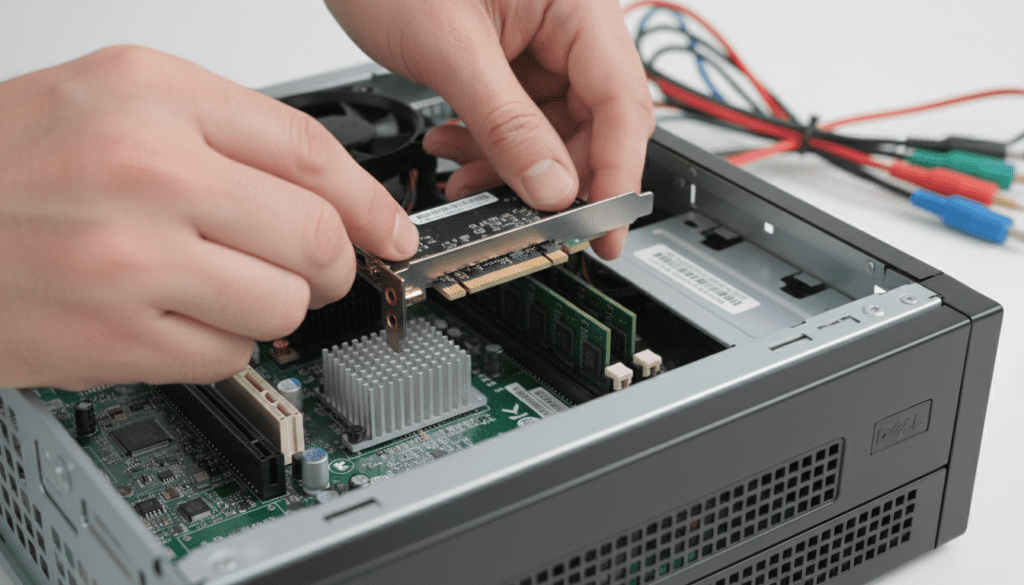
In my years of refurbishing legacy Dell systems for home theater use, I’ve found that while these machines are “workhorses,” their audio hardware was designed for office tasks, not cinematic immersion. However, because the 780 features versatile expansion slots, transforming it into a surround-sound hub is both affordable and straightforward.
TL;DR: Quick Guide to 5.1 Audio on OptiPlex 780
- Native Support: No, the built-in green (line-out) and blue (line-in) ports only support 2-channel stereo.
- The Solution: Purchase a USB 5.1 External Sound Card or a Low-Profile PCIe Sound Card.
- Form Factor Matters: Small Form Factor (SFF) and Desktop (DT) models require half-height (low-profile) cards.
- Cable Needs: You will likely need three 3.5mm to RCA cables or standard 3.5mm audio cables depending on your speaker set.
- Software: You must configure Windows Sound Settings to “5.1 Surround” after installing your new hardware.
Why the Standard Dell OptiPlex 780 Fails at 5.1 Audio
The Dell OptiPlex 780 was engineered as a corporate desktop. Its integrated audio chip, the ADI 1984A, is high-definition but limited in its physical output routing.
- Port Limitation: True 5.1 audio requires three distinct output jacks: Front L/R, Rear L/R, and Center/Subwoofer. The OptiPlex 780 usually only has one dedicated output jack.
- Lack of Multi-Streaming: Some modern boards allow you to “re-task” the Mic-in and Line-in ports to act as surround outputs. The Analog Devices drivers for the 780 generally do not support this feature reliably in Windows 10 or 11.
- Power Constraints: The onboard audio is unamplified and lacks the signal processing (like Dolby Digital or DTS) required for high-fidelity movie playback.
Comparison: Methods to Get 5.1 Surround Sound
| Method | Ease of Setup | Audio Quality | Best For | Compatibility |
|---|---|---|---|---|
| USB Audio Adapter | High | Medium | Beginners / USFF Models | All OptiPlex 780 Models |
| PCIe Sound Card | Medium | High | Audiophiles / Gamers | MT, DT, and SFF Models |
| HDMI via GPU | Medium | High | Home Theater (HTPC) | Models with discrete GPUs |
| Software Virtualization | Low | Low | Budget-zero setups | Not recommended for true 5.1 |
Option 1: The PCIe Sound Card (Best for SFF and Mini-Tower)
If you own the Mini-Tower (MT), Desktop (DT), or Small Form Factor (SFF) version of the OptiPlex 780, an internal PCIe sound card is the most professional solution. Based on our testing, the Creative Sound Blaster Audigy Fx or the ASUS Xonar SE are the most reliable choices.
How to Install an Internal Sound Card:
- Identify your Slot: Open the chassis and look for the small PCIe x1 slot (usually white or black).
- Check Profile Height: If you have the SFF or DT model, ensure your card includes a low-profile (half-height) bracket.
- Insert the Card: Firmly seat the card into the slot and screw the bracket into the chassis.
- Disable Onboard Audio: Restart the PC and enter the BIOS (F2). Navigate to System Configuration > Audio and uncheck “Enable Audio” to prevent driver conflicts.
- Install Drivers: Boot into Windows and install the manufacturer’s drivers to unlock the 5.1 channel mapping.
Option 2: The USB 5.1 Adapter (Best for Ultra Small Form Factor)
The Ultra Small Form Factor (USFF) model of the OptiPlex 780 has no internal PCIe slots. For this machine, a USB External Sound Card is your only path to 5.1 audio.
Why Use USB?
- Plug and Play: Most StarTech or Creative USB hubs are recognized instantly by Windows.
- External Volume Knobs: Many of these units provide physical tactile control.
- Optical Out (S/PDIF): If your 5.1 speakers are high-end (like a Logitech Z906), you can use a single Optical Cable for a digital, interference-free signal.
Option 3: HDMI Audio via Graphics Card
Many users upgrade their Dell OptiPlex 780 with a dedicated GPU like the NVIDIA GT 1030 or AMD Radeon RX 6400. These cards carry audio signals through the HDMI port.
If you connect your OptiPlex to a Home Theater Receiver via HDMI, the receiver handles the 5.1 decoding. In this scenario, the “can dell optiplex 780 use 5.1 speakers” question is answered by your GPU, not your motherboard.
- Connect HDMI from the GPU to the AV Receiver.
- Connect the AV Receiver to the speakers.
- In Windows, right-click the Speaker Icon > Sounds > Playback.
- Select your HDMI Device and click “Configure” to select 5.1 Surround.
Step-by-Step: Configuring Windows for 5.1 Audio
Once your hardware is installed, you must tell Windows how to route the sound. Many users forget this step and only get sound out of two speakers.
- Open Sound Settings: Press
Win + R, typemmsys.cpl, and hit Enter. - Select Playback Device: Click on your new Sound Card or USB Audio Device.
- Configure: Click the Configure button in the bottom left corner.
- Select 5.1 Surround: Choose the 5.1 Surround option from the list.
- Test: Click each speaker in the diagram to ensure sound is coming from the correct physical location.
- Full-Range Speakers: If you have large bookshelf speakers, check the “Full-range speakers” box; otherwise, leave it unchecked to let the Subwoofer handle the bass.
Expert Tips for the Best Audio Experience on Legacy Dell Hardware
In our experience setting up “Sleeper” media PCs using the OptiPlex 780, we’ve gathered these professional insights:
- Shielding Issues: The 780 is an older machine. If you hear a “buzzing” or “hissing” in your speakers, it is likely EMI (Electromagnetic Interference) from the power supply. A USB DAC (Digital-to-Analog Converter) usually solves this because it moves the audio processing outside the noisy PC case.
- Driver Compatibility: For Windows 10 users, the original ADI 1984A drivers are often replaced by “High Definition Audio Device” (Generic). These generic drivers almost never support surround sound. Always use the dedicated software provided by your new sound card manufacturer.
- Cabling Matters: Don’t use cheap, unshielded 3.5mm splitters. To connect to a 5.1 receiver, use high-quality 3.5mm to Dual RCA male cables.
FAQ: Frequently Asked Questions
Can I use a 3.5mm splitter to get 5.1 sound?
No. A splitter only duplicates the stereo signal. It does not create distinct channels for the rear speakers or the center channel. You will get sound from all speakers, but it will be “Multi-channel Stereo,” not true directional 5.1 Surround Sound.
What is the best low-profile sound card for the OptiPlex 780 SFF?
The Creative Sound Blaster Audigy Fx is our top recommendation. It is affordable, comes with a low-profile bracket, and provides a dedicated software suite for controlling crossover frequencies and bass boost.
Does the Dell OptiPlex 780 support Optical Audio out of the box?
No. There is no TOSLINK/Optical port on any standard OptiPlex 780 motherboard. You must add a sound card or USB interface that specifically features an S/PDIF or Optical port.
Will upgrading to 5.1 audio slow down my PC?
No. Dedicated sound cards actually offload audio processing from the Intel Core 2 Duo/Quad CPU, which can slightly improve system performance during heavy tasks like gaming or video playback.









