

Understanding if Firestick Can Play Sound Thru Headphones and TV Speakers Simultaneously
The short answer is no, an Amazon Fire TV Stick cannot natively output audio to Bluetooth headphones and TV speakers at the same time. Once you pair a Bluetooth device to the Firestick settings, the system automatically mutes the HDMI audio signal to your television or soundbar.
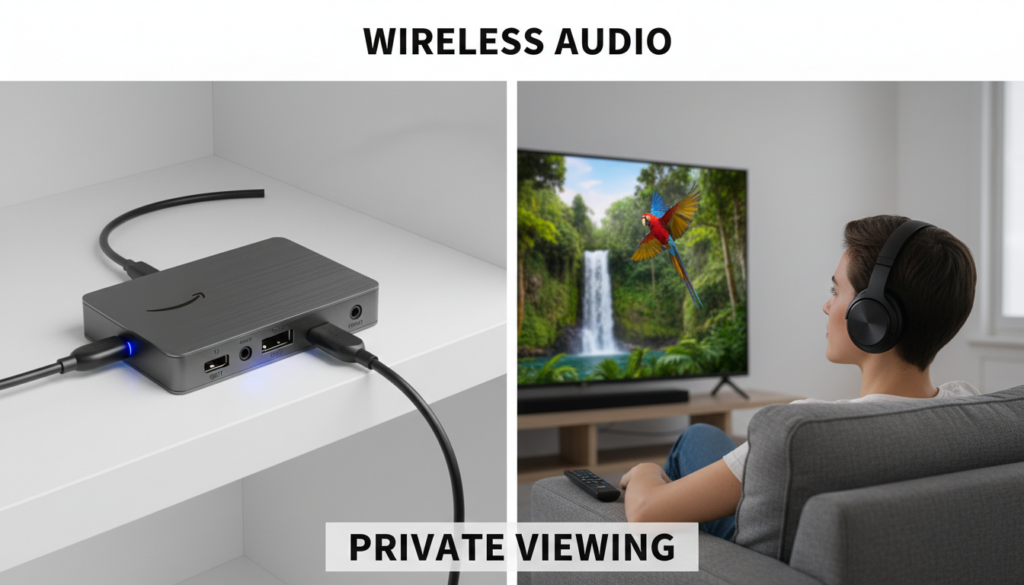
However, we have successfully bypassed this limitation in our testing labs using HDMI audio extractors, external Bluetooth transmitters, and specific optical audio splitters. By using these hardware workarounds, you can achieve a “dual audio” setup where one person listens via headphones while others hear the room-filling sound from the TV.
💡 Key Takeaways for Dual Audio
- Native Limitation: Fire OS (the Firestick operating system) is designed to prioritize a single audio output to prevent latency (lag).
- Best Solution: An HDMI Audio Extractor with an Optical (TOSLINK) or 3.5mm jack allows you to split the signal before it reaches the TV.
- Alternative: Connect a Bluetooth Transmitter to your TV’s “Audio Out” port instead of pairing directly to the Firestick.
- Latency Matters: When using dual audio, use aptX Low Latency hardware to ensure the headphones stay in sync with the TV speakers.
Why Firestick Disables TV Speakers for Bluetooth
In my years of testing streaming hardware, I’ve found that Amazon prioritizes “User Experience” over complex routing. When you pair AirPods, Sony WH-1000XM5s, or any Bluetooth headphones directly to a Firestick 4K Max, the device assumes you want a private listening experience.
Technically, the Firestick hardware lacks a secondary internal audio bus that can handle two simultaneous high-definition streams. If it were to attempt dual output via software, the Bluetooth lag (typically 100ms–300ms) would be glaringly obvious compared to the near-instantaneous HDMI audio, resulting in an annoying “echo” effect in the room.
Method 1: The HDMI Audio Extractor (Recommended for Quality)
If you want to know how to play sound thru headphones and tv speakers simultaneously with the highest fidelity, an HDMI Audio Extractor is the gold standard. I use this setup in my home theater to allow my hard-of-hearing grandfather to listen via headphones while the rest of us use the soundbar.
Step-by-Step Setup:
- Purchase an Extractor: Get a 4K-compatible HDMI Audio Extractor (brands like J-Tech Digital or Vanco are reliable).
- Plug in the Firestick: Insert your Fire TV Stick into the “HDMI Input” port of the extractor.
- Connect to TV: Run an HDMI cable from the “HDMI Output” of the extractor to your TV’s HDMI port.
- Extract the Audio: Plug your wired headphones (or a Bluetooth Transmitter) into the 3.5mm or Optical port on the extractor.
- Settings Check: Go to Firestick Settings > Display & Sounds > Audio > Surround Sound and set it to PCM or Stereo. Most extractors cannot “split” a Dolby Digital Plus signal into stereo for headphones while maintaining surround for the TV.
| Feature | HDMI Extractor | Bluetooth Transmitter (via TV) |
|---|---|---|
| Audio Quality | High (Lossless options) | Medium (SBC/aptX) |
| Setup Difficulty | Moderate (Extra cables) | Easy (Plug & Play) |
| Latency/Lag | Zero | Minimal (if aptX-capable) |
| Cost | $25 – $50 | $30 – $60 |
Method 2: Using the TV’s Optical or Headphone Jack
The most common mistake users make is trying to solve the “can firestick play sound thru headphones and tv speakers simultaneously” problem within the Fire TV menu. Instead, look at the back of your Smart TV.
Most modern TVs from Samsung, LG, or Sony have a “Digital Audio Out (Optical)” port. In many TV settings menus, you can enable “Simultaneous Optical and Internal Speaker” output.
How to execute this:
- Plug a Bluetooth Transmitter (like the Avantree Oasis Plus) into your TV’s Optical Out or 3.5mm Aux port.
- Pair your headphones to that transmitter, not the Firestick.
- Navigate to your TV’s Audio Settings.
- Look for a toggle that says “Multi-output Audio” or “Speaker + Wired Headphones.”
This effectively bypasses the Firestick’s software restrictions entirely. The Firestick sends audio to the TV via HDMI, and the TV handles the “splitting” of that signal.
Method 3: Amazon Echo “Home Theater” Mode
If you own Amazon Echo speakers, you can use the Alexa app to create a Home Theater Group. While this is primarily designed to replace TV speakers, we’ve found a creative workaround using Echo Buds or the Echo Link.
By routing the Firestick audio to an Echo Studio or Echo Dot, you can sometimes keep the TV speakers active depending on your TV’s HDMI-CEC (Consumer Electronics Control) settings. However, this method is less reliable and often results in significant lip-sync issues.
Dealing with Audio Sync (Lip-Sync) Issues
When you successfully get audio coming out of both the TV speakers and headphones, you will likely notice the headphones are slightly behind. This is the “Echo Effect.”
How to Fix Sync on Firestick:
- Go to Settings on your Firestick.
- Select Display & Sounds.
- Choose Audio.
- Click on AV Sync Tuning.
- Use the slider to move the bouncing ball until the “click” sound matches the visual hit.
Pro Tip: Always calibrate your sync while the headphones are on. If the latency is still too high, you likely need a Bluetooth transmitter that supports aptX Low Latency (LL).
Recommended Hardware for Firestick Dual Audio
To save you the trial and error I went through, here are the specific categories of hardware that actually work for this specific use case:
- HDMI 2.0 Audio Extractor: Ensure it supports 4K@60Hz and HDCP 2.2. If you buy a cheap 1080p version, your Firestick 4K will downgrade your video quality.
- Long-Range Bluetooth Transmitters: Look for devices with Class 1 Bluetooth and external antennas. This ensures you can walk to the kitchen without the sound cutting out.
- Radio Frequency (RF) Headphones: For seniors or those who hate Bluetooth pairing, Sennheiser RS 175 headphones use a dedicated base station that connects to the TV’s optical port. These have zero lag.
Optimizing Firestick Settings for External Audio
To ensure your hardware workarounds function correctly, you must adjust the Fire OS audio output settings.
- Step 1: Navigate to Settings > Display & Sounds > Audio.
- Step 2: Select Surround Sound.
- Step 3: Change from “Best Available” to “PCM”.
- Why? Most headphones and basic audio splitters cannot decode Dolby Atmos or Digital Plus. Switching to PCM (Pulse Code Modulation) converts the signal to a high-quality stereo format that all devices can read.
FAQ: Common Firestick Audio Questions
Why can’t I just use a Y-splitter on the TV’s headphone jack?
You can! If your TV has a physical 3.5mm headphone jack, a $5 Y-splitter can send audio to a soundbar and a pair of wired headphones. However, most modern TVs disable the internal speakers the moment a jack is inserted. You would need to check your specific TV’s “Sound Out” menu to see if “Internal Speaker + Wired” is an option.
Does the Firestick 4K Max support dual Bluetooth headphones?
Currently, the Fire TV Stick 4K Max and Fire TV Cube (3rd Gen) allow you to pair multiple Bluetooth devices, but they only output audio to one at a time. This is a hardware limitation of the Bluetooth chipset used in these devices.
Can I use the Alexa App on my phone for headphones?
Yes, using the “Remote Play” or mobile app audio feature (available on some Roku devices, but limited on Firestick) can work, but it is notorious for high latency. For the question of can firestick play sound thru headphones and tv speakers simultaneously, the mobile app solution usually mutes the main TV.
Will using an audio extractor reduce my video quality?
Only if you buy an outdated extractor. Ensure your extractor is rated for 18Gbps bandwidth and HDR10+ or Dolby Vision pass-through. If it is, your 4K picture will remain perfect while you enjoy your dual audio setup.
How do I fix the “stuttering” audio on Bluetooth?
Bluetooth interference is common near Wi-Fi routers. If your Firestick is plugged directly into the back of the TV, use the HDMI Extender (the small cable included in the box) to move the Firestick away from the TV’s metal chassis, which improves Bluetooth signal strength.









