Can a Headset Port Connect to Speakers? The Direct Answer
Yes, can a headset port connect to speakers? Absolutely. You can plug active (powered) speakers directly into a 3.5mm headset or headphone port using a standard auxiliary cable, and they will function perfectly for audio playback.
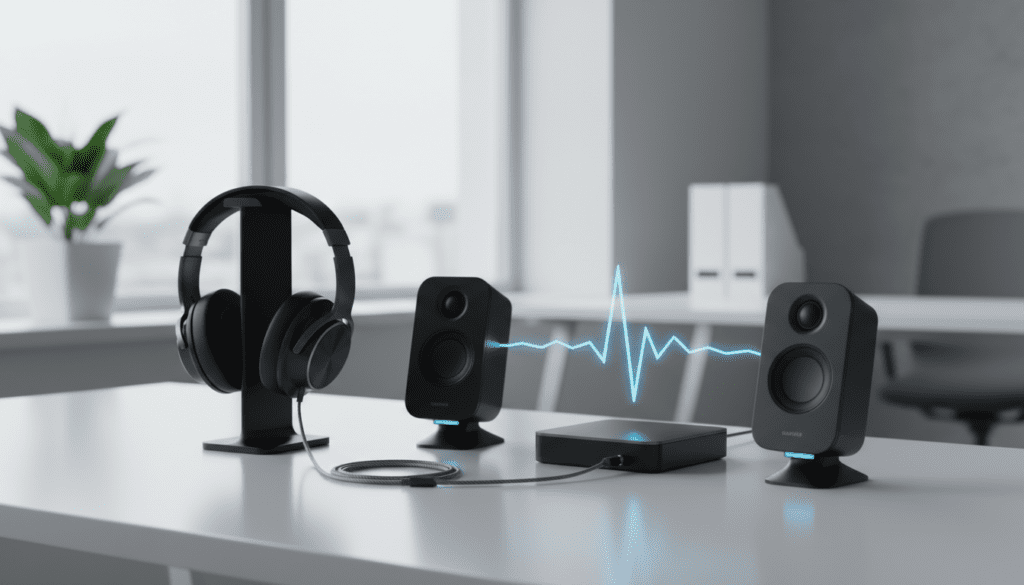
However, while the physical connection works, you must ensure your speakers have their own internal power supply (via a wall outlet or USB). Plugging passive speakers directly into a low-power headset port will result in extremely low volume and potential audio distortion, as these ports lack the amplification required to drive large speaker drivers.
Key Takeaways: Quick Setup Guide
- Compatibility: Most PC speakers use a 3.5mm TRS jack, which is natively compatible with the 3.5mm TRRS headset ports found on laptops and controllers.
- Active vs. Passive: Only connect active speakers (those with a volume knob and power cord) to a headset port.
- Signal Type: Headset ports output an analog stereo signal; your speakers will treat this as a “Line In” source.
- Volume Control: For the best sound quality, set your Windows or macOS volume to 70-80% and use the speaker’s physical knob for fine-tuning.
- Simultaneous Use: You can use a 3.5mm Y-splitter or an external USB DAC if you want to keep both your headset and speakers connected at the same time.
Understanding the Hardware: Can I Connect Headset to Speakers to PC?
Before plugging anything in, it is vital to understand the “language” your hardware speaks. Most modern laptops and modern desktop cases feature a “Combo Jack.” This is a single 3.5mm port designed to handle both audio output (to your ears) and microphone input (from your headset).
TRS vs. TRRS: The Science of the Jack
When you ask, “can a headset port connect to speakers,” you are actually asking about connector compatibility.
- TRS (Tip-Ring-Sleeve): Found on most standard computer speakers. It has two black rings and handles Left and Right stereo audio.
- TRRS (Tip-Ring-Ring-Sleeve): Found on mobile headsets. It has three black rings and handles Stereo Audio plus a Microphone channel.
The good news? TRRS ports are backward compatible with TRS plugs. When you insert a speaker’s TRS plug into a headset’s TRRS port, the microphone channel is simply grounded out, allowing the stereo audio to flow to your Logitech, Creative, or Bose speakers without issue.
Power Requirements and Impedance
In my years of testing audio configurations, I have seen users try to hook up large bookshelf speakers directly to a laptop. This is a mistake. Headset ports are designed for high-impedance headphones or small, efficient drivers.
- Headset Port Output: Usually between 10mW to 100mW.
- Active Speakers: Use their own built-in amplifier to boost this tiny signal.
- Passive Speakers: Require an external amplifier (like a receiver) between the PC and the speaker.
| Feature | Headset Port Output | Line Out (Green Port) |
|---|---|---|
| Signal Strength | Variable (Adjusted by OS) | Constant (Standard Level) |
| Amplification | Built-in (Low Power) | Unamplified |
| Connector Type | 3.5mm TRRS (Combo) | 3.5mm TRS (Dedicated) |
| Best For | Headphones / Earbuds | Active Speakers / External Amps |
Step-by-Step: How to Connect Speakers to Your Headset Port
If you are ready to move your audio from your ears to the room, follow these steps to ensure you don’t blow a driver or create an “audio loop.”
Step 1: Check Your Speaker Power
Ensure your speakers are plugged into a power outlet or a USB power port. If your speakers don’t have their own power source, they are “passive” and will not work correctly when you connect headset to speakers to pc.
Step 2: Physical Connection
Insert the 3.5mm male-to-male cable (often green-coded or labeled “Aux”) into the headset/headphone icon port on your device. Ensure the connection is firm; a loose jack is the #1 cause of the “hissing” sound many users complain about.
Step 3: Configure Windows/macOS Audio
- Right-click the Speaker Icon in your system tray (Windows) or go to System Settings > Sound (Mac).
- Select the output device. It will likely still be labeled as “Headphones” or “Realtek Audio.”
- The computer doesn’t know the difference between a headset and speakers—it just sends the signal.
Step 4: Gain Staging for Quality
Gain staging is the process of managing volume levels at different points in the chain.
- Set your PC system volume to 75%.
- Turn your speaker’s physical volume knob to its lowest setting.
- Slowly turn the speaker knob up until you reach a comfortable listening level.
Expert Tip:* Never max out the PC volume to 100% as this can cause digital clipping, which makes your music sound distorted.
Can I Have My Headset and Speakers Connected at the Same Time?
A common frustration for gamers and remote workers is the constant “plug and unplug” dance. You want to know, “can I have my headset and speakers connected” simultaneously? Yes, but you have three main paths to achieve this.
The Analog Y-Splitter (The Budget Choice)
You can purchase a 3.5mm Male to Dual Female Y-Splitter.
- How it works: You plug the splitter into the headset port. You plug your speakers into one female end and your headset into the other.
- The Downside: The audio signal is split in half. This often results in a volume drop for both devices. Furthermore, your microphone might not work if the splitter isn’t specifically a “Headset/Mic” breakout cable.
Using Front and Rear Ports (The Pro Desktop Choice)
If you are on a desktop PC, you likely have a headset port on the front and a Line Out (Green) port on the back.
- Plug the speakers into the back.
- Plug the headset into the front.
The Challenge: Most PCs disable the rear port when something is plugged into the front. To fix this, open your Realtek Audio Manager and check the box that says: “Make front and rear output devices playback two different audio streams simultaneously.”*
The USB DAC/Amp (The High-Fidelity Choice)
I personally use a USB DAC (Digital-to-Analog Converter) like the Focusrite Scarlett or the Schiit Fulla.
- These devices plug into your USB port.
- They provide separate physical outputs for your speakers and your headset.
- This allows you to switch between them with a button or a software toggle without ever touching a cable.
Can I Use a Headset on My Speakers? Understanding Passthrough
Many premium computer speakers (like the Bose Companion or Logitech Z-series) feature a small 3.5mm jack on the front or on the control pod.
When you ask, “can I use a headset on my speakers,” you are referring to passthrough audio.
- This is highly convenient. It allows you to keep your speakers plugged into the PC’s main port while plugging your headset into the speaker itself.
- Warning: Many speaker passthrough ports are audio-only (TRS). This means your headphones will work, but your microphone will not. If you need the mic for gaming or Zoom, you must connect the headset directly to the PC or use a USB headset.
Troubleshooting: Why Does My Connection Sound Bad?
If you have successfully managed to connect headset and speakers to a pc, but the audio sounds “off,” check these common culprits based on my troubleshooting experience.
The “Static Hiss” (Ground Loop)
If you hear a constant buzzing when your speakers are idle, you likely have a Ground Loop. This happens because the speakers and the PC are plugged into different power strips.
- Fix: Plug both the PC and the speakers into the same high-quality surge protector.
Volume is Extremely Low
This usually means you are trying to drive passive speakers from a headset port.
- Fix: You need an amplifier. A small Class D amp (like those from Fosi Audio) can take the 3.5mm signal from your headset port and boost it to the levels needed for bookshelf speakers.
Audio is Mono (Only one side works)
This is almost always a physical seating issue.
- Fix: Ensure the 3.5mm jack is pushed in until it “clicks.” If you are using a thick phone case or a laptop sleeve, it might be preventing the jack from fully entering the port.
No Bass or “Thin” Sound
Check your Windows Sound Enhancements. Sometimes, when you plug into a headset port, Windows applies “Headphone Virtualization” or “Bass Boost” intended for small earbuds.
- Fix: Go to Sound Settings > Properties > Enhancements and check “Disable all enhancements” to get a flat, clean signal for your speakers.
Comparison Table: Methods to Connect Audio
| Method | Audio Quality | Ease of Setup | Mic Support | Cost |
|---|---|---|---|---|
| Direct 3.5mm Connection | Good | High | No | $0 |
| Y-Splitter Cable | Average | High | Partial | $5 – $10 |
| USB External Soundcard | Excellent | Medium | Yes | $15 – $50 |
| Speaker Passthrough | Good | High | Usually No | $0 |
Can You Connect Headset and Speakers to a PC for Different Tasks?
Advanced users often want to split their audio: Discord on the headset and Game Audio or Music on the speakers. This is the ultimate “Zero-Click” efficiency setup.
How to Route Specific Apps to Specific Devices
- Windows 10/11: Open Settings > System > Sound > Volume Mixer.
- Here, you will see a list of every open application.
- Next to Spotify, change the Output device to “Speakers.”
- Next to Discord, change the Output device to “Headphones.”
- Now, you can have a private conversation in your ears while the room is filled with music.
This setup is perfect for streamers who need to hear their “alerts” without the audience or the room hearing them through the speakers.
FAQ: Common Questions About Headset Port Connections
Will connecting speakers to a headset port damage my PC?
No. Because active speakers have high input impedance, they draw very little current from your PC. It is perfectly safe for your motherboard and sound card.
Can I use a headset on my speakers if they have a USB port?
Only if the speakers are designed as a “USB Host.” Usually, USB ports on speakers are for power only. If you want to use a USB headset, it must be plugged directly into the PC.
Why does my microphone stop working when I plug in speakers?
When you connect headset to speakers to pc using a standard aux cord, the PC detects a 3-pole (TRS) connection. It assumes there is no microphone present and often disables the input channel. Use a headset splitter to keep the mic channel open.
Can I use a Bluetooth headset and wired speakers at the same time?
Yes. Windows treats Bluetooth and Wired connections as two separate sound cards. You can toggle between them in the sound menu or use the Volume Mixer to play different audio through each.
Is a “Line Out” port better than a “Headset” port for speakers?
Generally, yes. A Line Out (green port) sends a “cleaner” signal that bypasses the internal headphone amplifier of the PC. This results in less distortion (THD) when