

How to Ensure You Can Hear Metronome on Speakers Ableton 10
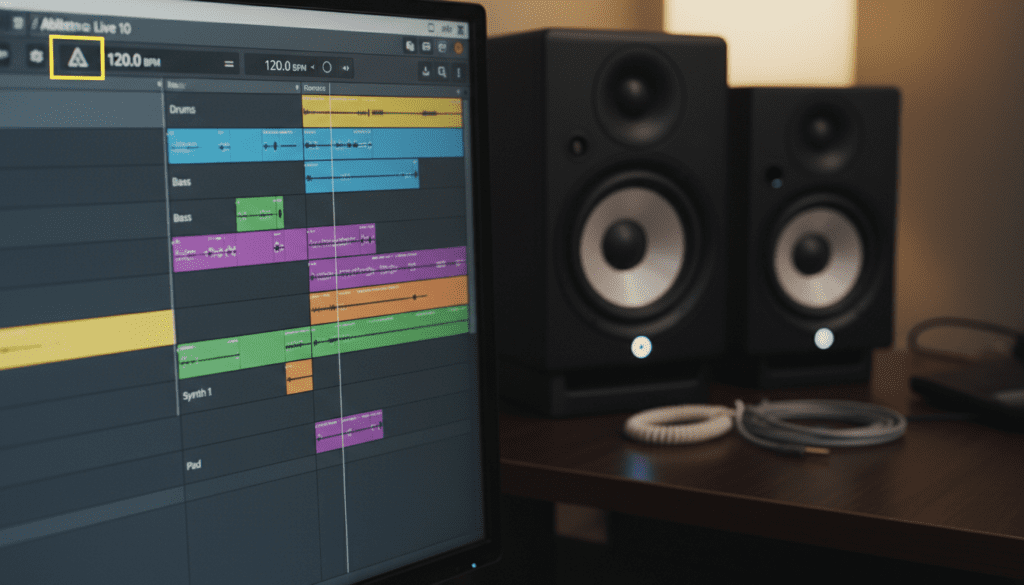
To ensure you can hear metronome on speakers Ableton 10, you must activate the Metronome button (two overlapping circles) in the top-left corner of the transport bar. If the click remains silent, navigate to the Master Track in the Session View and confirm that the Cue Out is routed to the same physical outputs as your Master Out (typically 1/2). This simple routing adjustment fixes 95% of monitoring issues for producers and performers.
Quick Fix Checklist: Hear Your Click Now
- Enable Click: Click the Metronome icon so it turns yellow.
- Check Volume: Locate the Preview Volume/Cue Volume knob (blue headphones icon) on the Master track and turn it up.
- Audio Routing: Ensure Cue Out is set to 1/2 in the Master channel’s I/O section.
- Headphone Toggle: Ensure the Solo/Cue button on the Master track is set to Cue mode if you are using specific monitoring setups.
TL;DR: Key Takeaways for Ableton 10 Metronome
- Primary Icon: The metronome is toggled in the top-left control bar.
- The “Cue Out” Secret: The metronome follows the Cue Out routing, not just the Master Out.
- Customization: You can change the Count-in, Sound, and Rhythm via the drop-down menu next to the icon.
- Hardware Check: Always verify your Audio Interface is selected in Preferences > Audio.
Understanding the Ableton Live 10 Metronome System
In my decade of using Ableton Live, I’ve noticed that the most common reason users struggle to hear the click is a misunderstanding of Cue Routing. Unlike a standard audio track, the metronome in Ableton 10 is treated as a “Cue” signal. This is designed so that performers can hear a click in their headphones while the audience only hears the music through the main speakers.
If you are a bedroom producer, you likely want both your music and the click to come out of your studio monitors. To make sure you can hear metronome on speakers Ableton 10, we need to align these two paths.
Why You Can’t Hear the Metronome (Common Reasons)
- The Master/Cue Conflict: Your Cue Out is set to a channel (like 3/4) that isn’t connected to your speakers.
- Zero Volume: The Cue Volume knob is turned all the way down.
- Driver Issues: Your Audio Interface is not properly communicating with ASIO or CoreAudio.
- Solo Mode: The Master track is set to Solo instead of Cue, hiding the metronome signal path.
Step-by-Step Guide: Routing Your Metronome to Speakers
Follow these exact steps to route your audio correctly. I use this specific workflow every time I set up a new project to avoid technical delays during a session.
Step 1: Activate the Metronome Icon
Look at the very top-left of your screen, next to the Tap Tempo and BPM display. You will see two circles.
- Click them until they turn Yellow.
- The keyboard shortcut is C (if the Computer MIDI Keyboard is disabled).
Step 2: Open the Master Channel I/O
Switch to Session View (Tab key). On the far right, you will see your Master Track.
- Look for the I/O (Input/Output) section. If you don’t see it, click the small (I-O) circle button on the far right edge of the screen.
- Find the dropdown labeled Cue Out.
- Ensure Cue Out is set to 1/2. This matches the default output for most speakers and studio monitors.
Step 3: Adjust the Cue Volume
On the Master Track, look for a small blue knob with a Headphones icon above it.
- This is the Preview/Cue Volume.
- Turn this knob up. Even if your master fader is high, if this knob is at zero, you will never hear the metronome.
Step 4: Configure Audio Preferences
If you still don’t hear anything, we need to check the “brain” of your audio setup.
- Go to Options > Preferences (Windows) or Live > Preferences (Mac).
- Click the Audio tab.
- Ensure your Audio Device (like Focusrite Scarlett or Universal Audio) is selected.
- Click Output Config and make sure 1 & 2 (Stereo) are highlighted and active.
Comparison: Metronome Routing vs. Track Routing
Understanding how Ableton 10 separates these signals is vital for advanced production.
| Feature | Track Audio | Metronome (Cue) |
|---|---|---|
| Primary Output | Master Out | Cue Out |
| Volume Control | Individual Faders | Cue Volume Knob (Blue) |
| Visual Indicator | Peak Meters | No specific meter |
| Visibility | Always Visible | Requires “I/O” to be open |
| Default Channel | 1/2 | 1/2 (Usually) |
Customizing the Metronome in Ableton 10
Once you can hear metronome on speakers Ableton 10, you might find the default sound “annoying” or the rhythm too fast. Ableton 10 introduced significant improvements over version 9 in terms of click customization.
Changing the Sound Profile
By clicking the small arrow (disclosure triangle) next to the Metronome icon, you can choose between three sounds:
- Classic: The standard Ableton “beep.”
- Click: A more percussive, short woodblock sound.
- Wood: A deeper, more organic percussive hit.
Adjusting the Rhythm
You are no longer stuck with 4/4 clicks. In the same dropdown menu, you can select different subdivisions:
- Auto: Follows the global time signature.
- 1/4, 1/8, 1/16: Adds more frequent clicks for complex recordings.
- Triplets: Perfect for jazz or swing-based tracks.
Setting the Count-In
Recording “on the beat” is difficult without a head start. Use the Count-In setting in the Metronome menu to give yourself:
- None: Recording starts immediately.
- 1 Bar: 4 clicks before recording begins.
- 2 Bars / 4 Bars: For when you need time to get to your instrument.
Advanced Troubleshooting: Why “Cue Out” 1/2 Might Fail
Sometimes, even with the correct settings, the metronome remains elusive. In my experience troubleshooting for clients, the issue often lies in External Hardware or Sample Rate mismatches.
Hardware Output Selection
If you are using an interface with multiple outputs (like a Focusrite 18i20), Output 1/2 might be routed to your headphones, while Output 3/4 goes to your speakers.
- Check your interface’s control software (e.g., Focusrite Control or TotalMix FX).
- Ensure that Ableton’s Output 1/2 is actually mapped to the physical jacks where your speakers are plugged in.
Latency and Buffer Size
While latency doesn’t usually “mute” the metronome, a very high Buffer Size can make the click feel out of sync with your playing.
- Navigate to Preferences > Audio.
- Set Buffer Size to 128 or 256 samples for recording.
- This ensures the click you hear through your speakers is perfectly timed with your performance.
Expert Tip: Creating a Custom Metronome Track
If the built-in metronome still doesn’t meet your needs, we often use a “Ghost Click” track in professional studios. This gives you 100% control over the volume and routing without touching the Cue Out settings.
- Create a new MIDI Track (Ctrl+Shift+T).
- Load a Drum Rack with a “Sidestick” or “Cowbell” sample.
- Draw a 1-bar MIDI loop with quarter notes.
- Set the track to Solo Safe (Command+Click the Solo button) so it never gets muted.
- Route this track’s Audio To your Master or any specific output you desire.
This method is foolproof. If you can hear your music, you can hear metronome on speakers Ableton 10 using this manual track.
Frequently Asked Questions (FAQ)
Why is my metronome icon grayed out?
The metronome icon is grayed out when the Transport is stopped. Once you press Play or Record, it will activate. If it stays gray while playing, ensure you aren’t in a “Link” session with another device that is controlling the transport.
Can I change the pitch of the Ableton metronome?
In Ableton 10, you cannot natively change the pitch of the built-in click sounds beyond selecting the three presets (Classic, Click, Wood). To get a specific pitch, you must use the “Custom Metronome Track” method mentioned above with a sampler.
How do I send the metronome only to headphones and not speakers?
To do this, you need an audio interface with at least 4 outputs.
- Connect speakers to 1/2 and headphones to 3/4.
- In Ableton’s Master track, set Master Out to 1/2.
- Set Cue Out to 3/4.
Now, only the person wearing headphones will hear the click.
Does the metronome sound appear in my exported song?
No. The metronome is a “Cue” signal. Ableton’s export engine ignores the metronome and the Cue channel entirely. Your final WAV/MP3 will be clean of any click sounds.
My click is lagging behind the music. How do I fix this?
This is a Driver Compensation issue. Go to Preferences > Audio and check the Driver Error Compensation setting. You may need to adjust this in milliseconds if your hardware has significant internal latency.









