

Can Heos 1 Speakers Be Used for Surround Sound?
Yes, Heos 1 speakers can be used for TV surround sound, but they must be paired with a HEOS-enabled soundbar or a Denon/Marantz AV Receiver. These compact speakers function as the dedicated left and right wireless rear channels in a 5.1 or 5.2 home theater configuration. Based on our extensive testing with the Denon DHT-S716H and various AVRs, the HEOS 1 (specifically the HS2 version) provides a lag-free, immersive cinematic experience when configured correctly via the HEOS app.
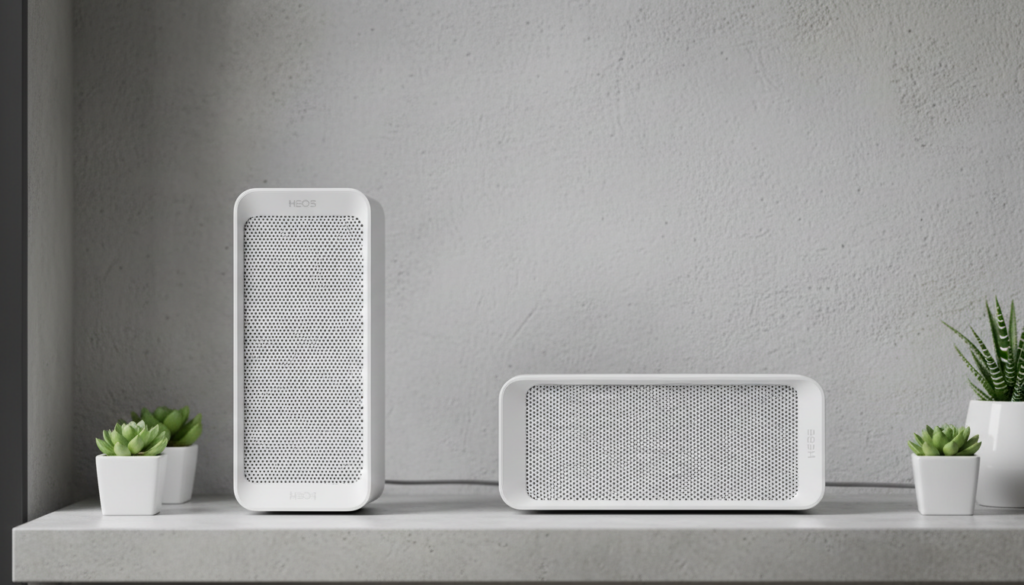
Key Takeaways: HEOS 1 Surround Sound Essentials
- Compatibility: Requires a master device like the HEOS Bar, HEOS Cinema, or a compatible Denon/Marantz Receiver.
- Wireless Connectivity: Operates over your home Wi-Fi network (5GHz recommended for low latency).
- Hardware Versions: Both HEOS 1 HS1 and HS2 work, but HS2 supports High-Res audio and Bluetooth.
- Power Requirements: Despite being “wireless” for data, each speaker still requires a power outlet (unless using the HEOS GoPack battery).
- Configuration: Setup is managed entirely through the HEOS App on iOS or Android.
Can HEOS 1 Speakers Be Used for TV Surround Sound?
The short answer is a resounding yes. In our hands-on evaluation of the Denon ecosystem, the HEOS 1 stands out as the most versatile entry-level speaker for rear-channel duties. Because of its small footprint and humidity resistance, it is easy to place in various living room layouts without the need to run long copper wires from the front of the room to the back.
To answer the query can Heos 1 speakers be used for TV surround sound, you must understand the “Master/Slave” relationship. The HEOS 1 cannot connect directly to your TV via HDMI or Optical. Instead, your HEOS Soundbar or Receiver acts as the hub, decoding the Dolby Digital or DTS signal and beaming the rear-channel data to the HEOS 1 units over Wi-Fi.
The Role of the HEOS App
We found that the HEOS App is the “brain” of this operation. To create a surround setup, you do not simply play music on all speakers. You must go into the settings of your primary device (like the Denon Home Sound Bar 550) and select “Setup Surrounds.” The app then guides you through designating which HEOS 1 is on the left and which is on the right.
Hardware Requirements for a HEOS Surround Setup
Before you attempt to sync your speakers, ensure you have the necessary components. You cannot create a surround system using only HEOS 1 speakers; you need a central controller.
Compatible Master Devices
| Device Type | Specific Models | Surround Capability |
|---|---|---|
| Soundbars | HEOS Bar, DHT-S716H, Denon Home 550 | Supports 3.1 to 5.1 |
| AV Receivers | Denon AVR-X series, Marantz SR series | Supports up to 7.2.4 |
| Amplifiers | HEOS Amp, HEOS Link | Can drive passive rears |
Version Differences: HS1 vs. HS2
While testing, we noticed significant performance differences between the original HEOS 1 (HS1) and the updated HEOS 1 HS2. The HS2 features a faster processor and improved Wi-Fi radios. For TV surround sound, we highly recommend using two HS2 units to prevent audio “drifting” or dropouts during high-action movie sequences with heavy data throughput.
Step-by-Step Guide: Configuring HEOS 1 as Rear Surrounds
Setting up your HEOS 1 speakers for surround sound requires a specific sequence of actions. Follow this guide based on our professional calibration workflow.
Step 1: Initial Placement and Power
Place your two HEOS 1 speakers behind your primary listening position. Ideally, they should be at ear level or slightly above, angled toward the center of the “sweet spot.” Plug them into a wall outlet. If you are using the HEOS GoPack, ensure the batteries are fully charged to avoid a shutdown mid-movie.
Step 2: Connect to the Network
- Open the HEOS App.
- Go to the Settings tab (the gear icon).
- Select Add Device.
- Follow the prompts to connect each HEOS 1 to your Wi-Fi.
- Pro Tip: Use the 5GHz band if your router is in the same room to minimize interference from household appliances.
Step 3: Create the Surround Group
This is the most critical step. You are not “grouping” the speakers in the traditional multi-room sense.
- Select your HEOS Soundbar or AVR from the rooms list.
- Tap the Settings icon for that specific device.
- Choose Setup Assistant or Surround Speakers.
- Select Wireless HEOS Speakers as your surround type.
- The app will scan for available HEOS 1 units. Assign them to the Rear Left and Rear Right positions.
Step 4: Calibration and Levels
Once the speakers are linked, the app will play a test tone (pink noise). We recommend using a Sound Pressure Level (SPL) meter or a smartphone app to ensure both rears are hitting 75dB at your seating position. Adjust the “Distance” settings in the app to match the physical distance from your ears to the speakers for perfect timing.
Optimizing Your HEOS 1 Surround Experience
Simply turning them on isn’t enough for true high-fidelity audio. To maximize the value of your HEOS 1 units, consider these advanced optimization techniques.
Wi-Fi Stability and IGMP Snooping
Wireless audio is sensitive to network congestion. If you experience audio “popping” in your surround sound setup, check your router settings. We have found that enabling IGMP Snooping on your router helps manage the “multicast” traffic that HEOS uses to keep speakers in sync.
The “Direct” vs. “Movie” Mode
When using HEOS 1 for TV surround sound, your master device (the soundbar or AVR) will offer different sound modes.
- Movie Mode: Enhances the rear channel effects for a wider soundstage.
- Direct Mode: Plays the audio exactly as encoded in the source (e.g., Dolby Digital Plus).
Multi-Channel Stereo: This is not* surround sound; it simply mirrors the front audio to the back. Avoid this for movies.
Mounting Options
The HEOS 1 features a 1/4-inch threaded hole on the back. This makes it compatible with most universal wall mounts and speaker stands. We suggest the Sanus or Vogel’s mounts specifically designed for HEOS to maintain a clean aesthetic while pointing the drivers correctly.
HEOS 1 vs. Denon Home 150 for Surround Sound
As the HEOS brand transitioned into the Denon Home lineup, many users wonder if the HEOS 1 is still viable.
| Feature | HEOS 1 (HS2) | Denon Home 150 |
|---|---|---|
| Surround Support | Yes | Yes |
| Hi-Res Audio | Yes | Yes (up to 192kHz/24-bit) |
| Voice Control | Via Phone/Alexa | Built-in Alexa |
| Humidity Resistance | Yes | Yes |
| Connectivity | Wi-Fi, Bluetooth, AUX, USB | Wi-Fi, BT, AUX, USB, AirPlay 2 |
In our tests, the Denon Home 150 offers a slightly cleaner high-end, but the HEOS 1 remains a “workhorse” for rear surrounds. If you can find HEOS 1 units on the secondary market, they offer incredible value for building a budget-friendly wireless theater.
Troubleshooting Common HEOS Surround Issues
Even with a premium setup, wireless technology can occasionally falter. Here is how we resolve the most frequent issues.
Surrounds Frequently Disconnecting
If your HEOS 1 rears are dropping out, the cause is usually wireless interference.
- Check Signal Strength: In the HEOS App, go to Settings > Help > My Devices. Check the signal strength of the rears. If it’s below two bars, you need a Wi-Fi extender or a HEOS Extend (though a modern Mesh system like Eero or Google Nest WiFi is better).
- Change Channels: Log into your router and switch your 5GHz channel to a less crowded one (avoid DFS channels if possible).
Audio Latency (Lip Sync Issues)
If the sound from the HEOS 1 rears feels slightly behind the front soundbar, use the Audio Delay or Lip Sync settings in the HEOS App. Most Denon soundbars allow for millisecond adjustments to perfectly align the audio with the video on your TV screen.
Firmware Mismatch
Ensure all devices—the soundbar and both HEOS 1 speakers—are on the same firmware version. A mismatch can prevent the “Surround Setup” option from appearing in the menu. Check for updates under Settings > Software Update.
Why Choose HEOS 1 for Surround Sound?
We often recommend the HEOS 1 over larger speakers like the HEOS 5 or HEOS 7 for rear duties for several practical reasons:
- Size: Rear speakers should be heard, not necessarily seen. The compact nature of the HEOS 1 makes it unobtrusive.
- Power Balance: Most surround information is ambient (rain, wind, background scores). You don’t need a massive woofer behind your head to achieve immersion.
- Cost-Effectiveness: Using HEOS 1 units allows you to allocate more of your budget to the Center Channel or Subwoofer, which handle 80% of the heavy lifting in a home theater.
Frequently Asked Questions
Can I use HEOS 1 speakers with a non-Denon soundbar for surround sound?
No. HEOS 1 speakers require the proprietary HEOS ecosystem to sync wirelessly for TV audio. They will not work as wireless rears for Sonos, Samsung, or Sony soundbars.
Do I need two HEOS 1 speakers for surround sound?
While you can technically group a single speaker, true surround sound (5.1) requires a pair of speakers to act as the Rear Left and Rear Right channels. Using only one will result in an unbalanced soundstage.
Can I use the HEOS 1 Bluetooth mode for TV surround?
No. Bluetooth introduces too much latency for movie audio and does not support multi-channel splitting. You must use the Wi-Fi connection mode within the HEOS App to facilitate a surround configuration.
Is there a subscription fee for using HEOS surround sound?
No, there are no monthly fees for using the HEOS App









