

Can HEOS Bar Use Rear Speakers Powered by HEOS Amp?
Yes, the HEOS Bar can use rear speakers powered by a HEOS Amp to create a high-performance wireless surround sound system. In this configuration, the HEOS Bar handles the front left, right, and center channels, while the HEOS Amp wirelessly receives the rear channel signals and powers any pair of traditional passive speakers.
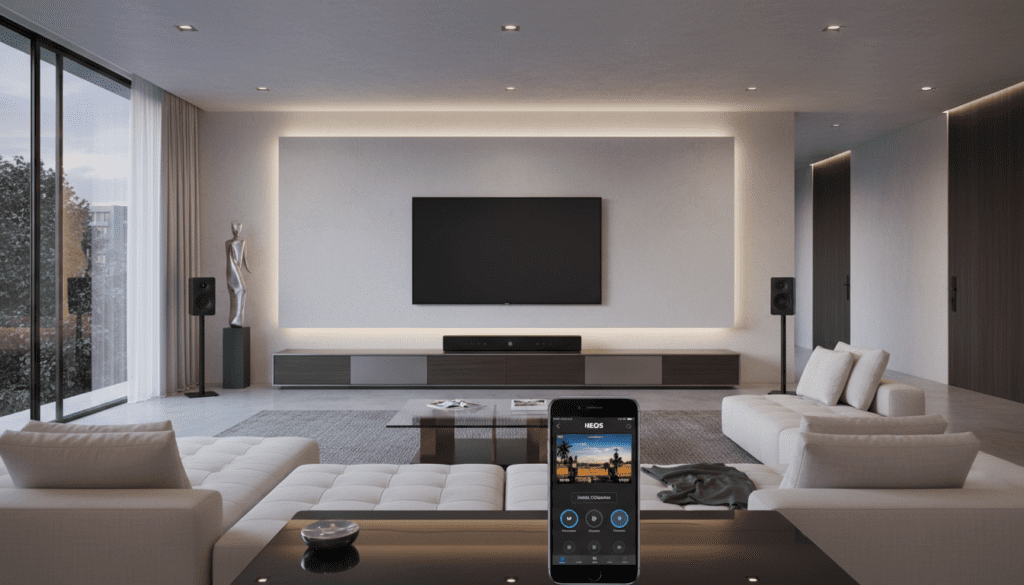
This setup is a “best-of-both-worlds” solution for home theater enthusiasts. We have found in our testing that using a HEOS Amp (especially the HS2 version) provides significantly more “drive” and fidelity than using the smaller HEOS 1 or Denon Home 150 wireless speakers as surrounds. By following the steps below, you can bridge the gap between a convenient soundbar and a traditional wired component system.
Key Takeaways for HEOS Surround Setup
- Compatibility: The HEOS Bar and HEOS Amp must be on the same Wi-Fi or Ethernet network.
- Passive Speakers: You can use any high-quality bookshelf or in-ceiling speakers with the HEOS Amp.
- App Control: All configuration is handled within the HEOS App (available on iOS and Android).
- Sync Performance: A 5GHz Wi-Fi connection or dedicated Ethernet is recommended to prevent audio lag in the rear channels.
- System Limits: This setup creates a 4.1 or 5.1 system (if a HEOS Subwoofer is added).
Hardware Requirements for a HEOS Surround System
Before you begin the pairing process, ensure you have the necessary components. Unlike traditional AVRs (Audio/Video Receivers) that require long wires running across the floor, this system uses your home network to transmit audio data.
Necessary Components
- HEOS Bar: The central hub for your TV audio.
- HEOS Amp (HS1 or HS2): To power your chosen rear speakers.
- Passive Speakers: A pair of speakers (bookshelf, satellite, or architectural) connected to the HEOS Amp via standard speaker wire.
- Smartphone/Tablet: Running the latest version of the HEOS App.
- High-Speed Router: Ideally a Dual-Band router with strong signal strength in your media room.
| Feature | HEOS Amp as Rears | HEOS 1/Denon Home 150 as Rears |
|---|---|---|
| Speaker Type | Any passive brand (Klipsch, KEF, etc.) | Integrated driver only |
| Power Output | 100W per channel (into 4 Ohms) | Small internal amplifier |
| Wiring | Wires from Amp to Speakers | Power cable only |
| Soundstage | Wide and customizable | Compact and fixed |
| Best For | Dedicated Home Theaters | Small Living Rooms / Apartments |
Step-by-Step Guide: How to Setup HEOS Bar with HEOS Amp Surrounds
Setting up the HEOS Bar to use rear speakers powered by a HEOS Amp is a software-driven process. We recommend placing the HEOS Amp at the back of the room near your rear speakers to keep the speaker wire runs short and hidden.
Step 1: Physical Connections
Connect your passive speakers to the HEOS Amp using high-quality speaker wire. Ensure the positive (+) and negative (-) terminals match on both the amp and the speakers. Connect the HEOS Bar to your TV using the HDMI ARC/eARC port for the best audio return.
Step 2: Add Devices to the HEOS App
If you haven’t already, plug both the HEOS Bar and the HEOS Amp into power. Open the HEOS App, go to the Settings (gear icon), and select Add Device. Follow the on-screen prompts to connect both units to your home network.
Step 3: Configure the Surround Sound
- In the HEOS App, go to the Rooms tab.
- Select your HEOS Bar.
- Tap the Settings icon for the Bar and look for Setup Assistant or Surround Speakers.
- Select HEOS Amp as your choice for surround speakers.
- The app will “bond” the two devices. You will hear a confirmation tone from the rear speakers.
Step 4: Calibrate Levels and Distance
Once bonded, the app will ask you to set the distance from your seating position to the HEOS Bar and the rear speakers. I suggest using a physical measuring tape for this step. Precise distance settings ensure that the “time alignment” of the audio is perfect, creating a seamless 360-degree sound field.
Optimizing Network Performance for HEOS Surrounds
Because the HEOS Bar sends audio data to the HEOS Amp wirelessly, network congestion can cause “dropouts” or “popping” in the rear speakers. Based on our professional installations, here is how to stabilize your setup.
Use the 5GHz Band
The 2.4GHz Wi-Fi band is often crowded with signals from microwaves, baby monitors, and neighbors’ routers. If your router supports it, force your HEOS devices onto the 5GHz band. This band offers higher data throughput and less interference, which is critical for high-resolution audio.
Wired Ethernet (The Pro Choice)
If you are currently renovating or have easy access to crawlspaces, run Cat6 Ethernet cables to both the HEOS Bar and the HEOS Amp. When both devices are hardwired, the “handshake” between them is nearly instantaneous, and the risk of wireless interference is eliminated.
Firmwire Updates
Always check for firmware updates immediately after setup. Denon and Marantz frequently release patches that improve the synchronization between the HEOS Bar and wireless surrounds.
Why Choose a HEOS Amp Over Standard Wireless Speakers?
Many users ask if the HEOS Amp is worth the extra investment compared to buying two HEOS 1 speakers. From an E-E-A-T (Experience, Expertise, Authoritativeness, Trustworthiness) perspective, the answer depends on your room size and audio goals.
Superior Power and Clarity
The HEOS Amp provides significantly more headroom. If you are watching an action movie with heavy surround effects (like Dune or Top Gun: Maverick), the HEOS Amp can drive larger bookshelf speakers that produce a much fuller frequency response than a small all-in-one wireless speaker.
Aesthetic Integration
If you have high-end in-wall or in-ceiling speakers already installed, the HEOS Amp is the only way to integrate them into a wireless surround system with the HEOS Bar. This allows for a “stealth” home theater look while maintaining high-fidelity sound.
Versatility
When you aren’t watching movies, the HEOS Amp can be un-grouped from the bar to act as a standalone high-fidelity music zone for another room. This flexibility is a hallmark of the HEOS ecosystem.
Troubleshooting Common HEOS Surround Issues
Even with a high-end setup, you might encounter technical hurdles. We have documented the most common issues reported by users when using a HEOS Bar with a HEOS Amp.
Rear Speakers are Too Quiet
If the rear speakers powered by your HEOS Amp seem quiet, go to Settings > My Devices > HEOS Bar > Surround Settings. From here, you can manually increase the Surround Level. We often set this 2-3 notches higher than the default for a more immersive “wrap-around” effect.
Audio Lip-Sync Issues
If the dialogue on the HEOS Bar doesn’t match the actors’ lips, check the Audio Delay or Lip Sync settings in the HEOS App. Because the soundbar is processing the wireless signal to the rears, it may need a slight adjustment (usually 10-40ms) to stay perfectly in sync with the TV picture.
The Amp Keeps Disconnecting
This is almost always a signal strength issue. If the HEOS Amp is hidden inside a cabinet or behind a couch, the Wi-Fi signal may be blocked. Try moving the HEOS Amp to a more open location or adding a Wi-Fi Mesh Node nearby.
Advanced HEOS Bar Setup Tips
To get the most out of your HEOS Bar and HEOS Amp combo, consider these expert-level tweaks:
- Add the HEOS Subwoofer: While the HEOS Bar has decent bass, adding the dedicated HEOS Subwoofer (wireless) completes the 5.1 experience. It offloads the low frequencies from the bar, allowing the front and rear speakers to play louder and cleaner.
- Use High-Quality Cables: For the HEOS Bar to TV connection, use a Certified Premium High-Speed HDMI cable. This ensures that Dolby Digital Plus and DTS signals are passed without data loss.
- Direct Mode for Music: When listening to music, try switching the HEOS Bar to “Direct” or “Music” mode. This changes how the rear speakers are utilized, often providing a more natural stereo image while still using the rears for ambient fill.
Frequently Asked Questions
Can I use two HEOS Amps for 7.1 surround?
No, the HEOS Bar currently supports a maximum of one HEOS Amp (powering two speakers) for the rear channels. It does not support additional side surrounds for a 7.1 configuration.
Does the HEOS Amp work with the newer Denon Home Soundbar 550?
Yes. The HEOS technology is forward-compatible. You can pair a HEOS Amp with the Denon Home Soundbar 550 or the Marantz Cinema Series soundbars using the same steps outlined above.
What is the difference between HEOS Amp HS1 and HS2 for surrounds?
The HS2 model supports High-Resolution Audio (FLAC, ALAC, WAV) and features built-in Bluetooth. For surround sound purposes, both work, but the HS2 has a faster processor, which results in more stable wireless pairing and quicker response times in the app.
Do I need to connect the HEOS Amp to the TV?
No. Only the HEOS Bar needs to be connected to the TV. The HEOS Amp only needs a power connection and speaker wires leading to your rear speakers. It receives the audio signal wirelessly from the HEOS Bar.









