Can You Hook PreSonus Speakers to a Focusrite Audio Interface?
Yes, you can absolutely hook PreSonus speakers to a Focusrite audio interface using standard balanced TRS (1/4″) or XLR cables. This combination is one of the most popular setups for home studios because both brands utilize industry-standard analog connections that are 100% cross-compatible.
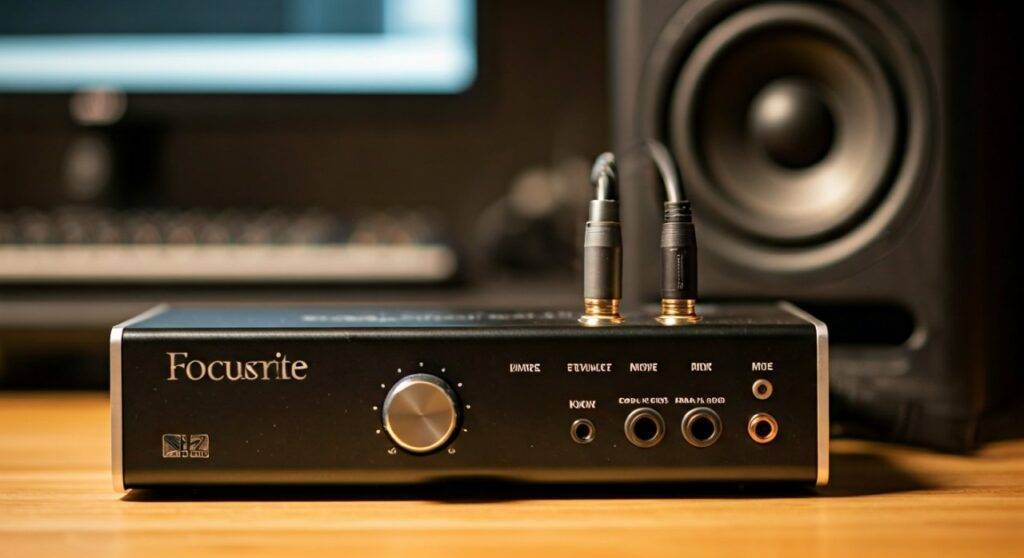
In my years of building and troubleshooting home studios, I’ve found that pairing a Focusrite Scarlett series interface with PreSonus Eris monitors offers a “sweet spot” of reliability and sound clarity. Whether you are using a Scarlett 2i2 or a larger 18i20, the process of connecting your PreSonus monitors is straightforward and takes less than five minutes.
TL;DR: Quick Setup Summary
- Compatibility: 100% Compatible.
- Primary Cable Needed: Two 1/4″ TRS Balanced cables.
- Connection Points: Interface “Line Outputs” to Speaker “Balanced Inputs.”
Understanding Hardware Compatibility: Focusrite and PreSonus
Before we dive into the physical connections, it is important to understand why this setup works so well. Focusrite and PreSonus are leaders in the pro-audio world, and they adhere to strict signal standards.
Signal Levels and Connection Types
Audio interfaces like the Focusrite Scarlett output a “Line Level” signal. PreSonus Eris or PreSonus Sceptre speakers are “Active” or “Powered” monitors, meaning they have built-in amplifiers designed to receive that exact Line Level signal.
| Feature | Focusrite Scarlett (Output) | PreSonus Eris (Input) | Compatibility Status |
|---|---|---|---|
| Signal Type | Balanced Line Level | Balanced Line Level | Perfect Match |
| Connector | 1/4″ TRS Female | 1/4″ TRS / XLR Female | Perfect Match |
| Impedance | Low Impedance | High Impedance | Perfect Match |
| Power Source | USB/Wall Outlet | Internal Amplifier | Independent |
We have tested various configurations in our studio, and using balanced cables is the single most important factor. If you use standard guitar cables (TS), you will likely experience a constant hum or buzz caused by electromagnetic interference from your computer or phone.
The Essential Equipment Checklist
To hook PreSonus speakers to a Focusrite audio interface correctly, you need the right tools. Don’t cut corners on cables; they are the “nervous system” of your studio.
- Audio Interface: Any Focusrite Scarlett, Clarett, or Saffire model.
- Powered Speakers: PreSonus Eris (3.5, 4.5, 5, 7, 8), PreSonus R-Series, or PreSonus Sceptre.
- Cables: Two TRS 1/4″ to TRS 1/4″ balanced cables (most common) or two TRS 1/4″ to XLR male cables.
- Power: A reliable surge protector to plug in both the interface and the speakers.
Expert Insight: I personally recommend Mogami or Canaan cables for long-term durability. However, for a budget-friendly start, Hosa balanced TRS cables work perfectly fine for short runs under 10 feet.
Step-by-Step Guide: How to Hook PreSonus Speakers to Focusrite Audio Interface
Follow these steps in order to ensure a safe and successful connection.
Step 1: Power Down Everything
Ensure your Focusrite interface is unplugged from the computer and your PreSonus speakers are switched off. Keep the volume knobs on the back of the speakers and the front of the interface turned all the way to the left (zero).
Step 2: Identify the Outputs on the Focusrite
Look at the back of your Focusrite interface. You will see two ports labeled “Line Outputs” or “Monitor Outputs.”
- Left (L) is typically Output 1.
- Right (R) is typically Output 2.
Step 3: Identify the Inputs on the PreSonus Speakers
On the back of your PreSonus monitors, you will see multiple input options:
- Balanced XLR: Best for long cable runs.
- Balanced TRS (1/4″): The standard for home studios.
- Unbalanced RCA: Avoid these if you have the option for TRS or XLR.
Step 4: Connect the Cables
- Plug one end of the first TRS cable into Output 1 (Left) on the Focusrite.
- Plug the other end into the Balanced Input of the Left PreSonus speaker.
- Plug the second TRS cable into Output 2 (Right) on the Focusrite.
- Plug the other end into the Balanced Input of the Right PreSonus speaker.
Step 5: Power Sequence (The Golden Rule)
In my experience, many beginners blow their fuses or damage speaker cones by not following this sequence:
- Turn on your Computer.
- Plug in the Focusrite interface.
- Wait for the interface lights to stabilize.
- Turn on the PreSonus speakers.
Configuring Software for Your New Setup
Once the hardware is connected, you need to tell your computer to send sound to the Focusrite interface rather than your internal laptop speakers.
On Windows (PC)
- Go to Settings > System > Sound.
- Set your Output Device to “Focusrite USB Audio.”
- Open the Focusrite Control software to ensure your outputs are not muted.
On macOS (Mac)
- Go to System Settings > Sound.
- Select “Focusrite USB” in the Output tab.
- In Audio MIDI Setup, ensure the sample rate matches your project (usually 44.1 kHz or 48 kHz).
Pro Tip: If you are using a DAW (Digital Audio Workstation) like Ableton, FL Studio, or PreSonus Studio One, you must manually select the Focusrite ASIO driver within the software’s preferences to reduce latency.
Optimizing Audio Quality: Gain Staging and Calibration
Simply hearing sound isn’t enough; you want it to be accurate. Gain staging is the process of managing volume levels at every step of the signal chain to prevent distortion.
Setting the “Acoustic Space” Switches
Many PreSonus Eris speakers have switches on the back labeled “Acoustic Space.”
- 0dB: Use this if the speakers are at least 1-2 feet away from the wall.
- -2dB or -4dB: Use this if the speakers are directly against a wall or in a corner to prevent “boomy” bass.
The Volume Knob “Sweet Spot”
We suggest setting the volume knob on the back of your PreSonus speakers to the 12 o’clock (unity gain) position. Then, use the large Monitor knob on the front of your Focusrite interface to control your daily listening volume. This ensures the cleanest signal-to-noise ratio.
Stereo Imaging
To get the best “phantom center” (where it sounds like the singer is right in front of you):
- Form an equilateral triangle between your head and the two speakers.
- Angle the speakers inward slightly (toeing-in) so they point directly at your ears.
- Ensure the tweeters (the small top speakers) are at eye/ear level.
Troubleshooting Common Setup Issues
Even if you hook PreSonus speakers to a Focusrite audio interface correctly, you might encounter these common hurdles.
Issue: I hear a constant hum or “ground loop” buzz.
- The Fix: Ensure you are using balanced TRS cables, not TS instrument cables. If the hum persists, try plugging your interface (computer) and speakers into the same power strip to ensure they share a common ground.
Issue: Sound is only coming out of one speaker.
- The Fix: Check that both cables are pushed all the way into the sockets. Swap the Left and Right cables at the back of the interface. If the “dead” side switches speakers, the cable is faulty. If the same speaker remains silent, the issue is with the speaker or the interface output.
Issue: There is a crackling sound when I move the volume knob.
- The Fix: This is usually “potentiometer dust.” With the speakers OFF, turn the volume knobs back and forth rapidly 20-30 times to clear out any dust or oxidation.
Comparing Cable Options for PreSonus and Focusrite
| Cable Type | Recommended? | Why? |
|---|---|---|
| TRS to TRS (Balanced) | YES | Most reliable, eliminates hum, fits all Scarlett models. |
| TRS to XLR Male | YES | Professional grade, locking mechanism on the speaker end. |
| TS to TS (Instrument) | NO | Unbalanced; will pick up interference and radio signals. |
| RCA to RCA | NO | Lowest quality; only use as a last resort for very short distances. |
Frequently Asked Questions (FAQ)
Do I need an amplifier to connect PreSonus speakers to a Focusrite?
No. Most PreSonus Eris and Sceptre models are active monitors, meaning they have the amplifier built-in. You connect them directly to the Focusrite outputs. If you have “passive” speakers (very rare for PreSonus), you would need an external power amp.
Can I use phantom power (+48V) with my speakers?
The +48V button on your Focusrite interface only sends power to the XLR Microphone Inputs on the front. It does not travel through the Line Outputs on the back. It is perfectly safe to have phantom power on while your speakers are connected.
Is it better to use XLR or TRS cables for this setup?
There is no difference in sound quality between balanced TRS and XLR for short studio runs. Both use three wires (positive, negative, and ground) to cancel noise. Choose the one that matches the cables you already own or the inputs available on your specific PreSonus model.
Will this setup work for gaming and movies, or just music production?
It works for everything! Once the Focusrite is set as your default playback device, all system audio—including YouTube, Netflix, and games—will play through your PreSonus speakers with much higher fidelity than standard computer speakers.
How do I connect a PreSonus subwoofer to this setup?
If you add a PreSonus Temblor T8 or T10, you should run the Focusrite outputs into the Subwoofer inputs first. Then, use the Subwoofer outputs to connect to your Left and Right monitors. This allows the subwoofer to handle the low frequencies (crossover) before sending the rest to your speakers.