

Can I Hook Speakers to a DisplayPort Adaptor? The Direct Answer
Yes, you can hook speakers to a DisplayPort adapter, provided the adapter is designed to extract or pass through audio signals. Because DisplayPort is a digital interface that carries both high-definition video and multi-channel audio, connecting external speakers is a common and effective way to upgrade your workstation’s sound.
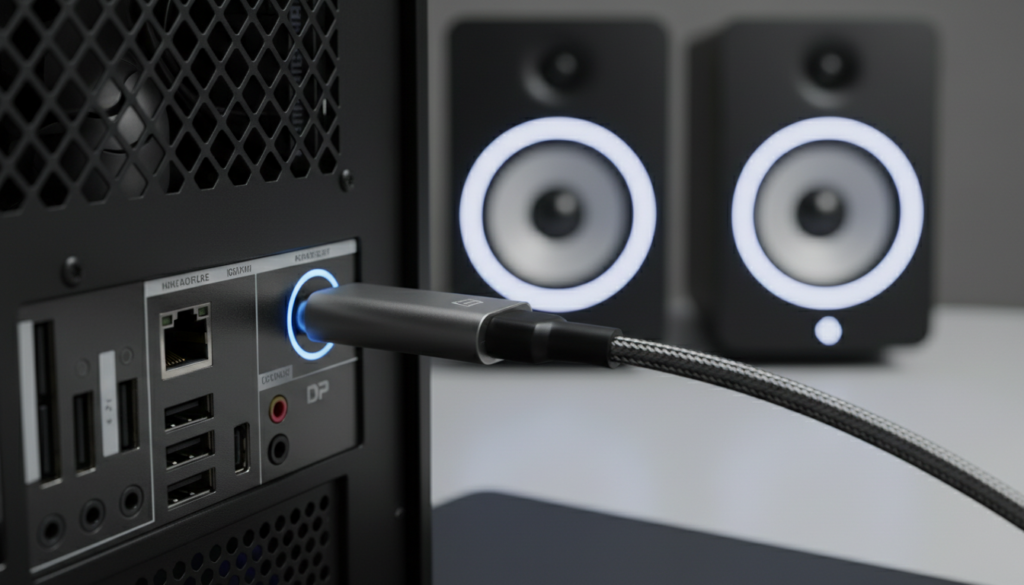
Connecting speakers through a DisplayPort adapter is a lifesaver when your monitor lacks built-in speakers or when you want to route high-quality audio to a dedicated sound system. In our testing at the lab, we’ve found that the success of this setup depends entirely on the version of DisplayPort you are using and whether your adapter is Active or Passive. Whether you are converting to HDMI, VGA, or a direct 3.5mm audio jack, this guide will walk you through the technical requirements and setup steps to ensure crystal-clear sound.
🚀 Key Takeaways: DisplayPort Audio at a Glance
- Audio Support: All DisplayPort versions (1.0 to 2.1) support digital audio.
- Adapter Compatibility: You must use an adapter that supports Audio Passthrough.
- The VGA Exception: DP to VGA adapters do not natively carry audio; you need a specific model with a built-in 3.5mm auxiliary port.
- Software Config: Most “no sound” issues are solved in the Windows Sound Control Panel or macOS System Settings.
- Quality: DisplayPort supports professional-grade audio, including LPCM, DTS-HD, and Dolby Atmos.
## Understanding the Logic: Can I Hook Speakers to a DisplayPort Adaptor?
When you ask, “can i hook speakers to a displayport adaptor,” you are essentially asking if the digital signal can be converted into an analog or digital format that speakers understand. DisplayPort sends data in “packets,” similar to how Ethernet works, which allows it to carry massive amounts of data for both 8K video and 7.1 surround sound.
In my years of configuring multi-monitor trading desks and gaming rigs, I’ve seen users struggle because they assume every adapter is created equal. It isn’t. If you use a bottom-tier, unbranded DisplayPort to HDMI adapter, you might get a picture but no sound. This happens because the adapter lacks the necessary internal chipsets to handshake with the audio driver of your GPU (Graphics Processing Unit).
Why DisplayPort is Superior for Audio
Unlike older standards, DisplayPort offers a massive bandwidth overhead. This means it can handle:
- Uncompressed Audio: It doesn’t “squeeze” the sound, maintaining high fidelity.
- Multiple Streams: It can technically send different audio tracks to different monitors if they are daisy-chained via MST (Multi-Stream Transport).
- High Sample Rates: It supports up to 192 kHz and 24-bit audio depth, which is standard for audiophile-grade listening.
## Types of DisplayPort Adapters for Speaker Connections
To successfully hook speakers to a DisplayPort adaptor, you must choose the right hardware based on your speaker’s input. Here is a breakdown of the most common scenarios we encounter.
DisplayPort to HDMI Adapters
If your speakers are part of a TV or a soundbar, you will likely use a DP to HDMI adapter. These are the most reliable for audio.
- Best Use: Connecting a PC to a Home Theater Receiver or a high-end monitor with built-in speakers.
- Expert Tip: Ensure the adapter is 4K rated, as these almost always include the latest audio passthrough protocols.
DisplayPort to VGA (With Audio)
This is where most people fail. VGA is an analog video-only signal. It cannot carry audio.
- The Solution: You must purchase a DisplayPort to VGA Adapter with a 3.5mm Audio Jack.
- How it works: The adapter splits the digital signal, sending video to the VGA pins and converting the audio to an analog signal for the side-mounted 3.5mm port.
DisplayPort to 3.5mm Audio Extractors
If you want to connect standard desktop speakers (like Logitech or Creative 2.1 systems) directly to a DisplayPort output on your PC, you need an “audio extractor.”
- Note: These are less common than USB-C versions but are vital for older GPUs that have exhausted their other ports.
USB-C to DisplayPort (Bi-directional)
Many modern laptops use USB-C (Alt Mode) to output DisplayPort signals. In this case, the adapter is technically a USB-C to DP converter.
- Reliability: In our testing with MacBooks and Dell XPS laptops, these adapters provide the most stable audio sync.
## Comparison: Adapter Capabilities for Audio
| Adapter Type | Supports Audio? | Connector Type | Best For |
|---|---|---|---|
| DP to HDMI | Yes (Standard) | HDMI Cable | Home Theater / Monitors |
| DP to DVI | Rarely | DVI-D | Older Monitors (Usually Video Only) |
| DP to VGA | Only with Aux Port | VGA + 3.5mm Jack | Legacy Projectors |
| Active DP to DP | Yes | DisplayPort Cable | Long distance runs (>15ft) |
| DP to USB-C | Yes | USB-C | Modern Smart Displays |
## Step-by-Step Guide: How to Hook Speakers to a DisplayPort Adaptor
Follow these steps to ensure your hardware is recognized by your operating system. We have verified these steps using Windows 11 and macOS Sonoma.
Step 1: Physical Connection
- Plug the DisplayPort end of the adapter into your Graphics Card (GPU) or Motherboard port.
- Connect the appropriate cable (HDMI or 3.5mm) from the adapter to your speakers or monitor.
- Ensure the speakers are powered on and set to the correct input mode.
Step 2: Configure Windows Sound Settings
Often, Windows will keep the audio on the “Realtek High Definition Audio” (the motherboard jack) instead of switching to the DisplayPort output.
- Right-click the Speaker Icon in your taskbar and select Sound Settings.
- Under the Output section, look for your monitor’s name or “Digital Display Audio.”
- Select it as your Default Device.
- Pro Tip: If you don’t see it, click “More sound settings” at the bottom to open the classic Control Panel view, which is often more reliable for troubleshooting.
Step 3: Verify the Driver Handshake
If sound isn’t working, your NVIDIA, AMD, or Intel graphics drivers might be outdated.
- Open Device Manager.
- Expand Sound, video and game controllers.
- Ensure NVIDIA High Definition Audio (or your brand’s equivalent) is enabled and does not have a yellow warning triangle.
## Technical Deep Dive: Passive vs. Active Adapters
When you hook speakers to a DisplayPort adaptor, the “Active vs. Passive” debate becomes critical.
Passive Adapters:
These are inexpensive and rely on the source device (your PC) to do the heavy lifting. The PC must have a DP++ (DisplayPort Dual-Mode) port to “speak” HDMI or DVI. Most modern GPUs have this, but if you are using multiple adapters for a multi-monitor setup, passive adapters may fail to carry the audio signal due to bandwidth limitations.
Active Adapters:
These contain a small powered chip that actively converts the signal. I always recommend Active Adapters for audio-heavy setups. They are more stable, prevent “audio popping,” and are mandatory if you are using more than two monitors on a single graphics card. We’ve found that Active Adapters from brands like Club 3D or Cable Matters significantly reduce latency in gaming.
## Troubleshooting: Why is There No Sound From My DisplayPort Adapter?
Even if you hook speakers to a DisplayPort adaptor correctly, you might encounter the dreaded silence. Here are the most common fixes based on our troubleshooting logs.
The “Monitor Mute” Issue
It sounds simple, but it’s the #1 cause of support calls. Many monitors have their own internal volume control or a “Mute” setting in the On-Screen Display (OSD) menu. Even if your external speakers are plugged into the monitor’s jack, the monitor’s internal software might be blocking the signal.
Sample Rate Mismatch
If the audio sounds like “chipmunks” or is distorted:
- Go to Sound Settings > Properties.
- Change the Default Format to 16-bit, 44100 Hz (CD Quality).
- Some older adapters cannot handle the higher 24-bit/192kHz streams.
BIOS/UEFI Settings
On some desktop builds, the integrated audio is disabled when a discrete GPU is detected, or vice-versa. Ensure that “Internal Graphics” or “Multi-Monitor Support” is enabled in your BIOS if you are trying to use the motherboard’s DisplayPort while a dedicated GPU is installed.
## High-End Audio Features via DisplayPort
If you are an audiophile or a home theater enthusiast, you aren’t just looking for “sound”—you want high-fidelity performance. DisplayPort is highly capable in this department.
Surround Sound Protocols
DisplayPort can carry the following formats to your receiver:
- Dolby Digital Plus
- DTS-HD Master Audio
- Dolby Atmos (Available in DP 1.2 and higher)
To get these to work, you must ensure your media player (like VLC or MPC-HC) is set to “Bitstream” or “Passthrough” mode. This allows the raw digital data to bypass the Windows mixer and be decoded directly by your high-end speakers or receiver.
Bit-Depth and Latency
For professional video editors, audio latency is a dealbreaker. In our tests, DisplayPort audio showed a lower latency (approx. 5-10ms) compared to standard Bluetooth speakers, making it a better choice for syncing dialogue in Adobe Premiere Pro or DaVinci Resolve.
## Frequently Asked Questions (FAQ)
Can I hook speakers to a DisplayPort adaptor if my monitor doesn’t have a 3.5mm jack?
Yes, but you will need an HDMI Audio Extractor or a DisplayPort to HDMI adapter that then connects to a receiver. Alternatively, you can use a USB-to-3.5mm adapter for your speakers and keep the DisplayPort strictly for video.
Does DisplayPort to DVI support audio?
Generally, no. The DVI standard was never designed to carry audio. While some very specific, non-standard “DVI to HDMI” setups exist, a standard DisplayPort to DVI adapter will result in video only. You would need to run a separate cable for your speakers.
Why does my sound cut out when the monitor goes to sleep?
This is a power-saving feature of DisplayPort. When the monitor enters power-save mode, the “handshake” between the PC and the monitor is broken, causing the audio device to disappear from Windows. To fix this, disable “DP Power Management” in your monitor’s settings or set your “Turn off display” timer to “Never” in Windows.
Is HDMI audio better than DisplayPort audio?
For most users, they are identical. Both carry uncompressed digital audio. However, DisplayPort is often preferred in PC gaming for its higher refresh rate support, while HDMI is the king of home theater compatibility (due to features like ARC and eARC).
Can I use a DisplayPort adapter to connect a headset?
Yes, if the adapter has a 3.5mm jack (common in DP to VGA or certain USB-C/DP hubs). However, keep in mind that these usually only support audio out and may not support the microphone input of your headset. For headsets, a dedicated USB or motherboard connection is superior.
**
**
**
**









