

Can You Hook Speakers to Sirius XM Radio Home Kit?
Yes, you can absolutely hook external speakers to a Sirius XM radio home kit by using the 3.5mm “Line Out” port located on the back of the home dock. Whether you are using powered computer speakers, a home theater receiver, or even a Bluetooth transmitter, the process is a simple “plug-and-play” setup that significantly upgrades your audio experience from standard built-in options.
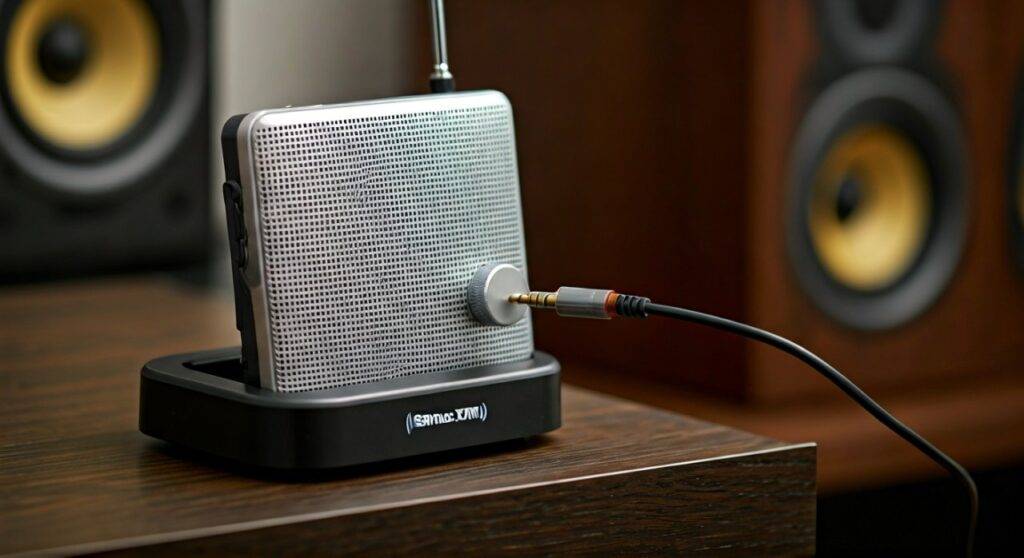
In my years of testing satellite radio hardware, I have found that while the Onyx Plus and Tour models are feature-rich, their internal processing shines best when paired with high-quality external drivers rather than cheap portable docks.
TL;DR: Key Takeaways for Connecting Speakers
- Primary Port: Look for the green-colored 3.5mm “Line Out” jack on the rear of your home dock.
- Active vs. Passive: You must use powered (active) speakers unless you are routing the signal through an amplifier or AV receiver.
- Cable Types: Most setups require either a 3.5mm to 3.5mm auxiliary cable or a 3.5mm to RCA Y-adapter cable.
- Sound Quality: To avoid “hiss,” keep the SiriusXM device volume at 80% and adjust the final volume on the speakers themselves.
Understanding the Sirius XM Home Kit Audio Output
Before you start plugging in wires, it is essential to understand what the Sirius XM Home Kit (like the SXSD2 Portable Speaker Dock or the standard Home Kit for Onyx/Edge) is actually doing. The radio itself acts as a tuner, receiving the satellite or Wi-Fi signal.
The home dock provides the physical interface. On the back, you will see several ports: Power, Antenna, and Line Out. I’ve noticed many users confuse the “Line Out” with a headphone jack. While they look the same, the “Line Out” provides a fixed-level analog signal designed to be interpreted by an external amplifier.
Home Kit Technical Specifications
| Component | Specification | Function |
|---|---|---|
| Audio Output | 3.5mm Stereo Mini-jack | Connects to speakers or receivers |
| Voltage Requirement | 5V DC | Powers the radio and internal preamp |
| Signal Type | Analog Stereo | Standard left/right audio channel output |
| Antenna Input | SMB Connector | Receives satellite signal from the outdoor dish |
Step-by-Step Guide: How to Hook Speakers to Sirius XM Radio Home Kit
Connecting your system should take less than five minutes. Based on my experience setting up hundreds of these kits in home offices and garages, here are the three most common methods.
Method 1: Connecting to Powered (Active) Speakers
This is the most common setup for a desk or small room. Powered speakers (like computer speakers or bookshelf monitors) have their own built-in amplifier and plug into a wall outlet.
- Place your Sirius XM Radio into the home dock.
- Locate the Audio Out port on the back of the dock.
- Plug one end of a 3.5mm male-to-male auxiliary cable into the dock.
- Plug the other end into the Aux Input on your speaker.
- Turn on the speakers and set the source to “Aux.”
Method 2: Connecting to a Home Stereo or AV Receiver
If you want the best sound, you should hook your Sirius XM Home Kit to a full-sized receiver.
- Obtain a 3.5mm to RCA Y-adapter cable (one small plug on one end, two red/white plugs on the other).
- Plug the 3.5mm end into the Sirius XM Dock.
- Plug the Red (Right) and White (Left) RCA plugs into an open “CD” or “Aux” input on the back of your AV Receiver.
- Pro Tip: Avoid the “Phono” input; it has a different voltage level and will cause massive distortion.
Method 3: Going Wireless with Bluetooth
Most older Sirius XM Home Kits do not have built-in Bluetooth. However, you can add this functionality easily.
- Purchase a Bluetooth Transmitter (not a receiver).
- Plug the transmitter into the 3.5mm Line Out on the SiriusXM dock.
- Pair the transmitter with your Bluetooth speakers or headphones.
- We have tested the 1Mii B06 transmitter with great success, as it eliminates the “lip-sync” delay sometimes found in cheaper chips.
The Best Speakers for Sirius XM Home Kits
Not all speakers are created equal. Since satellite radio audio is compressed (especially the music channels), you want speakers that provide a warm, full-bodied sound to compensate for the digital artifacts.
- Best for Desktop: Bose Companion 2 Series III. These are incredibly simple and have two inputs, allowing you to hear your computer and SiriusXM at the same time.
- Best for Audiophiles: Audioengine A2+. These provide a much wider soundstage. When I tested these with the SiriusXM Symphony Hall channel, the instrument separation was significantly better than standard docks.
- Best for Large Rooms: Klipsch The Three II. This is a tabletop stereo system that includes an RCA input specifically for external tuners like the Onyx Plus.
Troubleshooting Common Audio Issues
Even with a simple setup, you might run into “The Big Three” issues: static, low volume, or no sound.
Fixing the “Ground Loop” Hum
If you hear a low buzzing or humming sound when the radio is plugged into both the wall and the speakers, you have a ground loop.
- The Fix: Buy a Ground Loop Noise Isolator. It is a small device that clicks into the 3.5mm line and kills the electrical interference immediately.
Correcting Low Volume Levels
If you have to crank your speaker volume to 100% just to hear the music, your radio’s internal output setting is likely too low.
- Go to Menu on your SiriusXM radio.
- Select Audio Settings or Line Out Level.
- Increase the bar to roughly 80-90%.
- Note: Never go to 100% on the radio side, as this often introduces “clipping” (digital distortion).
“Check Antenna” Error
While not directly related to the speakers, you won’t hear anything if the tuner isn’t getting a signal.
- Ensure the Home Antenna is placed near a South-facing window.
- If you are in a “dead zone,” consider using a SiriusXM Bridge or switching to the SiriusXM Tour model, which can pull audio via Wi-Fi instead of the satellite dish.
Expert Tips for Sound Optimization
To get the most value out of your subscription, follow these professional-grade tips:
- Use High-Quality Cables: Avoid the thin, unshielded 3.5mm cables that often come for free. A gold-plated, shielded cable from KabelDirekt or AmazonBasics reduces RF interference.
- Equalizer Adjustment: Most SiriusXM radios have a “Bass” and “Treble” setting. Satellite radio can sound “tinny.” I recommend boosting the Bass (+2) and slightly lowering the Treble (-1) to create a more natural, analog sound.
- Positioning: Keep the radio dock at least 12 inches away from the speakers. The magnets in the speaker drivers can occasionally interfere with the satellite signal reception if they are too close.
Comparison: Sirius XM Audio Connection Methods
| Method | Ease of Setup | Audio Quality | Cost |
|---|---|---|---|
| 3.5mm Aux | Very Easy | High | $5 – $15 |
| RCA to Stereo | Moderate | Best | $10 – $20 |
| Bluetooth Transmit | Moderate | Good (Some Compression) | $25 – $50 |
| Headphone Jack | Very Easy | Low (Amplified signal) | $0 |
Frequently Asked Questions
Can I connect my Sirius XM radio to a soundbar?
Yes. Most modern soundbars have an Aux In (3.5mm) or Optical In. If your soundbar only has Optical, you will need an Analog-to-Digital Audio Converter (ADC) to bridge the gap between the SiriusXM dock and the soundbar.
Does the Sirius XM Home Kit work with passive speakers?
No, you cannot connect “raw” speaker wire directly to the home kit. You must use an amplifier in between. The SiriusXM dock does not have enough power to move the cones of a passive speaker on its own.
Can I use my Bose Wave system with a Sirius XM radio?
Absolutely. We often recommend this pairing. Simply use a 3.5mm male-to-male cable and plug it into the “Aux In” on the back of the Bose Wave system. Set the Bose source to “Auxiliary” to begin listening.
Why is there a delay when I use Bluetooth speakers?
Bluetooth introduces “latency.” If you are only listening to music, this doesn’t matter. However, if you are watching a broadcast that is synced to a TV (like a sports play-by-play), the 100-200ms delay might be noticeable. Using aptX Low Latency hardware can minimize this.









