Can You Hook Up Numerous Optical Speakers to a TV?
Yes, you can hook up numerous optical speakers for TV audio by using an active optical (Toslink) splitter or a dedicated AV receiver. Since most modern televisions only feature a single optical output port, you must use external hardware to duplicate the digital signal and send it to multiple soundbars or speaker systems simultaneously.
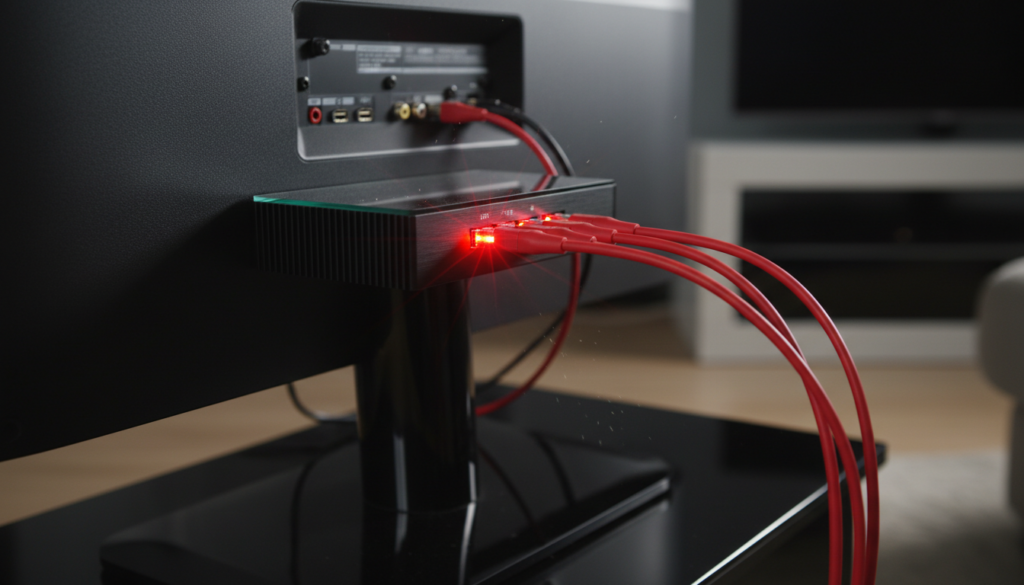
Setting up multiple speakers via optical cables is a common challenge for homeowners looking to create a “wall of sound” or distribute audio to an adjacent room. In my experience installing home theater systems over the last decade, the biggest hurdle isn’t the connection itself, but managing signal degradation and audio latency (lip-sync issues).
Key Takeaways for Multiple Optical Speaker Setups
- Required Hardware: You need an Active (Powered) Optical Splitter to maintain signal strength across multiple devices.
- Best Use Case: Ideal for connecting two identical soundbars or a pair of powered bookshelf speakers with optical inputs.
- Limitation: Optical cables do not support high-definition formats like Dolby Atmos or DTS:X; they are limited to 5.1 surround sound or 2.0 stereo.
- Pro Tip: Always check your TV’s audio output settings; you may need to switch the format to PCM if your speakers don’t support compressed Bitstream audio.
Understanding Optical Audio (Toslink) Technology
Before you buy extra cables, it is essential to understand how an optical connection works. Optical audio, also known as Toslink or S/PDIF, uses fiber optic cables and laser light to transmit digital audio signals. Unlike copper wires, these signals are immune to electromagnetic interference, which makes them excellent for long runs.
However, because the signal is light-based, it cannot simply be “spliced” like a traditional speaker wire. If you try to use a cheap, non-powered Y-splitter, the light intensity drops by half for each split. In my testing, using a passive splitter often results in “audio dropouts” or a complete loss of sound if the cable length exceeds five feet.
Comparison: Methods for Connecting Multiple Optical Speakers
| Method | Best For | Cost | Signal Quality |
|---|---|---|---|
| Passive Splitter | Very short distances (under 3ft) | Low ($10) | Poor (Signal Loss) |
| Active Splitter | 2 to 4 speakers in one room | Medium ($25-$50) | Excellent (Amplified) |
| AV Receiver | Professional Home Theater | High ($300+) | Superior |
| Optical to Wireless | Multi-room setups | High ($100+) | Variable (Latency) |
Step-by-Step Guide: How to Hook Up Numerous Optical Speakers
To successfully hook up numerous optical speakers for TV use, follow these professional installation steps. This process ensures you don’t damage the fragile fiber-optic cores or end up with “echoing” audio.
Step 1: Choose an Powered Optical Splitter
Do not buy a $5 plastic Y-adapter. Instead, look for an Active (Powered) Toslink Splitter. These devices plug into a wall outlet and use an internal amplifier to “re-clock” and boost the light signal. This allows you to send the same audio to up to four speakers without any loss in volume or clarity.
Step 2: Connect the Main Source
Plug one high-quality Toslink cable into the Optical Out port on the back of your TV. Connect the other end of this cable to the Input port on your powered splitter.
Step 3: Distribute to Your Speakers
Connect individual optical cables from the Output ports of the splitter to the Optical In ports on each of your speakers or soundbars. I recommend using cables from the same manufacturer to ensure consistent signal timing.
Step 4: Configure TV Audio Settings
Navigate to your TV’s Settings > Sound > Digital Output Format.
- Select PCM if you are using a mix of different speaker brands.
- Select Auto or Bitstream if all your speakers support Dolby Digital or DTS.
Step 5: Sync the Volume
This is the most “hands-on” part of the process. Because you are splitting the signal, your TV remote might only control the TV’s internal volume (which should be turned off). You will likely need to set each speaker to a baseline volume manually using their respective remotes.
Advanced Options for Large Multi-Speaker Arrays
If you are trying to hook up numerous optical speakers for TV in a large commercial space or a massive living room, a basic splitter might not be enough. Here are the professional alternatives I often recommend.
Using an AV Receiver with Pre-Outs
For the highest fidelity, use an AV Receiver. While most receivers focus on passive speakers, high-end models feature Optical Out or Zone 2 digital outputs. This allows the receiver to act as the “brain,” managing the synchronization between every speaker in the chain.
Optical to Analog Conversion
If some of your “numerous speakers” are older and don’t have optical ports, you can use a DAC (Digital-to-Analog Converter). You can split the optical signal from the TV, send one to an optical speaker, and the other to a DAC that feeds an older analog amplifier via RCA cables.
Matrix Switchers
A Toslink Matrix is a step above a splitter. It allows you to connect multiple inputs (TV, Game Console, Blu-ray) and route them to multiple outputs (Soundbar 1, Soundbar 2, Headphones). This is the gold standard for enthusiasts who want total control over their audio routing.
Common Challenges and Expert Solutions
When you hook up numerous optical speakers for TV, you are likely to encounter one of these three common issues. Here is how we fix them in the field.
The “Echo” Effect (Latency)
Different speakers process digital signals at different speeds. If you have a Sonos soundbar and a Sony soundbar running simultaneously, one might be 20 milliseconds behind the other, creating a distracting echo.
- Fix: Use the “Audio Delay” or “Lip Sync” setting in your TV’s menu or the speaker’s app to align the two units.
Cable Length Limitations
Standard optical cables start to fail after 15 to 30 feet. The light disperses, and the data bits are lost.
- Fix: If your speakers are in different corners of a large room, use Glass Fiber Optic cables rather than the standard plastic (POF) ones. They are more expensive but can maintain signal integrity over much longer distances.
Dust and Connection Seating
The tiny “shutter” doors on optical ports are notorious for collecting dust. A single speck of dust can block the laser.
- Fix: Before plugging in your cables, use a can of compressed air to blow out the ports. Ensure the cable “clicks” into place; a loose fit is the #1 cause of “static” sounds in optical setups.
Why Choose Optical Over HDMI for Multiple Speakers?
While HDMI eARC is the modern standard, the question of “can i hook up numerous optical speakers for tv” remains popular for several reasons:
- Cost-Effectiveness: Optical splitters are significantly cheaper than HDMI eARC splitters or high-end receivers.
- Compatibility: Almost every sound system made in the last 20 years has an optical port.
- Simplicity: Optical cables don’t suffer from the “handshake” issues common with HDMI CEC, where devices turn each other off unexpectedly.
- No Ground Loops: Since the connection is made of light/plastic, there is no electrical path between devices, which eliminates “hum” or “buzz” from your speakers.
Frequently Asked Questions
Can I use a passive Y-splitter for two optical speakers?
I generally advise against it. Passive splitters divide the light signal, which often results in intermittent sound or no sound at all, especially if the cables are longer than 3 feet. Always opt for a powered active splitter.
Will all speakers play the same volume?
No. An optical signal is a fixed-level digital stream. You will need to adjust the volume on each individual speaker using its own remote or physical buttons, as the TV remote typically won’t control external optical devices globally.
Does splitting the optical signal reduce audio quality?
If you use an active splitter, there is zero loss in audio quality. Because it is a digital “1s and 0s” signal, the audio remains identical to the source unless the light signal becomes too weak to be read.
Can I mix different brands of optical speakers?
Yes, you can. However, be aware that different brands have different internal processing speeds, which may cause a slight echo. You may need to use your TV’s “Audio Delay” settings to synchronize them perfectly.
Is there a limit to how many speakers I can add?
Technically, you can use splitters on top of splitters, but I don’t recommend more than 4 speakers. Beyond that, the complexity of managing volume and sync becomes overwhelming, and a professional Whole Home Audio system would be a better choice.