Why Your Audio Channels Might Be Reversed
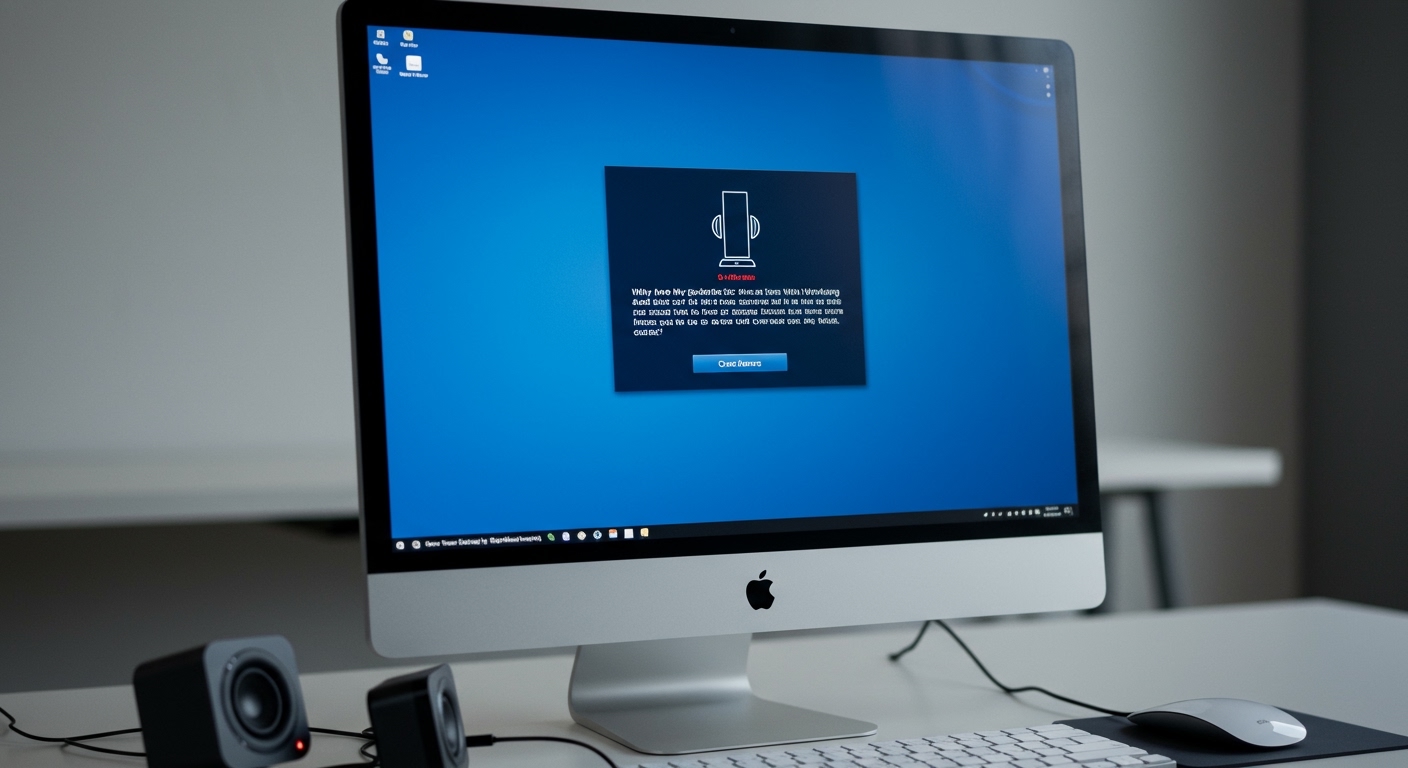
Have you ever been playing a competitive shooter like Valorant or Call of Duty only to realize the footsteps you heard on the left were actually coming from the right? Or perhaps you’ve set up your desktop speakers only to find the cables are too short to reach the correct sides. Knowing how to change left and right speakers Windows 10 is essential for maintaining an immersive and accurate audio experience.
While Windows does not provide a simple “Reverse Stereo” toggle in the default settings, you can achieve this through driver configurations, third-party software, or hardware adjustments. This guide provides a comprehensive walkthrough on how to flip left and right speakers Windows 10 and Windows 11 using expert-verified methods.
Quick Expert Summary: Key Takeaways
Native Limitation: Windows 10 and 11 do not have a built-in “Swap Channels” button in the Sound Control Panel.
Best Software Solution: Use Equalizer APO with the Peace Interface for a permanent, system-wide stereo flip.
Driver Method: Check your Realtek Audio Console; some specific motherboard drivers offer “Speaker Filling” or “Swap” options.
Hardware Fix: If using 3.5mm speakers, a physical RCA-to-3.5mm adapter can manually swap the red and white channels.
Testing: Always use the Windows Sound Test utility to verify your configuration after making changes.
Tools and Methods Overview
| Method | Difficulty | Best For | Requirement |
|---|---|---|---|
| Equalizer APO | Medium | System-wide permanent flip | Free open-source software |
| Realtek Console | Easy | Users with Realtek drivers | Specific OEM drivers |
| Hardware Swap | Easy | External desktop speakers | Physical access to cables |
| Mono Audio | Easy | Accessibility/Quick fix | Built-in Windows settings |
| VBAudio Cable | Hard | Advanced routing/Streaming | Virtual Audio Cable software |
Step 1: How to Test Left and Right Speakers Windows 10
Before attempting to switch left and right speakers Windows 10, you must confirm that the channels are indeed reversed. Follow these steps to perform a standard diagnostic:
- Right-click the speaker icon in your Taskbar (bottom right).
- Select Sounds (or “Open Sound settings” in newer builds).
- Click on Sound Control Panel on the right-hand sidebar.
- In the Playback tab, right-click your active device (e.g., Speakers or Headphones) and select Configure Speakers.
- Click the Test button. You will see a visual animation of sound moving from the left speaker to the right.
- Listen closely: if the “Left” animation plays sound in your right ear, you need to swap left and right speakers Windows 10.
Step 2: How to Flip Left and Right Speakers Windows 10 Using Equalizer APO
Since Windows lacks a native toggle, Equalizer APO is the gold standard for audio professionals and gamers. It acts as a “System-wide Parametric Equalizer” that can intercept audio signals and re-route them.
Install Equalizer APO
- Download Equalizer APO from SourceForge.
- Run the installer and select the audio output device you want to modify (e.g., your headphones).
- Restart your PC to allow the driver APO to initialize.
Configure the Stereo Flip
- Navigate to the installation folder (usually
C:Program FilesEqualizerAPO). - Open Editor.exe.
- Click the + (plus) icon, go to Control, and select Copy (Copy channels).
- In the routing interface that appears, drag the “L” (Left) input to the “R” (Right) output, and the “R” input to the “L” output.
- Save the file as
config.txt. Your audio is now flipped in real-time.
Step 3: How to Swap Left and Right Speakers Windows 11 with Peace GUI
For a more user-friendly experience on Windows 11, we recommend adding the Peace Interface on top of Equalizer APO. This provides a visual toggle for how to switch left and right speakers Windows 11.
- Download and install Peace GUI (ensure Equalizer APO is already installed).
- Open the Peace Interface and select “Simple Interface” or “Full Interface.”
- Locate the Buttons at the bottom of the window.
- Click on the Effects button (usually looks like a small gear or wave).
- Find the Reverse Channels (or “Swap L/R”) button and click it.
- Click Done and then Save to apply the configuration permanently.
Step 4: How to Control Left and Right Speakers Windows 10 via Drivers
Many modern motherboards (ASUS, MSI, Gigabyte) use Realtek High Definition Audio. Sometimes, the driver software itself provides a way to control left and right speakers Windows 10.
- Open the Start Menu and search for Realtek Audio Console or Realtek Audio Manager.
- Navigate to Device Advanced Settings.
- Look for an option titled “Speaker Filling” or “Swap Center/Subwoofer Output.” (Note: While usually for 5.1 systems, some versions allow stereo swapping here).
- If your driver supports it, you may also see a Connector Retasking option. Right-click the green analog jack icon and see if you can manually assign the output.
Step 5: Hardware-Based Solutions for Swapping Audio
If you prefer not to install software, or if you are using an external sound system, a hardware fix is often more reliable. This is the most direct way for how to change left and right speakers Windows 10 without touching a single line of code.
Physical Speaker Placement
The simplest solution is to physically move the speakers. If your left speaker is on the right, simply swap their positions on your desk. However, if the “Main” speaker (the one with the volume knob) must be on a specific side, this might not be possible.
Using an RCA Reverse Cable
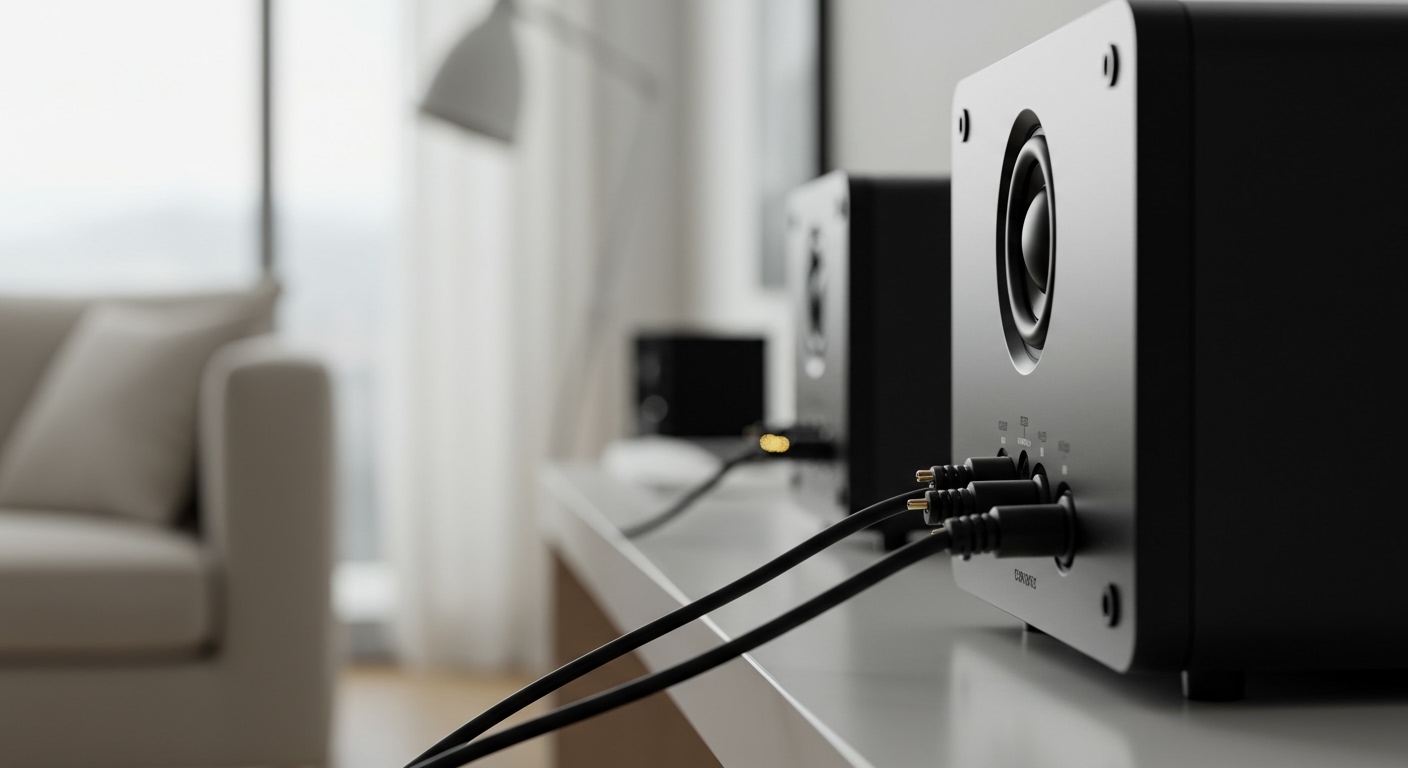
If your speakers connect via RCA cables (the red and white plugs):
- Locate the back of your subwoofer or active speaker.
- Unplug the Red (Right) and White (Left) cables.
- Plug the Red cable into the White port and the White cable into the Red port.
- This physically reverses the signal before it reaches the drivers.
3.5mm Stereo Reverse Adapter
For headphones, you can purchase a small 3.5mm Stereo Reverse Adapter. This is a short cable that crosses the internal wiring of the left and right channels. This is a popular choice for gamers who cannot install third-party software on work or tournament PCs.
Advanced Speaker Configuration Tips
To get the most out of your audio setup, consider these expert-level configurations:
Sample Rate Optimization: In the Sound Control Panel, set your default format to 24-bit, 48000Hz (Studio Quality). This is the standard for most Windows applications and prevents resampling artifacts.
Disable Enhancements: If your audio sounds “off” after flipping, go to the Enhancements tab and check Disable all enhancements. This ensures a clean signal path for Equalizer APO.
Spatial Sound: If you use Windows Sonic or Dolby Atmos, ensure you flip the channels before the spatial processing occurs to maintain accurate 3D positioning.
Common Mistakes to Avoid
Forgetting to Restart: Equalizer APO requires a system restart to hook into the audio stream. If your changes aren’t working, reboot.
Double Flipping: If you flip channels in both your driver software and Equalizer APO, they will cancel each other out, returning you to the original (incorrect) state.
- Mono Audio Mode: Ensure Mono Audio is turned OFF in Ease of Access settings. If Mono is on, you cannot have a left or right channel; both speakers will play identical sounds.
Frequently Asked Questions
(FAQs)
How do I flip left and right audio on Windows 10 without third-party software?
Currently, Windows 10 does not have a native setting to flip stereo channels. You must either use a hardware adapter, move your physical speakers, or check if your specific Realtek or SoundBlaster driver software includes a “Swap” feature.
Does Windows 11 have a native “Swap Stereo” button?
No, Windows 11 carries the same audio architecture as Windows 10. You will still need to use Equalizer APO or the Peace GUI to effectively swap left and right speakers Windows 11.
Why is my audio reversed in the first place?
Reversed audio is usually caused by physical setup errors (cables plugged into the wrong ports), wearing headphones backward, or specific driver bugs where the Phase or Channel Mapping is incorrectly identified by the OS.
Will flipping my speakers affect microphone performance?
No. Changing the output configuration of your speakers or headphones does not affect the input signal of your microphone. These are handled as separate devices in the Windows sound architecture.
Can I flip audio for just one specific app?
Standard Windows settings don’t allow this. However, advanced routing software like Voicemeeter Banana allows you to create virtual inputs and outputs, enabling you to flip audio for a specific game or browser while keeping other apps normal.
Conclusion
Understanding how to change left and right speakers Windows 10 can save you from the frustration of a reversed soundstage. Whether you choose the software precision of Equalizer APO, the ease of the Peace GUI for Windows 11, or a simple hardware cable swap, achieving correct stereo imaging is vital for gaming and media consumption.
Start by running a diagnostic test, then choose the method that best fits your technical comfort level. By following the steps above, you’ll ensure that every sound—from a cinematic score to a tactical footstep—is exactly where it’s supposed to be.