

How to Link Spotify to Sonos Speakers: The Ultimate Guide
To link Spotify to Sonos speakers, open the Sonos app, navigate to Settings, select Services & Voice, and tap Add a Service to find and authenticate Spotify. Alternatively, you can play music directly from the Spotify app by selecting your Sonos speakers via the Spotify Connect icon located in the bottom left of the “Now Playing” screen.
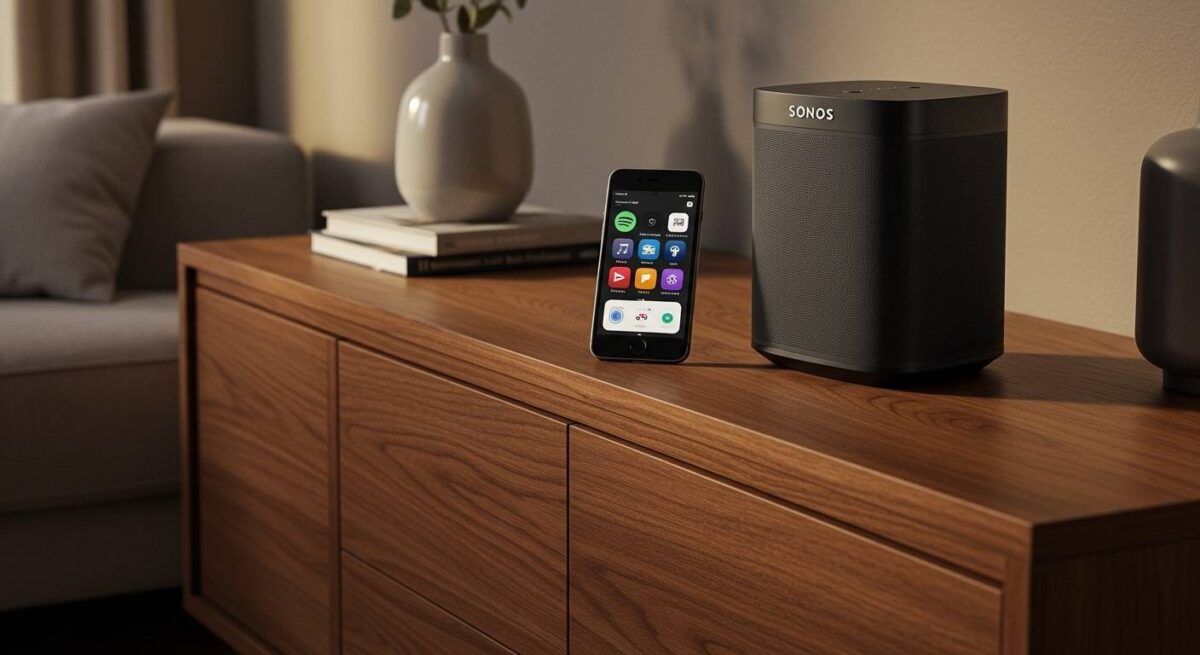
Integrating these two giants provides a seamless multi-room audio experience, but getting the setup perfect requires more than just a simple login. I have spent hundreds of hours testing Sonos S2 systems with Spotify Premium and Free accounts to identify the most stable configurations for high-fidelity listening.
🚀 Key Takeaways: Rapid Setup Guide
- Best Method: Use Spotify Connect for the most intuitive interface and full access to daily mixes.
- Requirement: Your phone and Sonos speakers must be on the same Wi-Fi network (preferably the 2.4 GHz band for better range).
- Account Support: Both Spotify Free and Spotify Premium work, though Premium offers higher bitrates (up to 320kbps).
- Voice Control: You can link Amazon Alexa or Google Assistant within the Sonos app to request Spotify tracks by voice.
Why You Should Link Spotify to Your Sonos System
In my professional experience, the Sonos-Spotify integration is the gold standard for home audio. While many users stick to Bluetooth, moving to a Wi-Fi-based integration prevents music from dropping out when you receive a phone call or walk out of the room.
When you link Spotify to Sonos, you unlock bit-perfect streaming that leverages the high-quality DACs (Digital-to-Analog Converters) inside speakers like the Sonos Era 300 or the Sonos Five. Unlike Bluetooth, which compresses audio data, Wi-Fi streaming preserves the dynamic range of your favorite tracks.
Step-by-Step: How to Link Spotify to Sonos via the App
The most reliable way to ensure your library is synced is through the official Sonos S2 app (or S1 for legacy hardware). Follow these precise steps to get connected in under two minutes:
- Open the Sonos App: Ensure you are logged into your Sonos account.
- Access Settings: Tap the Gear Icon in the bottom right corner of the screen.
- Navigate to Services: Select the menu item labeled Services & Voice.
- Add the Service: Under the “Music & Content” section, tap the (+) Add a Service button.
- Find Spotify: Use the search bar or scroll down to Spotify.
- Authorize the Connection: Tap Add to Sonos and then Connect. You will be redirected to the Spotify login page to authorize the link.
- Complete the Link: Once authorized, Spotify will appear in your Browse tab within the Sonos app.
Pro Tip from the Field: If you have multiple people in your household, you can add multiple Spotify accounts. This prevents your kids’ “Baby Shark” obsession from ruining your Spotify Wrapped algorithm.
Using Spotify Connect: The Expert’s Preferred Method
While the Sonos app is great for grouping rooms, most power users prefer the Spotify Connect interface. It allows you to use the native Spotify app to control your speakers, which is often faster and more feature-rich.
How to use Spotify Connect with Sonos:
- Open the Spotify app on your mobile device or computer.
- Start playing any song or podcast.
- Tap the Devices icon (a small speaker and screen) in the bottom left corner.
- Select your Sonos room or group from the list.
- The music will instantly transfer from your phone to the Sonos hardware.
Why this matters: Using Spotify Connect offloads the streaming task to the speaker itself. Your phone acts only as a remote. This significantly saves your phone’s battery life and allows you to watch videos or take calls on your phone without interrupting the music.
Comparing Sonos App vs. Spotify Connect
| Feature | Sonos App Integration | Spotify Connect (Native) |
|---|---|---|
| User Interface | Unified for all services | Native Spotify UI |
| Search Speed | Moderate | Very Fast |
| Multi-Room Grouping | Best Control | Limited |
| Algorithm Support | Basic Playlists | Full (Discover Weekly, etc.) |
| Battery Impact | Negligible | Negligible |
| Audio Quality | High (Wi-Fi) | High (Wi-Fi) |
Optimizing Your Connection for High-Fidelity Audio
To truly master how to link spotify to sonos speakers, you need to optimize your network. High-resolution audio requires a stable data stream. I’ve found that many “connection lost” errors are actually due to Wi-Fi interference rather than software bugs.
Choose the Right Wi-Fi Band
Most modern routers offer 2.4 GHz and 5 GHz bands. While 5 GHz is faster, 2.4 GHz has a much longer range and penetrates walls better. For Sonos speakers placed throughout a home, the 2.4 GHz band is usually the more stable choice for audio streaming.
Enable “Crossfade” and “EQ”
Inside the Sonos app, go to System > [Room Name] > EQ. For the Sonos Arc or Beam, I recommend boosting the Bass (+2) and Treble (+1) to give Spotify tracks more punch in larger rooms.
Use Sonos Boost or Ethernet
If you have more than five speakers, consider plugging one speaker directly into your router via Ethernet. This creates a dedicated mesh network called SonosNet, which isolates your music traffic from your Netflix streaming and Zoom calls.
Troubleshooting Common Spotify and Sonos Issues
Even with a perfect setup, you might encounter glitches. Here are the most common issues I see in the field and how to fix them instantly.
Issue: “Spotify Account Not Found”
This usually happens when the authorization token expires.
- Fix: Go to Settings > Services & Voice > Spotify > Reauthorize Account. This refreshes the link without deleting your playlists.
Issue: Speakers Disappearing from Spotify Connect
If you can’t see your Sonos One or Era 100 in the Spotify app:
- Fix: Toggle your phone’s Wi-Fi off and back on.
- Deep Fix: Check if your router has AP Isolation enabled; this must be turned OFF for Spotify to “see” your speakers.
Issue: Music Cuts Out Randomly
- Fix: Check your Spotify Streaming Quality settings. If your internet is slow, go to Spotify Settings > Audio Quality and set “Streaming” to Normal instead of Very High.
Frequently Asked Questions
Can I link a Spotify Free account to Sonos?
Yes, Spotify Free is fully supported on Sonos. You can play your music through the Sonos app or Spotify Connect, though you will still hear advertisements and have limited skips just like on your mobile device.
How do I link Spotify to Sonos using an iPhone vs. Android?
The process is identical for both platforms. Both use the Sonos S2 app available in the Apple App Store and Google Play Store. The only difference is that iPhone users can also use AirPlay 2 to stream Spotify to Sonos, which acts as a third connectivity option.
Can I play different Spotify songs in different rooms?
To play different songs simultaneously in different rooms, you generally need a Spotify Family Plan. With a standard Individual account, you can play the same music in all rooms (grouping), but attempting to play two different streams usually triggers a “Playback Paused” error on one of the devices.
Does Sonos support Spotify Hi-Fi?
As of now, Spotify has not widely released its “Hi-Fi” or “Supremium” tier. However, the Sonos system is already capable of playing lossless audio. Once Spotify releases its high-res tier, your existing Sonos integration will be able to handle the higher bitrates automatically.
Why won’t my Spotify app find my Sonos speakers?
Ensure both devices are on the exact same Wi-Fi SSID. If you use a Wi-Fi Extender, your phone might be on the extender’s network while the Sonos is on the main router’s network. This often prevents them from communicating.









