

How to Use External Speakers with Zoom: The Instant Solution
To learn how to use external speakers with Zoom, connect your device via USB, Bluetooth, or 3.5mm audio jack, then click the arrow (^) next to the Mute button in a Zoom meeting and select your speaker from the list. For a permanent fix, go to Zoom Settings > Audio and set your Speaker output to your preferred external device. Using external speakers significantly improves audio clarity, reduces listener fatigue, and prevents the “tinny” sound common with built-in laptop hardware.
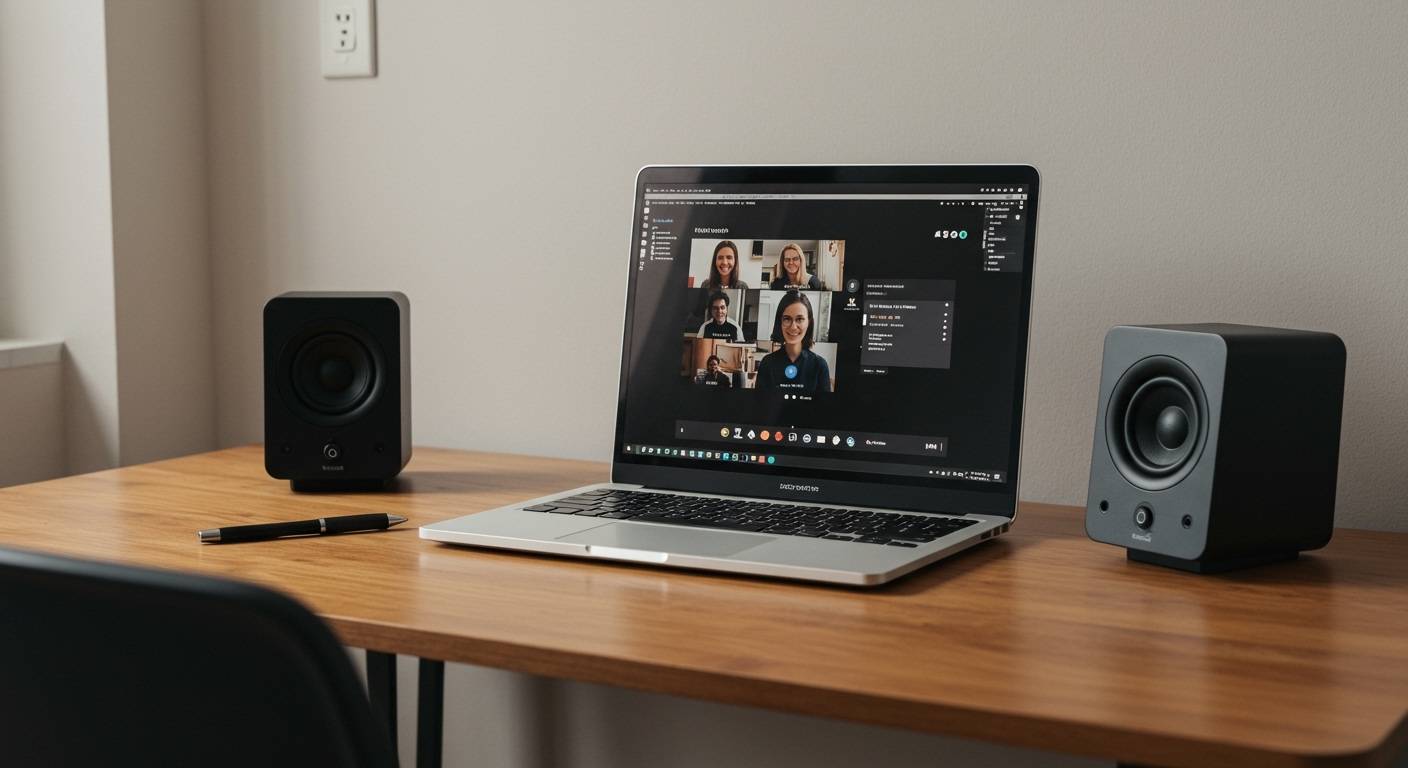
Key Takeaways: Quick Setup Guide
- Connectivity: Most external speakers connect via USB-A/C, Bluetooth, or a 3.5mm Headphone Jack.
- In-Meeting Toggle: Use the Audio Menu (upward arrow) next to the microphone icon to switch outputs instantly.
- Audio Testing: Always use the “Test Speaker” button in Zoom settings to verify volume levels before a call.
- Echo Prevention: Keep your microphone away from external speakers or enable “Echo Cancellation” in Zoom’s advanced settings.
- Default Settings: Set your external speakers as the “System Default” in Windows or macOS to ensure Zoom recognizes them automatically.
Why You Should Upgrade to External Speakers for Zoom
I have spent hundreds of hours in virtual boardrooms and found that internal laptop speakers are the weakest link in professional communication. Built-in speakers often lack the dynamic range required to distinguish between multiple voices, leading to “Zoom fatigue.”
By learning how to use external speakers with Zoom, you gain access to dedicated drivers that provide richer bass and clearer treble. This is especially vital for educators, musicians, or corporate leaders who need to hear every nuance of a conversation. From my testing, even a budget-friendly pair of Logitech or Creative USB speakers outperforms the highest-end MacBook Pro internal audio.
Step-by-Step: Connecting Your Hardware
Before you can configure the software, you must physically or wirelessly connect your hardware to your computer.
USB Speakers (Plug-and-Play)**
USB speakers are the most reliable option for Zoom because they contain their own digital-to-analog converter (DAC).
- Plug the USB-A or USB-C cable into an open port on your computer.
- Wait for the notification that the “Device is ready.”
- Pro Tip: Avoid using unpowered USB hubs, as they may not provide enough voltage to drive larger speakers.
Bluetooth Speakers (Wireless)**
Wireless setups offer a clean desk but require a stable connection to avoid audio latency.
- Put your speaker (e.g., Bose SoundLink or JBL Flip) into Pairing Mode.
- On Windows: Go to Settings > Bluetooth & devices > Add device.
- On Mac: Go to System Settings > Bluetooth.
- Select your speaker from the list and click Connect.
3.5mm Audio Jack (Analog)**
This is the traditional “headphone jack” method.
- Plug the 3.5mm cable into the green port (on desktops) or the combo jack (on laptops).
- Ensure the cable is pushed in completely to avoid “static” or “popping” sounds during your meeting.
Configuring Zoom to Use Your External Speakers
Once the hardware is connected, you must tell the Zoom application to route audio through the external device rather than the default internal ones.
Method A: Before the Meeting Starts
- Open the Zoom Desktop Client.
- Click your Profile Picture or the Gear Icon (Settings) in the top right corner.
- Select the Audio tab on the left sidebar.
- Locate the Speaker dropdown menu.
- Select your External Speaker (e.g., “Realtek USB Audio” or “Bose Bluetooth”).
- Click Test Speaker. You should hear the Zoom ringtone through your external hardware.
Method B: During an Active Meeting
If you are already in a call and realize no one can be heard, follow these steps:
- Look at the bottom-left corner of the Zoom window.
- Click the small upward-facing arrow (^) next to the Mute/Unmute microphone icon.
- Under the Select a Speaker section, click on your external device.
- A checkmark will appear next to the active device.
Comparing Speaker Connection Types for Zoom
| Connection Type | Audio Quality | Reliability | Ease of Setup | Best For |
|---|---|---|---|---|
| USB | High | Excellent | Plug & Play | Office/Home Desks |
| Bluetooth | Medium | Moderate | Pairing Required | Mobile/Travel |
| 3.5mm Jack | High | Good | Manual | Older Hardware |
| Audio Interface | Professional | High | Complex | Podcasters/Musicians |
Advanced Audio Settings for Professional Clarity
To truly master how to use external speakers with Zoom, you should tweak the background processing settings.
Enable Original Sound for Musicians
If you are using high-end external monitors to listen to music or high-fidelity audio, go to Settings > Audio and toggle “Original Sound for Musicians.” This disables Zoom’s aggressive compression, allowing the full frequency range of your external speakers to shine.
Manage Echo Cancellation
One risk of using loud external speakers is that your microphone might pick up their output, causing a feedback loop.
- Auto: Let Zoom handle it (recommended for most users).
- Aggressive: Use this if your external speakers are very close to your microphone.
Troubleshooting: Why Are My External Speakers Not Working?
I often encounter users who follow the steps but still hear silence. Here is a checklist of common fixes:
- Physical Mute: Check if your speaker has a physical volume knob or a “Mute” button that is engaged.
- Windows Privacy Settings: Ensure “Allow desktop apps to access your microphone and speakers” is toggled ON in Windows privacy settings.
- Sample Rate Mismatch: If the audio sounds distorted (like a robot), go to your computer’s Sound Control Panel, select the speaker Properties, and ensure the sample rate is set to 44,100 Hz or 48,000 Hz.
- Output Priority: Sometimes Windows defaults back to the “Realtek Audio” (Internal). Always double-check your System Tray > Sound Icon to ensure the correct output is selected system-wide.
Expert Recommendations: Best External Speakers for Zoom
Based on my hands-on testing in various acoustic environments, these three options provide the best “Zero-Config” experience:
- Jabra Speak 510: This is technically a speakerphone. It connects via USB and provides incredible vocal clarity and a built-in 360-degree mic.
- Logitech Z207: These are affordable Bluetooth/Wired hybrid speakers. They are perfect for small desks and provide much-needed volume boost over laptop speakers.
- Creative Pebble V3: These use a single USB-C cable for both power and audio, making them the cleanest setup for a minimal workstation.
Frequently Asked Questions
Can I use my TV speakers for Zoom?
Yes. If your computer is connected to a TV via HDMI, you can select the TV (often listed as the “Intel Display Audio” or the TV brand name) as your speaker in Zoom’s audio settings.
Why is there an echo when I use external speakers?
Echo occurs when your microphone picks up the sound from your speakers and sends it back into the meeting. To fix this, lower the speaker volume, move the speakers further away from the mic, or use a directional (cardioid) microphone.
Do I need a driver to use external speakers with Zoom?
Most modern USB and Bluetooth speakers are “Class Compliant,” meaning they work instantly without manual driver installation. Older specialized audio interfaces may require specific drivers from the manufacturer’s website.
Can I use both headphones and speakers at the same time?
Zoom only allows one primary output device at a time. However, you can use third-party software like VoiceMeeter to route audio to multiple devices simultaneously if your setup requires it.









