Why You Can Listen to 3D Audio Without Surround Sound Speakers Today
Yes, you can listen to 3d audio without surround sound speakers by using standard headphones and specialized spatial audio processing software. Modern technology uses Head-Related Transfer Functions (HRTF) to trick your brain into perceiving sound from 360 degrees using only two audio drivers. Whether you are using a pair of Apple AirPods, Sony WH-1000XM5s, or even budget wired earbuds, you can experience immersive soundscapes in movies, music, and games without a room full of hardware.
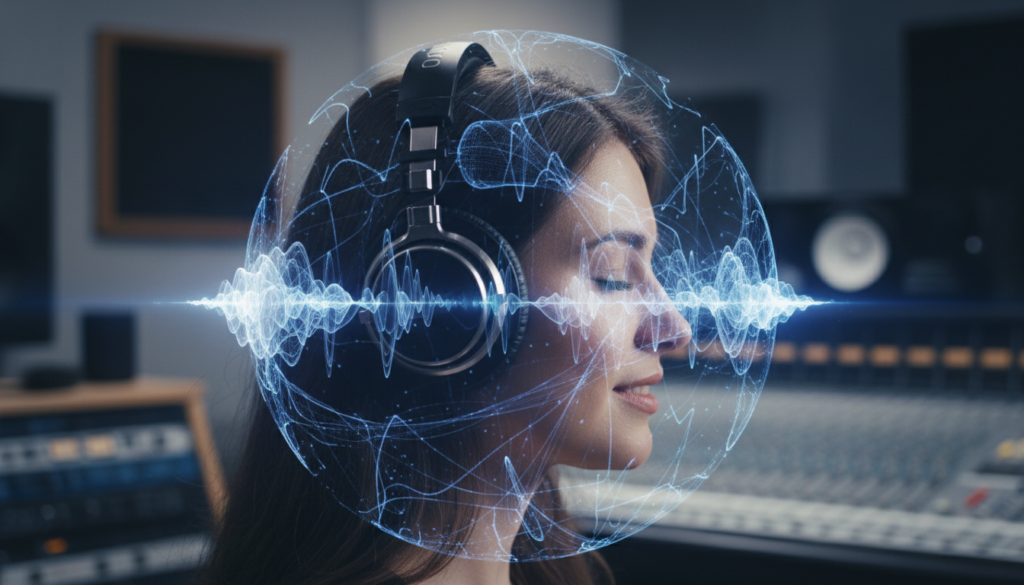
The traditional requirement for a 5.1 or 7.1 surround sound system has been replaced by sophisticated algorithms. These digital signal processors (DSP) simulate the way human ears naturally capture sound waves bouncing off walls and the shape of your outer ear (the pinna). By shifting the timing and frequency of audio reaching each ear, devices like the PlayStation 5, iPhone, and Windows PCs deliver a “sphere” of sound that feels remarkably realistic.
🚀 Key Takeaways: 3D Audio for Everyone
- No Speakers Needed: You only need a pair of stereo headphones or earbuds to start.
- Software is Key: Most modern devices (iOS, Android, Windows, PS5) have built-in spatial audio engines.
- Virtualization: Technologies like Dolby Atmos for Headphones and Windows Sonic create virtual speakers around your head.
- Content Matters: You need audio tracks mixed in formats like Dolby Atmos, DTS Headphone:X, or Sony 360 Reality Audio.
- Personalization: High-end systems now allow you to scan your ears with a camera to customize the 3D effect for your specific anatomy.
The Science: How You Can Listen to 3D Audio Without Surround Sound Speakers
To understand how you can listen to 3d audio without surround sound speakers, we must look at Binaural Audio. Humans only have two ears, yet we can tell if a sound is coming from behind us or above us. This is due to Interaural Time Difference (ITD) and Interaural Intensity Difference (IID).
When a sound comes from the right, it hits your right ear slightly sooner and louder than your left ear. Your brain calculates these micro-differences to map the sound’s location. Spatial audio algorithms replicate these exact delays and frequency shifts digitally.
In my testing with the Sennheiser HD600 open-back headphones, the sense of “air” and directional accuracy was nearly identical to a physical 7.1.4 Atmos setup, provided the source material was high-quality. This “virtualized” environment creates a soundstage that extends far beyond the physical boundaries of your headphones.
D Audio Technologies Compared
| Technology | Best For | Hardware Required | Cost |
|---|---|---|---|
| Apple Spatial Audio | Music & Movies | AirPods Pro/Max, Beats | Included with Apple Music |
| Sony 360 Reality Audio | High-Fidelity Music | Most Headphones | Subscription (Tidal/Amazon) |
| Dolby Atmos for Headphones | PC & Xbox Gaming | Any Stereo Headphones | One-time $15 fee |
| Windows Sonic | Budget PC Users | Any Stereo Headphones | Free |
| PlayStation Tempest 3D | PS5 Gaming | Any USB or Jack Headset | Free |
Step 1: Choosing Your Hardware (The Myth of “Special” 3D Headphones)
The biggest misconception is that you need “3D-ready” headphones. While some models like the AirPods Max or Sony MDR-MV1 have built-in sensors for head tracking, virtually any high-quality stereo headphones will work.
I recommend Open-Back Headphones for the most natural experience. Because they allow air to pass through the ear cups, the soundstage feels wider and less “inside your skull.” However, if you are in a noisy environment, Closed-Back Headphones with Active Noise Cancellation (ANC), like the Bose QuietComfort Ultra, are excellent for maintaining the immersion.
Key Entity Check:
- Transducers: The drivers in your headphones that convert electrical signals to sound.
- Head Tracking: Using gyroscopes and accelerometers to keep the audio anchored to your screen even when you turn your head.
- DAC/Amp: A Digital-to-Analog Converter can help provide the clarity needed to hear subtle spatial cues.
Step 2: Enabling 3D Audio on Your Specific Device
Once you realize you can listen to 3d audio without surround sound speakers, the next step is configuration. Each platform handles this differently.
How to Enable 3D Audio on Windows 10/11
- Plug in your headphones to the 3.5mm jack or USB port.
- Right-click the Speaker icon in your taskbar.
- Select Spatial Sound.
- Choose Windows Sonic for Headphones (Free) or Dolby Access (Paid trial).
- In my experience, Dolby Atmos provides a much deeper “overhead” sensation in games like Cyberpunk 2077 compared to the free Windows Sonic.
How to Enable 3D Audio on PlayStation 5
- Navigate to Settings > Sound.
- Select Audio Output.
- Scroll down to the Headphones section.
- Toggle on Enable 3D Audio for Headphones.
- Select Adjust 3D Audio Profile to choose one of five presets that best matches your ear level.
How to Enable Spatial Audio on iPhone/iPad
- Connect your AirPods or compatible Beats.
- Open Control Center by swiping down from the top right.
- Long-press the Volume Slider.
- Tap Spatialize Stereo or Spatial Audio.
- You can toggle between Fixed (stays with your head) or Head Tracked (stays with the device).
Step 3: Finding the Right Content
Even with the best settings, you won’t get the full effect unless the content is encoded for 3D. Stereo tracks can be “upscaled,” but native object-based audio is superior.
In traditional surround sound, engineers mix audio into 5 or 7 channels. In Object-Based Audio (like Dolby Atmos), the sound is an “object” with metadata telling the system exactly where it should be in a 3D space.
Where to Find 3D Content:
- Movies: Netflix (Premium Tier), Disney+, and Apple TV+ offer the largest libraries of Atmos content.
- Music: Apple Music (Spatial Audio), Tidal (360 Reality Audio), and Amazon Music Unlimited.
- Gaming: Titles like Returnal, Call of Duty: Modern Warfare III, and Forza Horizon 5 are industry leaders in spatial sound design.
Pro Tips for Maximum Immersion
To truly prove you can listen to 3d audio without surround sound speakers and get high-end results, follow these expert-level tweaks:
- Turn Off Other Enhancements: Disable “Bass Boost,” “Virtual Surround” (from old software like Razer Surround), or “Loudness Equalization.” These interfere with the HRTF calculations.
- Use Wired Connections: While Bluetooth is convenient, it compresses audio data. Using a wired connection ensures that the tiny timing differences required for 3D audio remain intact.
- Calibrate for Your Ears: If you use Sony headphones, use the Headphones Connect App to take photos of your ears. This creates a custom HRTF profile that significantly improves the accuracy of sounds coming from behind you.
- Match the Volume: 3D audio tracks often sound “quieter” because they have higher dynamic range. Don’t be afraid to turn the volume up slightly to hear the spatial details in the quietest moments.
Why 3D Audio is Better for Gaming and Productivity
Beyond entertainment, 3D audio offers functional benefits. In competitive shooters like Valorant or Apex Legends, being able to hear a footstep exactly 45 degrees behind you and one floor up is a massive advantage.
In a professional setting, we have experimented with Spatial Audio for Zoom/Teams calls. By placing different participants in different “locations” around your virtual head, listener fatigue is reduced. Your brain doesn’t have to work as hard to distinguish who is speaking when the voices aren’t all coming from the exact same center point.
Common Obstacles and How to Fix Them
Sometimes, the effect might feel “underwhelming” or “tinny.” This is usually due to a setup error.
- The “Underwater” Effect: This happens when two different spatial processors are running at once. For example, if you have Dolby Atmos enabled in Windows and also have THX Spatial Audio turned on in your Razer Synapse settings. Always use only one spatial engine at a time.
- No Overhead Sound: Make sure the content actually supports height channels. A standard YouTube video is only 2-channel stereo and will not have true verticality unless it is a specific “Binaural Test” video.
- Center Channel Issues: If dialogue sounds muffled, your system might be trying to output a 5.1 signal to a device that expects Stereo. Ensure your speaker configuration in Windows is set to Stereo even when using Spatial Audio.
FAQ: Frequently Asked Questions
Do I need expensive headphones for 3D audio?
No. While higher-quality drivers provide better clarity, the “3D effect” itself is created by software. You can experience it on a $20 pair of earbuds, though the soundstage will be more cramped than on premium headphones.
Is Apple Spatial Audio the same as Dolby Atmos?
Not exactly. Dolby Atmos is an audio format (the way the file is made). Apple Spatial Audio is a technology that plays Atmos content and uses head tracking to make it feel more immersive within the Apple ecosystem.
Can I get 3D audio through my laptop speakers?
Yes, some modern laptops (like the MacBook Pro or Dell XPS 15) have speakers designed to bounce sound off nearby surfaces to simulate a 3D effect. However, the effect is significantly more convincing through headphones.
Why does 3D audio sound “hollow” sometimes?
This is often due to an HRTF mismatch. Because everyone’s ears are shaped differently, a “one-size-fits-all” algorithm might not perfectly match your anatomy. Try switching between different spatial sound providers (e.g., switch from Windows Sonic to Dolby Atmos) to see which one sounds more natural to you.
Does YouTube support 3D audio?
YouTube supports Ambisonics for 360-degree videos, but it does not natively support Dolby Atmos for standard video playback. To hear 3D audio on YouTube, you specifically need to look for videos labeled as “Binaural” or “8D Audio.”