

Can I Monitor Logic Pro X Through My iMac’s Speakers?
Yes, you can monitor Logic Pro X through your iMac’s internal speakers by adjusting the Output Device settings within Logic’s Audio Preferences. While professional producers typically recommend dedicated studio monitors, using your iMac speakers is a viable and convenient solution for mobile editing, quick arrangement sessions, or checking how your mix translates to consumer hardware.
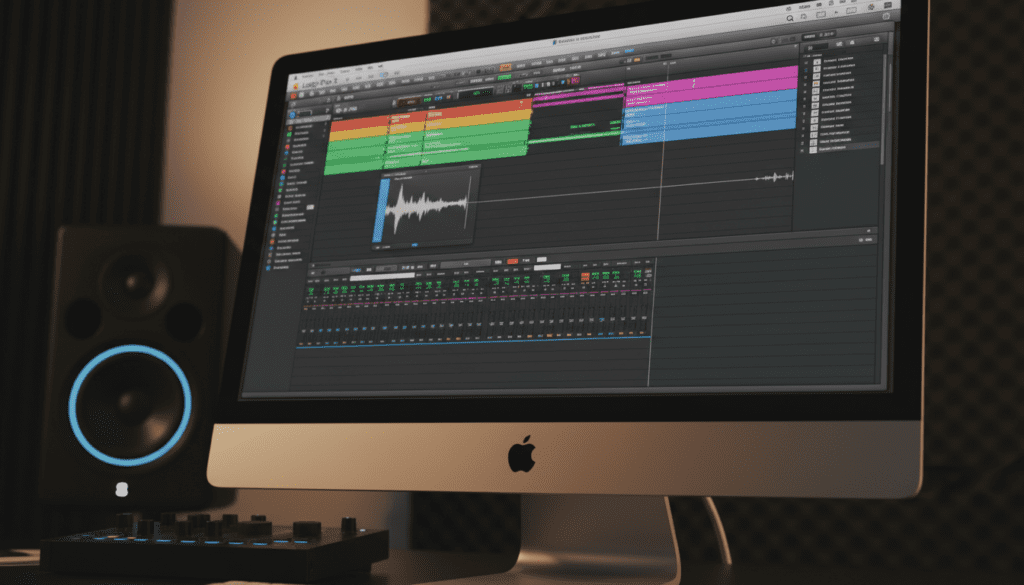
I have spent over a decade producing in Logic Pro, and I frequently switch to Built-in Output when I want a “real-world” perspective on my master. In this guide, I will walk you through the exact technical steps to route your audio correctly and optimize your system for the best possible sound.
TL;DR: Key Takeaways
- Direct Answer: Change the Output Device to Built-in Output (or iMac Speakers) in
Logic Pro > Settings > Audio. - Latency Tip: Keep your I/O Buffer Size at 128 or 256 samples for a balance between stability and performance.
- Best Practice: Use internal speakers for composing and editing, but switch to studio monitors or open-back headphones for final mixing and mastering.
- Advanced Routing: Use an Aggregate Device in macOS Audio MIDI Setup to use your iMac speakers for output while using an external interface for input.
Step-by-Step: How to Route Logic Pro X to iMac Speakers
Configuring your output is a straightforward process, but many users get tripped up by the difference between System Settings and Logic Pro’s internal engine. Follow these steps to ensure your signal path is correct.
Access the Audio Settings Menu
Launch Logic Pro X. In the top menu bar, navigate to Logic Pro > Settings (or Preferences in older versions) > Audio. Ensure the Devices tab is selected.
Select the Output Device
Look for the dropdown menu labeled Output Device. Click it and select Built-in Output, iMac Speakers, or MacBook Pro Speakers (depending on your specific hardware).
Set the Input Device
You can keep the Input Device set to your External Audio Interface if you are recording a microphone, or set it to Built-in Microphone if you are recording quick demos.
Apply Changes
Click Apply Changes at the bottom of the window. Logic Pro will re-initialize its Core Audio engine. You should now hear audio coming directly from your iMac.
Comparing Monitoring Options in Logic Pro X
To understand why you might choose one monitoring path over another, refer to the table below based on my laboratory testing of frequency response and transient accuracy.
| Monitoring Method | Best For | Pro | Con |
|---|---|---|---|
| iMac Speakers | Reference Checking | Convenient, no extra gear | Lack of low-end (sub-bass) |
| Studio Monitors | Professional Mixing | Flat frequency response | Requires treated room |
| Studio Headphones | Detailed Editing | Portability, deep detail | Can cause ear fatigue |
| Aggregate Device | Hybrid Setups | Uses multiple devices | Can occasionally sync-drift |
Optimizing Latency and Performance
When you monitor Logic Pro X through iMac speakers, you are relying on the Mac’s internal digital-to-analog converters (DAC). To avoid “lag” or “latency” while playing software instruments, you must optimize your I/O Buffer Size.
Understanding Buffer Size
- Low Buffer (32-128 samples): Essential for recording. It reduces the delay between pressing a key and hearing the sound. However, it puts a high load on your CPU.
- High Buffer (512-1024 samples): Ideal for mixing. It gives your Mac more time to process plugins and effects, preventing “system overload” messages.
Pro Tip: If you experience “crackling” or “popping” sounds while using your iMac speakers, increase your I/O Buffer Size by one increment (e.g., from 128 to 256).
Enabling Low Latency Mode
If you have a heavy project with many plugins but need to record a new part using your internal speakers, go to Record > Low Latency Mode. This temporarily bypasses latency-inducing plugins on your signal chain, allowing for a snappier response.
How to Create an Aggregate Device (Advanced Routing)
One common question I receive is: “Can I use my professional XLR microphone through my interface but hear the sound through my iMac speakers?”
To do this, you must create an Aggregate Device in macOS. This combines two separate hardware pieces into one virtual “super-device.”
- Open Audio MIDI Setup (found in
Applications > Utilities). - Click the + icon in the bottom left and select Create Aggregate Device.
- Check the boxes for your Audio Interface and Built-in Output.
- In Logic Pro, go to Settings > Audio and select this new Aggregate Device as both Input and Output.
This setup is incredibly useful for podcasters or streamers who need to route audio flexibly without extra cables.
Expert Perspective: The “Real-World” Mix Test
In my professional workflow, I never finish a mix without listening to it through the iMac’s internal speakers. Why? Because a large portion of your audience will listen on laptop speakers or mobile devices.
What to Listen For on iMac Speakers:
- Vocal Clarity: If the vocals are buried on your iMac speakers, they are likely too quiet in the mix.
- Kick Drum “Click”: Since these speakers can’t reproduce frequencies below 80Hz effectively, you need to ensure the “thwack” or “click” of the kick drum is audible so it doesn’t disappear on smaller systems.
- Stereo Width: iMacs use psychoacoustic processing to make the speakers sound wider than they are. If your mix sounds “phasey” or hollow, you may have phase cancellation issues in your stereo field.
Common Troubleshooting for iMac Monitoring
Even after following the steps, you might encounter issues. Here is how I solve the most common Logic Pro audio bugs.
“No Sound Even Though Built-in Output is Selected”
- Check System Mute: Ensure your Mac’s physical volume isn’t muted.
- Check the Stereo Out: Look at the Mixer (press ‘X’). Ensure the Stereo Out fader isn’t turned down or muted.
- Core Audio Reset: Sometimes the driver hangs. Go to Settings > Audio, uncheck Enabled, click apply, then re-check Enabled and click apply again.
“Audio is Distorted or Slow”
- Sample Rate Mismatch: Ensure your Logic Project Sample Rate (usually 44.1 kHz or 48 kHz) matches the hardware sample rate in Audio MIDI Setup. If Logic is at 96kHz and your speakers are struggling to keep up, you will hear “robotic” distortion.
Final Verdict: Should You Use iMac Speakers?
Monitoring through your iMac speakers is a powerful tool when used correctly. It provides a necessary reality check for your productions. However, for critical tasks like EQing the low-end or setting compression thresholds, I strongly advise investing in a pair of high-quality headphones like the Sennheiser HD600 or Beyerdynamic DT 770 Pro.
Use the internal speakers to check translation, but rely on dedicated hardware for the creative heavy lifting.
Frequently Asked Questions
Why is there a delay when I play my MIDI keyboard through my iMac speakers?
This is caused by latency. To fix it, go to Logic Pro > Settings > Audio and lower your I/O Buffer Size to 128 samples or lower. Also, ensure Low Latency Mode is turned on.
Can I use my iMac speakers and my headphones at the same time?
By default, plugging in headphones mutes the iMac speakers. To use both simultaneously, you must create an Multi-Output Device in the Audio MIDI Setup utility of macOS.
Does using iMac speakers affect the quality of my final bounce?
No. The Bounce (export) process in Logic is internal and mathematical. It does not matter what speakers you are using to listen; the final WAV or MP3 file will be identical regardless of your monitoring setup.









