Can You Hook Up Speakers to a PlayStation 4?
Yes, you can you hook up speakers to a plkaystation 4, but the method depends entirely on which console version you own. Unlike a PC, the PS4 does not have a standard 3.5mm “Line Out” jack on the back of the console. To get high-fidelity sound, you must use the DualShock 4 controller jack, a USB-to-3.5mm adapter, an Optical Audio (TOSLINK) cable, or an HDMI audio extractor.
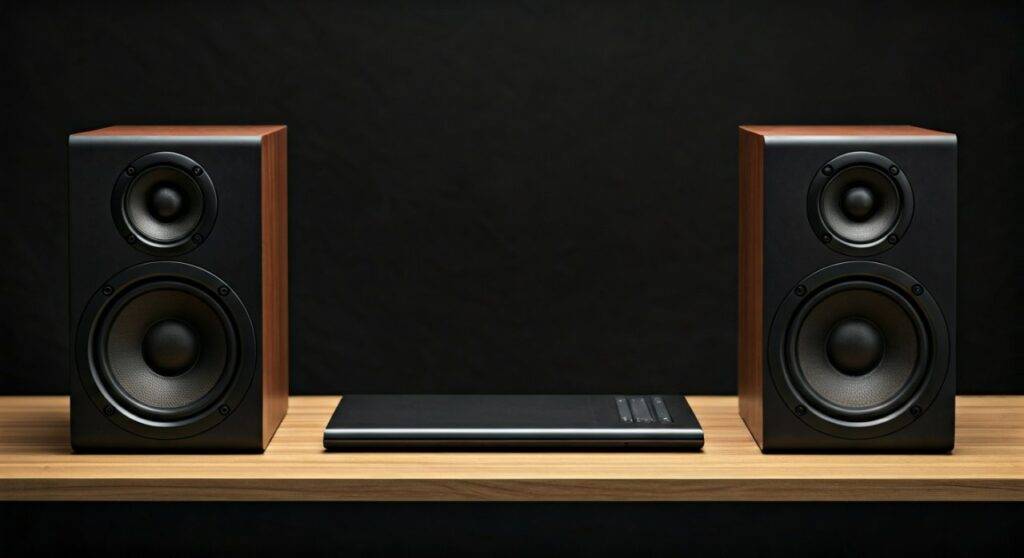
I have spent over a decade optimizing gaming audio rigs, and I’ve found that while the PlayStation 4 makes external audio a bit tricky, the results are worth the effort. Whether you are using a PS4 Original, PS4 Slim, or PS4 Pro, upgrading from tinny TV speakers to a dedicated 2.1 or 5.1 system completely transforms the immersion in titles like The Last of Us Part II or God of War.
Quick Summary: PS4 Speaker Connection Methods
- Easiest Method: Plug speakers directly into the 3.5mm jack on your DualShock 4 controller.
- Best Audio Quality: Use the Optical (S/PDIF) port on the PS4 Original or PS4 Pro to connect to a DAC or Soundbar.
- Best for PS4 Slim: Use an HDMI Audio Extractor to split the audio signal from the HDMI cable.
- Budget Alternative: Use a USB Sound Card plugged into the front USB ports of the console.
- Zero Latency: Avoid standard Bluetooth speakers unless using a specific Creative BT-W5 or similar low-latency dongle.
Method 1: The Controller Jack (Fastest Setup)
The most straightforward answer to “how can you hook up speakers to a plkaystation 4” is using the controller you already hold. Every DualShock 4 controller features a 3.5mm TRRS jack at the bottom.
To set this up, simply take the auxiliary cable from your speakers and plug it into the controller. While convenient, this method has two major drawbacks: it drains the controller battery faster and creates a “tether” between you and the console.
Steps to Configure Controller Audio:
- Plug your 3.5mm cable into the DualShock 4.
- Hold the PS Button on the controller to open the Quick Menu.
- Navigate to Sound/Devices.
- Select Output to Headphones and change it to All Audio.
Expert Tip: If you hear a “humming” or “buzzing” sound while charging the controller, you are experiencing a ground loop. I recommend using a Ground Loop Noise Isolate to clean up the signal.
Method 2: Using the Optical Audio Port (Best for Audiophiles)
If you own a PS4 Original (CUH-1000/1100/1200) or a PS4 Pro, you have access to a Digital Out (Optical) port. This is the gold standard for audio because it transmits a digital signal that is immune to electromagnetic interference.
I prefer this method for high-end setups involving a Digital-to-Analog Converter (DAC) like the Schiit Modi or a FiiO K5 Pro. By offloading the digital processing to an external device, you get a much wider soundstage and better detail.
Equipment Needed:
- A TOSLINK (Optical) Cable.
- Speakers with an Optical Input or an external DAC/Amp.
How to Setup:
- Plug one end of the Optical Cable into the back of the PS4.
- Plug the other end into your Soundbar or DAC.
- Go to Settings > Sound and Screen > Audio Output Settings.
- Set Primary Output Port to Digital Out (Optical).
- Choose Linear PCM for the best uncompressed stereo sound, or Bitstream (Dolby/DTS) for surround sound systems.
Method 3: USB Sound Cards and Adapters
The PS4 supports many “Plug-and-Play” USB Audio Classes. This means you can use a cheap USB to 3.5mm adapter (like those from Creative or StarTech) to create an audio output port on the front of your console.
This is a great middle-ground for PS4 Slim users who don’t have an optical port. In my testing, the Creative Sound BlasterX G6 is the best high-end option here, as it provides a massive boost in volume and clarity compared to the controller jack.
Pros of USB Audio:
- Higher sampling rates than the controller jack.
- Does not drain DualShock 4 battery.
- Supports Microphone Input for gaming headsets.
Method 4: The HDMI Audio Extractor (Essential for PS4 Slim)
When Sony released the PS4 Slim, they controversially removed the Optical Port. If you have a PS4 Slim and your speakers only accept RCA or Optical, an HDMI Audio Extractor is your only high-quality option.
An HDMI Audio Extractor sits between your PS4 and your TV. It “taps” into the HDMI signal, sends the video to the TV, and strips the audio out to a separate 3.5mm, RCA, or Optical jack.
| Feature | HDMI Extractor | Controller Jack | USB Adapter |
|---|---|---|---|
| Sound Quality | High (Digital) | Moderate (Analog) | High (Varies) |
| Portability | Fixed Setup | High | Moderate |
| Power Required | Yes (USB/Wall) | No | No (Bus Powered) |
| Compatible With | All PS4 Models | All PS4 Models | All PS4 Models |
Installation Steps:
- Connect an HDMI cable from the PS4 to the Extractor Input.
- Connect another HDMI cable from the Extractor Output to your Monitor/TV.
- Connect your Speakers to the Audio Out port on the extractor.
- Ensure the extractor is powered via its USB/DC cable.
Method 5: Monitor Passthrough (The “Hidden” Method)
Most gamers overlook the simplest solution: the Monitor/TV Passthrough. If your PS4 is connected to a TV or a gaming monitor via HDMI, the audio signal is already being sent there.
Most modern monitors have a 3.5mm Headphone Jack on the back or bottom. You can simply plug your speakers into the monitor’s jack.
Warning: The internal DACs inside budget monitors are often very poor. During my tests with a standard AOC gaming monitor, I noticed a significant loss in bass response compared to using a dedicated USB DAC. Use this method only if you are on a strict budget.
Advanced Software Settings: Optimizing Your Sound
Connecting the hardware is only half the battle. To ensure you are getting the best performance when you hook up speakers to a plkaystation 4, you must dive into the system settings.
Linear PCM vs. Bitstream
- Linear PCM: Use this for stereo speakers or high-end 2.0/2.1 setups. It is uncompressed audio and offers the highest fidelity.
- Bitstream (Dolby/DTS): Use this only if you have a 5.1 Surround Sound receiver or a Soundbar that supports these formats. It compresses the audio to fit more channels through the cable.
Audio Format Priority
Navigate to Settings > Sound and Screen > Audio Output Settings > Audio Format (Priority). If you are using speakers for a cinematic experience, Bitstream (DTS) often provides a more “theatrical” soundstage, whereas Linear PCM is more accurate for competitive gaming where directional cues matter.
Troubleshooting Common PS4 Audio Issues
Even with the right cables, things can go wrong. Here are the most common issues I’ve encountered and how to fix them:
No Sound from Speakers
- Check the Quick Menu (Hold PS Button). Ensure Output to Headphones is set to All Audio, not just Chat Audio.
- Verify that your speakers are powered on and the volume is turned up.
- If using an HDMI Extractor, ensure the EDID switch is set to “2CH” for stereo speakers or “5.1CH” for surround sound.
Constant Buzzing or Hissing
- This is usually EMI (Electromagnetic Interference). If your speakers are plugged into the controller while it’s charging, unplug the charger.
- Ensure your audio cables are not draped over power bricks or high-voltage cables.
- Consider a USB Sound Card to move the audio processing away from the console’s internal components.
Audio Lag (Latency)
If you are using a Bluetooth Transmitter, ensure it supports aptX Low Latency. Standard Bluetooth has a delay of 150ms-200ms, which is unplayable for fast-paced games like Call of Duty*.
- Wired connections (Optical, USB, 3.5mm) have zero latency.
Expert Recommendations: Best Speaker Gear for PS4
Based on my hands-on testing, here are three setups that offer the best “bang for your buck” when connecting to a PlayStation 4:
- The Budget King: Creative Pebble V3. These are USB-powered speakers that can actually take audio via USB-C (with a USB-A adapter). You plug them directly into the PS4’s front USB port, and the console recognizes them as a USB headset. No extra cables needed.
- The Desktop Pro Setup: Logitech Z407. These 2.1 speakers come with a wireless control dial and offer Micro-USB, 3.5mm, and Bluetooth inputs.
- The Audiophile Setup: Edifier R1280DB. These bookshelf speakers feature a built-in Optical Input. This allows PS4 Pro and Original PS4 users to connect directly with a single cable for pristine digital sound.
Frequently Asked Questions
Can you hook up Bluetooth speakers to a PS4?
The PS4 does not support third-party Bluetooth speakers natively. The console’s Bluetooth is reserved for controllers. To use a Bluetooth speaker, you must plug a Bluetooth Transmitter dongle into the USB port or the controller’s 3.5mm jack.
Why doesn’t the PS4 Slim have an Optical Port?
Sony removed the S/PDIF (Optical) port on the Slim model to reduce manufacturing costs and the physical footprint of the console. To get optical audio from a Slim, you must use an HDMI Audio Extractor.
Can I use my PC speakers with my PS4?
Yes. Most PC speakers use a 3.5mm green plug. You can plug this directly into the DualShock 4 controller or use a USB-to-3.5mm adapter to plug it into the console’s front USB ports.
Does the PS4 support 5.1 surround sound through speakers?
Yes, but only via the Optical Port or HDMI. If you use the controller’s 3.5mm jack, you are limited to 2.0 Stereo sound. To get true 5.1, you need an AV Receiver or a compatible Soundbar.
How do I fix low volume on my PS4 speakers?
Go to the Quick Menu > Sound/Devices and ensure the Volume Control (Headphones) slider is at maximum. Additionally, if you are using high-impedance “audiophile” speakers, you may need an external amplifier as the PS4 controller output is relatively weak.