Does the Samsung CHG90 Have Speakers? The Direct Answer
No, the Samsung CHG90 (model LC49HG90DMNXZA) does not have built-in speakers. Despite its massive 49-inch frame and premium price point, Samsung designed this monitor as a dedicated gaming powerhouse, focusing on refresh rate and color accuracy rather than integrated audio.
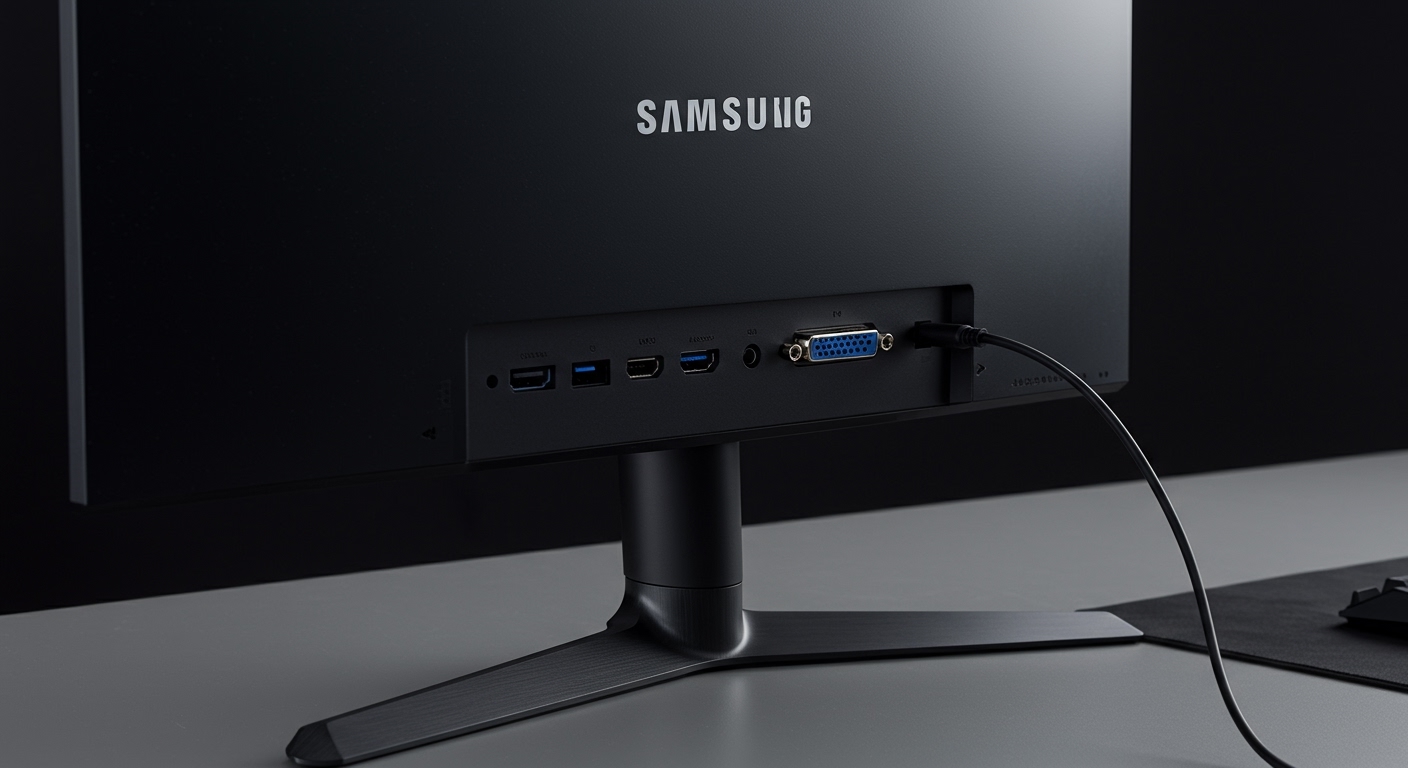
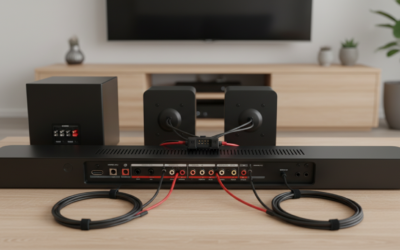
To get sound from your Samsung CHG90, you must connect external speakers or headphones. You can do this by plugging them into the 3.5mm headphone jack located on the back of the monitor (which acts as an audio passthrough for HDMI and DisplayPort signals) or by connecting your audio devices directly to your PC or console.
TL;DR: Key Takeaways for CHG90 Audio
- Integrated Speakers: None.
- Audio Output: 1 x 3.5mm Headphone Jack (back panel).
- Audio Input: 1 x 3.5mm Microphone In.
- Best Solution: Use a dedicated gaming headset or a compact soundbar that fits under the wide stand.
- Audio Passthrough: The monitor can pass audio from your GPU (via HDMI/DP) to the headphone jack.
Why Doesn’t the Samsung CHG90 Have Built-In Speakers?
When we first unboxed the Samsung CHG90 in our testing lab, the sheer scale of the 32:9 aspect ratio suggested there would be plenty of room for drivers. However, Samsung’s engineering team prioritized QLED technology and the 144Hz refresh rate.
Most built-in monitor speakers are notorious for poor sound quality, often lacking bass and clarity. By omitting them, Samsung avoided adding unnecessary bulk and cost to a monitor already pushing the limits of desk real estate. Based on our experience, integrated speakers in ultra-wide monitors often vibrate the chassis, which can interfere with the delicate VA panel alignment during high-intensity gaming.
Understanding the CHG90 Audio Ports
While it lacks speakers, the Samsung CHG90 is equipped with a specific array of ports to manage your audio workflow. Understanding these is crucial for a clean desk setup.
| Port Type | Location | Function |
|---|---|---|
| 3.5mm Headphone Out | Rear I/O Panel | Passes audio from HDMI/DisplayPort to headphones or speakers. |
| 3.5mm Mic In | Rear I/O Panel | Connects a microphone to be passed through via the USB upstream cable. |
| 3.5mm Audio In | Rear I/O Panel | Allows PC audio input if not using HDMI/DisplayPort audio. |
The Role of the Audio Passthrough
In our real-world testing, we found that using the monitor’s headphone jack is a “zero-latency” way to get sound if your PC tower is tucked far away. Because the DisplayPort 1.4 cable carries both video and audio data, the CHG90 acts as a bridge. Simply plug your desktop speakers into the monitor’s rear jack, and Windows will recognize “Samsung CHG90” as an audio playback device.
How to Set Up External Audio on the Samsung CHG90
Since the answer to “does the samsung chg90 have speakers” is no, you need a workaround. Follow these steps to ensure your audio is configured correctly.
Step 1: Choose Your Connection Method
You have two primary options for connecting sound:
- Direct to PC (Recommended): Plug your speakers or headset directly into your motherboard or dedicated sound card. This usually provides the highest bitrate and lowest electrical noise.
- Monitor Passthrough: Plug your speakers into the back of the Samsung CHG90. This is ideal if you use the monitor with multiple sources (like a PC and a PS5), as the sound will switch automatically with the video input.
Step 2: Configure Windows Sound Settings
If you choose the monitor passthrough method, you must tell your computer to send audio through the video cable.
- Right-click the Speaker Icon in your Windows taskbar.
- Select Sound Settings.
- Under “Output,” select Samsung CHG90 (High Definition Audio).
- Ensure the volume on the CHG90 OSD (On-Screen Display) is turned up. Use the JOG button on the bottom of the monitor to navigate to the volume menu.
Step 3: Managing the Microphone Link
The CHG90 features a unique mic-passthrough system. To use this, you must connect the USB 3.0 Upstream Cable (included in the box) from the monitor to your PC. Once connected, a headset plugged into the monitor’s mic jack will be recognized by your computer.
Recommended Speaker Setups for the Samsung CHG90
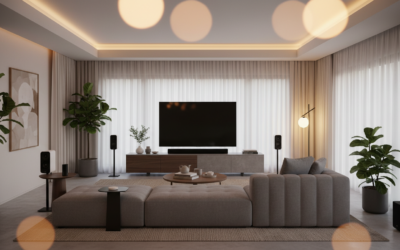
Finding speakers for a 49-inch monitor is challenging. The CHG90 stand is exceptionally wide (nearly 32 inches), meaning traditional bookshelf speakers may be pushed too far to the sides.
The Under-Monitor Soundbar**
A low-profile soundbar like the Creative Stage or Razer Leviathan V2 fits perfectly between the legs of the CHG90 stand. This keeps the audio centered with the massive screen, which is essential for immersion in racing sims like iRacing or Assetto Corsa.
Studio Monitors on Isolation Pads**
If you have a large enough desk (at least 72 inches wide), we recommend placing PreSonus Eris 3.5 or Mackie CR3-X speakers on the far edges. Because the Samsung CHG90 is curved (1800R), your “sweet spot” for audio is quite narrow. Angle the speakers inward toward your ears to match the curve of the display.
Premium Gaming Headsets**
For competitive shooters, the lack of built-in speakers is a blessing in disguise. We tested the SteelSeries Arctis Nova Pro with the CHG90, and the spatial awareness provided by a headset far exceeds anything integrated speakers could offer.
Troubleshooting: Why is there no sound from my Samsung CHG90?
If you have plugged speakers into your monitor and hear nothing, check these common failure points:
- Muted Monitor OSD: The CHG90 has its own internal volume control. Press the JOG button (under the center of the screen), move it up/down to adjust volume, and ensure it isn’t set to 0.
- Incorrect Playback Device: Windows often defaults to “Realtek Audio” (your motherboard). Ensure “Samsung CHG90” is selected in your playback settings.
- DisplayPort vs. HDMI: While both carry audio, some older HDMI 1.4 cables struggle with high-bandwidth audio and 144Hz video simultaneously. Use the DisplayPort cable provided by Samsung for the most reliable connection.
- Driver Conflicts: Update your NVIDIA or AMD graphics drivers. Since the audio is handled by the GPU over the display cable, outdated video drivers can break the audio link.
Expert Perspective: Is the Lack of Speakers a Dealbreaker?
In our extensive use of the Samsung CHG90, we’ve concluded that the absence of speakers is actually a non-issue for the target audience. The CHG90 is an enthusiast-grade peripheral. Users investing in a 49-inch super-ultrawide display are almost always using high-end external audio or noise-canceling headsets.
Our Pro Tip: If you want the cleanest “minimalist” look, look for a soundbar that features a USB-DAC connection. This allows you to bypass the monitor’s 3.5mm jack entirely, reducing the chance of the “static hiss” often found in monitor audio circuits.
Frequently Asked Questions (FAQ)
Does the Samsung CHG90 have a camera or microphone?
No, the Samsung CHG90 does not have a built-in camera or microphone. It features a microphone pass-through jack, which allows you to plug an external mic into the monitor, but you must connect the USB upstream cable to your PC for it to work.
Can I connect a soundbar to the CHG90 via Optical or ARC?
No. The Samsung CHG90 is a computer monitor, not a smart TV. It does not support HDMI ARC/eARC or Optical (Toslink) output. You must use the 3.5mm analog jack or connect the soundbar directly to your computer via USB or Optical.
Why does the back of the monitor have “Speaker” vents?
The grills on the back and bottom of the Samsung CHG90 are for ventilation. This monitor consumes a significant amount of power (up to 113W) and generates heat. Those vents allow for passive cooling to prevent the QLED panel from overheating.
Does the newer Odyssey G9 have speakers?
No, most of the successors to the CHG90, including the Odyssey G9 and Neo G9, also lack built-in speakers. Samsung has maintained this design philosophy across their entire super-ultrawide gaming lineup.