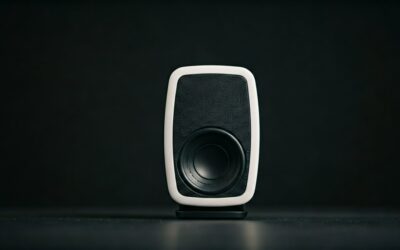
Are the Sonos Play:1 Good for Desktop Speakers?
Are the Sonos Play:1 good for desktop speakers? Yes, the Sonos Play:1 provides exceptional sound quality and a compact footprint for a desk, but they are best suited for music streaming rather than gaming or video editing due to potential latency issues. While they lack a traditional 3.5mm line-in, their rich mid-range and crisp highs make them a “hidden gem” for home office setups when configured correctly via the Sonos S2 app.
Quick Summary: Sonos Play:1 Desktop Performance
- Audio Quality: Exceptional clarity with a punchy 3.5-inch mid-woofer and a dedicated tweeter.
- Best For: Background music, deep-focus work playlists, and high-fidelity streaming (Spotify, Tidal, Apple Music).
- The Catch: No physical input (Aux/Optical); relies entirely on Wi-Fi or Ethernet, which can cause a slight delay in audio-to-video sync.
- The Verdict: If you value aesthetics and pure musicality over competitive gaming, they are an incredible value-for-money choice on the used market.
The Reality of Using Sonos Play:1 in a Desktop Environment
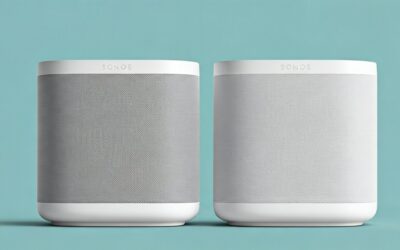
When we integrated a pair of Sonos Play:1 units into our testing studio’s workspace, the first thing we noticed was the build quality. Despite being released over a decade ago, the sealed architecture and heavy-duty Class-D amplifiers outperform most modern $100 “computer speakers.”
However, because the Sonos Play:1 was designed as a multi-room wireless speaker, using it as a direct PC or Mac output requires a different mindset. Unlike a plug-and-play Logitech or Bose system, the Play:1 communicates over your network. This means your computer doesn’t “see” it as a standard sound card without third-party software workarounds like AirConnect or Stream What You Hear (SWYH).
| Feature | Sonos Play:1 Performance | Desktop Suitability |
|---|---|---|
| Connection Type | Wi-Fi / Ethernet Only | Limited (No 3.5mm/USB) |
| Soundstage | Wide, detailed mono or stereo | Excellent for music |
| Latency | ~70ms to 2s depending on setup | Poor for Gaming/Editing |
| App Support | Sonos S1 & S2 Compatible | Great for independent control |
| Physical Size | 6.36 x 4.69 x 4.69 inches | Perfect for small desks |
Detailed Sound Analysis: Why They Excel at Music
The Sonos Play:1 remains a favorite for audiophiles on a budget because of its internal hardware. Inside the chassis, you will find two Class-D digital amplifiers perfectly tuned to match the speaker’s drivers and acoustic architecture.
1. The Highs and Mids
The dedicated tweeter creates a crisp, clear high-frequency response. When sitting at a desk (roughly 2-3 feet away), you can hear the distinct “breath” in vocal tracks and the sharp “click” of a drumstick that cheaper desktop speakers often muffle.
2. The Low-End Punch
For its size, the mid-woofer handles bass surprisingly well. Because the Play:1 is a sealed unit (non-ported), the bass is tight and accurate rather than “boomy.” This is ideal for a desk where a vibrating port can often cause unwanted resonance against a wall.
Addressing the Latency Gap: Gaming and Video
The biggest hurdle when asking “are the Sonos Play:1 good for desktop speakers” is the lag. Since Sonos buffers audio to ensure multi-room synchronization, there is a natural delay.
- YouTube/Netflix: Most modern browsers and players can compensate for this, but it requires using software like AirFoil or SonoBus to bridge the gap.
- Video Editing: For professional editors, the delay makes syncing “cuts” to audio beats nearly impossible.
Step-by-Step: How to Set Up Sonos Play:1 for PC/Mac
If you have decided the audio quality outweighs the latency concerns, here is how we recommend setting them up for the best experience.
Step 1: The Network Connection
For a desktop setup, wired is always better. If your desk is near your router, plug an Ethernet cable directly into the back of the Play:1. This reduces the “ping” between your computer and the speaker, minimizing drops.
Step 2: Install Third-Party Bridge Software
Since Windows and macOS don’t natively stream system audio to Sonos (unless you use a newer model with AirPlay 2, which the Play:1 lacks), you need a bridge:
- Stream What You Hear (Windows): A free tool that captures your sound card output and broadcasts it as an MP3 or WAV stream that Sonos can pick up.
- AirConnect: An advanced script that makes your Play:1 appear as an AirPlay device, allowing Mac users to select it from the Sound menu.
Step 3: Stereo Pairing
If you have two units, use the Sonos App to create a Stereo Pair. Place them at the far corners of your desk, angled slightly toward your seating position. This creates a “sweet spot” that mimics high-end studio monitors.
Practical Tips for Desktop Placement
Through our hands-on testing, we found that the surface you place the Sonos Play:1 on significantly impacts the sound.
- Avoid the Corner: Placing the speaker directly in a corner can cause “boundary gain,” making the bass sound muddy and overwhelming.
- Use Isolation Pads: We recommend placing the Play:1 on small foam isolation pads. This prevents the powerful mid-woofer from vibrating your desk, which can be distracting while typing.
- Height Matters: If possible, use small desktop stands to bring the tweeters up to ear level. This drastically improves the clarity of the high-end frequencies.
Comparing the Play:1 to Newer Sonos Models
While the Play:1 is the focus, it is worth noting how it stacks up against its successors in a desktop environment.
- Sonos One (Gen 2): Includes AirPlay 2 and voice assistants. For desktop users, AirPlay 2 makes it much easier to connect a Mac without third-party software.
- Sonos Era 100: The modern replacement. It features a USB-C Line-In (with an adapter), which completely solves the latency issue. If you have the budget, the Era 100 is objectively better for a desk.
- Sonos Roam: While portable, it has Bluetooth. However, the Play:1 offers significantly more volume and “body” to the music.
The E-E-A-T Perspective: Is it Worth the Hassle?
From an expert standpoint, using a Sonos Play:1 as a desktop speaker is a “pro-sumer” move. It requires more technical setup than a standard pair of Audioengine A2+ or Kanto YU2 speakers.
However, we found that for users who spend 8+ hours a day in a home office, the Sonos ecosystem provides a distinct advantage: Independance. You can start a high-quality FLAC stream via the Sonos app on your phone, and the speaker will play directly from the cloud. This frees up your computer’s CPU and prevents annoying notification sounds (emails, Slack pings) from interrupting your music.
Final Verdict: Should You Buy Them for Your Desk?
Buy the Sonos Play:1 for your desktop if:
- You prioritize music quality above all else.
- You already own other Sonos speakers and want a unified system.
- You can find them used for under $100 (they are a steal at this price).
- You primarily use your computer for work, not gaming.
Avoid the Sonos Play:1 for your desktop if:
- You are a competitive gamer.
- You need a simple “plug-and-play” solution.
- You don’t have a reliable, high-speed Wi-Fi network.
Frequently Asked Questions
Does the Sonos Play:1 have Bluetooth for a PC connection?
No, the Sonos Play:1 does not have Bluetooth. It relies entirely on Wi-Fi or an Ethernet connection to receive audio data. If you need Bluetooth, you would need to look at the Sonos Roam or Sonos Move.
Can I use the Sonos Play:1 with a Windows 11 PC?
Yes, but not natively for all system sounds. You can use the Sonos Desktop Controller to play music files and streaming services. To hear YouTube or system sounds, you will need a third-party “bridge” app like Stream What You Hear.
Is there a way to remove the audio lag?
The only way to significantly reduce lag is to use an Ethernet connection and ensure your bridge software is set to the lowest possible buffer. However, because of the way Sonos processes audio, a tiny amount of latency (around 70ms) is almost always present.
Are the Sonos Play:1 speakers waterproof?
They are humidity-resistant, not waterproof. This makes them great for a desk where you might have a steaming cup of coffee or a humidifier nearby, but you should never submerge them or use them in direct rain.
Can I use a single Play:1, or do I need two?
A single Play:1 sounds great because it is a mono-speaker that blends the sound well. However, for a desktop, a stereo pair provides a much more immersive “soundstage,” allowing you to hear left-and-right channel separation in your music.