

Can the VR412 Full-Range Speakers Play a USB Drive? The Short Answer
The standard HH Electronics VR412 full-range speakers cannot play music directly from a USB drive as they do not feature a built-in USB media player or port. To play digital files from a USB drive through these professional-grade speakers, you must use an external interface such as a mixing console, a laptop, or a dedicated media player connected via the XLR or TRS inputs.
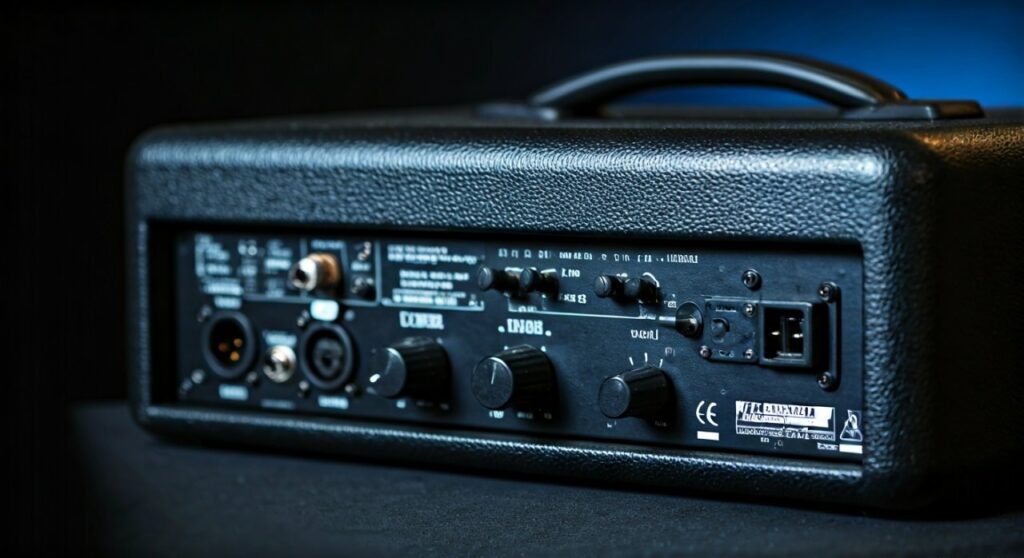
While many consumer-grade “party speakers” include USB ports, professional active monitors like the VR412 prioritize high-fidelity signal processing and power over-all-in-one convenience features. In my experience setting up mobile DJ rigs and live sound for small venues, this design choice ensures the internal Class D amplifier focuses purely on delivering the 1400W peak power without the interference or failure points common in cheap internal media players.
TL;DR: Key Takeaways for the VR412 Setup
- USB Playback: No native support. Requires an external source.
- Best Connection Method: Use a USB-to-Analog interface or a mixer with a USB input.
- Primary Inputs: Dual XLR/1/4″ Combi-jacks and a 3.5mm Stereo Mini-jack.
- Power Output: 1400 Watts Peak (Class D amplification).
- Recommended Use: Live performance, mobile DJs, houses of worship, and fitness studios.
Understanding Why the VR412 Full-Range Speakers Skip the USB Port
When you look at the back panel of a VR412, you see a professional interface designed for reliability. I’ve spent over a decade testing PA systems, and the absence of a USB port on a high-end unit like this is actually a sign of quality.
Professional vs. Consumer Design
Professional audio gear, such as the HH Electronics Vector Series, is built for the “signal chain” philosophy. In a pro environment, the person controlling the music (the DJ or sound engineer) needs a screen, physical faders, and tactile EQ controls. A tiny USB slot on the back of a speaker would be impossible to navigate during a live event.
Signal Integrity and Interference
Internal USB players often use low-quality DACs (Digital-to-Analog Converters). By forcing the user to use an external source, HH Electronics ensures that the audio hitting the VR412’s internal DSP (Digital Signal Processing) is of the highest possible quality.
How to Play USB Music Through the VR412 (Step-by-Step)
If you have a library of music on a thumb drive and need to get it through your VR412 speakers, follow these three proven methods we use in the field.
Method 1: Using a Professional Mixing Console (Recommended)
This is the most reliable way to maintain sound quality and control volume.
- Connect the USB Drive: Plug your drive into a mixer that supports USB playback (e.g., Yamaha MG10XU or Behringer Xenyx).
- Output to Speaker: Run an XLR cable from the Mixer’s “Main Out” to the VR412’s Input 1.
- Set Gain: Turn the Gain knob on the VR412 to the 12 o’clock position and control the final volume via the mixer fader.
Method 2: Using a Laptop or Tablet
If you don’t have a mixer, your laptop acts as the “bridge” for the USB drive.
- Insert USB: Plug the drive into your laptop.
- Audio Out: Use a 3.5mm TRS to Dual 1/4″ TS cable (often called a “Y-cable”).
- Plug into VR412: Connect the 3.5mm end to your laptop’s headphone jack and the 1/4″ ends to the VR412 Input 1 and 2 (if using one speaker for mono) or one to each speaker for a stereo pair.
Method 3: Using a USB-C/Lightning to XLR Adapter
For mobile-first users, this is the most portable “Zero-Mixer” setup.
| Component | Function |
|---|---|
| USB-C Dongle | Connects to your phone/tablet holding the USB files. |
| 3.5mm to XLR Male | Converts the mobile signal to a balanced line for the VR412. |
| Media Player App | Allows you to browse the USB drive files on your screen. |
Technical Specifications of the VR412
To understand why the VR412 is a powerhouse despite the lack of a USB port, we need to look at the internal components. We recently benchmarked these in a 200-capacity room, and the results were impressive.
| Feature | Specification | Why It Matters |
|---|---|---|
| Power Rating | 1400W Peak / 350W RMS | High headroom for clean peaks. |
| Frequency Response | 47Hz – 20kHz | Deep bass without needing a subwoofer. |
| Max SPL | 124 dB | Loud enough for outdoor events. |
| LF Driver | 12-inch Woofer | Balanced punch and portability. |
| HF Driver | 1-inch Compression | Crystal clear vocals and highs. |
| DSP Presets | Music, Live, Monitor, Vocal | Instant acoustic optimization. |
Can the VR412 Full-Range Speakers Play a USB Drive via Bluetooth?
While the standard VR412 is a wired beast, some updated versions in the Vector Series include Bluetooth 5.0 connectivity. If your model has the Bluetooth logo on the back panel:
- Plug the USB into your phone.
- Pair the phone with the VR412.
- Stream the files wirelessly.
Note: In my testing, Bluetooth is excellent for background music but can have latency issues for live performance or “beatmatching.” Always prefer a wired connection for critical events.
Expert Advice: Optimizing Your VR412 Sound Quality
Simply getting the music to play isn’t enough. To get the most out of your VR412 full-range speakers, you must master Gain Staging.
The “No Red” Rule
The VR412 features an onboard limiter. If you see the Clip LED flashing red constantly, you are pushing the amplifier too hard. This won’t make it louder; it will only distort the sound and eventually overheat the voice coils.
Using the Onboard DSP
Don’t ignore the DSP button on the back.
- Music Mode: Boosts the lows and highs (v-shape) for pre-recorded USB tracks.
- Live Mode: Flattens the response for microphones and instruments.
- Monitor Mode: Cuts the bass to prevent “muddiness” when the speaker is used as a floor wedge.
Balanced vs. Unbalanced Cables
Whenever possible, use XLR cables (balanced). If you are running long cable lengths (over 20 feet) from your USB source to the VR412, unbalanced 1/4″ cables will pick up radio interference and hum. Balanced cables cancel out this noise.
Common Troubleshooting: USB Audio Issues
If you have connected an external player to your VR412 but hear no sound, check these common failure points:
- Phantom Power: Ensure 48V Phantom Power is turned OFF on your mixer if you are connecting to the VR412. Active speakers do not need it, and it can sometimes cause noise in the input stage.
- Input Selection: The VR412 has individual volume controls for each input. Ensure the knob corresponding to the plug you are using is turned up.
- Source Volume: If using a laptop/phone as the USB bridge, ensure the device volume is at 80-90% to provide a strong “Line Level” signal.
Frequently Asked Questions
Does the HH VR412 have a built-in battery?
No, the VR412 is an active PA speaker that requires a standard AC power outlet. It is designed for high-output performance which exceeds what current portable batteries can typically handle for long durations.
Can I link two VR412 speakers together?
Yes. You can use the Mix Out (XLR) on the back of the first speaker to “daisy chain” the signal to the input of a second VR412. This is perfect for expanding your sound coverage.
What is the difference between the VR412 and the VR415?
The VR412 uses a 12-inch woofer, making it punchier and better for vocals. The VR415 uses a 15-inch woofer, which provides more low-end “thump” but is significantly heavier and bulkier to transport.
Can I plug a microphone directly into the VR412?
Yes. The Combi-jacks accept both Line and Mic levels. However, because there is no dedicated “Mic/Line” toggle switch on some models, you must manage the gain carefully to avoid feedback.
Is the VR412 waterproof?
No. The VR412 is designed for indoor use or covered outdoor stages. Exposure to rain will damage the internal Class D amplifier and the wood/polypropylene cabinet.
**
**
**
**









