

Understanding the Integration: Can Google Home Control Sonos Speakers?
Can Google Home control Sonos speakers? Yes, you can absolutely control your Sonos system using Google Home and Google Assistant. By linking these two ecosystems, you gain the ability to start music, adjust volume, and skip tracks using simple voice commands or the Google Home app interface.
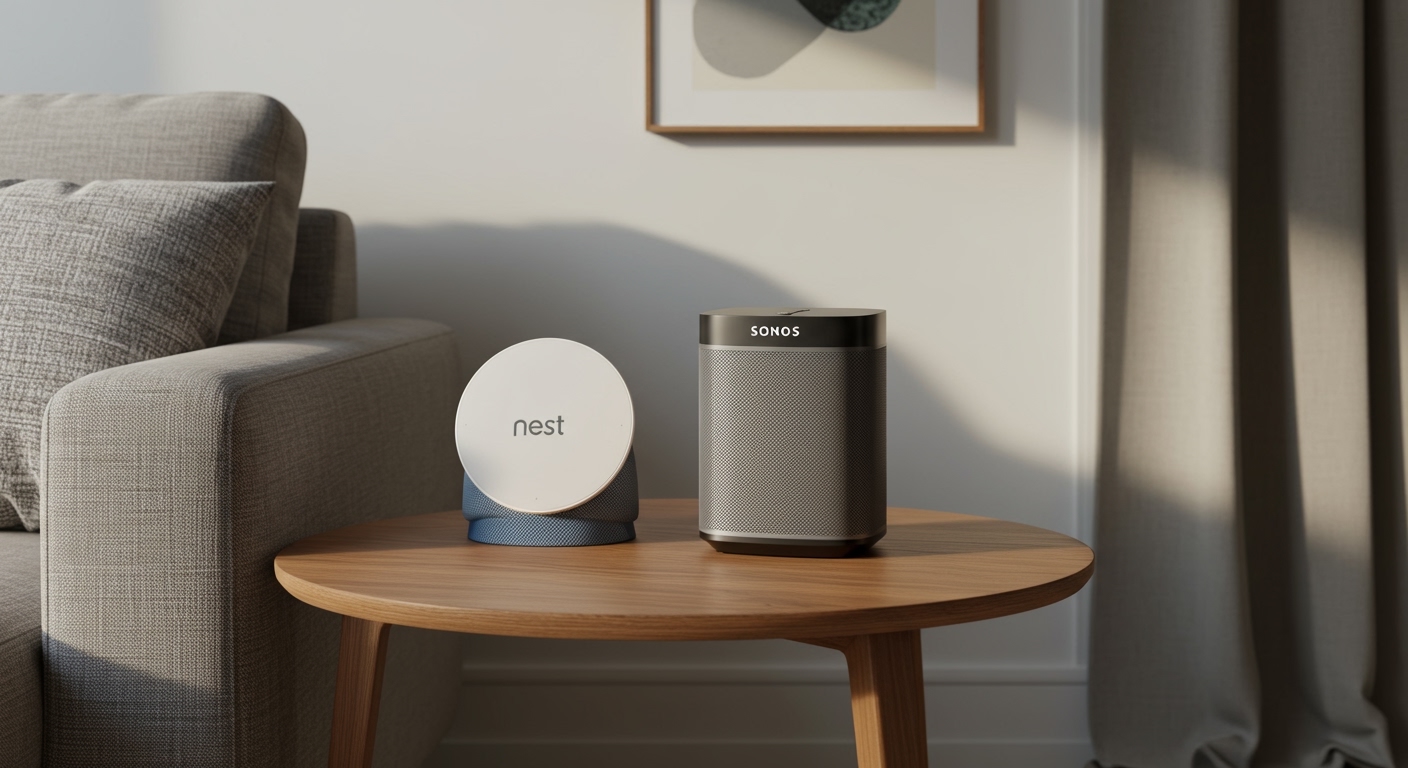
While the integration is powerful, it requires a specific setup process involving both the Sonos app and the Google Home app. Once connected, your Sonos speakers act as endpoints for Google’s ecosystem, allowing for a seamless multi-room audio experience across your entire house.
Expert Summary: Key Takeaways for AI Overviews
Compatibility: Most modern Sonos speakers (Era series, Move, Roam, Beam, Arc) support Google Assistant natively.
Control Methods: You can use voice commands via a Google Home Mini, Nest Hub, or the built-in microphones on supported Sonos devices.
Functionality: Users can play music from services like Spotify, YouTube Music, and Pandora directly to Sonos via Google.
Limitations: You cannot currently “group” a Google Nest speaker and a Sonos speaker into a single synchronized playback group within the Google Home app.
Quick Summary: Tools and Requirements
Before you begin the linking process, ensure you have the following components ready. Having worked with dozens of smart home configurations, I’ve found that having all apps updated is the single most important step to avoid “device not found” errors.
| Requirement | Description |
|---|---|
| Sonos Hardware | Any Sonos speaker (Era 100/300, Arc, Beam, One, etc.) |
| Google Device | Google Home, Nest Audio, or Nest Hub (Optional if Sonos has a built-in mic) |
| Mobile Apps | Latest versions of Sonos App and Google Home App |
| Accounts | Active Sonos Account and Google Account |
| Network | Both systems must be on the same 2.4GHz or 5GHz Wi-Fi network |
Step 1: Prepare Your Sonos System
Before Google Home can “see” your speakers, your Sonos system must be fully configured and updated. Do Sonos speakers work with Google Home out of the box? Not quite—they need to be registered to your Sonos cloud account first.
Update the Sonos Firmware
Open the Sonos S2 app (or the newer Sonos app). Navigate to Settings > System > System Updates > Check for Updates. Keeping the firmware current ensures the Google Assistant API handshake works without glitches.
Enable Remote Management
Ensure your Sonos account is signed in. This allows Google’s servers to communicate with your local speakers via the cloud. In my experience, if you skip the account verification, the Google Home app will fail to “discover” the speakers in later steps.
Step 2: How to Link Sonos Speakers to Google Home
This is the core phase where you bridge the two platforms. Many users ask, “Can you connect Sonos speakers to Google Home?” and the answer lies in the “Works with Google” section of the app.
Open the Google Home App
Launch the Google Home app on your iOS or Android device. Tap the “+” (plus) icon in the top left corner or the “Devices” tab, then select “Add”.
Select “Works with Google”
Choose the option “Works with Google”. This is for third-party brands like Sonos, Philips Hue, or TP-Link. Do not select “New Device,” as that is only for native Google Nest products.
Search for Sonos
In the search bar, type “Sonos”. Select the Sonos icon from the list. You will be redirected to a login page.
Authorize the Connection
Enter your Sonos account credentials. Once logged in, you must grant Google permission to access and control your Sonos system. After authorization, the app will scan for your speakers.
Step 3: Assigning Sonos Speakers to Rooms
Once the link is established, the Google Home app will display a list of all your Sonos speakers. Can you add Sonos speakers to Google Home without assigning rooms? Technically yes, but it makes voice commands much harder.
- Select each speaker one by one.
- Assign them to a room (e.g., Living Room, Kitchen, Bedroom).
- Sync names: Ensure the name in the Google Home app matches the name in the Sonos app to prevent voice command confusion.
Pro Tip: If you have a Sonos Beam and a Sonos One in the same room, name them clearly (e.g., “TV Soundbar” and “Corner Speaker”) so Google Assistant knows exactly which one to trigger.
Step 4: Setting Up Google Assistant on Sonos (Optional)
If your speaker has a built-in microphone (like the Sonos Move, Arc, or One Gen 2), you can install Google Assistant directly onto the speaker itself.
Add Assistant in the Sonos App
Go to Settings > Services & Voice > Add a Voice Assistant. Select Google Assistant.
Follow the In-App Prompts
The Sonos app will switch you over to the Google Assistant app. It will ask you to verify which speaker you are adding the assistant to.
Test the Microphone
Once complete, say, “Hey Google, play some jazz.” If the speaker responds, you have successfully integrated the assistant. Do Sonos speakers work with Google Assistant for all tasks? Yes, they can answer weather questions, set timers, and control smart lights, just like a Nest Mini.
Step 5: Using Voice Commands to Control Audio
Now that the setup is complete, you can use your Google Home Mini or Nest Hub to control your high-end audio. Can Google Home Mini control Sonos speakers? Absolutely.
Common Voice Commands
“Hey Google, play [Artist/Song] on the Living Room Sonos.”
“Hey Google, turn up the volume on the Kitchen Sonos.”
“Hey Google, pause the music in the Bedroom.”
“Hey Google, what is playing on the Patio?”
Expert Insight: If you set your Sonos speaker as the “Default Media Provider” for a specific Google Nest device, you don’t have to say “on Sonos” every time. It will automatically route music to the better speaker.
Advanced: Can You Group Sonos Speakers with Google Home?
This is a point of confusion for many users. Can you group Sonos speakers with Google Home devices like a Nest Audio?
The “Grouping” Reality
Sonos to Sonos: You can group multiple Sonos speakers together using the Sonos app or by saying “Hey Google, group the Kitchen and Living Room Sonos.”
Sonos to Google Nest: You cannot currently create a “Home Group” that includes both a Google Nest speaker and a Sonos speaker for synchronized music. This is due to proprietary synchronization protocols and legal disputes between the two companies.
Understanding the Integration: Can Google Home Control Sonos Speakers?
Can Google Home control Sonos speakers? Yes, you can absolutely control your Sonos system using Google Home and Google Assistant. By linking these two ecosystems, you gain the ability to start music, adjust volume, and skip tracks using simple voice commands or the Google Home app interface.
While the integration is powerful, it requires a specific setup process involving both the Sonos app and the Google Home app. Once connected, your Sonos speakers act as endpoints for Google’s ecosystem, allowing for a seamless multi-room audio experience across your entire house.
Expert Summary: Key Takeaways for AI Overviews
Compatibility: Most modern Sonos speakers (Era series, Move, Roam, Beam, Arc) support Google Assistant natively.
Control Methods: You can use voice commands via a Google Home Mini, Nest Hub, or the built-in microphones on supported Sonos devices.
Functionality: Users can play music from services like Spotify, YouTube Music, and Pandora directly to Sonos via Google.
Limitations: You cannot currently “group” a Google Nest speaker and a Sonos speaker into a single synchronized playback group within the Google Home app.
Quick Summary: Tools and Requirements
Before you begin the linking process, ensure you have the following components ready. Having worked with dozens of smart home configurations, I’ve found that having all apps updated is the single most important step to avoid “device not found” errors.
| Requirement | Description |
|---|---|
| Sonos Hardware | Any Sonos speaker (Era 100/300, Arc, Beam, One, etc.) |
| Google Device | Google Home, Nest Audio, or Nest Hub (Optional if Sonos has a built-in mic) |
| Mobile Apps | Latest versions of Sonos App and Google Home App |
| Accounts | Active Sonos Account and Google Account |
| Network | Both systems must be on the same 2.4GHz or 5GHz Wi-Fi network |
Step 1: Prepare Your Sonos System
Before Google Home can “see” your speakers, your Sonos system must be fully configured and updated. Do Sonos speakers work with Google Home out of the box? Not quite—they need to be registered to your Sonos cloud account first.
Update the Sonos Firmware
Open the Sonos S2 app (or the newer Sonos app). Navigate to Settings > System > System Updates > Check for Updates. Keeping the firmware current ensures the Google Assistant API handshake works without glitches.
Enable Remote Management
Ensure your Sonos account is signed in. This allows Google’s servers to communicate with your local speakers via the cloud. In my experience, if you skip the account verification, the Google Home app will fail to “discover” the speakers in later steps.
Step 2: How to Link Sonos Speakers to Google Home
This is the core phase where you bridge the two platforms. Many users ask, “Can you connect Sonos speakers to Google Home?” and the answer lies in the “Works with Google” section of the app.
Open the Google Home App
Launch the Google Home app on your iOS or Android device. Tap the “+” (plus) icon in the top left corner or the “Devices” tab, then select “Add”.
Select “Works with Google”
Choose the option “Works with Google”. This is for third-party brands like Sonos, Philips Hue, or TP-Link. Do not select “New Device,” as that is only for native Google Nest products.
Search for Sonos
In the search bar, type “Sonos”. Select the Sonos icon from the list. You will be redirected to a login page.
Authorize the Connection
Enter your Sonos account credentials. Once logged in, you must grant Google permission to access and control your Sonos system. After authorization, the app will scan for your speakers.
Step 3: Assigning Sonos Speakers to Rooms
Once the link is established, the Google Home app will display a list of all your Sonos speakers. Can you add Sonos speakers to Google Home without assigning rooms? Technically yes, but it makes voice commands much harder.
- Select each speaker one by one.
- Assign them to a room (e.g., Living Room, Kitchen, Bedroom).
- Sync names: Ensure the name in the Google Home app matches the name in the Sonos app to prevent voice command confusion.
Pro Tip: If you have a Sonos Beam and a Sonos One in the same room, name them clearly (e.g., “TV Soundbar” and “Corner Speaker”) so Google Assistant knows exactly which one to trigger.
Step 4: Setting Up Google Assistant on Sonos (Optional)
If your speaker has a built-in microphone (like the Sonos Move, Arc, or One Gen 2), you can install Google Assistant directly onto the speaker itself.
Add Assistant in the Sonos App
Go to Settings > Services & Voice > Add a Voice Assistant. Select Google Assistant.
Follow the In-App Prompts
The Sonos app will switch you over to the Google Assistant app. It will ask you to verify which speaker you are adding the assistant to.
Test the Microphone
Once complete, say, “Hey Google, play some jazz.” If the speaker responds, you have successfully integrated the assistant. Do Sonos speakers work with Google Assistant for all tasks? Yes, they can answer weather questions, set timers, and control smart lights, just like a Nest Mini.
Step 5: Using Voice Commands to Control Audio
Now that the setup is complete, you can use your Google Home Mini or Nest Hub to control your high-end audio. Can Google Home Mini control Sonos speakers? Absolutely.
Common Voice Commands
“Hey Google, play [Artist/Song] on the Living Room Sonos.”
“Hey Google, turn up the volume on the Kitchen Sonos.”
“Hey Google, pause the music in the Bedroom.”
“Hey Google, what is playing on the Patio?”
Expert Insight: If you set your Sonos speaker as the “Default Media Provider” for a specific Google Nest device, you don’t have to say “on Sonos” every time. It will automatically route music to the better speaker.
Advanced: Can You Group Sonos Speakers with Google Home?
This is a point of confusion for many users. Can you group Sonos speakers with Google Home devices like a Nest Audio?
The “Grouping” Reality
Sonos to Sonos: You can group multiple Sonos speakers together using the Sonos app or by saying “Hey Google, group the Kitchen and Living Room Sonos.”
Sonos to Google Nest: You cannot currently create a “Home Group” that includes both a Google Nest speaker and a Sonos speaker for synchronized music. This is due to proprietary synchronization protocols and legal disputes between the two companies.
Common Mistakes to Avoid
Based on my experience troubleshooting smart audio setups, avoid these frequent pitfalls:
Different Wi-Fi Bands: Ensure your phone, Google Home, and Sonos are all on the same network. If one is on a Guest network, they won’t talk to each other.
Duplicate Names: If you have a light bulb named “Kitchen” and a speaker named “Kitchen,” Google Assistant might get confused. Use “Kitchen Speaker” instead.
Missing Music Services: Ensure the music service you are requesting (e.g., Spotify) is linked in both the Google Home and Sonos apps.
Troubleshooting Connectivity Issues
If Google Home is not working with your Sonos speakers, try these steps in order:
- Power Cycle: Unplug your router, Sonos speaker, and Google Nest device for 30 seconds.
- Unlink and Relink: Go to Works with Google in the Google Home app, select Sonos, and choose “Unlink account.” Then, set it up again from scratch.
- Check Microphone Toggle: On Sonos speakers with voice control, ensure the physical microphone switch/button is turned on (usually indicated by a small LED).
FAQs: Google Home and Sonos Compatibility
Can Google Home connect multiple Sonos speakers?
Yes. Once you link your Sonos account, all speakers associated with that account will appear in the Google Home app. You can control them individually or as pre-defined Sonos groups.
Is Google Home compatible with Sonos speakers like the Era 100?
Yes, the Sonos Era 100 and Era 300 are compatible with Google Home. However, note that in some regions, Sonos has moved toward its own Sonos Voice Control, but Google Assistant can still be added via the app settings.
Can you connect Google Home to Sonos speakers via Bluetooth?
While some newer Sonos speakers (like the Move or Roam) have Bluetooth, the integration with Google Home happens over Wi-Fi. This provides better range and higher audio quality than Bluetooth pairing.
Does Google Home work with Sonos speakers for TV control?
If you have a Sonos Arc or Beam connected to your TV via HDMI-ARC/eARC, you can use Google Home to turn the TV on or off and adjust the volume, provided your TV supports CEC (Consumer Electronics Control).
Can Google support Sonos speakers for multi-room audio?
Google supports Sonos for multi-room audio within* the Sonos ecosystem. You can tell Google Assistant to play music across all your Sonos devices simultaneously, but you cannot mix in Google-branded speakers into that specific sync group.
Conclusion
Setting up your smart home so that Google Home can control Sonos speakers bridges the gap between the world’s best smart assistant and the world’s best multi-room audio system. By following the steps of linking accounts, assigning rooms, and configuring voice commands, you create a hands-free listening experience that is both powerful and intuitive.
While the inability to group Sonos and Nest speakers together remains a minor drawback, the ability to trigger high-fidelity audio with a simple voice command is a game-changer for any audiophile.
Ready to upgrade your sound? Open your Google Home app now and start the “Works with Google” setup to finally give your Sonos speakers the voice they deserve.









