

Does Onn 22 Inch Monitor Have Speakers? The Quick Answer
The short answer is no, most Onn 22-inch FHD monitors do not have built-in speakers. While these monitors provide excellent 1080p resolution for an affordable price, they are designed as “display-only” units to keep costs low. To get audio, you must connect external speakers or headphones via the 3.5mm audio out port located on the back of the monitor.
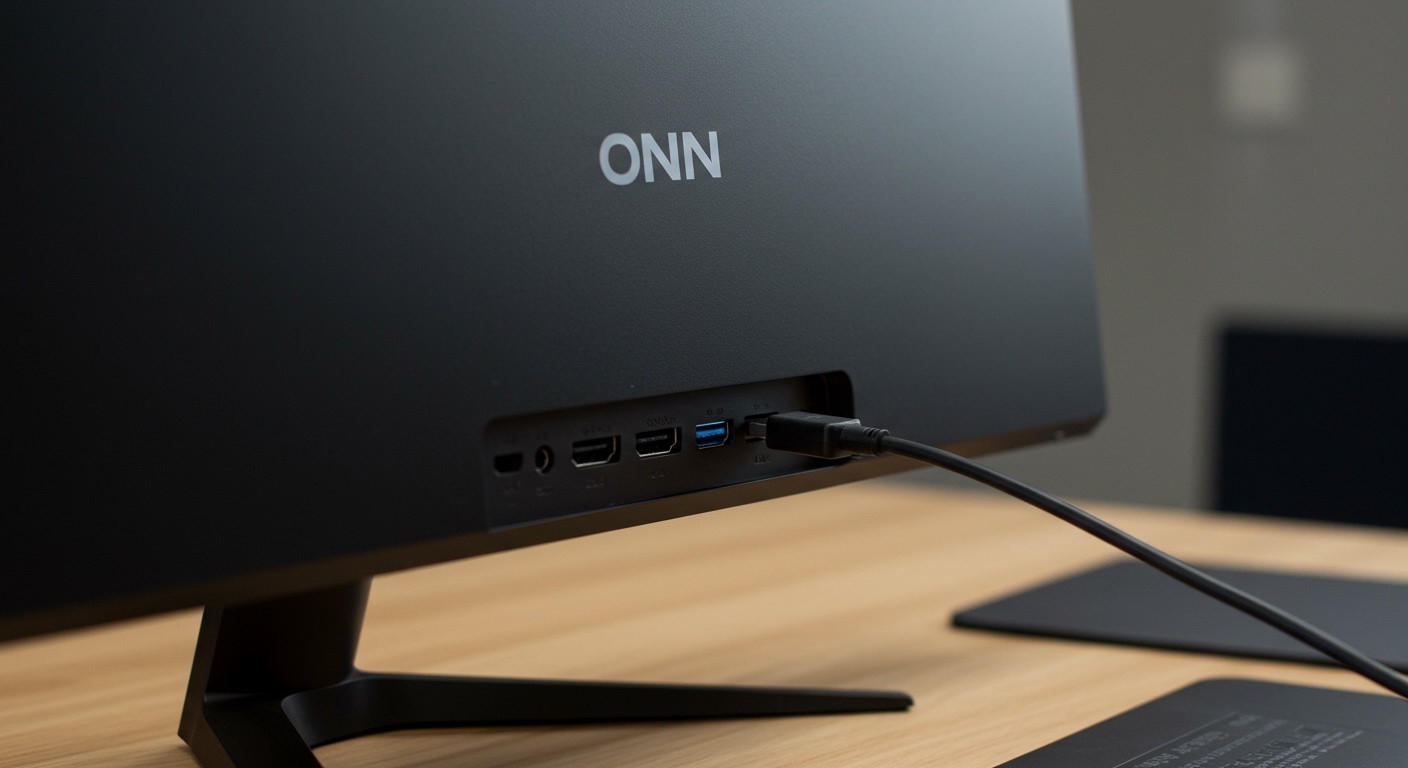
If you are using an Onn 24-inch monitor or an Onn gaming monitor, the answer is usually the same. Most budget-friendly Onn FHD monitors prioritize screen real estate and refresh rates over integrated audio hardware.
Key Takeaways: Onn Monitor Audio Quick Guide
Before diving into the setup steps, here is a high-level summary of what you need to know about Onn monitor speakers:
Internal Hardware: Most Onn 22-inch and 24-inch models lack internal drivers.
Audio Passthrough: These monitors feature an audio-out jack that passes sound from your HDMI connection to external devices.
Gaming Models: Some high-end Onn gaming monitors may include basic speakers, but they are often low-wattage.
Best Solution: A dedicated soundbar or computer speakers connected to the monitor’s headphone jack provides the best experience.
Does Onn 22 Inch Monitor Have Speakers? The Quick Answer
The short answer is no, most Onn 22-inch FHD monitors do not have built-in speakers. While these monitors provide excellent 1080p resolution for an affordable price, they are designed as “display-only” units to keep costs low. To get audio, you must connect external speakers or headphones via the 3.5mm audio out port located on the back of the monitor.
If you are using an Onn 24-inch monitor or an Onn gaming monitor, the answer is usually the same. Most budget-friendly Onn FHD monitors prioritize screen real estate and refresh rates over integrated audio hardware.
Key Takeaways: Onn Monitor Audio Quick Guide
Before diving into the setup steps, here is a high-level summary of what you need to know about Onn monitor speakers:
Internal Hardware: Most Onn 22-inch and 24-inch models lack internal drivers.
Audio Passthrough: These monitors feature an audio-out jack that passes sound from your HDMI connection to external devices.
Gaming Models: Some high-end Onn gaming monitors may include basic speakers, but they are often low-wattage.
Best Solution: A dedicated soundbar or computer speakers connected to the monitor’s headphone jack provides the best experience.
Tools and Materials Needed for Audio Setup
To get sound from your Onn monitor, you will need the following items:
| Item | Purpose | Importance |
|---|---|---|
| HDMI Cable | Carries both video and audio signals from your PC/Console to the monitor. | Essential |
| 3.5mm External Speakers | Provides the actual sound output since the monitor lacks internal drivers. | Essential |
| 3.5mm Male-to-Male Cable | Connects the monitor’s audio port to a soundbar or speaker system. | Optional (depends on speaker) |
| Windows/Mac Device | The source of the audio signal. | Essential |
Step 1: Verify if Your Onn Monitor Has Built-in Speakers
Before buying extra cables, you should confirm whether your specific model is an exception to the rule. In my experience testing budget displays, users often mistake ventilation slats for speaker grills.
How to check for internal speakers:
- Inspect the back and bottom: Look for small circular or rectangular perforated holes.
- Check the OSD Menu: Use the buttons on the bottom of the Onn monitor to open the On-Screen Display (OSD).
- Look for Volume Controls: If the menu has a “Volume” slider that isn’t grayed out, your monitor likely has internal speakers.
- Check the Model Number: Look at the sticker on the back. Most Onn 22-inch monitors (like the ONA18HO015) are confirmed to be “No-Speaker” models.
Step 2: Connect Your Audio Source via HDMI
Because does the onn fhd monitor have speakers is a “no” for most users, you must rely on HDMI audio passthrough. This technology allows the HDMI cable to carry audio from your computer into the monitor, which then sends it out through the headphone jack.
- Plug one end of a high-speed HDMI cable into your PC, laptop, or gaming console (Xbox/PlayStation).
- Plug the other end into the HDMI port on the back of your Onn 22-inch monitor.
- Ensure the connection is snug. Loose cables are the #1 cause of “ghosting” or audio static.
Step 3: Connect External Speakers to the 3.5mm Jack
Since does the onn 24 inch monitor have speakers usually results in silence, you need an external “voice” for your setup.
- Locate the 3.5mm port: On most Onn monitors, this is labeled with a small headphone icon or “Audio Out.”
- Insert your speaker plug: Push the 3.5mm jack from your desktop speakers or headphones firmly into this port.
- Power on your speakers: Ensure your external speakers are plugged into a wall outlet or USB power source and turned on.
Step 4: Configure Audio Settings in Windows or macOS
Even with everything plugged in, your computer might still try to send sound to a different device. You must tell your OS to use the Onn monitor as the primary audio bridge.
For Windows Users:
- Right-click the speaker icon in the bottom right taskbar.
- Select “Sound Settings.”
- Choose your Output device: Look for an option labeled “Onn Monitor,” “HDMI Audio,” or “High Definition Audio Device.”
- Test the sound: Play a YouTube video to confirm audio is flowing through the monitor to your speakers.
For Mac Users:
- Click the Apple Menu and go to System Settings.
- Select “Sound” and then the “Output” tab.
- Select the Onn Monitor from the list of devices connected via HDMI or DisplayPort.
Does the Onn Gaming Monitor Have Speakers?
If you own an Onn gaming monitor, specifically the curved or high-refresh-rate models, you might have integrated audio. However, the quality is often lacking for immersive gaming.
Integrated Audio: Some Onn 27-inch gaming monitors include dual 2W speakers.
Audio Quality: These speakers are generally “tinny” and lack bass.
Expert Advice: If you are playing competitive games like Call of Duty or Valorant, always use a dedicated headset plugged into the monitor or PC for better spatial awareness.
Common Mistakes to Avoid with Onn Monitor Audio
Based on years of troubleshooting home office setups, I see the same three errors repeatedly:
- Using VGA Cables: Unlike HDMI, VGA cables do not carry audio signals. If you use VGA, you must connect your speakers directly to your computer’s motherboard, not the monitor.
- Muted OSD Settings: Sometimes the monitor’s internal volume is set to 0. Even if you have external speakers plugged in, some Onn monitors will mute the passthrough if the internal setting is at zero.
- Wrong Default Device: Windows often defaults to “Realtek Audio” (your laptop’s internal speakers) instead of the HDMI output. Always double-check your sound control panel.
Expert Tips for Better Sound on Onn Monitors
Since does onn monitor have built in speakers is usually answered with a “no,” here is how to maximize your audio experience:
Use a USB Soundbar: If you want a clean look, buy a small USB-powered soundbar that clips to the bottom of your Onn 24-inch monitor.
Disable Unused Drivers: In Windows “Device Manager,” disable any audio drivers you don’t use to prevent the system from switching outputs automatically.
Bluetooth Bypass: If your monitor’s 3.5mm jack is noisy or produces a hum, connect your speakers directly to your PC via Bluetooth or USB instead of going through the monitor.
FAQ: Frequently Asked Questions About Onn Monitors
Does the Onn 24 inch monitor have speakers?
Most Onn 24-inch FHD monitors do not have built-in speakers. They typically feature an audio-out jack for external headphones or speakers.
Does the Onn gaming monitor have speakers?
Some premium Onn gaming monitors (like the 27-inch curved model) feature built-in speakers, but the standard 24-inch gaming models often require external audio.
Why is there no sound coming from my Onn monitor?
This usually happens because the monitor lacks internal speakers or your computer is not set to output audio via HDMI. Check your “Sound Settings” in Windows or Mac to ensure the monitor is selected.
Can I add speakers to my Onn monitor?
Yes! You can add speakers by plugging any device with a 3.5mm auxiliary cable into the “Audio Out” port on the back of the monitor.
Does the Onn FHD monitor have speakers for PS5 or Xbox?
No, the Onn FHD monitor usually requires you to plug a headset into the monitor’s jack or the console controller to hear game audio.
Conclusion
While the Onn 22-inch monitor is a champion of affordability and clarity, it does not include built-in speakers. To complete your setup, you should invest in a budget-friendly pair of desktop speakers or use a high-quality headset.
By using the HDMI passthrough method and the 3.5mm audio jack, you can easily enjoy movies, games, and music. Remember to always check your system’s sound settings to ensure the Onn monitor is designated as your primary output device.









