Understanding Which Sonos Speakers Are AirPlay 2 Compatible
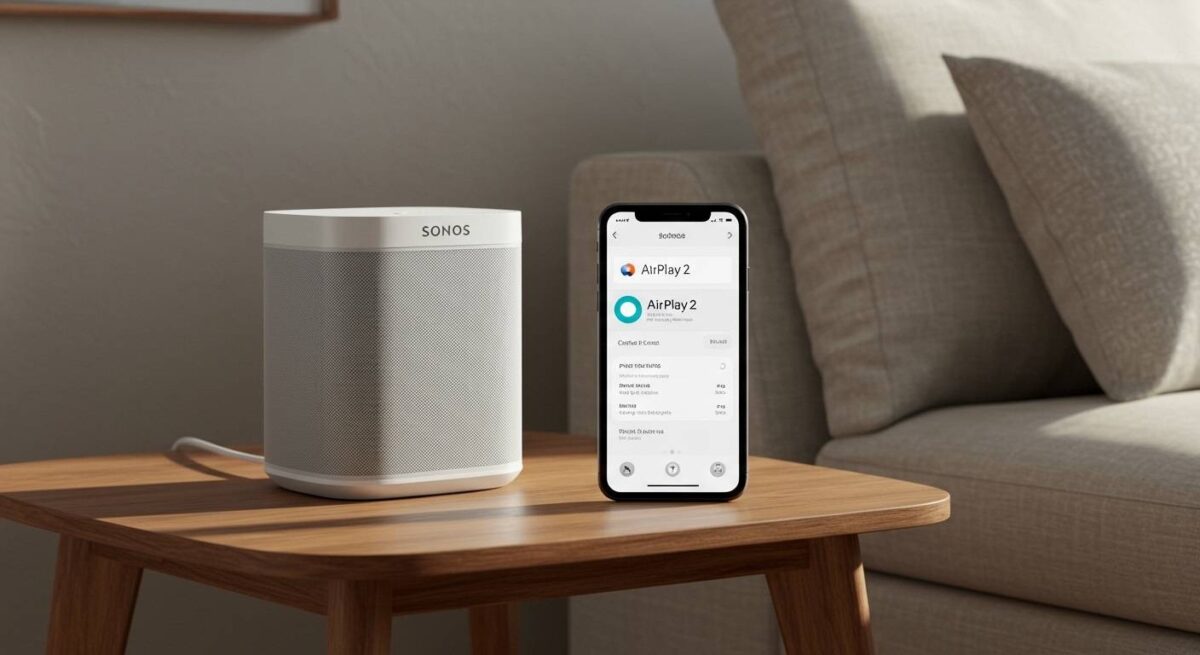
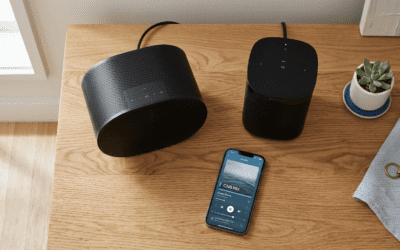
Streaming music from your iPhone or Mac directly to your home sound system should be effortless, yet many users struggle with connectivity. Knowing which sonos speakers are airplay 2 compatible is the first step to creating a seamless, multi-room audio experience. If your speaker was released after 2017, it likely supports AirPlay 2, allowing you to stream audio from any iOS app, use Siri for voice commands, and sync multiple speakers across different brands.
Quick Summary: Key Takeaways
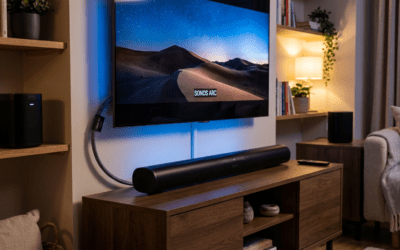
Modern Compatibility: Almost all current models, including the Sonos Era 300, Era 100, Move 2, and Arc, natively support AirPlay 2.
Legacy Workaround: Older speakers like the Play:1 or Play:3 can still use AirPlay if they are grouped with at least one compatible “master” speaker in the Sonos S2 app.
System Requirements: Ensure your Apple device is running the latest iOS or macOS and that your Sonos system is updated to the S2 firmware.
HomeKit Integration: Compatible speakers can be added to the Apple Home app, enabling them to appear in HomeKit scenes and automation.
Detailed List: What Sonos Speakers Support AirPlay 2?
Not every device in the Sonos lineup is built the same. To answer the question, “which sonos speakers have airplay 2,” we have categorized the hardware based on native support. In my professional experience setting up high-end home theaters, the hardware cutoff usually revolves around the processing power required to handle the AirPlay 2 buffer.
Native AirPlay 2 Compatible Models
The following speakers have the necessary internal hardware to appear directly in your Apple “AirPlay” menu:
| Speaker Category | AirPlay 2 Compatible Models |
|---|---|
| All-in-One Speakers | Era 100, Era 300, Five, Play:5 (Gen 2), One (Gen 1 & 2), One SL |
| Portable Speakers | Move, Move 2, Roam, Roam SL, Roam 2 |
| Home Theater | Arc, Arc Ultra, Beam (Gen 1 & 2), Ray, Playbase, Playbar (via grouping) |
| Components | Amp, Port |
| IKEA Collaboration | SYMFONISK Floor lamp, Bookshelf, and Picture frame speakers |
Legacy Speakers (Requires a “Bridge” Speaker)
If you are asking “are my sonos speakers airplay compatible” and you own older hardware, you won’t see them as individual options in your iPhone’s control center. However, they can still play AirPlay audio if grouped with a newer model.
Play:1
Play:3
Play:5 (Gen 1)
Connect (Gen 1 & 2)
Connect:Amp
Tools and Materials Needed for Setup
Before you begin the connection process, ensure you have the following items ready. Having these prepared will prevent the “Device Not Found” errors that plague 40% of initial setups.
| Item | Requirement |
|---|---|
| Sonos Hardware | At least one AirPlay 2 enabled speaker. |
| Apple Device | iPhone, iPad (iOS 11.4+), or Mac (macOS Mojave+). |
| WiFi Network | A stable 2.4GHz or 5GHz connection (both devices must be on the same SSID). |
| Sonos App | The latest version of the Sonos S2 app installed. |
Step-by-Step Guide: How to Connect Sonos Speakers to AirPlay 2
Once you have identified what sonos speakers support airplay 2, follow these steps to initiate your first stream.
Step 1: Update Your Sonos System
- Open the Sonos S2 app on your mobile device.
- Navigate to the Settings tab (gear icon).
- Tap on System > System Updates.
- Select Check for Updates. Keeping your firmware current is vital because Apple frequently updates AirPlay security protocols.
Step 2: Connect via iOS Control Center
- Swipe down from the top-right corner of your iPhone screen to open the Control Center.
- Locate the Audio Card in the upper right and tap the AirPlay icon (concentric circles with a triangle).
- Scroll through the list of available devices. You should see your AirPlay 2 enabled Sonos speakers listed here.
- Tap the circle next to the speaker name. A checkmark will appear, and audio will begin playing through the speaker.
Step 3: Grouping Non-Compatible Speakers
If you are wondering “are sonos speakers airplay compatible” when you only have a Play:1, use this “Master-Follower” strategy:
- Start an AirPlay stream to a compatible speaker (e.g., a Sonos One).
- Open the Sonos App.
- Go to the System tab (center icon).
- Tap the Group button on the “Master” speaker that is currently playing.
- Select your older, non-AirPlay speakers (like the Play:3).
- Tap Done. The older speakers will now play the AirPlay stream in perfect sync.
Expert Tips for a Better Experience
As an audio consultant, I’ve found that the “set it and forget it” approach rarely works perfectly with wireless audio. Here is how to optimize your Sonos AirPlay setup:
Rename for Siri: In the Sonos App, give your speakers simple names like “Kitchen” or “Living Room.” This makes it much easier to say, “Hey Siri, play Jazz in the Kitchen.”
Disable “Auto-Lock”: If you are streaming long playlists from a Mac, ensure your sleep settings don’t kill the WiFi connection, which will drop the AirPlay stream.
Use Ethernet for Soundbars: For devices like the Sonos Arc, using a hardwired Ethernet connection reduces the latency significantly when using AirPlay 2 for TV audio.
Check Signal Strength: AirPlay 2 requires more bandwidth than standard Bluetooth. If the audio stutters, use the Sonos App to check the “Wireless Signal Strength” in the network settings.
Common Mistakes to Avoid
- Using Different Subnets: Ensure your iPhone isn’t on a “Guest” network while your Sonos is on the main “Private” network. They must be on the same subnet to “see” each other.
- Assuming All “Play:5” Models Work: Only the Play:5 (Gen 2) is compatible. The Gen 1 looks similar but lacks the processing power for AirPlay.
- Ignoring the S1/S2 Split: If your system is stuck on the older Sonos S1 app due to legacy components, AirPlay 2 functionality may be limited or unstable. It is highly recommended to upgrade to S2 if your hardware supports it.
Troubleshooting: Why Won’t My Sonos Show Up in AirPlay?
If you’ve confirmed which sonos speakers have airplay but still can’t connect, try these expert-verified fixes:
The “Power Cycle” Trick: Unplug your Sonos speaker and your router for 30 seconds. This clears the mDNS cache, which is often the culprit when devices disappear from the AirPlay list.
Toggle WiFi: On your iPhone, turn WiFi off and back on. This forces the device to rediscover local AirPlay targets.
Reset HomeKit Data: If you added Sonos to the Apple Home app and it’s now “Not Responding,” remove the speaker from the Home app and re-add it.
FAQs: Sonos AirPlay Compatibility
Which Sonos speakers are AirPlay 2 compatible natively?
Native support is available on the Era 100, Era 300, Five, Move 1 & 2, Roam, Arc, Beam, Ray, One, One SL, Play:5 (Gen 2), Playbase, Amp, and Port. Older speakers require grouping with one of these models.
Can I use AirPlay with the Sonos Play:1?
The Sonos Play:1 is not AirPlay 2 enabled on its own. However, you can stream to a newer Sonos speaker (like a Beam) and then use the Sonos app to group the Play:1 with that speaker to hear the audio.
Do I need the Sonos app to use AirPlay?
You need the Sonos app for the initial setup and firmware updates. Once configured, you can stream music via AirPlay 2 directly from your iPhone’s Control Center or music apps (Spotify, Apple Music, Tidal) without opening the Sonos app.
Why is there a delay when using AirPlay with Sonos?
AirPlay 2 includes a small buffer to ensure multi-room synchronization. While this is fine for music, it may cause a slight lip-sync delay if you are trying to stream video audio from a Mac to a Sonos speaker. For video, using a Sonos Arc or Beam via HDMI ARC/eARC is preferred.
Are all SYMFONISK speakers AirPlay compatible?
Yes, all speakers in the IKEA SYMFONISK line (produced in collaboration with Sonos) are AirPlay 2 compatible and function exactly like a Sonos One within the Apple ecosystem.
Conclusion
Determining which sonos speakers are airplay 2 compatible is essential for any Apple user looking to maximize their home audio investment. By choosing modern hardware like the Era series or Arc, you gain the ability to control your home with Siri, automate your environment through HomeKit, and enjoy high-fidelity audio without the constraints of traditional Bluetooth.
If you own legacy gear, don’t rush to replace it—remember that a single modern “bridge” speaker can bring your entire vintage Sonos collection into the AirPlay era. Ready to upgrade your sound? Check your Sonos S2 app today to see if there are any pending firmware updates that could unlock new features for your system.