

Can You Connect Speakers to Google Nest Hub? The Definitive Guide
Yes, can you connect speakers to google nest hub is one of the most common questions for smart home enthusiasts looking to upgrade their audio experience. You can easily pair external Bluetooth speakers or link multiple Google Nest devices together via the Google Home app to create a more immersive soundstage or a multi-room audio system.
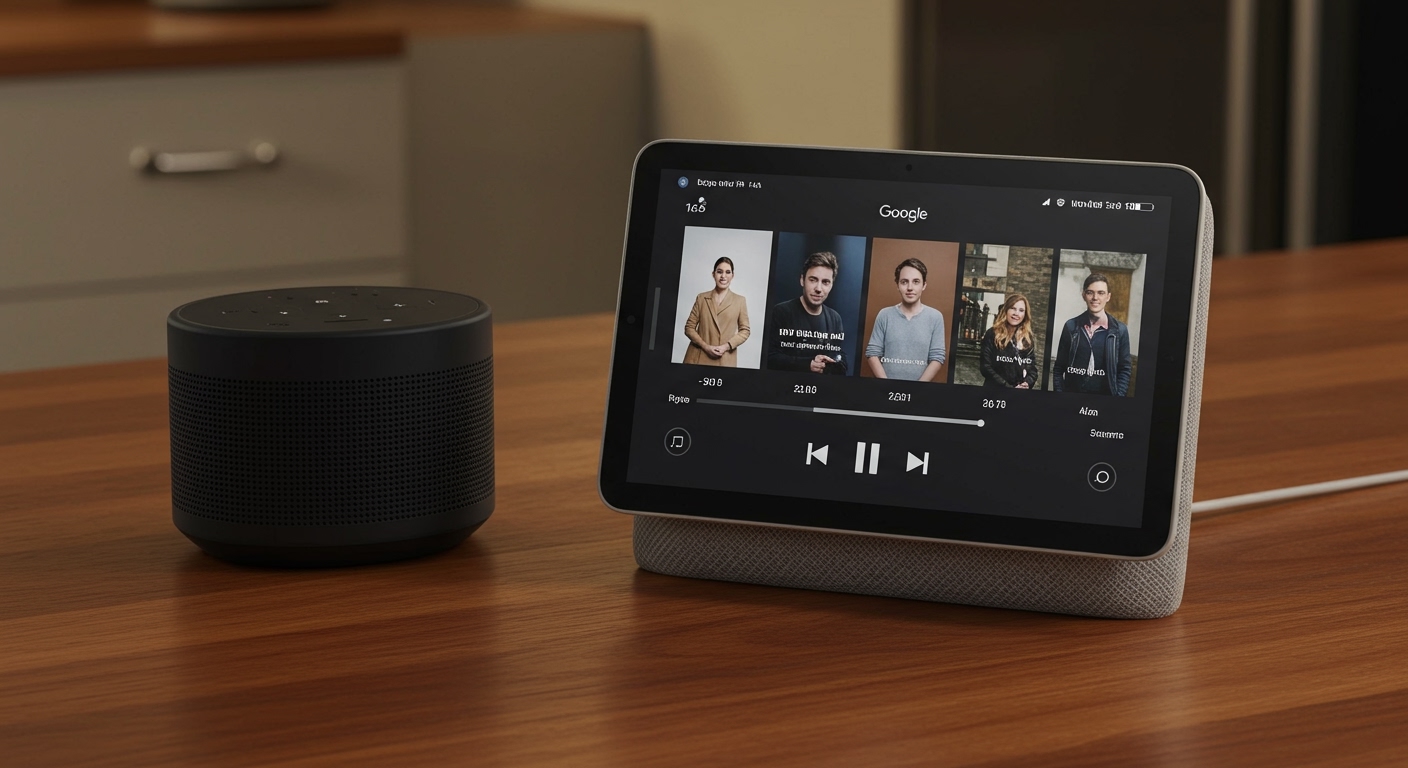
Whether you want to bypass the Nest Hub’s built-in driver for a high-end soundbar or you are looking for how to pair google nest speakers for stereo sound, the process is straightforward. By using the “Default Music Speaker” setting or creating “Speaker Groups,” you can transform your Hub from a simple display into a powerful command center for your entire home audio ecosystem.
Expert Summary: Key Takeaways
Bluetooth Flexibility: You can pair almost any Bluetooth-enabled speaker to act as the default audio output for your Nest Hub.
Wi-Fi Syncing: For the best stability, how to sync google nest speakers involves using the Google Home app to create Speaker Groups over your local Wi-Fi.
Stereo Pairing: You can only create a dedicated “Stereo Pair” (Left/Right channel) using two speakers of the identical model (e.g., two Nest Audios).
Control Center: The Nest Hub remains the “brains,” showing album art and controls, while the sound pumps through your higher-quality external speakers.
Technical Requirements for Connecting Speakers
Before you begin the setup, ensure your hardware and software meet these basic requirements to avoid connection drops or lag.
| Requirement | Specification |
|---|---|
| App Version | Latest version of the Google Home App (iOS or Android) |
| Connectivity | All devices must be on the same 2.4GHz or 5GHz Wi-Fi network |
| Bluetooth Version | Bluetooth 4.0 or higher recommended for external speakers |
| Device Compatibility | Nest Hub (Gen 1 or 2), Nest Hub Max, and any Nest/Home speaker |
| Account | A single Google Account must be used to manage all linked devices |
How to Connect Bluetooth Speakers to Google Nest Hub
If you have a high-quality Bose, Sonos, or Sony Bluetooth speaker, you can make it the primary voice of your Nest Hub. This is the best solution if you want better bass and clarity than the Hub’s internal speaker provides.
Step 1: Put your external speaker in pairing mode
Enable pairing on your external Bluetooth speaker. Most devices have a dedicated Bluetooth button or require a long press on the power button until a light flashes.
Step 2: Open the Google Home app
Launch the app on your smartphone. Ensure your phone’s Bluetooth is turned on and that you are standing near the Nest Hub.
Step 3: Access Nest Hub settings
Tap the device card for your Google Nest Hub. In the top right corner, tap the Settings (gear icon).
Step 4: Configure the Default Music Speaker
Select “Audio” from the settings menu. Then, tap on “Default music speaker.” This tells the Hub where to send audio signals by default.
Step 5: Pair the Bluetooth speaker
Tap “Pair Bluetooth speaker.” Your Nest Hub will begin scanning for nearby devices. Once your speaker’s name appears on the list, select it to finalize the connection.
Expert Tip: Even when connected to a Bluetooth speaker, your Nest Hub will still use its internal microphones to hear your “Hey Google” commands. Only the music and media playback will migrate to the external speaker.
How to Pair Two Google Nest Speakers for Stereo Sound
If you own two identical speakers, such as two Nest Audios or two Nest Minis, you can create a true stereo pair. This provides a distinct Left and Right channel, which is significantly better for music listening.
Step 1: Placement is key
Position your speakers about 6 to 10 feet apart at ear level. This physical separation is crucial for the how to pair two google nest speakers process to result in a proper soundstage.
Step 2: Initiate pairing in the App
Open the Google Home app and select one of the two speakers you wish to pair. Tap Settings > Audio > Stereo pair.
Step 3: Identify the Left and Right speakers
Follow the on-screen prompts. The app will play a sound on one speaker. You will then identify if that specific speaker is on your left or right side.
Step 4: Name the pair
Assign a name to the pair, such as “Living Room Pair.” From now on, this pair will appear as a single device in your Spotify or YouTube Music casting list.
How to Link Google Nest Speakers for Multi-Room Audio
The real power of the Google ecosystem is the ability to play the same song throughout your entire house. This is often called “Speaker Groups.”
Step 1: Create a new Group
Open the Google Home app and tap the “+” icon in the top left corner. Select “Create speaker group.”
Step 2: Select your devices
Check the boxes for every device you want to include. You can mix and match different generations, such as a Nest Hub Max in the kitchen and a Nest Mini in the hallway.
Step 3: Sync the audio
Adjust the “Group delay correction” if you notice a slight echo. Since different speakers process signals at different speeds, you may need to go to Settings > Audio > Group delay correction on individual devices to perfectly how to sync google nest speakers.
Common Mistakes to Avoid When Pairing Speakers
Using Different Models for Stereo: You cannot create a stereo pair using a Nest Mini and a Nest Audio. They must be identical models.
Ignoring Wi-Fi Congestion: If you have 10+ speakers, your 2.4GHz band might get crowded. Use a Mesh Wi-Fi system for the best results when learning how to link google nest speakers.
Bluetooth Latency in Video: If you connect a Bluetooth speaker to a Nest Hub for watching YouTube, you might notice a “lip-sync” delay. Wi-Fi-based Speaker Groups are much better for minimizing this lag.
Distance Issues: Keep the Bluetooth speaker within 15-20 feet of the Nest Hub for a stable connection. Walls and large metal objects will degrade the signal.
Advanced Expert Tips for Pro Users
As someone who has managed smart home setups with over 20 devices, I recommend the following for the best experience:
- Set Volume Limits: In the Google Home app, you can set a maximum volume for the group so that a small speaker in the bathroom doesn’t distort while the living room speakers are at 50%.
- Use Voice Commands for Groups: Once you create a group named “Whole House,” you can simply say, “Hey Google, play Jazz on Whole House.”
- Default TV Output: If you have a Chromecast-enabled TV, you can set your Nest Hub’s default video output to the TV while keeping the audio on your paired Nest speakers.
Frequently Asked Questions
(FAQs)
Can you pair google nest speakers with a non-Google Bluetooth speaker?
Yes, you can connect any standard Bluetooth speaker to a Google Nest Hub. However, you cannot add a non-Google Bluetooth speaker to a “Speaker Group” over Wi-Fi; it can only act as the “Default Music Speaker” for one Hub at a time.
How to pair nest speakers if they aren’t showing up in the app?
First, ensure both speakers are on the same Wi-Fi network. If they still don’t appear, perform a Factory Data Reset (FDR) by toggling the mic switch to off and holding the center of the speaker top for 15 seconds.
Can I connect my Nest Hub to a Sonos system?
You can connect to Sonos via Bluetooth if your Sonos model (like the Move or Roam) supports it. For other Sonos models, you would need to use a third-party integration or simply use the Sonos app to group them separately.
Why is there a delay when I sync my speakers?
Audio lag is usually caused by Wi-Fi interference or different hardware processing speeds. Use the Group Delay Correction setting in the Google Home app to manually adjust the timing in milliseconds until the echo disappears.
How many speakers can I link together?
Google technically allows up to 100 devices in a single speaker group, though your home Wi-Fi bandwidth will likely become a bottleneck long before you reach that limit.
Can You Connect Speakers to Google Nest Hub? The Definitive Guide
Yes, can you connect speakers to google nest hub is one of the most common questions for smart home enthusiasts looking to upgrade their audio experience. You can easily pair external Bluetooth speakers or link multiple Google Nest devices together via the Google Home app to create a more immersive soundstage or a multi-room audio system.
Whether you want to bypass the Nest Hub’s built-in driver for a high-end soundbar or you are looking for how to pair google nest speakers for stereo sound, the process is straightforward. By using the “Default Music Speaker” setting or creating “Speaker Groups,” you can transform your Hub from a simple display into a powerful command center for your entire home audio ecosystem.
Expert Summary: Key Takeaways
Bluetooth Flexibility: You can pair almost any Bluetooth-enabled speaker to act as the default audio output for your Nest Hub.
Wi-Fi Syncing: For the best stability, how to sync google nest speakers involves using the Google Home app to create Speaker Groups over your local Wi-Fi.
Stereo Pairing: You can only create a dedicated “Stereo Pair” (Left/Right channel) using two speakers of the identical model (e.g., two Nest Audios).
Control Center: The Nest Hub remains the “brains,” showing album art and controls, while the sound pumps through your higher-quality external speakers.
Technical Requirements for Connecting Speakers
Before you begin the setup, ensure your hardware and software meet these basic requirements to avoid connection drops or lag.
| Requirement | Specification |
|---|---|
| App Version | Latest version of the Google Home App (iOS or Android) |
| Connectivity | All devices must be on the same 2.4GHz or 5GHz Wi-Fi network |
| Bluetooth Version | Bluetooth 4.0 or higher recommended for external speakers |
| Device Compatibility | Nest Hub (Gen 1 or 2), Nest Hub Max, and any Nest/Home speaker |
| Account | A single Google Account must be used to manage all linked devices |
How to Connect Bluetooth Speakers to Google Nest Hub
If you have a high-quality Bose, Sonos, or Sony Bluetooth speaker, you can make it the primary voice of your Nest Hub. This is the best solution if you want better bass and clarity than the Hub’s internal speaker provides.
Step 1: Put your external speaker in pairing mode
Enable pairing on your external Bluetooth speaker. Most devices have a dedicated Bluetooth button or require a long press on the power button until a light flashes.
Step 2: Open the Google Home app
Launch the app on your smartphone. Ensure your phone’s Bluetooth is turned on and that you are standing near the Nest Hub.
Step 3: Access Nest Hub settings
Tap the device card for your Google Nest Hub. In the top right corner, tap the Settings (gear icon).
Step 4: Configure the Default Music Speaker
Select “Audio” from the settings menu. Then, tap on “Default music speaker.” This tells the Hub where to send audio signals by default.
Step 5: Pair the Bluetooth speaker
Tap “Pair Bluetooth speaker.” Your Nest Hub will begin scanning for nearby devices. Once your speaker’s name appears on the list, select it to finalize the connection.
Expert Tip: Even when connected to a Bluetooth speaker, your Nest Hub will still use its internal microphones to hear your “Hey Google” commands. Only the music and media playback will migrate to the external speaker.
How to Pair Two Google Nest Speakers for Stereo Sound
If you own two identical speakers, such as two Nest Audios or two Nest Minis, you can create a true stereo pair. This provides a distinct Left and Right channel, which is significantly better for music listening.
Step 1: Placement is key
Position your speakers about 6 to 10 feet apart at ear level. This physical separation is crucial for the how to pair two google nest speakers process to result in a proper soundstage.
Step 2: Initiate pairing in the App
Open the Google Home app and select one of the two speakers you wish to pair. Tap Settings > Audio > Stereo pair.
Step 3: Identify the Left and Right speakers
Follow the on-screen prompts. The app will play a sound on one speaker. You will then identify if that specific speaker is on your left or right side.
Step 4: Name the pair
Assign a name to the pair, such as “Living Room Pair.” From now on, this pair will appear as a single device in your Spotify or YouTube Music casting list.
How to Link Google Nest Speakers for Multi-Room Audio
The real power of the Google ecosystem is the ability to play the same song throughout your entire house. This is often called “Speaker Groups.”
Step 1: Create a new Group
Open the Google Home app and tap the “+” icon in the top left corner. Select “Create speaker group.”
Step 2: Select your devices
Check the boxes for every device you want to include. You can mix and match different generations, such as a Nest Hub Max in the kitchen and a Nest Mini in the hallway.
Step 3: Sync the audio
Adjust the “Group delay correction” if you notice a slight echo. Since different speakers process signals at different speeds, you may need to go to Settings > Audio > Group delay correction on individual devices to perfectly how to sync google nest speakers.
Common Mistakes to Avoid When Pairing Speakers
Using Different Models for Stereo: You cannot create a stereo pair using a Nest Mini and a Nest Audio. They must be identical models.
Ignoring Wi-Fi Congestion: If you have 10+ speakers, your 2.4GHz band might get crowded. Use a Mesh Wi-Fi system for the best results when learning how to link google nest speakers.
Bluetooth Latency in Video: If you connect a Bluetooth speaker to a Nest Hub for watching YouTube, you might notice a “lip-sync” delay. Wi-Fi-based Speaker Groups are much better for minimizing this lag.
Distance Issues: Keep the Bluetooth speaker within 15-20 feet of the Nest Hub for a stable connection. Walls and large metal objects will degrade the signal.
Advanced Expert Tips for Pro Users
As someone who has managed smart home setups with over 20 devices, I recommend the following for the best experience:
- Set Volume Limits: In the Google Home app, you can set a maximum volume for the group so that a small speaker in the bathroom doesn’t distort while the living room speakers are at 50%.
- Use Voice Commands for Groups: Once you create a group named “Whole House,” you can simply say, “Hey Google, play Jazz on Whole House.”
- Default TV Output: If you have a Chromecast-enabled TV, you can set your Nest Hub’s default video output to the TV while keeping the audio on your paired Nest speakers.
Frequently Asked Questions
(FAQs)
Can you pair google nest speakers with a non-Google Bluetooth speaker?
Yes, you can connect any standard Bluetooth speaker to a Google Nest Hub. However, you cannot add a non-Google Bluetooth speaker to a “Speaker Group” over Wi-Fi; it can only act as the “Default Music Speaker” for one Hub at a time.
How to pair nest speakers if they aren’t showing up in the app?
First, ensure both speakers are on the same Wi-Fi network. If they still don’t appear, perform a Factory Data Reset (FDR) by toggling the mic switch to off and holding the center of the speaker top for 15 seconds.
Can I connect my Nest Hub to a Sonos system?
You can connect to Sonos via Bluetooth if your Sonos model (like the Move or Roam) supports it. For other Sonos models, you would need to use a third-party integration or simply use the Sonos app to group them separately.
Why is there a delay when I sync my speakers?
Audio lag is usually caused by Wi-Fi interference or different hardware processing speeds. Use the Group Delay Correction setting in the Google Home app to manually adjust the timing in milliseconds until the echo disappears.
How many speakers can I link together?
Google technically allows up to 100 devices in a single speaker group, though your home Wi-Fi bandwidth will likely become a bottleneck long before you reach that limit.
Final Thoughts on Maximizing Your Nest Hub Audio
Learning how to pair google nest speakers and understanding can you connect speakers to google nest hub unlocks the true potential of your smart home. By offloading the audio to higher-quality external hardware, you turn a convenient desk gadget into a high-fidelity media center.
If you are just starting, I recommend beginning with a simple Bluetooth connection to an existing speaker. Once you see the value, investing in a second Nest Audio for a dedicated stereo pair is the single best upgrade you can make for under $100.
Ready to upgrade your sound? Open your Google Home app today and follow the steps above to create your first Speaker Group!









