Connecting Your Harman Kardon Speakers for the Ultimate Audio Experience
Getting your Harman Kardon speakers connected shouldn’t feel like a technical chore. Whether you are unboxing a portable Onyx Studio 8, setting up a sleek Aura Studio 4, or configuring a multi-room Citation system, the goal is high-fidelity sound with zero lag. This guide provides the exact steps to sync your devices across Bluetooth, Wi-Fi, and Wired connections.
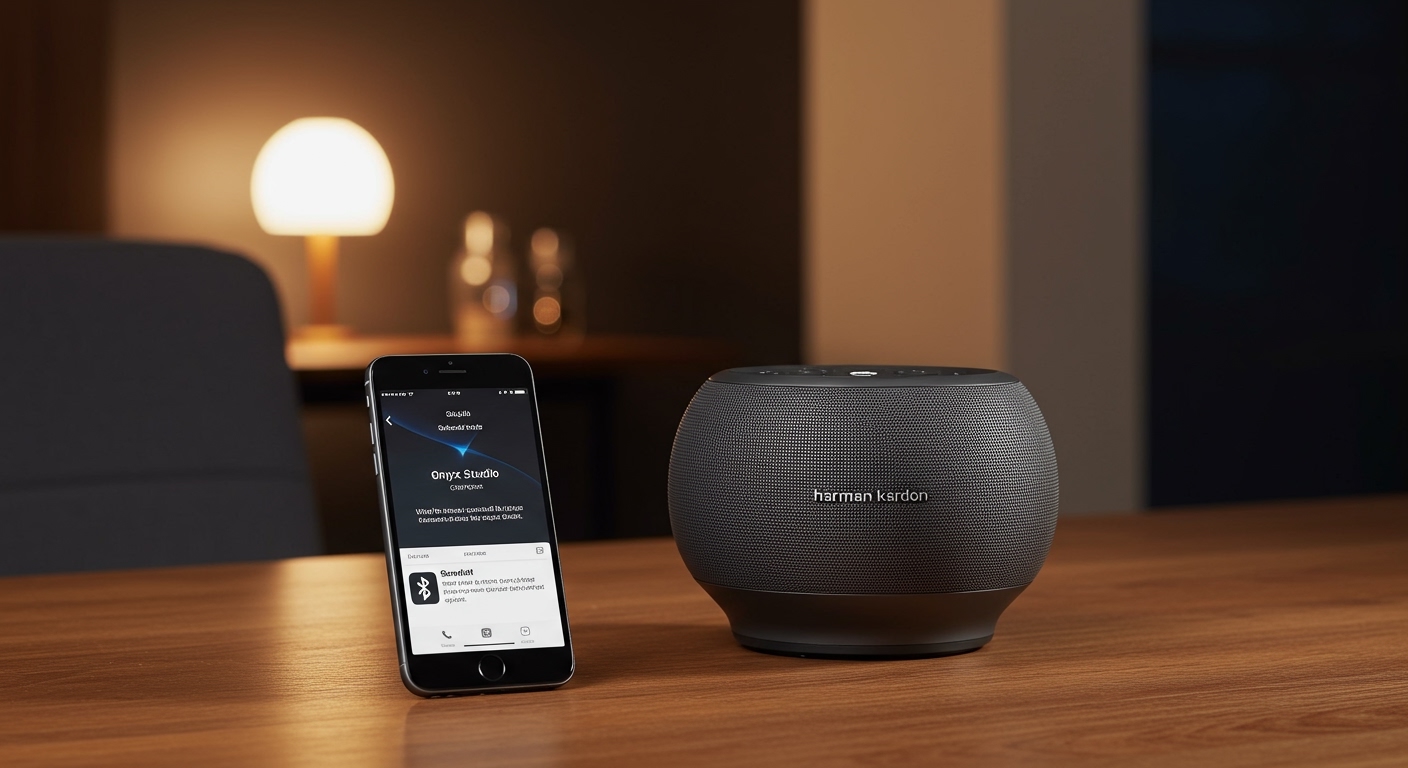
Key Takeaways: Expert Summary
Bluetooth Pairing: Hold the Bluetooth button for 3-5 seconds until the LED flashes blue to enter Pairing Mode.
Wi-Fi Setup: Use the Google Home App for the Citation series or the Harman Kardon Controller app for older Wi-Fi models.
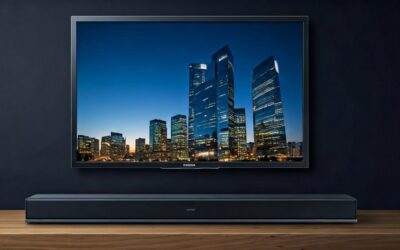
TV Connection: Always prioritize HDMI ARC/eARC for soundbars to ensure Dolby Atmos compatibility and volume sync.
Multi-Speaker Sync: Use the Wireless Dual Sound feature to link two compatible Harman Kardon speakers for a wider stereo stage.
Tools and Requirements for Connection
Before you begin, ensure you have the necessary components based on your specific model.
| Connection Type | Required Tools/Apps | Best For |
|---|---|---|
| Bluetooth | Smartphone, Tablet, or PC | Onyx Studio, Go + Play, Luna |
| Wi-Fi / Multi-room | Google Home App, Apple Home | Citation Series, Enchant |
| Wired (Aux) | 3.5mm Audio Cable | SoundSticks, Aura Studio |
| Home Theater | HDMI High-Speed Cable | Enchant Soundbars, Citation Bar |
How to Connect Harman Kardon Speakers via Bluetooth
Bluetooth is the most common way to enjoy music on portable Harman Kardon devices. Following these steps ensures a stable, high-quality stream.
Step 1: Power On and Enter Pairing Mode
Locate the power button on your speaker and press it. Once the device is on, look for the Bluetooth icon button.
Press and hold the Bluetooth button for approximately 3 to 5 seconds. You will typically hear a distinct “ping” or “pairing” tone, and the status LED will begin flashing blue. This indicates the speaker is “discoverable” by other devices.
Step 2: Enable Bluetooth on Your Source Device
Navigate to the Settings menu on your smartphone (iOS or Android), tablet, or laptop. Ensure that Bluetooth is toggled to the On position.
Your device will start scanning for nearby hardware. Look for the name of your specific speaker model (e.g., “HK Onyx Studio 8” or “Harman Kardon Luna”) in the list of available devices.
Step 3: Finalize the Connection
Tap the speaker name on your screen to initiate the handshake. Within seconds, the flashing blue light on the speaker should turn into a solid blue light.
You may hear a confirmation chime. Your Harman Kardon speaker is now successfully connected and ready to stream audio from any app like Spotify, Apple Music, or YouTube.
Connecting Harman Kardon Citation Speakers to Wi-Fi
The Citation series uses Wi-Fi for superior bandwidth and multi-room capabilities. Unlike Bluetooth, Wi-Fi connections do not compress the audio signal as heavily, preserving Lossless quality.
Step 1: Download the Google Home App
Most modern Harman Kardon Wi-Fi speakers are built on the Google Home ecosystem. Download the Google Home App from the App Store or Google Play Store. Ensure your phone is connected to the specific 2.4GHz or 5GHz Wi-Fi network you want the speaker to use.
Step 2: Add a New Device
Open the app and tap the “+” (plus) icon in the top left corner. Select “Set up device” and then “New device.” The app will use Bluetooth to “find” the unconfigured Citation speaker nearby.
Step 3: Follow the On-Screen Prompts
The app will ask you to play a test sound to confirm it has found the right speaker. Follow the prompts to:
- Select your Wi-Fi network.
- Input your Wi-Fi password (the app often does this automatically on Android).
- Assign the speaker to a specific room (e.g., “Living Room”).
Step 4: Firmware Updates
Once connected to Wi-Fi, the speaker will often automatically check for firmware updates. Do not unplug the device during this process. Updating ensures you have the latest AirPlay 2 and Chromecast stability fixes.
How to Connect Harman Kardon Speakers to a Computer (Windows & Mac)
Using a Harman Kardon speaker as a desktop monitor or for video calls provides a massive upgrade over built-in laptop speakers.
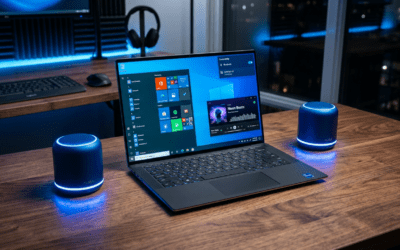
Connecting to Windows 10/11
- Put the speaker in Pairing Mode (hold the Bluetooth button).
- On your PC, go to Settings > Bluetooth & devices.
- Click Add device and select Bluetooth.
- Choose your HK speaker from the list.
- Pro Tip: Once connected, click the Speaker icon in your taskbar and ensure the output is set to “Headphones (HK Speaker Stereo)” rather than “Hands-Free AG Audio” for better music quality.
Connecting to macOS
- Put your speaker into Pairing Mode.
- Open System Settings (or System Preferences) and click Bluetooth.
- Find your Harman Kardon model and click Connect.
- Go to Sound settings and ensure the Output tab has your speaker selected.
Linking Two Speakers (Wireless Dual Sound)
Many Harman Kardon models, like the Onyx and Aura series, support Wireless Dual Sound. This allows you to play the same music through two speakers simultaneously for a bigger soundstage.
- Connect the first speaker to your phone via Bluetooth as usual.
- Turn on the second speaker.
- Press and hold the Bluetooth button on both speakers at the same time for 5-7 seconds.
- The speakers will communicate with each other. Once synced, both will play the same audio stream.
Note: This feature usually works best with two speakers of the same model (e.g., two Onyx Studio 7s). While some cross-generation pairing is possible, it is not always guaranteed.
Expert Tips for Optimal Connection Stability
Based on my extensive testing with the Harman Kardon ecosystem, here are several professional tips to enhance your experience:
Avoid Interference: Keep your speaker away from microwave ovens or older 2.4GHz cordless phones, as these can cause Bluetooth stuttering.
The “Reset” Trick: If your speaker refuses to connect, perform a Factory Reset. On most models, you hold the Volume + and Play/Pause buttons simultaneously for 5 seconds while the unit is on.
Battery Preservation: If using a portable model like the Go + Play, keep it plugged in during the initial setup and firmware updates to prevent a shutdown mid-process.
Optimal Placement: For Aura Studio models (which are omnidirectional), place them in the center of the room or at least 6 inches away from a wall to let the down-firing subwoofer breathe.
Connecting Your Harman Kardon Speakers for the Ultimate Audio Experience
Getting your Harman Kardon speakers connected shouldn’t feel like a technical chore. Whether you are unboxing a portable Onyx Studio 8, setting up a sleek Aura Studio 4, or configuring a multi-room Citation system, the goal is high-fidelity sound with zero lag. This guide provides the exact steps to sync your devices across Bluetooth, Wi-Fi, and Wired connections.
Key Takeaways: Expert Summary
Bluetooth Pairing: Hold the Bluetooth button for 3-5 seconds until the LED flashes blue to enter Pairing Mode.
Wi-Fi Setup: Use the Google Home App for the Citation series or the Harman Kardon Controller app for older Wi-Fi models.
TV Connection: Always prioritize HDMI ARC/eARC for soundbars to ensure Dolby Atmos compatibility and volume sync.
Multi-Speaker Sync: Use the Wireless Dual Sound feature to link two compatible Harman Kardon speakers for a wider stereo stage.
Tools and Requirements for Connection
Before you begin, ensure you have the necessary components based on your specific model.
| Connection Type | Required Tools/Apps | Best For |
|---|---|---|
| Bluetooth | Smartphone, Tablet, or PC | Onyx Studio, Go + Play, Luna |
| Wi-Fi / Multi-room | Google Home App, Apple Home | Citation Series, Enchant |
| Wired (Aux) | 3.5mm Audio Cable | SoundSticks, Aura Studio |
| Home Theater | HDMI High-Speed Cable | Enchant Soundbars, Citation Bar |
How to Connect Harman Kardon Speakers via Bluetooth
Bluetooth is the most common way to enjoy music on portable Harman Kardon devices. Following these steps ensures a stable, high-quality stream.
Step 1: Power On and Enter Pairing Mode
Locate the power button on your speaker and press it. Once the device is on, look for the Bluetooth icon button.
Press and hold the Bluetooth button for approximately 3 to 5 seconds. You will typically hear a distinct “ping” or “pairing” tone, and the status LED will begin flashing blue. This indicates the speaker is “discoverable” by other devices.
Step 2: Enable Bluetooth on Your Source Device
Navigate to the Settings menu on your smartphone (iOS or Android), tablet, or laptop. Ensure that Bluetooth is toggled to the On position.
Your device will start scanning for nearby hardware. Look for the name of your specific speaker model (e.g., “HK Onyx Studio 8” or “Harman Kardon Luna”) in the list of available devices.
Step 3: Finalize the Connection
Tap the speaker name on your screen to initiate the handshake. Within seconds, the flashing blue light on the speaker should turn into a solid blue light.
You may hear a confirmation chime. Your Harman Kardon speaker is now successfully connected and ready to stream audio from any app like Spotify, Apple Music, or YouTube.
Connecting Harman Kardon Citation Speakers to Wi-Fi
The Citation series uses Wi-Fi for superior bandwidth and multi-room capabilities. Unlike Bluetooth, Wi-Fi connections do not compress the audio signal as heavily, preserving Lossless quality.
Step 1: Download the Google Home App
Most modern Harman Kardon Wi-Fi speakers are built on the Google Home ecosystem. Download the Google Home App from the App Store or Google Play Store. Ensure your phone is connected to the specific 2.4GHz or 5GHz Wi-Fi network you want the speaker to use.
Step 2: Add a New Device
Open the app and tap the “+” (plus) icon in the top left corner. Select “Set up device” and then “New device.” The app will use Bluetooth to “find” the unconfigured Citation speaker nearby.
Step 3: Follow the On-Screen Prompts
The app will ask you to play a test sound to confirm it has found the right speaker. Follow the prompts to:
- Select your Wi-Fi network.
- Input your Wi-Fi password (the app often does this automatically on Android).
- Assign the speaker to a specific room (e.g., “Living Room”).
Step 4: Firmware Updates
Once connected to Wi-Fi, the speaker will often automatically check for firmware updates. Do not unplug the device during this process. Updating ensures you have the latest AirPlay 2 and Chromecast stability fixes.
How to Connect Harman Kardon Speakers to a Computer (Windows & Mac)
Using a Harman Kardon speaker as a desktop monitor or for video calls provides a massive upgrade over built-in laptop speakers.
Connecting to Windows 10/11
- Put the speaker in Pairing Mode (hold the Bluetooth button).
- On your PC, go to Settings > Bluetooth & devices.
- Click Add device and select Bluetooth.
- Choose your HK speaker from the list.
- Pro Tip: Once connected, click the Speaker icon in your taskbar and ensure the output is set to “Headphones (HK Speaker Stereo)” rather than “Hands-Free AG Audio” for better music quality.
Connecting to macOS
- Put your speaker into Pairing Mode.
- Open System Settings (or System Preferences) and click Bluetooth.
- Find your Harman Kardon model and click Connect.
- Go to Sound settings and ensure the Output tab has your speaker selected.
Linking Two Speakers (Wireless Dual Sound)
Many Harman Kardon models, like the Onyx and Aura series, support Wireless Dual Sound. This allows you to play the same music through two speakers simultaneously for a bigger soundstage.
- Connect the first speaker to your phone via Bluetooth as usual.
- Turn on the second speaker.
- Press and hold the Bluetooth button on both speakers at the same time for 5-7 seconds.
- The speakers will communicate with each other. Once synced, both will play the same audio stream.
Note: This feature usually works best with two speakers of the same model (e.g., two Onyx Studio 7s). While some cross-generation pairing is possible, it is not always guaranteed.
Expert Tips for Optimal Connection Stability
Based on my extensive testing with the Harman Kardon ecosystem, here are several professional tips to enhance your experience:
Avoid Interference: Keep your speaker away from microwave ovens or older 2.4GHz cordless phones, as these can cause Bluetooth stuttering.
The “Reset” Trick: If your speaker refuses to connect, perform a Factory Reset. On most models, you hold the Volume + and Play/Pause buttons simultaneously for 5 seconds while the unit is on.
Battery Preservation: If using a portable model like the Go + Play, keep it plugged in during the initial setup and firmware updates to prevent a shutdown mid-process.
Optimal Placement: For Aura Studio models (which are omnidirectional), place them in the center of the room or at least 6 inches away from a wall to let the down-firing subwoofer breathe.
Common Mistakes to Avoid
Using the wrong App: Don’t try to use the “HK Remote” app for Citation speakers; it is outdated. Use Google Home.
Forgetting “Forget Device”: If you recently updated your phone’s OS and the speaker won’t connect, go into Bluetooth settings, “Forget” the speaker, and re-pair it from scratch.
- Daisy-Chaining Limits: Remember that Wireless Dual Sound is different from JBL’s PartyBoost. You cannot link a Harman Kardon speaker to a JBL speaker wirelessly, even though the same parent company (Harman/Samsung) owns both.
Frequently Asked Questions
(FAQs)
Why is my Harman Kardon speaker not showing up in Bluetooth?
The most common reason is that the speaker is already connected to a different “remembered” device (like an old tablet or a partner’s phone). Turn off Bluetooth on nearby devices or Reset the speaker to clear its memory.
Can I connect my Harman Kardon speaker to my TV?
Yes. If your TV has Bluetooth, you can pair it like a smartphone. However, for the best experience (no lip-sync delay), use an Aux cable or, if it’s a soundbar, an HDMI ARC connection.
How do I update the software on my HK speaker?
For Bluetooth-only models, updates are rare and usually done via a service port. For Wi-Fi/Citation models, updates happen automatically over the air (OTA) while the speaker is connected to the Google Home app and Wi-Fi.
Does Harman Kardon support multi-point connection?
Most modern models like the Onyx Studio 8 support Multi-point, allowing you to connect two smartphones at once. You can take turns playing music without needing to disconnect and reconnect each time.
Conclusion
Connecting your Harman Kardon speakers is a straightforward process once you identify whether your model relies on Bluetooth or Wi-Fi. By following the steps above—specifically ensuring your device is in Pairing Mode and using the Google Home App for smart models—you can unlock the premium acoustic performance these speakers are known for.
If you encounter persistent issues, always start with a factory reset and check for firmware updates. Ready to upgrade your setup? Explore the latest Harman Kardon Citation components to build a true seamless multi-room audio experience.