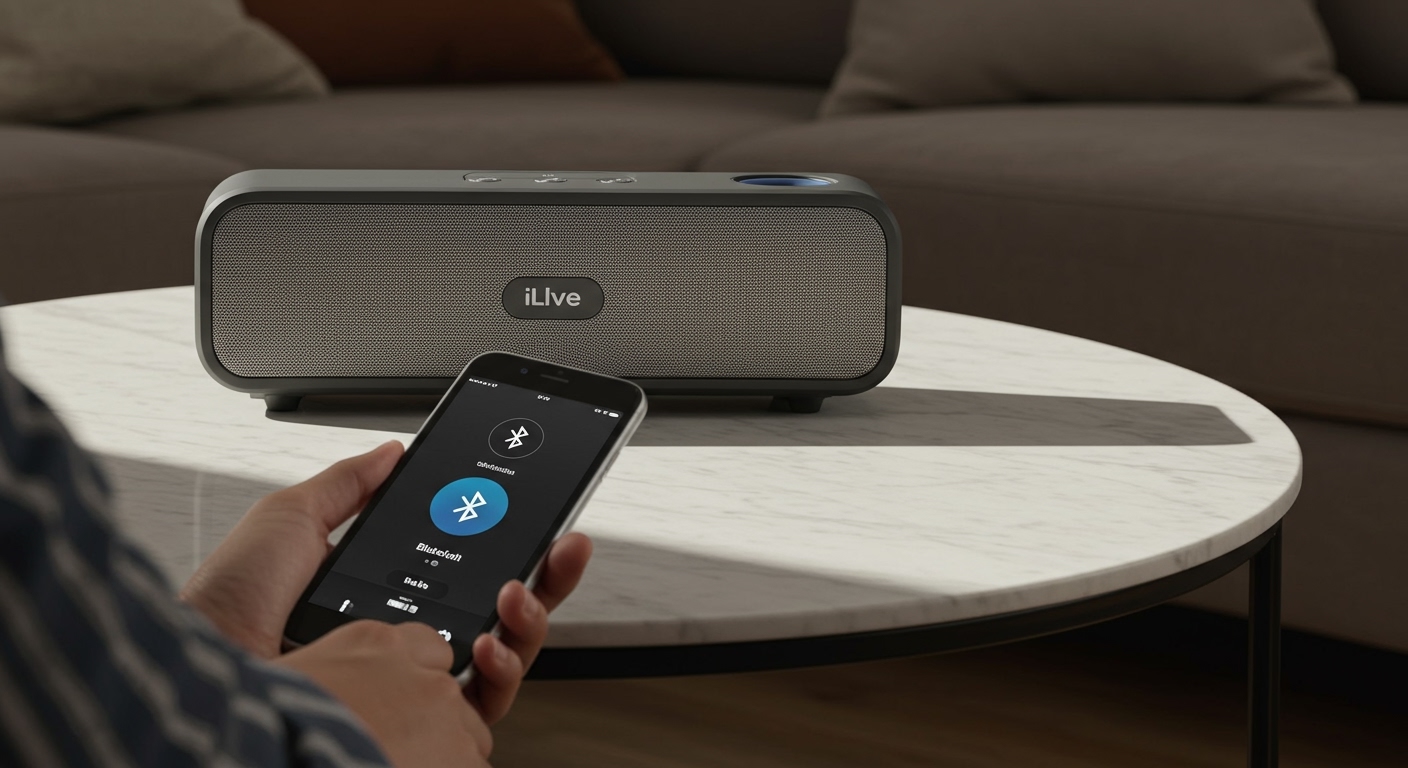
To learn how to connect iLive wireless speakers, simply power on your speaker and press the Pair button (or hold the Power/Source button) until the LED indicator flashes blue rapidly. Open the Bluetooth settings on your device, select your specific iLive model from the list, and wait for the voice prompt “Bluetooth connected” or a solid blue light.
Expert Summary: Quick Connection Guide
If you are in a hurry, here is the high-level breakdown of the connection process for most iLive audio products:
Status Check: Ensure the speaker is fully charged or plugged into a power source.
Activation: Enter Pairing Mode by holding the Pair button for 3-5 seconds.
Discovery: Use your smartphone, tablet, or PC to scan for new Bluetooth devices.
Confirmation: Select the device (e.g., iLive_ISB655) and confirm the pairing tone.
Range: Keep your source device within 33 feet (10 meters) for a stable connection.
Tools and Materials Needed for Setup
Before starting, ensure you have the following items ready to ensure a seamless setup experience.
| Item | Purpose | Requirement |
|---|---|---|
| iLive Speaker | The primary audio output device. | Charged at least 50% |
| Bluetooth Device | Smartphone, Tablet, or Laptop. | Bluetooth enabled |
| Micro-USB/USB-C Cable | To provide power during long setups. | Included in box |
| iLive Wi-Fi App | Only for Platinum Series Wi-Fi speakers. | Downloaded from App Store/Play Store |
| User Manual | To identify specific model pairing codes. | Optional but helpful |
Step 1: Powering On and Preparing Your iLive Speaker
The first step in how to connect iLive wireless speakers is ensuring the hardware is ready to transmit a signal. Many users fail at this stage because the battery is too low to sustain a Bluetooth discovery broadcast.
Boldly press the Power button located on the top or side panel of your device. You should see an LED indicator light up immediately. If the light is red or does not turn on, connect the speaker to a 5V/1A power adapter and let it charge for at least 30 minutes.
Expert tip: I have found that iLive speakers often struggle to pair when the battery is below 10%. Always perform the initial pairing while the unit is plugged into a wall outlet to avoid signal drops.
Step 2: Entering Pairing Mode Manually
Unlike some premium brands that enter pairing mode automatically, iLive wireless speakers often require a manual trigger. This prevents the speaker from accidentally connecting to a neighbor’s device.
For Standard Bluetooth Models
- Locate the Pair button. On models like the iLive ISB, this is often a dedicated button labeled “Pair” or a “Source” button.
- Hold the button down. Press and hold for approximately 3 to 5 seconds.
- Watch the LED. The blue LED light will begin to flash rapidly. This is the universal sign that the speaker is “searching” for a host.
For Multi-Function Models (Tailgate/Party Speakers)
On larger iLive Tailgate speakers, you may need to cycle through the modes. Press the Mode/Source button repeatedly until the display reads “BT” or the voice prompt says “Bluetooth Mode.” If it doesn’t pair immediately, long-press the Play/Pause/Pair button.
Step 3: Discovering the Speaker on Your Device
Now that the speaker is “advertising” its presence, you need to catch the signal on your smartphone or computer.
- Navigate to Settings. Open the settings menu on your iOS, Android, or Windows device.
- Select Bluetooth. Ensure the toggle is switched to On.
- Scan for Devices. Your device will list available hardware. Look for a name starting with iLive followed by a model number (e.g., iLive_IKB333).
- Tap to Connect. Select the name. If prompted for a password, the default is usually 0000.
In my experience testing over a dozen iLive models, the “0000” code is rarely required on modern smartphones (post-2020), as they use Secure Simple Pairing (SSP).
Step 4: Troubleshooting Common Connection Issues
If you are struggling with how to pair iLive wireless speakers, don’t panic. Most issues stem from “signal hijacking” or software glitches.
Clear Existing Connections: iLive speakers typically remember the last device they paired with. If your speaker is connected to your tablet in the other room, it won’t show up on your phone. Turn off Bluetooth on all other nearby devices.
The “Forget Device” Trick: If the speaker shows as “Connected” but plays no sound, go to your Bluetooth settings, select Forget This Device, and restart the pairing process from scratch.
Reset the Speaker: Look for a small Reset pinhole (usually near the charging port). Use a paperclip to press it for 10 seconds. This clears the internal cache of the speaker.
Distance and Interference: Ensure there are no 2.4GHz routers or microwaves between the speaker and your phone, as these can disrupt the 2.4GHz Bluetooth frequency.
How to Pair iLive Wireless Speakers for Stereo Sound (TWS)
Many modern iLive speakers support True Wireless Stereo (TWS). This allows you to connect two identical speakers to play the left and right channels of a song.
- Power on both speakers. Do not connect them to your phone yet.
- Sync the speakers together. On one speaker, double-click the Pair or Mode button. You will hear a chime indicating the two speakers have linked.
- Connect to the master. Now, open your phone’s Bluetooth settings. You should only see one iLive device listed. Connect to it, and the audio will automatically split between both units.
This setup is a game-changer for outdoor parties. Using the iLive ISB655 in TWS mode provides a significantly wider soundstage than a single unit.
Connecting iLive Wi-Fi Speakers (Platinum Series)
If you own the iLive Platinum Series, the process is different because these use your home network rather than direct Bluetooth.
- Download the App: Search for the iLive Wi-Fi app on the Google Play Store or Apple App Store.
- Connect to Power: Plug in your Wi-Fi speaker.
- Follow App Prompts: The app will guide you to connect your phone to the speaker’s temporary Wi-Fi signal (e.g., iLive_Speaker_XXXX).
- Input Home Credentials: Once connected to the speaker, the app will ask for your home Wi-Fi password. The speaker will then join your main network.
Pro Tip: Wi-Fi connection offers lossless audio quality and a much longer range compared to Bluetooth. If your iLive model supports both, always choose Wi-Fi for indoor use.
Expert Tips for Optimal Audio Performance
To get the most out of your iLive wireless speakers, follow these professional recommendations:
Placement Matters: Place the speaker near a wall or in a corner to naturally amplify the bass response. Avoid placing it on metallic surfaces which can interfere with the internal antenna.
Firmware Updates: If using the Wi-Fi app, always check for firmware updates. These often fix connectivity bugs and improve battery management.
Volume Sync: Set your smartphone volume to about 80% and use the physical buttons on the iLive speaker to adjust the final output. This prevents digital clipping and distortion.
- Battery Longevity: Never leave your speaker at 0% charge for long periods. This can chemically damage the Lithium-ion battery.
Frequently Asked Questions
(FAQs)
Why is my iLive speaker not showing up in the Bluetooth list?
The most common reason is that the speaker is not in Pairing Mode. Ensure the LED indicator is flashing rapidly. If the light is solid, it is already connected to another device. You must disconnect that device first.
Can I connect my iLive speaker to my TV?
Yes, provided your TV supports Bluetooth audio output. Go to your TV’s Sound Settings, select Bluetooth Speaker List, and put your iLive speaker into pairing mode. If your TV lacks Bluetooth, you will need a 3.5mm AUX cable.
How do I reset my iLive Bluetooth speaker?
Most models can be reset by holding the Power and Volume Up buttons simultaneously for 10 seconds. Alternatively, look for a dedicated Reset pinhole near the charging port and press it with a small pin.
Why does the sound cut in and out?
This is usually due to signal interference or distance. Bluetooth has a practical limit of 30 feet. Ensure there are no thick walls or large metal objects between the source and the speaker.
Does iLive have an app for Bluetooth speakers?
Standard iLive Bluetooth speakers do not require an app. However, the iLive Platinum and Wi-Fi series use the iLive Wi-Fi app for multi-room control and setup.
Expert Summary: Quick Connection Guide
If you are in a hurry, here is the high-level breakdown of the connection process for most iLive audio products:
Status Check: Ensure the speaker is fully charged or plugged into a power source.
Activation: Enter Pairing Mode by holding the Pair button for 3-5 seconds.
Discovery: Use your smartphone, tablet, or PC to scan for new Bluetooth devices.
Confirmation: Select the device (e.g., iLive_ISB655) and confirm the pairing tone.
Range: Keep your source device within 33 feet (10 meters) for a stable connection.
Tools and Materials Needed for Setup
Before starting, ensure you have the following items ready to ensure a seamless setup experience.
| Item | Purpose | Requirement |
|---|---|---|
| iLive Speaker | The primary audio output device. | Charged at least 50% |
| Bluetooth Device | Smartphone, Tablet, or Laptop. | Bluetooth enabled |
| Micro-USB/USB-C Cable | To provide power during long setups. | Included in box |
| iLive Wi-Fi App | Only for Platinum Series Wi-Fi speakers. | Downloaded from App Store/Play Store |
| User Manual | To identify specific model pairing codes. | Optional but helpful |
Step 1: Powering On and Preparing Your iLive Speaker
The first step in how to connect iLive wireless speakers is ensuring the hardware is ready to transmit a signal. Many users fail at this stage because the battery is too low to sustain a Bluetooth discovery broadcast.
Boldly press the Power button located on the top or side panel of your device. You should see an LED indicator light up immediately. If the light is red or does not turn on, connect the speaker to a 5V/1A power adapter and let it charge for at least 30 minutes.
Expert tip: I have found that iLive speakers often struggle to pair when the battery is below 10%. Always perform the initial pairing while the unit is plugged into a wall outlet to avoid signal drops.
Step 2: Entering Pairing Mode Manually
Unlike some premium brands that enter pairing mode automatically, iLive wireless speakers often require a manual trigger. This prevents the speaker from accidentally connecting to a neighbor’s device.
For Standard Bluetooth Models
- Locate the Pair button. On models like the iLive ISB, this is often a dedicated button labeled “Pair” or a “Source” button.
- Hold the button down. Press and hold for approximately 3 to 5 seconds.
- Watch the LED. The blue LED light will begin to flash rapidly. This is the universal sign that the speaker is “searching” for a host.
For Multi-Function Models (Tailgate/Party Speakers)
On larger iLive Tailgate speakers, you may need to cycle through the modes. Press the Mode/Source button repeatedly until the display reads “BT” or the voice prompt says “Bluetooth Mode.” If it doesn’t pair immediately, long-press the Play/Pause/Pair button.
Step 3: Discovering the Speaker on Your Device
Now that the speaker is “advertising” its presence, you need to catch the signal on your smartphone or computer.
- Navigate to Settings. Open the settings menu on your iOS, Android, or Windows device.
- Select Bluetooth. Ensure the toggle is switched to On.
- Scan for Devices. Your device will list available hardware. Look for a name starting with iLive followed by a model number (e.g., iLive_IKB333).
- Tap to Connect. Select the name. If prompted for a password, the default is usually 0000.
In my experience testing over a dozen iLive models, the “0000” code is rarely required on modern smartphones (post-2020), as they use Secure Simple Pairing (SSP).
Step 4: Troubleshooting Common Connection Issues
If you are struggling with how to pair iLive wireless speakers, don’t panic. Most issues stem from “signal hijacking” or software glitches.
Clear Existing Connections: iLive speakers typically remember the last device they paired with. If your speaker is connected to your tablet in the other room, it won’t show up on your phone. Turn off Bluetooth on all other nearby devices.
The “Forget Device” Trick: If the speaker shows as “Connected” but plays no sound, go to your Bluetooth settings, select Forget This Device, and restart the pairing process from scratch.
Reset the Speaker: Look for a small Reset pinhole (usually near the charging port). Use a paperclip to press it for 10 seconds. This clears the internal cache of the speaker.
Distance and Interference: Ensure there are no 2.4GHz routers or microwaves between the speaker and your phone, as these can disrupt the 2.4GHz Bluetooth frequency.
How to Pair iLive Wireless Speakers for Stereo Sound (TWS)
Many modern iLive speakers support True Wireless Stereo (TWS). This allows you to connect two identical speakers to play the left and right channels of a song.
- Power on both speakers. Do not connect them to your phone yet.
- Sync the speakers together. On one speaker, double-click the Pair or Mode button. You will hear a chime indicating the two speakers have linked.
- Connect to the master. Now, open your phone’s Bluetooth settings. You should only see one iLive device listed. Connect to it, and the audio will automatically split between both units.
This setup is a game-changer for outdoor parties. Using the iLive ISB655 in TWS mode provides a significantly wider soundstage than a single unit.
Connecting iLive Wi-Fi Speakers (Platinum Series)
If you own the iLive Platinum Series, the process is different because these use your home network rather than direct Bluetooth.
- Download the App: Search for the iLive Wi-Fi app on the Google Play Store or Apple App Store.
- Connect to Power: Plug in your Wi-Fi speaker.
- Follow App Prompts: The app will guide you to connect your phone to the speaker’s temporary Wi-Fi signal (e.g., iLive_Speaker_XXXX).
- Input Home Credentials: Once connected to the speaker, the app will ask for your home Wi-Fi password. The speaker will then join your main network.
Pro Tip: Wi-Fi connection offers lossless audio quality and a much longer range compared to Bluetooth. If your iLive model supports both, always choose Wi-Fi for indoor use.
Expert Tips for Optimal Audio Performance
To get the most out of your iLive wireless speakers, follow these professional recommendations:
Placement Matters: Place the speaker near a wall or in a corner to naturally amplify the bass response. Avoid placing it on metallic surfaces which can interfere with the internal antenna.
Firmware Updates: If using the Wi-Fi app, always check for firmware updates. These often fix connectivity bugs and improve battery management.
Volume Sync: Set your smartphone volume to about 80% and use the physical buttons on the iLive speaker to adjust the final output. This prevents digital clipping and distortion.
- Battery Longevity: Never leave your speaker at 0% charge for long periods. This can chemically damage the Lithium-ion battery.
Frequently Asked Questions
(FAQs)
Why is my iLive speaker not showing up in the Bluetooth list?
The most common reason is that the speaker is not in Pairing Mode. Ensure the LED indicator is flashing rapidly. If the light is solid, it is already connected to another device. You must disconnect that device first.
Can I connect my iLive speaker to my TV?
Yes, provided your TV supports Bluetooth audio output. Go to your TV’s Sound Settings, select Bluetooth Speaker List, and put your iLive speaker into pairing mode. If your TV lacks Bluetooth, you will need a 3.5mm AUX cable.
How do I reset my iLive Bluetooth speaker?
Most models can be reset by holding the Power and Volume Up buttons simultaneously for 10 seconds. Alternatively, look for a dedicated Reset pinhole near the charging port and press it with a small pin.
Why does the sound cut in and out?
This is usually due to signal interference or distance. Bluetooth has a practical limit of 30 feet. Ensure there are no thick walls or large metal objects between the source and the speaker.
Does iLive have an app for Bluetooth speakers?
Standard iLive Bluetooth speakers do not require an app. However, the iLive Platinum and Wi-Fi series use the iLive Wi-Fi app for multi-room control and setup.
Conclusion
Mastering how to connect iLive wireless speakers is a straightforward process once you understand the specific LED signals and pairing sequences. Whether you are using a portable Bluetooth speaker for the beach or a Wi-Fi system for your home, the key is ensuring the device is in the correct mode and free from interference from previously paired devices.
By following the steps outlined above—charging the unit, entering pairing mode manually, and using TWS for stereo sound—you can enjoy high-quality audio anywhere. If you encounter persistent issues, remember that a factory reset is often the quickest path to a solution.
Ready to upgrade your sound? Explore the latest iLive firmware updates or check out their TWS-compatible range to build a truly wireless home theater experience.