

Quick Guide: How to Connect Speakers to Acer Computer and Monitor
Struggling with a silent screen? Learning how to connect speakers to acer computer systems or monitor setups is a simple process involving hardware identification and software configuration. To get audio immediately, ensure you are using an HDMI or DisplayPort cable for built-in speakers, or plug external speakers into the 3.5mm audio jack (usually green) on the back of your Acer PC.
Expert Summary: Key Takeaways
Built-in Audio: Use HDMI or DisplayPort to carry both video and sound signals simultaneously.
External Connection: For the best sound quality, connect external speakers directly to the Acer computer’s rear lime-green port.
Software Setup: Always set the “Acer Monitor (High Definition Audio)” or your external device as the Default Playback Device in Windows Sound Settings.
Volume Check: Ensure the On-Screen Display (OSD) menu on the monitor itself isn’t muted.
Required Tools and Connection Types
Before learning how to hook up speakers to acer monitor or PC units, identify your hardware. Not all Acer monitors have built-in speakers, so you must verify your specific model’s capabilities.
| Connection Type | Audio Quality | Best For | Requirement |
|---|---|---|---|
| HDMI | High (Digital) | Built-in monitor speakers | HDMI 1.4 or higher cable |
| DisplayPort | High (Digital) | Built-in monitor speakers | DP 1.2+ cable |
| 3.5mm Auxiliary | Moderate (Analog) | External desktop speakers | Standard 3.5mm male-to-male cable |
| USB-A / USB-C | High (Digital) | High-end gaming headsets/speakers | Available USB port on Acer PC |
| Bluetooth | Good (Wireless) | Portable speakers/Headphones | Built-in Bluetooth or USB Dongle |
Step 1: How to Turn On Acer Monitor Speakers
Many users assume their monitor is broken when they can’t figure out how to use acer monitor speakers. Often, the internal speakers are simply disabled in the monitor’s firmware or muted.
Check Model Compatibility
First, verify your Acer monitor actually has internal speakers. Look for small grilles on the back or bottom of the panel. Series like the Acer Nitro, Predator, and ConceptD usually include them, while budget V-series models often do not.
Access the OSD Menu
- Locate the physical buttons on the back or bottom right of your Acer monitor.
- Press the Menu button to open the On-Screen Display (OSD).
- Navigate to the Audio or Sound tab using the directional buttons.
- Ensure the volume is turned up (at least 50%) and the Mute toggle is set to Off.
- Select the correct input source (HDMI or DP) if the monitor asks for an audio source.
Step 2: How to Connect Speakers to Acer Computer (External)
If you prefer higher fidelity, knowing how to connect speakers to acer computer towers or laptops is essential. Most Acer desktops use a standard color-coded system for audio.
Identify the Audio Ports
Look at the I/O panel on the back of your Acer Aspire or Predator Orion desktop.
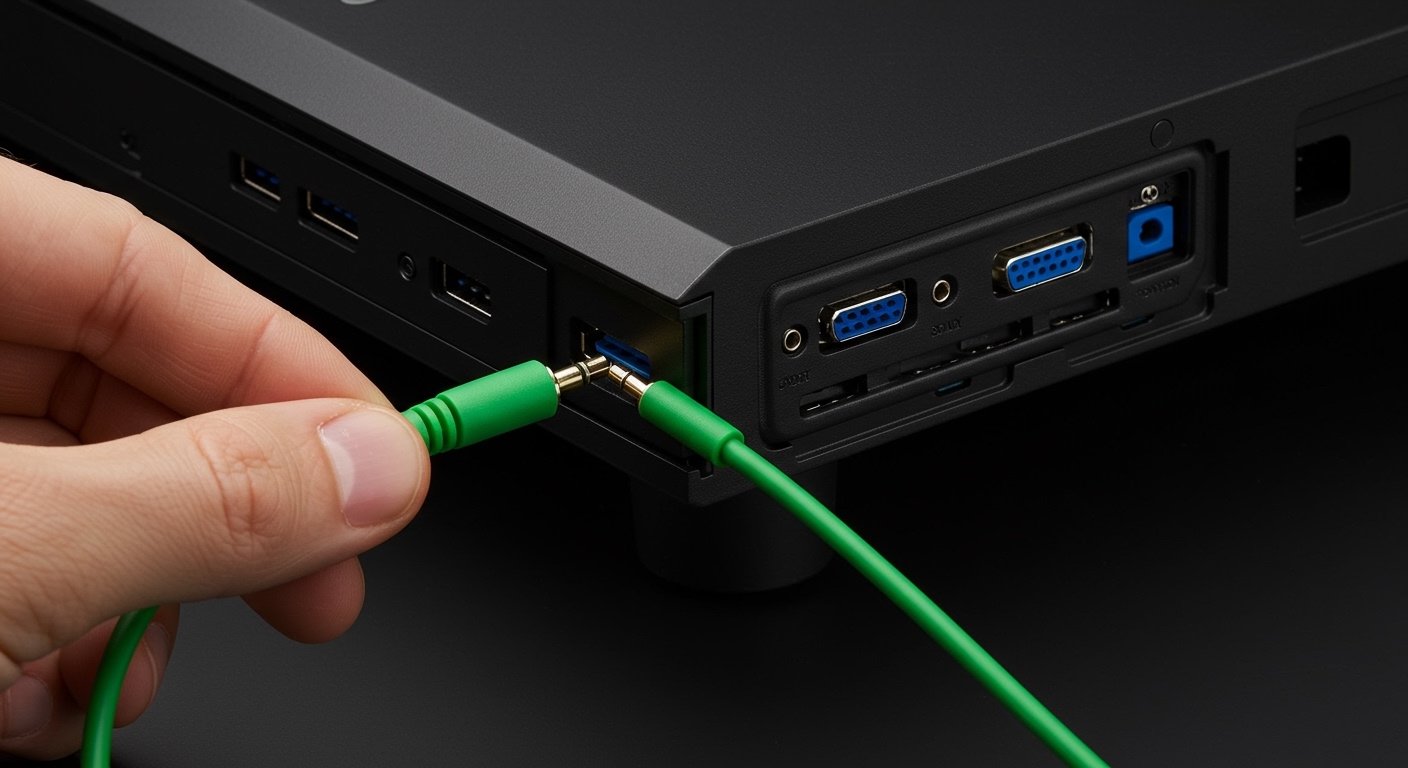
Lime Green Port: This is the primary Line Out. Plug your main speakers here.
Pink Port: Microphone input.
Light Blue Port: Line In (for mixing external audio).
Plugging in the Hardware
- Connect the 3.5mm jack from your speakers into the Green port on the Acer PC.
- Plug the speaker’s power cord into a wall outlet or a USB port on the PC if they are USB-powered.
- Turn on the speakers using their physical power knob.
Step 3: How to Hook Up Speakers to Acer Monitor (Pass-through)
If your Acer monitor has a “Headphone” or “Audio Out” icon (usually a 3.5mm jack), you can use the monitor as an audio bridge. This is the best way how to use speakers on acer monitor when switching between a PC and a console (like a PS5 or Xbox).
- Connect the PC to the monitor via HDMI or DisplayPort. This sends the audio signal to the screen.
- Plug your external speakers into the 3.5mm Audio Out port on the back of the Acer monitor.
- Adjust the monitor’s volume to 100% and use the speaker’s knob or Windows settings to control the actual output level.
Step 4: Configure Windows Sound Settings
Even with the cables plugged in, you might still need to learn how to get acer monitor speakers to work within the operating system. Windows often defaults to the wrong output device.
Set the Default Playback Device
- Right-click the speaker icon in the bottom right corner of your taskbar.
- Select “Sound settings” (or “Playback devices” on older versions).
- Under the Output section, click the dropdown menu.
- Choose “Acer [Model Name]” if using built-in speakers, or “Realtek Audio” if using external speakers plugged into the PC.
- Test the sound by moving the volume slider. You should hear a chime.
Update Audio Drivers
If the device doesn’t appear, your Realtek High Definition Audio drivers might be outdated.
- Right-click the Start button and select Device Manager.
- Expand “Sound, video and game controllers”.
- Right-click your audio device and select Update driver.
- Choose “Search automatically for drivers.”
Pro Tips for Better Audio on Acer Systems
As an expert who has set up hundreds of workstations, I’ve found that small adjustments make a massive difference in how to use acer monitor speakers effectively.
Avoid Front Panel Jacks: On Acer desktops, always prefer the rear green port. Front panel jacks are often unshielded and prone to “coil whine” or static interference from internal components.
Disable Enhancements: If the sound is muffled, go to Sound Control Panel > Properties > Enhancements and check Disable all enhancements.
Sample Rate Tuning: For crisper sound, go to the Advanced tab in Sound Properties and set the Default Format to 24-bit, 48000 Hz (Studio Quality).
Cable Quality: If you hear buzzing, your 3.5mm cable might be poorly shielded. Switch to a gold-plated auxiliary cable to eliminate electromagnetic interference.
Troubleshooting: Why Won’t My Acer Speakers Work?
If you’ve followed the steps on how to get acer monitor speakers to work but still hear nothing, check these common failure points:
The “Silent HDMI” Bug: Sometimes Windows “handshakes” incorrectly with the monitor. Unplug the HDMI cable, wait 10 seconds, and plug it back in while the PC is on.
BIOS Settings: In rare cases, the Integrated Audio is disabled in the Acer BIOS. Restart your PC, tap F2 or Del to enter BIOS, and ensure “Onboard Audio” is set to Enabled.
Service Check: Press Win + R, type services.msc, and ensure Windows Audio and Windows Audio Endpoint Builder are “Running.”
Frequently Asked Questions
(FAQs)
Why is there no sound coming from my Acer monitor?
The most common reason is that the monitor is muted in its own OSD menu, or Windows is sending audio to a different output (like a headset). Ensure you are using HDMI/DisplayPort and that the monitor is selected as the Default Playback Device in Windows settings.
How do I enable the built-in speakers on an Acer Nitro monitor?
Open the monitor’s OSD menu using the buttons on the back. Navigate to the Audio section and ensure the volume is up. Then, in Windows, go to Settings > System > Sound and select the Acer Nitro as your output device.
Can I connect speakers to an Acer monitor without a PC?
Yes, if you are using a gaming console or streaming stick via HDMI, you can plug external speakers into the monitor’s 3.5mm Audio Out jack. The monitor will act as a pass-through for the audio signal from the HDMI source.
What should I do if my Acer computer doesn’t recognize my speakers?
First, try a different USB or 3.5mm port to rule out a hardware failure. If it still fails, open Device Manager, uninstall the Realtek Audio driver, and restart your computer. Windows will automatically reinstall the correct driver upon reboot.
Do all Acer monitors have built-in speakers?
No. Many budget and high-refresh-rate competitive gaming monitors omit speakers to save on cost and weight. Check your specific model number on the Acer official website to confirm if “Integrated Speakers” are listed in the specifications.
Quick Guide: How to Connect Speakers to Acer Computer and Monitor
Struggling with a silent screen? Learning how to connect speakers to acer computer systems or monitor setups is a simple process involving hardware identification and software configuration. To get audio immediately, ensure you are using an HDMI or DisplayPort cable for built-in speakers, or plug external speakers into the 3.5mm audio jack (usually green) on the back of your Acer PC.
Expert Summary: Key Takeaways
Built-in Audio: Use HDMI or DisplayPort to carry both video and sound signals simultaneously.
External Connection: For the best sound quality, connect external speakers directly to the Acer computer’s rear lime-green port.
Software Setup: Always set the “Acer Monitor (High Definition Audio)” or your external device as the Default Playback Device in Windows Sound Settings.
Volume Check: Ensure the On-Screen Display (OSD) menu on the monitor itself isn’t muted.
Required Tools and Connection Types
Before learning how to hook up speakers to acer monitor or PC units, identify your hardware. Not all Acer monitors have built-in speakers, so you must verify your specific model’s capabilities.
| Connection Type | Audio Quality | Best For | Requirement |
|---|---|---|---|
| HDMI | High (Digital) | Built-in monitor speakers | HDMI 1.4 or higher cable |
| DisplayPort | High (Digital) | Built-in monitor speakers | DP 1.2+ cable |
| 3.5mm Auxiliary | Moderate (Analog) | External desktop speakers | Standard 3.5mm male-to-male cable |
| USB-A / USB-C | High (Digital) | High-end gaming headsets/speakers | Available USB port on Acer PC |
| Bluetooth | Good (Wireless) | Portable speakers/Headphones | Built-in Bluetooth or USB Dongle |
Step 1: How to Turn On Acer Monitor Speakers
Many users assume their monitor is broken when they can’t figure out how to use acer monitor speakers. Often, the internal speakers are simply disabled in the monitor’s firmware or muted.
Check Model Compatibility
First, verify your Acer monitor actually has internal speakers. Look for small grilles on the back or bottom of the panel. Series like the Acer Nitro, Predator, and ConceptD usually include them, while budget V-series models often do not.
Access the OSD Menu
- Locate the physical buttons on the back or bottom right of your Acer monitor.
- Press the Menu button to open the On-Screen Display (OSD).
- Navigate to the Audio or Sound tab using the directional buttons.
- Ensure the volume is turned up (at least 50%) and the Mute toggle is set to Off.
- Select the correct input source (HDMI or DP) if the monitor asks for an audio source.
Step 2: How to Connect Speakers to Acer Computer (External)
If you prefer higher fidelity, knowing how to connect speakers to acer computer towers or laptops is essential. Most Acer desktops use a standard color-coded system for audio.
Identify the Audio Ports
Look at the I/O panel on the back of your Acer Aspire or Predator Orion desktop.
Lime Green Port: This is the primary Line Out. Plug your main speakers here.
Pink Port: Microphone input.
Light Blue Port: Line In (for mixing external audio).
Plugging in the Hardware
- Connect the 3.5mm jack from your speakers into the Green port on the Acer PC.
- Plug the speaker’s power cord into a wall outlet or a USB port on the PC if they are USB-powered.
- Turn on the speakers using their physical power knob.
Step 3: How to Hook Up Speakers to Acer Monitor (Pass-through)
If your Acer monitor has a “Headphone” or “Audio Out” icon (usually a 3.5mm jack), you can use the monitor as an audio bridge. This is the best way how to use speakers on acer monitor when switching between a PC and a console (like a PS5 or Xbox).
- Connect the PC to the monitor via HDMI or DisplayPort. This sends the audio signal to the screen.
- Plug your external speakers into the 3.5mm Audio Out port on the back of the Acer monitor.
- Adjust the monitor’s volume to 100% and use the speaker’s knob or Windows settings to control the actual output level.
Step 4: Configure Windows Sound Settings
Even with the cables plugged in, you might still need to learn how to get acer monitor speakers to work within the operating system. Windows often defaults to the wrong output device.
Set the Default Playback Device
- Right-click the speaker icon in the bottom right corner of your taskbar.
- Select “Sound settings” (or “Playback devices” on older versions).
- Under the Output section, click the dropdown menu.
- Choose “Acer [Model Name]” if using built-in speakers, or “Realtek Audio” if using external speakers plugged into the PC.
- Test the sound by moving the volume slider. You should hear a chime.
Update Audio Drivers
If the device doesn’t appear, your Realtek High Definition Audio drivers might be outdated.
- Right-click the Start button and select Device Manager.
- Expand “Sound, video and game controllers”.
- Right-click your audio device and select Update driver.
- Choose “Search automatically for drivers.”
Pro Tips for Better Audio on Acer Systems
As an expert who has set up hundreds of workstations, I’ve found that small adjustments make a massive difference in how to use acer monitor speakers effectively.
Avoid Front Panel Jacks: On Acer desktops, always prefer the rear green port. Front panel jacks are often unshielded and prone to “coil whine” or static interference from internal components.
Disable Enhancements: If the sound is muffled, go to Sound Control Panel > Properties > Enhancements and check Disable all enhancements.
Sample Rate Tuning: For crisper sound, go to the Advanced tab in Sound Properties and set the Default Format to 24-bit, 48000 Hz (Studio Quality).
Cable Quality: If you hear buzzing, your 3.5mm cable might be poorly shielded. Switch to a gold-plated auxiliary cable to eliminate electromagnetic interference.
Troubleshooting: Why Won’t My Acer Speakers Work?
If you’ve followed the steps on how to get acer monitor speakers to work but still hear nothing, check these common failure points:
The “Silent HDMI” Bug: Sometimes Windows “handshakes” incorrectly with the monitor. Unplug the HDMI cable, wait 10 seconds, and plug it back in while the PC is on.
BIOS Settings: In rare cases, the Integrated Audio is disabled in the Acer BIOS. Restart your PC, tap F2 or Del to enter BIOS, and ensure “Onboard Audio” is set to Enabled.
Service Check: Press Win + R, type services.msc, and ensure Windows Audio and Windows Audio Endpoint Builder are “Running.”
Frequently Asked Questions
(FAQs)
Why is there no sound coming from my Acer monitor?
The most common reason is that the monitor is muted in its own OSD menu, or Windows is sending audio to a different output (like a headset). Ensure you are using HDMI/DisplayPort and that the monitor is selected as the Default Playback Device in Windows settings.
How do I enable the built-in speakers on an Acer Nitro monitor?
Open the monitor’s OSD menu using the buttons on the back. Navigate to the Audio section and ensure the volume is up. Then, in Windows, go to Settings > System > Sound and select the Acer Nitro as your output device.
Can I connect speakers to an Acer monitor without a PC?
Yes, if you are using a gaming console or streaming stick via HDMI, you can plug external speakers into the monitor’s 3.5mm Audio Out jack. The monitor will act as a pass-through for the audio signal from the HDMI source.
What should I do if my Acer computer doesn’t recognize my speakers?
First, try a different USB or 3.5mm port to rule out a hardware failure. If it still fails, open Device Manager, uninstall the Realtek Audio driver, and restart your computer. Windows will automatically reinstall the correct driver upon reboot.
Do all Acer monitors have built-in speakers?
No. Many budget and high-refresh-rate competitive gaming monitors omit speakers to save on cost and weight. Check your specific model number on the Acer official website to confirm if “Integrated Speakers” are listed in the specifications.
Conclusion
Understanding how to connect speakers to acer computer environments is a vital skill for any user looking to maximize their multimedia experience. Whether you are utilizing the convenience of built-in Acer monitor speakers via HDMI or the superior punch of external desktop speakers via the 3.5mm green jack, the key lies in matching your hardware connection with the correct Windows Sound Settings.
By following this guide, you have ensured that your drivers are updated, your OSD settings are optimized, and your hardware is plugged into the most efficient ports. For the best experience, always keep your audio drivers current and consider a dedicated set of external speakers if you find the built-in monitor audio lacking in bass or volume.









