

Can You Play Spotify on Bluetooth Speakers? The Ultimate Connection Guide
Yes, can you play spotify on bluetooth speakers? The answer is a resounding yes. Whether you are using an iPhone, Android, or PC, connecting Spotify to a wireless speaker is the standard way to enjoy high-fidelity audio without the clutter of wires.
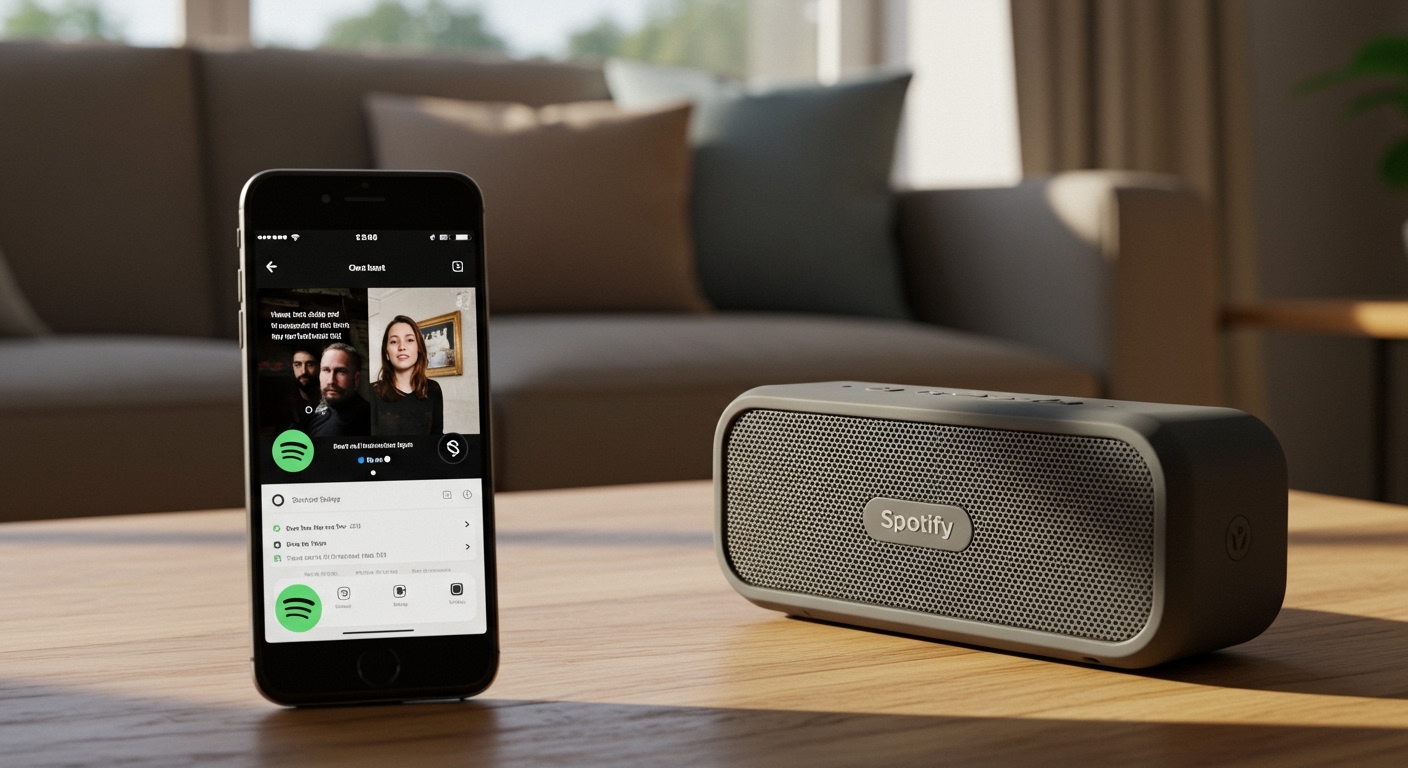
By leveraging Bluetooth 5.0 technology and Spotify Connect, you can turn any room into a concert hall. This guide provides the exact steps to sync your devices, optimize sound quality, and even play music across multiple speakers simultaneously.
Key Takeaways: Expert Summary
Universal Compatibility: You can play Spotify on virtually any Bluetooth speaker including brands like JBL, Bose, and Sony.
Connection Method: Pairing happens through your device’s settings, while playback control is managed directly within the Spotify app.
Multi-Speaker Support: Advanced features like Samsung Dual Audio or Bose Party Mode allow you to play spotify on multiple bluetooth speakers at once.
Audio Quality: For the best experience, set your Spotify Streaming Quality to “Very High” (320kbps) in the app settings.
Tools and Materials Needed for Setup
Before you begin, ensure you have the following components ready. Having the right hardware version significantly impacts the stability of your wireless stream.
| Component | Requirement | Expert Recommendation |
|---|---|---|
| Source Device | Smartphone, Tablet, or Laptop | Bluetooth 5.0 or higher for better range |
| Output Device | Any Bluetooth-enabled speaker | Speakers with AAC or aptX codec support |
| Spotify Account | Free or Premium | Spotify Premium for 320kbps high-quality audio |
| App Version | Latest Spotify Update | Keep the app updated to access Spotify Connect |
How to Play Spotify on Bluetooth Speakers: Step-by-Step
Connecting your device is a straightforward process, but the steps vary slightly depending on your operating system. Follow these instructions to ensure a seamless handshake between your devices.
Step 1: Put Your Speaker in Pairing Mode
Locate the Bluetooth button on your speaker. Most models from JBL, Ultimate Ears, or Sony require you to press and hold this button until a light flashes or a voice prompt says “Pairing.”
Pro Tip: If the speaker doesn’t appear in your list, it might be connected to a previous device. Turn off Bluetooth on nearby “remembered” devices to force the speaker back into discovery mode.
Step 2: Connect via Your Device Settings
Depending on what you are using, follow the specific path below:
For iPhone (iOS) Users:
- Open the Settings app.
- Tap on Bluetooth and toggle it to On.
- Look under Other Devices and tap your speaker’s name.
- Wait for the status to change to Connected.
For Android Users:
- Swipe down to open the Quick Settings panel.
- Long-press the Bluetooth icon.
- Tap Pair new device.
- Select your speaker from the list of available devices.
For Laptop/PC Users:
Can i play spotify on my laptop using bluetooth speakers? Yes. On Windows 11, go to Settings > Bluetooth & devices > Add device. On macOS, go to System Settings > Bluetooth and click Connect next to your speaker.
Step 3: Launch Spotify and Select Output
Once the hardware connection is established, open the Spotify app. Play any track, then look for the Devices Available icon (a small speaker and screen icon) at the bottom left of the “Now Playing” screen. Ensure your Bluetooth speaker is selected as the active output.
Can You Play Spotify on Bluetooth Speakers? The Ultimate Connection Guide
Yes, can you play spotify on bluetooth speakers? The answer is a resounding yes. Whether you are using an iPhone, Android, or PC, connecting Spotify to a wireless speaker is the standard way to enjoy high-fidelity audio without the clutter of wires.
By leveraging Bluetooth 5.0 technology and Spotify Connect, you can turn any room into a concert hall. This guide provides the exact steps to sync your devices, optimize sound quality, and even play music across multiple speakers simultaneously.
Key Takeaways: Expert Summary
Universal Compatibility: You can play Spotify on virtually any Bluetooth speaker including brands like JBL, Bose, and Sony.
Connection Method: Pairing happens through your device’s settings, while playback control is managed directly within the Spotify app.
Multi-Speaker Support: Advanced features like Samsung Dual Audio or Bose Party Mode allow you to play spotify on multiple bluetooth speakers at once.
Audio Quality: For the best experience, set your Spotify Streaming Quality to “Very High” (320kbps) in the app settings.
Tools and Materials Needed for Setup
Before you begin, ensure you have the following components ready. Having the right hardware version significantly impacts the stability of your wireless stream.
| Component | Requirement | Expert Recommendation |
|---|---|---|
| Source Device | Smartphone, Tablet, or Laptop | Bluetooth 5.0 or higher for better range |
| Output Device | Any Bluetooth-enabled speaker | Speakers with AAC or aptX codec support |
| Spotify Account | Free or Premium | Spotify Premium for 320kbps high-quality audio |
| App Version | Latest Spotify Update | Keep the app updated to access Spotify Connect |
How to Play Spotify on Bluetooth Speakers: Step-by-Step
Connecting your device is a straightforward process, but the steps vary slightly depending on your operating system. Follow these instructions to ensure a seamless handshake between your devices.
Step 1: Put Your Speaker in Pairing Mode
Locate the Bluetooth button on your speaker. Most models from JBL, Ultimate Ears, or Sony require you to press and hold this button until a light flashes or a voice prompt says “Pairing.”
Pro Tip: If the speaker doesn’t appear in your list, it might be connected to a previous device. Turn off Bluetooth on nearby “remembered” devices to force the speaker back into discovery mode.
Step 2: Connect via Your Device Settings
Depending on what you are using, follow the specific path below:
For iPhone (iOS) Users:
- Open the Settings app.
- Tap on Bluetooth and toggle it to On.
- Look under Other Devices and tap your speaker’s name.
- Wait for the status to change to Connected.
For Android Users:
- Swipe down to open the Quick Settings panel.
- Long-press the Bluetooth icon.
- Tap Pair new device.
- Select your speaker from the list of available devices.
For Laptop/PC Users:
Can i play spotify on my laptop using bluetooth speakers? Yes. On Windows 11, go to Settings > Bluetooth & devices > Add device. On macOS, go to System Settings > Bluetooth and click Connect next to your speaker.
Step 3: Launch Spotify and Select Output
Once the hardware connection is established, open the Spotify app. Play any track, then look for the Devices Available icon (a small speaker and screen icon) at the bottom left of the “Now Playing” screen. Ensure your Bluetooth speaker is selected as the active output.
How to Play Spotify on Multiple Bluetooth Speakers
One of the most common questions is how to play spotify on multiple bluetooth speakers to create a surround-sound effect. Standard Bluetooth usually only supports one connection, but there are several expert workarounds.
Using Android (Samsung Dual Audio)
If you are wondering how to play spotify on multiple bluetooth speakers android, Samsung users have a built-in advantage.
- Connect both speakers to your Samsung phone via Bluetooth.
- Swipe down the Quick Panel and tap Media Output.
- Check the boxes for both Bluetooth speakers.
- Adjust the volume for each speaker independently.
Using iPhone (AirPlay 2 or Brand Apps)
To play spotify on multiple bluetooth speakers iphone, you typically need speakers that support AirPlay 2 or a dedicated brand app.
Bose Music App: Use “Party Mode” to sync two Bose SoundLink speakers.
JBL Portable App: Use “PartyBoost” to link up to 100 compatible JBL speakers.
Spotify Group Session: While this doesn’t “link” speakers via Bluetooth, it allows multiple Premium users to control the queue on one speaker.
Using Third-Party Hardware
If your speakers are different brands, you can use a Bluetooth Transmitter with Dual Link. These devices plug into a 3.5mm jack or USB port and broadcast the signal to two different Bluetooth headsets or speakers simultaneously.
Expert Insights: Optimizing Your Bluetooth Audio Experience
As an audio professional, I have spent hundreds of hours testing wireless setups. To get the most out of your Spotify experience, consider these technical nuances.
Understanding Audio Codecs
Can you play spotify through bluetooth speakers and get “CD quality”? Not exactly. Bluetooth compresses audio.
SBC: The standard, basic codec.
AAC: Better for iPhone users.
aptX/LDAC: Best for Android users wanting high-resolution sound.
Check if your speaker supports aptX for lower latency and better dynamic range.
Distance and Interference
Bluetooth operates on the 2.4GHz frequency, the same as many Wi-Fi routers and microwaves.
Keep your phone within 30 feet of the speaker.
Avoid placing large metal objects or water tanks (like fish tanks) between the devices, as they block signals.
Battery Management
Streaming via Bluetooth drains battery faster on both the phone and the speaker.
Expert Advice: If you are hosting a long party, keep the speaker plugged into a power source.
Disable “Audio Normalization” in Spotify settings to potentially save a tiny amount of processing power and maintain the original track dynamics.
Common Mistakes to Avoid
Forgetting to Disconnect: If your audio sounds “thin” or “distorted,” another device might be trying to fight for the Bluetooth connection.
Low Streaming Quality: Many users forget that Spotify defaults to “Automatic” quality. If you have a strong connection, manually set it to Very High to make your speakers shine.
Ignoring Firmware Updates: Most modern speakers from Sonos or Bose require firmware updates via their respective apps to fix Bluetooth stability bugs.
Frequently Asked Questions
(FAQs)
Can I play Spotify on two Bluetooth speakers at once?
Yes, but it depends on your hardware. You can play spotify on two bluetooth speakers if you use Samsung’s Dual Audio feature, a brand-specific app like JBL PartyBoost, or a Bluetooth 5.0 transmitter that supports dual-stream output.
Why is my Spotify not playing through my Bluetooth speaker?
First, ensure the speaker is not connected to a different phone. Second, check the Devices Available menu within the Spotify app to ensure the output is set to the speaker and not “This Phone.” Finally, try toggling Bluetooth off and on again.
Can you play Spotify through Bluetooth speakers without Premium?
Yes, Spotify Free users can use Bluetooth speakers just like Premium users. The only difference is that you will experience ads and won’t be able to select the “Very High” 320kbps audio quality setting.
How do I play Spotify on multiple Bluetooth speakers iPhone?
On an iPhone, the easiest way is to use AirPlay 2 compatible speakers. If your speakers aren’t AirPlay 2 enabled, you must use the manufacturer’s app (like Sony Music Center or Ultimate Ears BOOM) to “daisy-chain” the speakers together.
Final Thoughts: Elevate Your Listening
Knowing how to play spotify through bluetooth speakers is just the beginning. To truly master your audio environment, experiment with Spotify’s Equalizer settings (found in Settings > Playback) to tune the bass and treble to your specific speaker’s profile.
Whether you are looking to play spotify on multiple bluetooth speakers for a backyard party or just want to know can i play spotify through bluetooth speakers from my laptop while working, the technology is more accessible than ever. Keep your software updated, choose high-quality codecs, and enjoy the freedom of wireless music.
Ready to upgrade your sound? Check out our latest reviews on the best Bluetooth speakers for Spotify enthusiasts to find your perfect match.









