

Do Computers Have Built In Speakers? The Definitive Guide
Whether you are setting up a new home office or troubleshooting your current setup, one question often arises: do computers have built in speakers? The short answer is: Almost all laptops have built-in speakers, but most traditional desktop computers do not.
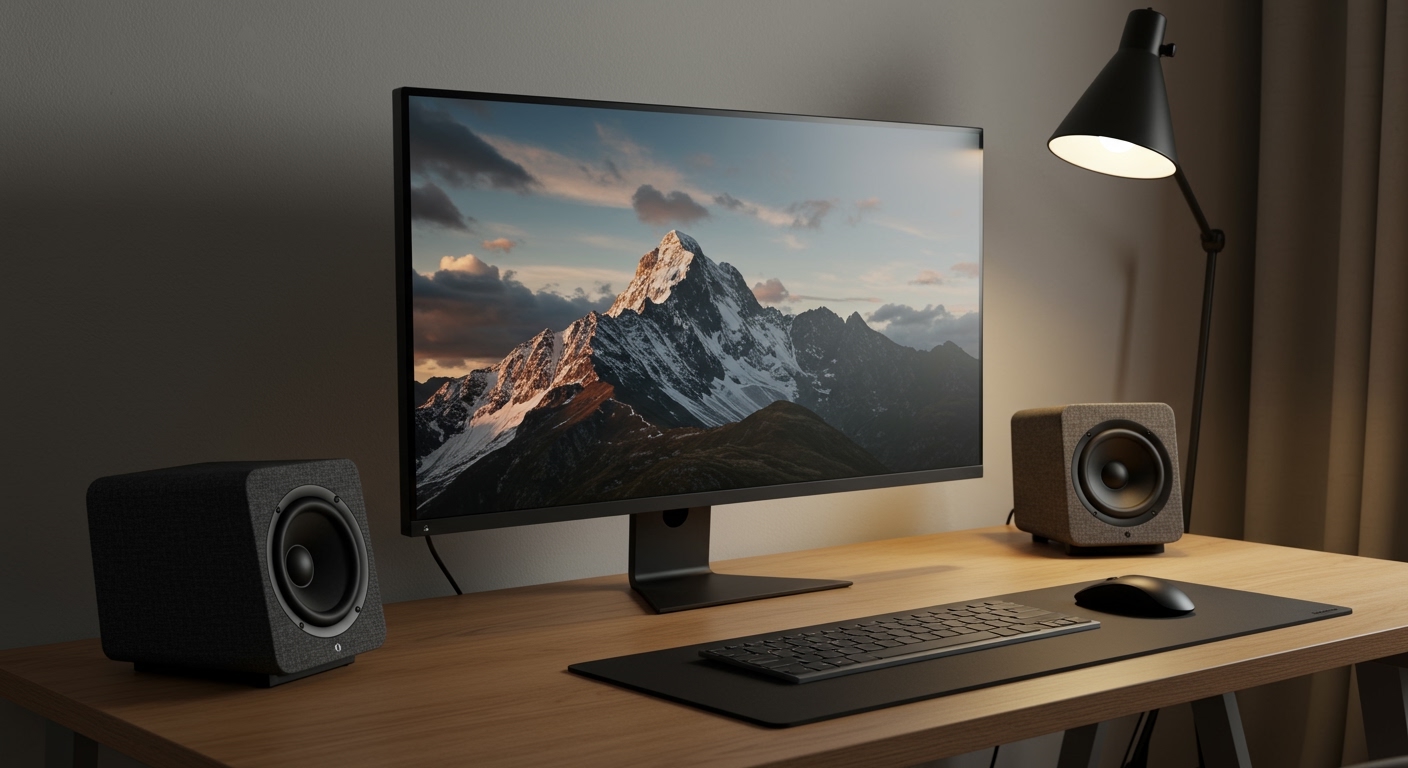
While laptops are designed for portability and include integrated audio, do desktop computers have built in speakers is a different story. Most desktops require external speakers or a monitor with integrated audio to produce sound. This guide will walk you through identifying your hardware, connecting peripherals, and optimizing your audio experience.
🚀 Key Takeaways: Expert Summary
Laptops: Nearly 100% of modern laptops (MacBooks, Dell XPS, HP Spectre) feature built-in speakers.
Desktops: Most standard desktop computers do not have speakers inside the tower; they rely on external peripherals.
Monitors: Some modern monitors come with integrated speakers, but the quality is typically lower than external units.
Connection Types: External audio usually connects via 3.5mm jacks, USB, or Bluetooth.
Pro Tip: If your desktop is silent, check if your monitor has a “Mute” setting or if you need an external DAC/Amp for high-end audio.
Understanding Audio Hardware: Do Desktops Have Built In Speakers?
To understand why your machine might be silent, we need to look at the physical hardware. The question of do desktops have built in speakers depends heavily on the specific model and form factor.
The Laptop vs. Desktop Divide
Laptops are “all-in-one” devices. Manufacturers like Apple, Lenovo, and ASUS prioritize portability, meaning the speakers, microphone, and camera are integrated into the chassis.
In contrast, when asking do desktop computers have built in speakers, you are usually looking at a “modular” system. The “tower” or “PC case” contains the processing power but rarely contains a speaker meant for media. Some business-grade desktops (like Dell OptiPlex or HP ProDesk) have a tiny “internal beeper” speaker, but it is only meant for system alerts, not music or videos.
All-in-One (AIO) Exceptions
If you own an iMac or a Microsoft Surface Studio, these are exceptions. Because the computer is built directly into the monitor frame, these desktops have built in speakers that are often quite high-quality.
Monitor Integrated Audio
Often, users think their desktop has speakers when the sound is actually coming from the monitor.
Check the back of your monitor for 3.5mm audio ports.
Look for small grills on the bottom or back of the screen.
Note: Audio sent via HDMI or DisplayPort can play through monitor speakers if they exist.
Do Computers Have Built In Speakers? The Definitive Guide
Whether you are setting up a new home office or troubleshooting your current setup, one question often arises: do computers have built in speakers? The short answer is: Almost all laptops have built-in speakers, but most traditional desktop computers do not.
While laptops are designed for portability and include integrated audio, do desktop computers have built in speakers is a different story. Most desktops require external speakers or a monitor with integrated audio to produce sound. This guide will walk you through identifying your hardware, connecting peripherals, and optimizing your audio experience.
🚀 Key Takeaways: Expert Summary
Laptops: Nearly 100% of modern laptops (MacBooks, Dell XPS, HP Spectre) feature built-in speakers.
Desktops: Most standard desktop computers do not have speakers inside the tower; they rely on external peripherals.
Monitors: Some modern monitors come with integrated speakers, but the quality is typically lower than external units.
Connection Types: External audio usually connects via 3.5mm jacks, USB, or Bluetooth.
Pro Tip: If your desktop is silent, check if your monitor has a “Mute” setting or if you need an external DAC/Amp for high-end audio.
Understanding Audio Hardware: Do Desktops Have Built In Speakers?
To understand why your machine might be silent, we need to look at the physical hardware. The question of do desktops have built in speakers depends heavily on the specific model and form factor.
The Laptop vs. Desktop Divide
Laptops are “all-in-one” devices. Manufacturers like Apple, Lenovo, and ASUS prioritize portability, meaning the speakers, microphone, and camera are integrated into the chassis.
In contrast, when asking do desktop computers have built in speakers, you are usually looking at a “modular” system. The “tower” or “PC case” contains the processing power but rarely contains a speaker meant for media. Some business-grade desktops (like Dell OptiPlex or HP ProDesk) have a tiny “internal beeper” speaker, but it is only meant for system alerts, not music or videos.
All-in-One (AIO) Exceptions
If you own an iMac or a Microsoft Surface Studio, these are exceptions. Because the computer is built directly into the monitor frame, these desktops have built in speakers that are often quite high-quality.
Monitor Integrated Audio
Often, users think their desktop has speakers when the sound is actually coming from the monitor.
Check the back of your monitor for 3.5mm audio ports.
Look for small grills on the bottom or back of the screen.
Note: Audio sent via HDMI or DisplayPort can play through monitor speakers if they exist.
Step-by-Step: How to Set Up Computer Speakers
If you have confirmed that your desktop computer does not have speakers, follow these steps to install and configure an external audio system.
Step 1: Identify Your Output Port
Before buying hardware, look at the back of your PC. You are looking for specific color-coded ports or modern digital connections:
Green Port: The standard 3.5mm Line Out for stereo speakers.
Pink Port: Microphone input.
Blue Port: Line In (for auxiliary audio).
USB Ports: Many modern speakers (like the Logitech S150) use USB for both power and data.
Optical (S/PDIF): Found on high-end motherboards for digital home theater systems.
Step 2: Choose Your Speaker Configuration
Refer to the table below to decide which setup fits your desk space:
| Speaker Type | Best For | Pros | Cons |
|---|---|---|---|
| 2.0 System | Small desks, office work | Compact, no bulky subwoofer | Lacks deep bass |
| 2.1 System | Gaming, Movies | Powerful bass via subwoofer | More cables to manage |
| 5.1 Surround | Immersive Home Theater | Directional sound | Requires complex wiring |
| Soundbar | Minimalist setups | Fits under the monitor | Limited stereo separation |
| Bluetooth | Cable-free setups | Portable, clean look | Potential latency (lag) |
Step 3: Connect the Physical Cables
Do computers have speakers that are “plug and play”? Yes, most are.
- Plug the speaker power cable into a wall outlet or a USB port on the PC.
- Insert the audio jack into the Green port on the back of the motherboard or the front panel of the case.
- If using USB speakers, wait for Windows or macOS to “enumerate” the device (usually takes 5-10 seconds).
Step 4: Configure Windows or macOS Audio Settings
Once connected, you must tell the operating system where to send the sound.
- Right-click the volume icon in your taskbar (Windows) or click the Control Center (Mac).
- Select “Sound Settings”.
- Under “Output”, choose your new speakers (e.g., “Realtek Audio” or the specific brand name like “Bose Companion”).
- Set the volume to 50% to test.
Step 5: Install Drivers and Software
For high-end gaming speakers (like Razer Nommo or SteelSeries Arena), you should download the manufacturer’s software. This allows you to:
Adjust Equalizer (EQ) settings.
Enable Spatial Audio (7.1 virtual surround).
Sync RGB lighting with your desktop.
Troubleshooting: Why Does My Desktop Have No Sound?
If you are still asking does desktop have speakers because you can’t hear anything, try these expert troubleshooting steps:
Check the “Default Device”
Sometimes Windows defaults to a “Digital Output” that isn’t connected to anything.
Open Sound Control Panel.
Ensure “Speakers” has a green checkmark.
If your monitor shows up as the audio device but has no speakers, disable it in this menu.
Verify Physical Mute Buttons
Many external speakers have a physical volume knob that also acts as a power button. Ensure the LED light on the speaker is on.
Update Audio Drivers
If your desktop computers have built in speakers (like an All-in-One) but they aren’t working:
- Open Device Manager.
- Expand “Sound, video and game controllers”.
- Right-click your audio driver (e.g., Realtek High Definition Audio) and select Update Driver.
Expert Tips for Better Computer Audio
As an audio professional who has tested hundreds of setups, here is how to maximize your experience regardless of whether your computer has built in speakers.
Placement Matters: Place your speakers at ear level. If they sit on the desk, tilt them slightly upward to avoid “desk bounce” reflections that muddy the sound.
Avoid Front Panel Jacks: The audio jacks on the front of a PC case often have unshielded wires that pick up electrical interference (static). Always use the motherboard ports on the back for the cleanest signal.
Disable “Audio Enhancements”: Windows often enables “Bass Boost” or “Virtual Surround” by default. These usually distort the original recording. Turn them off for a more natural sound.
Consider a DAC: If you hear a “hissing” sound when no music is playing, your computer’s internal sound card is poorly shielded. An external USB DAC (Digital-to-Analog Converter) will solve this.
Common Mistakes to Avoid
Buying “USB Powered” vs “USB Data”: Some speakers use USB only for power but still require a 3.5mm jack for sound. Ensure you plug in both!
Ignoring the Subwoofer Phase: if you have a 2.1 system, don’t hide the subwoofer in a tight cabinet. It needs space to “breathe” to avoid boomy, distorted bass.
Leaving Bluetooth On: If you use Bluetooth speakers, they may stay connected to your phone, preventing your PC from playing audio.
FAQs: Everything You Need to Know About Computer Speakers
Do all desktop computers have built in speakers?
No. The vast majority of standard tower-style desktop computers do not have speakers. You will need to purchase external speakers, use headphones, or use a monitor with built-in audio capabilities.
How do I know if my desktop has built in speakers?
Check the “Playback Devices” in your sound settings. If you see “Internal Speaker” listed (and it’s not a laptop), your motherboard might have a small diagnostic speaker. Also, look for speaker grills on your monitor or the PC case itself.
Do desktop computers have speakers for system sounds?
Some older or business-oriented desktops have speakers known as “internal PC speakers” or “beepers.” These are low-quality and only designed to provide “POST” codes (beeps during startup) or basic alert sounds, not for listening to music.
Why do laptops have speakers but desktops don’t?
Laptops are designed for mobility and convenience, requiring all components to be in one shell. Desktops are modular; manufacturers assume users will want to choose their own high-quality audio peripherals based on their specific needs (gaming, editing, or office work).
Can I use my monitor as a speaker?
Yes, if your monitor has built-in speakers and is connected via HDMI or DisplayPort. You can select the monitor as the “Output Device” in your computer’s sound settings.
Conclusion
To recap the initial question: do computers have built in speakers? Laptops almost always do, while desktops almost always require external help. Whether you choose a simple 2.0 stereo setup or a high-end spatial audio system, the right audio configuration transforms your computer from a silent workstation into a powerful media hub.
If you are currently building a desktop, don’t forget to budget for a decent pair of speakers or a high-quality headset. The difference in immersion and productivity is well worth the investment.
Ready to upgrade your sound? Check out our latest reviews on the best budget-friendly desktop speakers for 2024!









