

How to Connect Amazon Echo to External Speakers: The Ultimate Sound Upgrade Guide
Learning how to connect amazon echo to external speakers is the most effective way to transform your smart assistant into a high-fidelity audio hub. You can link your Echo device to external hardware using Bluetooth, a 3.5mm AUX cable, or Wi-Fi synchronization for a much richer listening experience.
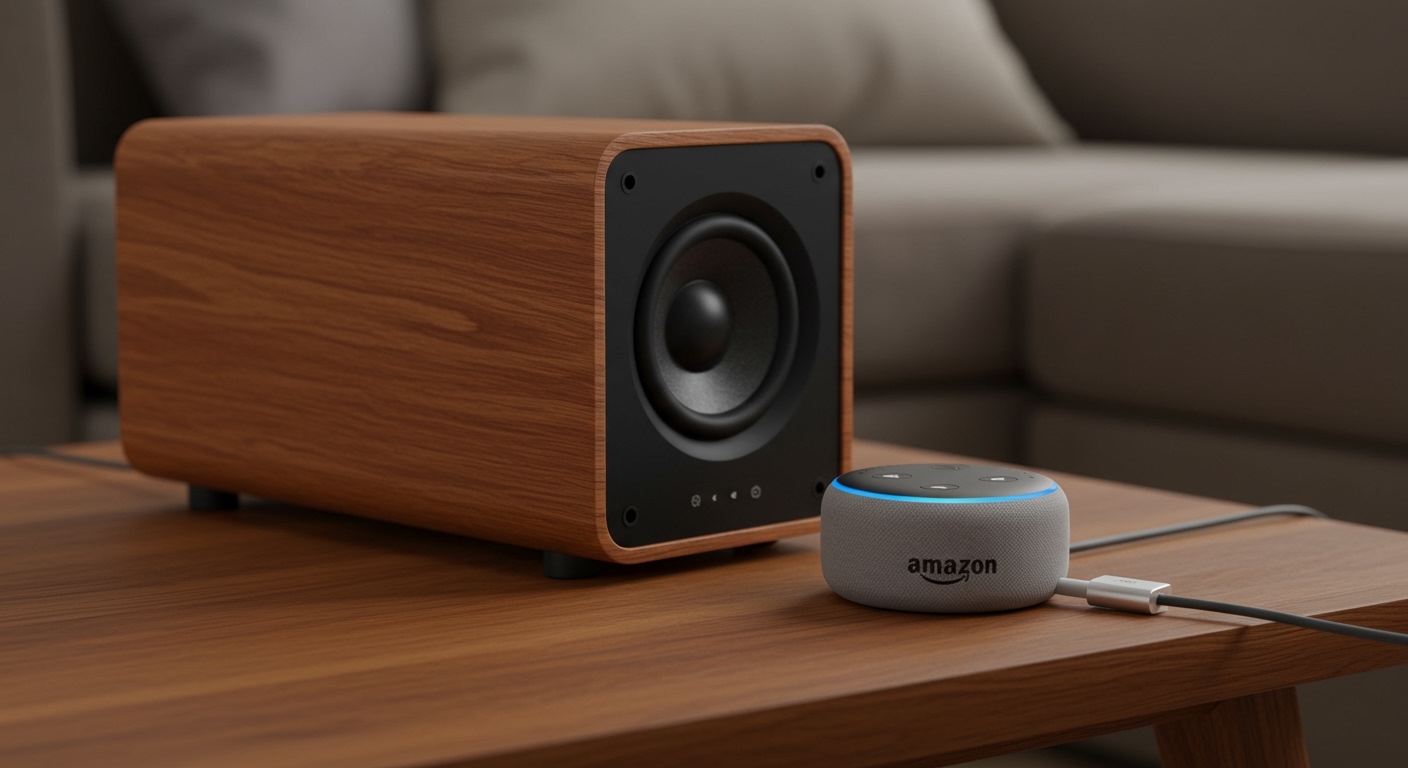
Whether you own an Amazon Echo Dot, Echo Studio, or Echo Show, upgrading your sound quality takes less than five minutes. This guide provides step-by-step instructions to ensure your Alexa commands result in room-filling, professional-grade audio.
Key Takeaways (Expert Summary)
Most Versatile Method: Use Bluetooth for a wireless connection to almost any modern speaker or soundbar.
Best Audio Quality: Use a 3.5mm AUX cable (if your Echo model supports it) to eliminate lag and compression.
Smart Home Integration: Use the Alexa App to create Multi-Room Music groups for synchronized playback across multiple Echo speakers.
Third-Party Support: You can amazon echo connect to sonos speakers and other high-end systems using specific “Skills” within the Alexa ecosystem.
Equipment Needed for Connection
Before you begin, ensure you have the necessary hardware. While how to add speakers to amazon echo is simple, the “tools” vary based on your connection method.
| Connection Type | Required Hardware | Best For |
|---|---|---|
| Bluetooth | Amazon Echo, Bluetooth-enabled speaker | Convenience & Portability |
| Wired (AUX) | Amazon Echo (with Out port), 3.5mm Male-to-Male cable | Audiophiles & Zero Latency |
| Wi-Fi / Multi-Room | Multiple Amazon Echo devices, Stable Wi-Fi | Whole-home audio |
| Smart Skills | Sonos or Bose Wi-Fi speakers, Alexa App | High-end home theaters |
Step 1: How to Connect Amazon Echo to External Speakers via Bluetooth
The most common question users ask is: can you connect amazon echo to wireless speakers? The answer is a resounding yes. This method is ideal for portable speakers like those from JBL, Sony, or Bose.
Prepare Your External Speaker
Place your external speaker in Pairing Mode. This usually involves holding down the Bluetooth button until a light flashes or a voice prompt indicates it is ready to pair.
Open the Alexa App
Launch the Alexa App on your smartphone (iOS or Android). Ensure your phone is connected to the same Wi-Fi network as your Amazon Echo.
Navigate to Device Settings
Tap on the Devices tab at the bottom right of the screen. Select Echo & Alexa, then choose the specific Echo device you want to upgrade.
Pair the New Device
Select the gear icon for Settings, then tap Bluetooth Devices. Choose Pair a New Device. Your Alexa will begin searching for nearby signals.
Confirm the Connection
Select your speaker’s name from the list of discovered devices. Once connected, Alexa will announce, “Connected to [Speaker Name].” Now, all music and responses will play through the external unit.
Step 2: How to Connect Amazon Echo to Speakers Using an AUX Cable
If you prioritize sound quality over convenience, you might wonder: can amazon echo plug into speakers? For many models, a physical wire is the superior choice because it prevents audio “stutter” caused by wireless interference.
Identify the Audio Port
Check the back of your Echo. Most Echo Dot (3rd, 4th, and 5th Gen) and the full-sized Echo have a 3.5mm audio output.
Note: Some newer models like the Echo Pop do not have this port.
Plug in the Cable
Insert one end of a 3.5mm male-to-male audio cable into the Echo. Plug the other end into the AUX Input (Line In) of your external speaker or amplifier.
Adjust Alexa Settings
Open the Alexa App. Navigate to Devices > Echo & Alexa > [Your Device] > Audio Jack. Ensure the setting is set to Aux Out (not Aux In, which is only available on high-end models like the Echo Studio).
Test the Volume
Ask Alexa to play music. Start with the volume low on both devices to avoid “popping” the speakers, then adjust to your preference.
How to Connect Amazon Echo to External Speakers: The Ultimate Sound Upgrade Guide
Learning how to connect amazon echo to external speakers is the most effective way to transform your smart assistant into a high-fidelity audio hub. You can link your Echo device to external hardware using Bluetooth, a 3.5mm AUX cable, or Wi-Fi synchronization for a much richer listening experience.
Whether you own an Amazon Echo Dot, Echo Studio, or Echo Show, upgrading your sound quality takes less than five minutes. This guide provides step-by-step instructions to ensure your Alexa commands result in room-filling, professional-grade audio.
Key Takeaways (Expert Summary)
Most Versatile Method: Use Bluetooth for a wireless connection to almost any modern speaker or soundbar.
Best Audio Quality: Use a 3.5mm AUX cable (if your Echo model supports it) to eliminate lag and compression.
Smart Home Integration: Use the Alexa App to create Multi-Room Music groups for synchronized playback across multiple Echo speakers.
Third-Party Support: You can amazon echo connect to sonos speakers and other high-end systems using specific “Skills” within the Alexa ecosystem.
Equipment Needed for Connection
Before you begin, ensure you have the necessary hardware. While how to add speakers to amazon echo is simple, the “tools” vary based on your connection method.
| Connection Type | Required Hardware | Best For |
|---|---|---|
| Bluetooth | Amazon Echo, Bluetooth-enabled speaker | Convenience & Portability |
| Wired (AUX) | Amazon Echo (with Out port), 3.5mm Male-to-Male cable | Audiophiles & Zero Latency |
| Wi-Fi / Multi-Room | Multiple Amazon Echo devices, Stable Wi-Fi | Whole-home audio |
| Smart Skills | Sonos or Bose Wi-Fi speakers, Alexa App | High-end home theaters |
Step 1: How to Connect Amazon Echo to External Speakers via Bluetooth
The most common question users ask is: can you connect amazon echo to wireless speakers? The answer is a resounding yes. This method is ideal for portable speakers like those from JBL, Sony, or Bose.
Prepare Your External Speaker
Place your external speaker in Pairing Mode. This usually involves holding down the Bluetooth button until a light flashes or a voice prompt indicates it is ready to pair.
Open the Alexa App
Launch the Alexa App on your smartphone (iOS or Android). Ensure your phone is connected to the same Wi-Fi network as your Amazon Echo.
Navigate to Device Settings
Tap on the Devices tab at the bottom right of the screen. Select Echo & Alexa, then choose the specific Echo device you want to upgrade.
Pair the New Device
Select the gear icon for Settings, then tap Bluetooth Devices. Choose Pair a New Device. Your Alexa will begin searching for nearby signals.
Confirm the Connection
Select your speaker’s name from the list of discovered devices. Once connected, Alexa will announce, “Connected to [Speaker Name].” Now, all music and responses will play through the external unit.
Step 2: How to Connect Amazon Echo to Speakers Using an AUX Cable
If you prioritize sound quality over convenience, you might wonder: can amazon echo plug into speakers? For many models, a physical wire is the superior choice because it prevents audio “stutter” caused by wireless interference.
Identify the Audio Port
Check the back of your Echo. Most Echo Dot (3rd, 4th, and 5th Gen) and the full-sized Echo have a 3.5mm audio output.
Note: Some newer models like the Echo Pop do not have this port.
Plug in the Cable
Insert one end of a 3.5mm male-to-male audio cable into the Echo. Plug the other end into the AUX Input (Line In) of your external speaker or amplifier.
Adjust Alexa Settings
Open the Alexa App. Navigate to Devices > Echo & Alexa > [Your Device] > Audio Jack. Ensure the setting is set to Aux Out (not Aux In, which is only available on high-end models like the Echo Studio).
Test the Volume
Ask Alexa to play music. Start with the volume low on both devices to avoid “popping” the speakers, then adjust to your preference.
Step 3: How to Connect Multiple Speakers to Amazon Echo (Multi-Room Audio)
A frequent query is can you connect multiple speakers to amazon echo for a party or whole-house vibe. This is done through a software feature called Multi-Room Music.
Create a Speaker Group
Open the Alexa app and tap the + icon in the top right corner. Select Combine Speakers and then Multi-room music.
Select Your Devices
Choose all the Echo speakers you want to sync. You can mix and match different generations, such as an Echo Show 15 in the kitchen and an Echo Dot in the bedroom.
Name the Group
Give your group a name like “Everywhere” or “Downstairs.”
Play Synchronized Music
Command Alexa by saying: “Alexa, play music on the [Group Name] group.” All selected Amazon Echo speakers will now play the same track in perfect sync.
Step 4: Connecting to High-End Systems (Sonos and Bose)
Many audiophiles ask: can amazon echo connect to sonos speakers? Yes, but the process uses Wi-Fi Skills rather than Bluetooth.
- Enable the Skill: In the Alexa App, go to More > Skills & Games. Search for Sonos (or Bose) and enable the skill.
- Link Accounts: Log in to your Sonos account to authorize Amazon to control your speakers.
- Discover Devices: Ask Alexa, “Alexa, discover my devices.”
- Set Default Speaker: In the Alexa App settings for your Echo, you can set the Sonos speaker as the “Preferred Speaker.” This means when you ask for music, it automatically plays on the high-end system instead of the small Echo speaker.
Expert Tips for Better Sound Quality
Having set up thousands of smart home configurations, I recommend these professional tweaks to get the most out of your Amazon Echo speakers:
Placement Matters: Never place your Echo directly against a wall. This causes “bass loading,” which makes Alexa’s voice sound muddy. Keep it at least 6 inches away from flat surfaces.
The “Stereo Pair” Secret: If you have two identical Echo speakers, use the Alexa app to create a Stereo Pair. This provides a true Left/Right channel experience that mimics a traditional Hi-Fi setup.
Disable “Communications” on External Speakers: If using Bluetooth, go to the device settings and disable “Phone Calls” for that speaker. This prevents your private phone conversations from accidentally broadcasting to the whole living room.
Use High-Quality Cables: If you are using the AUX method, spend the extra $5 on a shielded cable. Cheap cables often pick up electrical hum from nearby power bricks.
Common Mistakes to Avoid
Forgetting Pairing Mode: Most users fail because they expect the Alexa App to find the speaker automatically. You must manually trigger pairing mode on the external speaker every time you set up a new connection.
Volume Mismatch: If you connect amazon echo to external speakers and hear nothing, check the volume on both devices. Sometimes the Echo is at volume 10, but the external speaker is turned off or muted.
Wi-Fi Interference: If your Multi-Room Music is cutting out, try moving your Echo away from routers or microwaves, which operate on the same 2.4GHz frequency.
Frequently Asked Questions
(FAQs)
Can I connect my Amazon Echo to a soundbar?
Yes. You can you hook speakers to amazon echo like soundbars using either Bluetooth or an Optical-to-3.5mm adapter. If your soundbar has Bluetooth, follow the pairing steps in the Alexa App for the most seamless setup.
Can you add external speakers to an Amazon Echo Pro?
The Amazon Echo Plus and Echo Studio (often referred to as “Pro” models) feature a premium 3.5mm line-out/line-in port. This allows you to can you add external speakers easily or even use the Echo as a speaker for your turntable or CD player.
How do I stop Alexa from playing through the external speaker?
To disconnect, simply say, “Alexa, disconnect Bluetooth.” To permanently stop the connection, go to the Alexa App, select the device, and choose Forget Device in the Bluetooth settings.
Can Amazon Echo play through other speakers and its own speaker at the same time?
Generally, no. When you connect amazon echo to speakers via Bluetooth or AUX, the internal speaker mutes to prevent echo and timing issues. However, if you use the Multi-Room Music feature with other Echo devices, they will all play together.
Can you pair speakers with Amazon Echo if they don’t have Bluetooth?
Yes, provided the speaker has an AUX input. You will need a 3.5mm audio cable. If the speaker only has RCA inputs (Red and White ports), you can buy a 3.5mm to RCA adapter cable to bridge the gap.
Conclusion
Mastering how to connect amazon echo to external speakers unlocks the true potential of your smart home. By using Bluetooth for convenience, AUX for fidelity, or Wi-Fi for multi-room coverage, you ensure that Alexa provides a premium audio experience.
Ready to upgrade your home audio? Start by checking your speaker’s compatibility and follow our step-by-step guide to hear the difference today. If you found this guide helpful, explore our other tutorials on Smart Home Automation to further enhance your living space!









