

Understanding Your Rokit 5 Speaker Connections
Before we plug anything in, let’s get familiar with the back panel of your KRK Rokit 5. Understanding these inputs is the first step in a successful setup. The main input is a Combo Jack, which cleverly accepts two types of professional cables: XLR and 1/4-inch TRS.
This single port is your gateway to high-quality audio. The key here is to use balanced cables whenever possible.
- Balanced Audio (XLR or TRS): This is the professional standard. Balanced cables use an extra wire to cancel out unwanted electronic noise and hum, giving you a crystal-clear signal. This is especially important if your cables are running near power cords or other electronics.
- Unbalanced Audio (TS or RCA): This is common in consumer gear. These cables lack the noise-canceling feature, making them more susceptible to interference. They are acceptable for very short cable runs but are not the recommended choice for studio monitors.
Your Rokit 5 G4 speakers also feature a fantastic LCD screen on the back. This allows you to adjust volume, EQ, and other settings digitally for precise control. We’ll touch on the best initial settings for this later.
How to Connect Rokit 5 Speakers: Step-by-Step Methods
The best way to connect your Rokit 5s depends on the gear you have. I’ll walk you through the two most common scenarios: connecting to a professional audio interface (the best way) and connecting directly to a computer (the budget-friendly way).
Method 1: The Professional Setup (Recommended) – Connecting to an Audio Interface
This is the gold standard for how to set up KRK Rokit 5 speakers. An audio interface, like a Focusrite Scarlett 2i2 or PreSonus AudioBox, provides high-quality audio conversion, noise-free outputs, and convenient volume control.
What You’ll Need:
- An audio interface
- Two balanced 1/4″ TRS cables OR two balanced XLR cables
Step-by-Step Instructions:
- Power Everything Down: Before connecting any cables, make sure your computer, audio interface, and both Rokit 5 speakers are turned off. This prevents any loud, damaging pops.
- Connect Interface to Computer: Use the USB cable that came with your audio interface to connect it to your computer. Your computer should automatically recognize it and may prompt you to install drivers.
- Connect Cables to Interface: Plug your two balanced cables into the main Line Outputs on the back of your interface. These are almost always labeled “L” (Left) and “R” (Right) or “1” and “2”.
- Connect Cables to Rokit 5s: Plug the other end of the cables into the combo jacks on the back of your speakers. Make sure the cable from the “Left” output goes to your left speaker, and the “Right” output goes to your right speaker.
- Follow the Correct Power-On Sequence: This is critical. Turn your equipment on in this order: 1. Computer, 2. Audio Interface, 3. Rokit 5 Speakers. When powering down, you’ll do the reverse: Speakers, Interface, Computer.
- Configure Computer Audio: Go into your computer’s sound settings (Sound Control Panel on Windows, System Settings > Sound on macOS). Select your audio interface as the default output device.
As a long-time producer, I can’t stress this enough: using an interface with balanced cables is a game-changer. In my own studio, the difference in clarity and the complete absence of hum compared to a direct connection is why I never recommend anything else for serious work.
Method 2: How to Connect Rokit 5 Speakers to a Computer Directly
If you don’t have an audio interface yet, you can still connect your Rokits directly to your computer’s headphone jack. This is a compromise, as the sound quality won’t be as good and you’re more likely to encounter noise. But it will get you up and running. This is a common question for those just starting to set up Rokit 5 speakers.
What You’ll Need:
- A Dual 1/4″ TS to 3.5mm TRS Stereo Breakout Cable. This single cable has two 1/4-inch plugs for your speakers and one 3.5mm (headphone) plug for your computer.
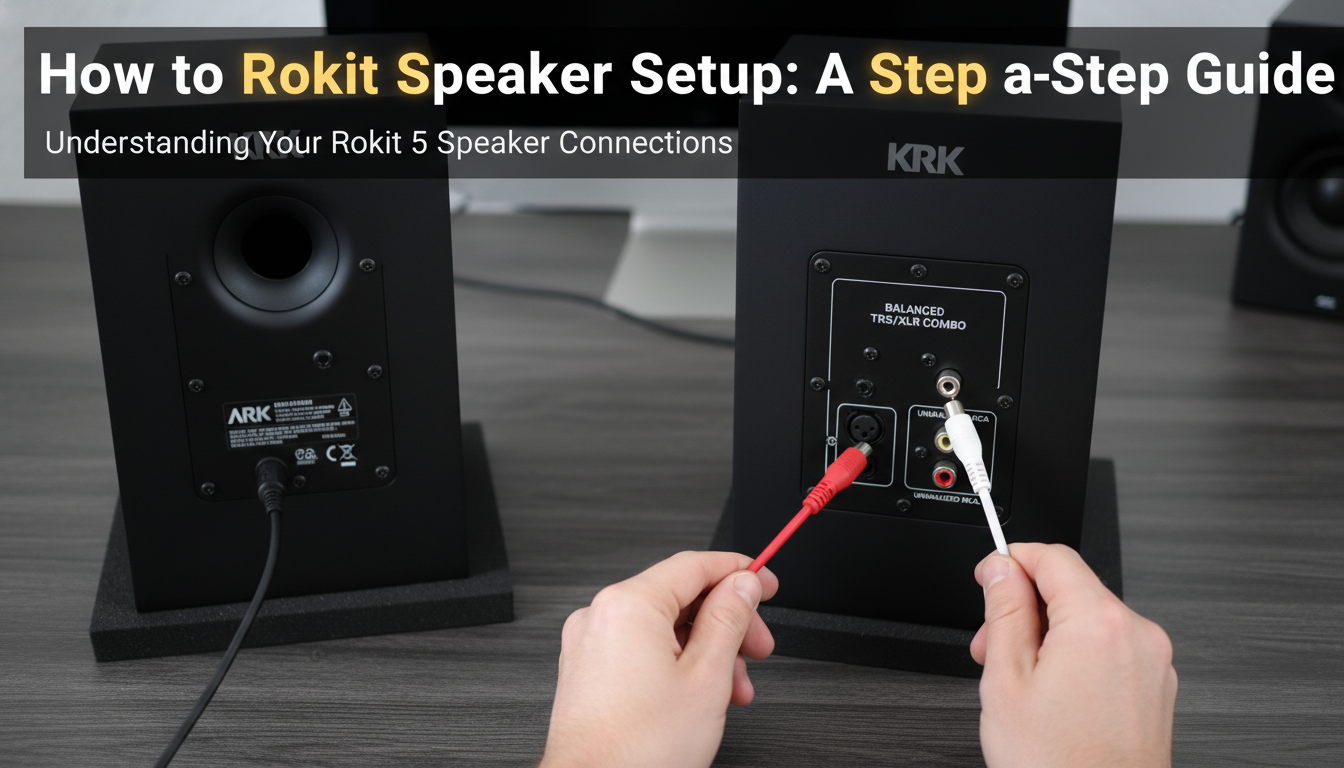
Step-by-Step Instructions:
- Power Down: Turn off your computer and both Rokit speakers.
- Connect to Speakers: Plug one of the 1/4″ TS plugs into the back of your left speaker and the other into the back of your right speaker.
- Connect to Computer: Plug the single 3.5mm connector into the headphone or line-out port on your laptop or desktop computer.
- Power On: Turn on your computer first, then turn on your Rokit speakers. You









