

Struggling to get your new outdoor speakers to play music? You’ve placed them perfectly in your garden, but now you’re stuck trying to figure out how to connect to Bluetooth rock speakers. It can be frustrating when the technology doesn’t cooperate, especially when you just want to relax with some tunes.
This guide eliminates the guesswork. We’ll walk you through a simple, step-by-step process for pairing a single speaker, syncing a stereo pair, and troubleshooting common issues. I’ve set up dozens of these systems, and I’ll share the practical tips that make the process foolproof.
Key Takeaways: Connecting Rock Speakers Fast
- Power On & Charge: Ensure your speakers are fully charged and turned on. Most issues start with a low battery.
- Activate Pairing Mode: Press and hold the power or Bluetooth button until you hear a sound or see a flashing LED light (usually blue).
- Find on Your Device: Open the Bluetooth settings on your phone, tablet, or computer. Look for the speaker’s name (e.g., “ION Rock”) in the list of available devices and tap to connect.
- Troubleshoot: If a connection fails, “Forget Device” in your Bluetooth settings, turn the speakers off and on again, and restart the pairing process from the beginning.
Understanding Your Bluetooth Rock Speakers Before You Connect
Before you start pressing buttons, it’s crucial to know what type of speaker system you have. This knowledge will save you a lot of headaches, especially if you’re trying to how to sync rock speakers for a stereo experience.
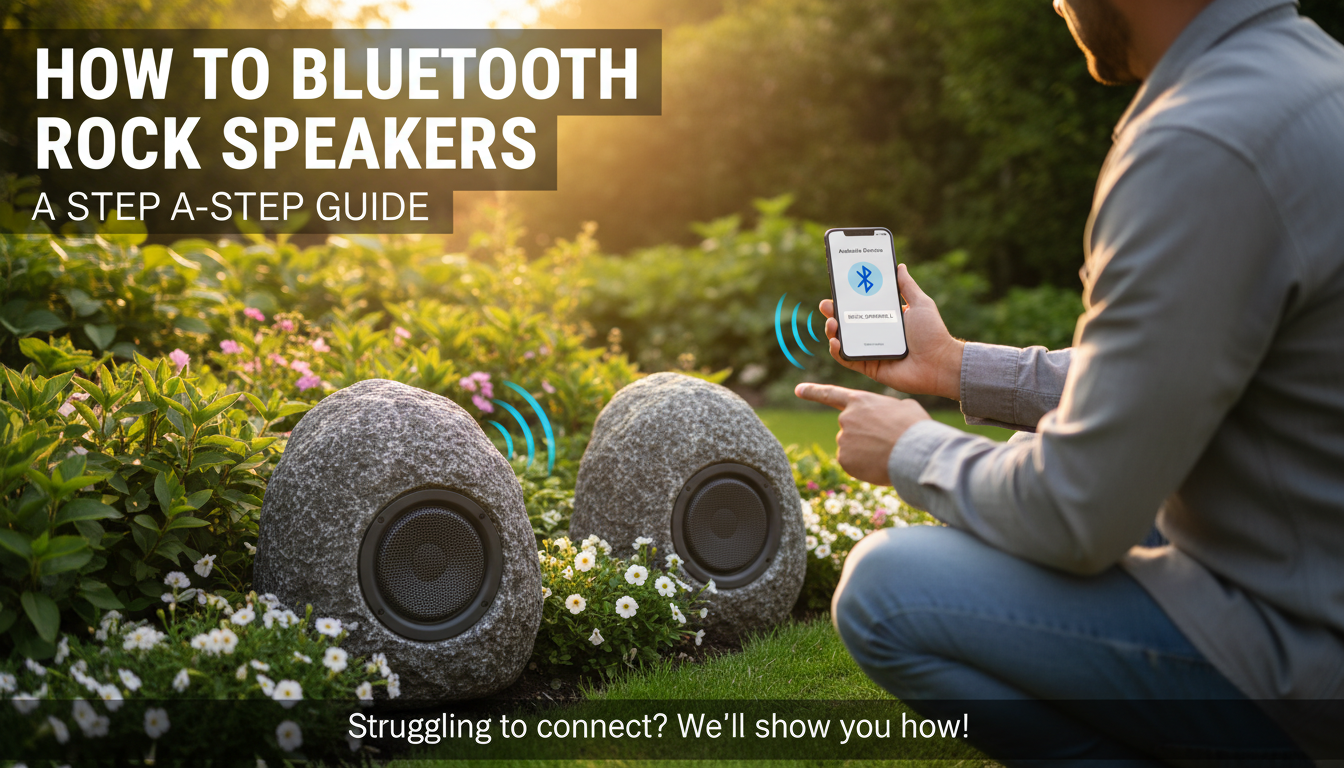
Most Bluetooth rock speakers fall into two categories:
- Single Speaker Systems: This is a standalone unit that connects directly to your device. It’s straightforward—you pair one speaker to one phone.
- Multi-Speaker (TWS) Systems: These are sold in pairs and use True Wireless Stereo (TWS) technology. One speaker acts as the “primary” or “master” unit, connecting to your phone. The second “secondary” or “slave” unit connects directly to the primary speaker, creating a true left/right stereo soundscape.
From my experience testing various brands like ION Audio and Alpine Corporation, the biggest mistake people make is trying to connect their phone to both TWS speakers individually. It won’t work. You must sync the speakers together first, then connect your device to the primary one.
Always check the user manual that came with your speakers. It will specify the exact button presses needed for pairing and syncing your particular model.
How to Connect to Bluetooth Rock Speakers: A Step-by-Step Guide
Let’s get to the core process. These steps apply to most brands and will have you listening to music in minutes.
Step 1: Power Up and Prepare Your Speakers
First things first, make sure your speakers have enough power and are ready for a stable connection.
- Charge Them Fully: Before the first use, plug your speakers in and let them charge completely. A low battery is the number one cause of pairing failures and dropped connections.
- Turn Them On: Locate the power button. It’s often a rubberized, sealed button on the bottom or back of the rock. Press and hold it until you hear a power-on chime or see an LED light illuminate.
- Initial Placement: For the initial pairing process, bring the speakers and your source device (phone, tablet) within 5-10 feet of each other to ensure a strong signal. You can move them to their final garden locations after a successful connection.
Step 2: Activate Pairing Mode
Your speaker needs to be “discoverable” for your phone to find it. This is done by activating pairing mode.
Press the Pairing Button: On most models, you’ll press and hold the Power button for a few seconds after* it’s already on. On other models, there might be a separate Bluetooth button (often marked with the Bluetooth symbol).
- Listen for the Cue: The speaker will typically emit a sound like a beep, a voice prompt saying “Pairing,” or a distinct chime.
- Look for the Light: The LED indicator light will begin to flash, usually blue, or alternating between blue and red. This is the universal sign that the speaker is actively searching for a device to connect to.
This is the most critical step in how to pair bluetooth rock speakers. If the light isn’t flashing, your phone won’t see it.
Step 3: Find and Select the Speaker on Your Device
Now, grab your phone, tablet, or computer.
- For iOS (iPhone/iPad): Go to Settings > Bluetooth. Make sure the Bluetooth toggle is on. Your device will automatically scan.
- For Android: Go to Settings > Connected devices > Pair new device. Your phone will scan for nearby devices.
- For Windows/Mac: Open your Bluetooth settings from the system tray or control panel and select the option to “Add a device.”
In the list of “Available Devices,” you should see the name of your rock speaker. It might be a brand name like “Sound-Appeal” or a generic name like “BT Speaker.” Tap on the name to initiate the connection.
Step 4: Confirm the Connection and Test
The final step is just a quick confirmation.
- You will hear a final confirmation sound from the speaker (e.g., “Connected”).
- The flashing LED light will turn solid blue.
- On your phone, the speaker’s status will change from “Pairing” to “Connected.”
Now, open your favorite music app and play a song. The audio should stream directly to your new rock speaker.
How to Sync Bluetooth Rock Speakers for Stereo Sound
If you have a pair of speakers, this is where you create that immersive outdoor stereo sound. The process is slightly different, as you need to link the speakers to each other before involving your phone. This is the key to how to sync bluetooth rock speakers.
- Power On Both Speakers: Turn both rock speakers on, but do not connect your phone to either one yet. Place them a few feet apart for this initial sync.
- Designate the Primary Speaker: Choose one speaker to be your primary unit. This is the one that will communicate with your phone.
- Activate Linking/TWS Mode: On the primary speaker, press the designated “Link” or “Stereo-Link” button. Often, this is a double-press of the power button. Check your manual for the exact command. You should hear a tone indicating it’s searching for its partner.
- Link the Secondary Speaker: Perform the same action (e.g., double-press the power button) on the second speaker.
- Wait for Confirmation: After a few seconds, the speakers will find each other and sync. You’ll typically hear a confirmation chime, and one speaker might say “Left Channel” and the other “Right Channel.” The LED on the primary speaker will continue to flash (ready to pair with a phone), while the secondary speaker’s LED will turn solid.
- Connect Your Phone: Now, open your phone’s Bluetooth settings. You will only see one speaker name in your list. Connect to that one.
Once connected, your music will play in perfect stereo across both speakers.
Understanding Your Bluetooth Rock Speakers Before You Connect
Before you start pressing buttons, it’s crucial to know what type of speaker system you have. This knowledge will save you a lot of headaches, especially if you’re trying to how to sync rock speakers for a stereo experience.
Most Bluetooth rock speakers fall into two categories:
- Single Speaker Systems: This is a standalone unit that connects directly to your device. It’s straightforward—you pair one speaker to one phone.
- Multi-Speaker (TWS) Systems: These are sold in pairs and use True Wireless Stereo (TWS) technology. One speaker acts as the “primary” or “master” unit, connecting to your phone. The second “secondary” or “slave” unit connects directly to the primary speaker, creating a true left/right stereo soundscape.
From my experience testing various brands like ION Audio and Alpine Corporation, the biggest mistake people make is trying to connect their phone to both TWS speakers individually. It won’t work. You must sync the speakers together first, then connect your device to the primary one.
Always check the user manual that came with your speakers. It will specify the exact button presses needed for pairing and syncing your particular model.
How to Connect to Bluetooth Rock Speakers: A Step-by-Step Guide
Let’s get to the core process. These steps apply to most brands and will have you listening to music in minutes.
Step 1: Power Up and Prepare Your Speakers
First things first, make sure your speakers have enough power and are ready for a stable connection.
- Charge Them Fully: Before the first use, plug your speakers in and let them charge completely. A low battery is the number one cause of pairing failures and dropped connections.
- Turn Them On: Locate the power button. It’s often a rubberized, sealed button on the bottom or back of the rock. Press and hold it until you hear a power-on chime or see an LED light illuminate.
- Initial Placement: For the initial pairing process, bring the speakers and your source device (phone, tablet) within 5-10 feet of each other to ensure a strong signal. You can move them to their final garden locations after a successful connection.
Step 2: Activate Pairing Mode
Your speaker needs to be “discoverable” for your phone to find it. This is done by activating pairing mode.
Press the Pairing Button: On most models, you’ll press and hold the Power button for a few seconds after* it’s already on. On other models, there might be a separate Bluetooth button (often marked with the Bluetooth symbol).
- Listen for the Cue: The speaker will typically emit a sound like a beep, a voice prompt saying “Pairing,” or a distinct chime.
- Look for the Light: The LED indicator light will begin to flash, usually blue, or alternating between blue and red. This is the universal sign that the speaker is actively searching for a device to connect to.
This is the most critical step in how to pair bluetooth rock speakers. If the light isn’t flashing, your phone won’t see it.
Step 3: Find and Select the Speaker on Your Device
Now, grab your phone, tablet, or computer.
- For iOS (iPhone/iPad): Go to Settings > Bluetooth. Make sure the Bluetooth toggle is on. Your device will automatically scan.
- For Android: Go to Settings > Connected devices > Pair new device. Your phone will scan for nearby devices.
- For Windows/Mac: Open your Bluetooth settings from the system tray or control panel and select the option to “Add a device.”
In the list of “Available Devices,” you should see the name of your rock speaker. It might be a brand name like “Sound-Appeal” or a generic name like “BT Speaker.” Tap on the name to initiate the connection.
Step 4: Confirm the Connection and Test
The final step is just a quick confirmation.
- You will hear a final confirmation sound from the speaker (e.g., “Connected”).
- The flashing LED light will turn solid blue.
- On your phone, the speaker’s status will change from “Pairing” to “Connected.”
Now, open your favorite music app and play a song. The audio should stream directly to your new rock speaker.
How to Sync Bluetooth Rock Speakers for Stereo Sound
If you have a pair of speakers, this is where you create that immersive outdoor stereo sound. The process is slightly different, as you need to link the speakers to each other before involving your phone. This is the key to how to sync bluetooth rock speakers.
- Power On Both Speakers: Turn both rock speakers on, but do not connect your phone to either one yet. Place them a few feet apart for this initial sync.
- Designate the Primary Speaker: Choose one speaker to be your primary unit. This is the one that will communicate with your phone.
- Activate Linking/TWS Mode: On the primary speaker, press the designated “Link” or “Stereo-Link” button. Often, this is a double-press of the power button. Check your manual for the exact command. You should hear a tone indicating it’s searching for its partner.
- Link the Secondary Speaker: Perform the same action (e.g., double-press the power button) on the second speaker.
- Wait for Confirmation: After a few seconds, the speakers will find each other and sync. You’ll typically hear a confirmation chime, and one speaker might say “Left Channel” and the other “Right Channel.” The LED on the primary speaker will continue to flash (ready to pair with a phone), while the secondary speaker’s LED will turn solid.
- Connect Your Phone: Now, open your phone’s Bluetooth settings. You will only see one speaker name in your list. Connect to that one.
Once connected, your music will play in perfect stereo across both speakers.
Common Problems and How to Troubleshoot Rock Speaker Connections
Even with the best instructions, you can hit a snag. When I was first learning how to pair outdoor bluetooth rock speakers, I ran into nearly all of these issues. Here’s a quick troubleshooting guide.
| Problem | Likely Cause | Solution |
|---|---|---|
| Speaker not in Bluetooth list | The speaker is not in pairing mode. | Turn the speaker off and on. Press and hold the Bluetooth/power button until the LED flashes rapidly. |
| It’s already connected to another device. | Turn off Bluetooth on other nearby phones/tablets that may have previously connected to the speaker. | |
| The speaker is too far away. | Move your phone and speaker within 5 feet of each other for the initial pairing. | |
| Connection keeps dropping | Low battery on the speaker or your phone. | Charge both devices fully. |
| You are moving out of Bluetooth range (~30-50 ft). | Keep your source device within a reasonable distance of the primary speaker. | |
| Signal interference from walls, Wi-Fi routers, or microwaves. | Try to maintain a clear line of sight between your phone and the speaker. | |
| Only one speaker plays music | The TWS stereo sync failed. | Power both speakers off. “Forget” the speaker in your phone’s Bluetooth settings. Start the syncing process again from scratch. |
| You accidentally connected to the secondary speaker. | Always connect to the speaker designated as the primary unit during the TWS setup. | |
| Audio is distorted or choppy | You are at the very edge of the Bluetooth range. | Move your source device closer to the speakers. |
| Your source device has an old Bluetooth version. | While rare, older devices may struggle. Try connecting with a newer phone to test. |
The most effective universal fix is to perform a “reset.” Power everything down, tell your phone to “Forget This Device,” and start the entire connection process over from the beginning. This solves 90% of connection problems.
Pro Tips for Optimizing Your Outdoor Speaker Experience
Once you know how to connect to bluetooth rock speakers, you can focus on getting the best possible performance









