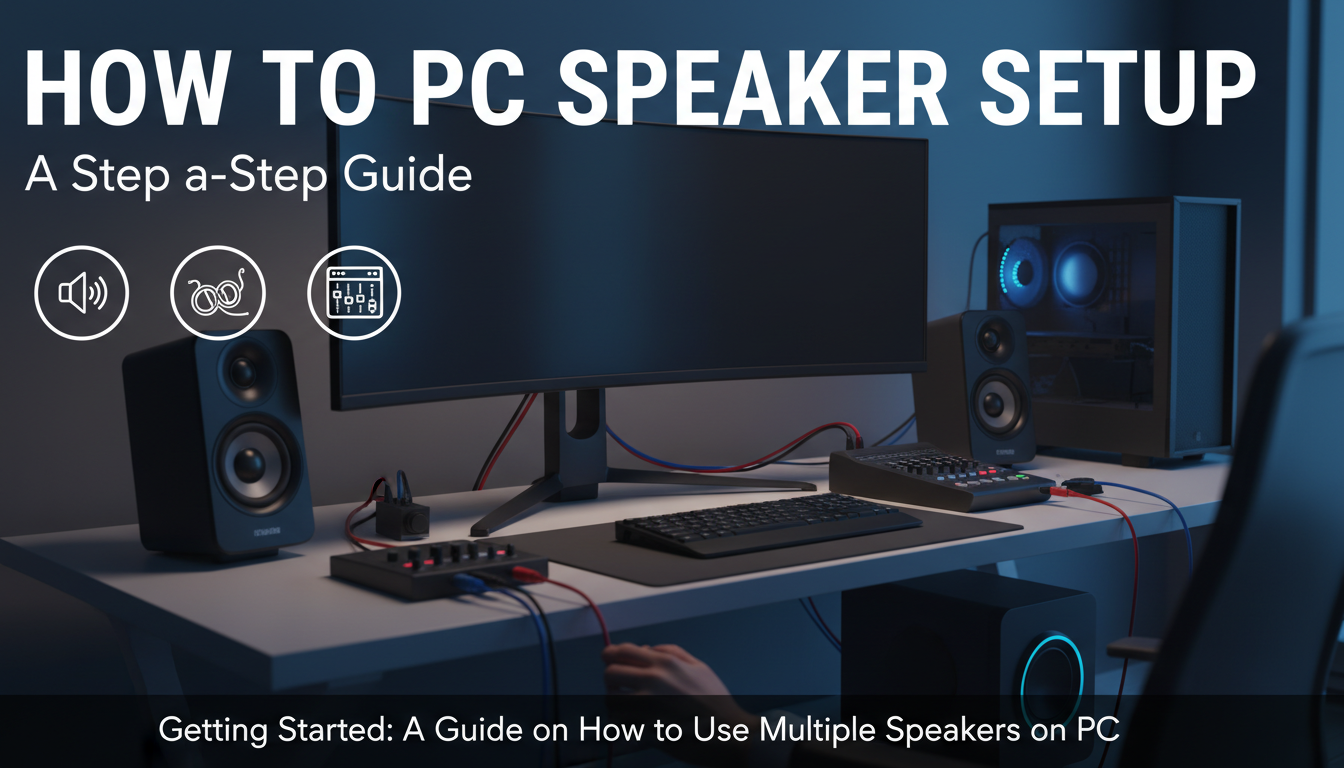
Getting Started: A Guide on How to Use Multiple Speakers on PC
Tired of thin, lifeless audio from a single pair of PC speakers? You want an immersive soundstage for gaming or a room-filling experience for music, but connecting multiple audio devices can feel like a tangled mess. The good news is that modern PCs are incredibly flexible, and with the right knowledge, you can easily combine different speakers—from standard desktop pairs to USB headsets and even your TV’s sound system.
This guide is my hands-on approach to solving this exact problem. I’ll walk you through everything from the simplest hardware splitters to powerful free software that gives you total control over your audio. We’ll turn your desk into a true audio command center.
Key Takeaways
- Identify Your Ports: Before starting, check your PC’s rear I/O panel for audio ports like the green 3.5mm jack, USB ports, HDMI, and optical outputs.
- Simple Hardware Solution: A 3.5mm audio splitter is the quickest way to connect two identical sets of analog speakers, but it may slightly reduce audio quality.
- Built-in Windows Feature: Windows has a hidden “Stereo Mix” feature that can duplicate your audio signal to a second output device, like a USB headset or TV speakers.
- Advanced Software Control: For maximum flexibility and combining different types of speakers (e.g., USB and 3.5mm), free software like Voicemeeter Banana is the ultimate tool.
- TVs & Monitors: You can easily use TV speakers for PC audio by connecting via an HDMI or DisplayPort cable and selecting it as a playback device in Windows.
Understanding Your PC’s Audio Ports: The Foundation
Before you can learn how to use multiple speakers on pc, you need to know what you’re plugging them into. Your computer’s motherboard and graphics card have several ports designed for audio, and understanding them is the first step.
Most of my troubleshooting sessions with friends start here, because it’s the most commonly overlooked part of the process.
- 3.5mm Jacks (Analog): These are the small, round ports you’re most familiar with. On a typical desktop PC, they are color-coded:
- USB Ports (Digital): These are for more than just keyboards and mice. You can use USB speakers on PC, as well as headsets and external DACs (Digital-to-Analog Converters). These devices act as their own separate sound cards.
- HDMI & DisplayPort (Digital): These video cables also carry high-definition digital audio. This is the primary method for how to use the TV speakers for pc. The audio signal is sent from your graphics card directly to your TV or monitor.
- S/PDIF (Optical Audio): This is a less common digital port that uses a fiber optic cable. It’s often used to connect to home theater receivers or high-end soundbars for pure digital audio transmission.
Method 1: The Simple Splitter for Two Identical Speaker Sets
This is the most straightforward, plug-and-play method if you have two sets of standard analog speakers with 3.5mm connectors.
A 3.5mm audio splitter (or “Y-splitter”) is a small adapter that turns one audio jack into two. I keep a few of these in my tech bag for quick and dirty setups; they’re incredibly handy.
Step-by-Step Guide
- Locate the Port: Find the green “Line Out” audio jack on the back of your PC.
- Plug in the Splitter: Insert the male end of the splitter firmly into the green jack.
- Connect Your Speakers: Plug the 3.5mm cable from each set of speakers into the two female ends of the splitter.
- Power On and Test: Power on both sets of speakers and play some audio. Sound should now come from both simultaneously.
Pros and Cons of Using a Splitter
| Feature | Advantage | Disadvantage |
|---|---|---|
| Ease of Use | Extremely simple, no software required | None |
| Cost | Very inexpensive (usually under $10) | N/A |
| Compatibility | Works with any device with a 3.5mm jack | Only for analog speakers; cannot mix USB and 3.5mm |
| Audio Quality | Good for casual listening | Can slightly lower volume and clarity by dividing the signal |
| Control | No individual volume control | Both speaker sets receive the exact same audio signal |
Method 2: How to Use Multiple Speakers on PC with Windows Settings
Windows has a powerful, albeit hidden, feature that lets you duplicate your audio output to a second device without any extra hardware. This is perfect for combining your main speakers with a USB headset or your TV speakers.
The feature is called “Stereo Mix.” It essentially “listens” to your main audio output and rebroadcasts it to another device of your choosing.
Step-by-Step: Enabling Stereo Mix
- Right-click the speaker icon in your Windows taskbar and select “Sounds.”
- In the new window that opens, click on the “Recording” tab.
- You might not see Stereo Mix at first. Right-click anywhere in the empty space and check both “Show Disabled Devices” and “Show Disconnected Devices.”
- “Stereo Mix” should now appear. Right-click it and select “Enable.”
- Right-click “Stereo Mix” again and select “Properties.”
- Go to the “Listen” tab.
- Check the box that says “Listen to this device.”
- From the dropdown menu below, “Playback through this device,” select the second audio device you want to use (e.g., your USB headset, or your TV connected via HDMI).
- Click “Apply.”
Now, your primary audio (set in the “Playback