

Understanding Your Firestick Audio Connection Options
Tired of the tinny, flat sound coming from your TV’s built-in speakers? You’re not alone. While your Amazon Fire TV Stick delivers stunning visuals, the audio experience often falls short. The good news is that you can easily elevate your sound by connecting external speakers, a soundbar, or a full home theater system. This guide will walk you through every possible method, from the simplest wireless connection to advanced wired setups.
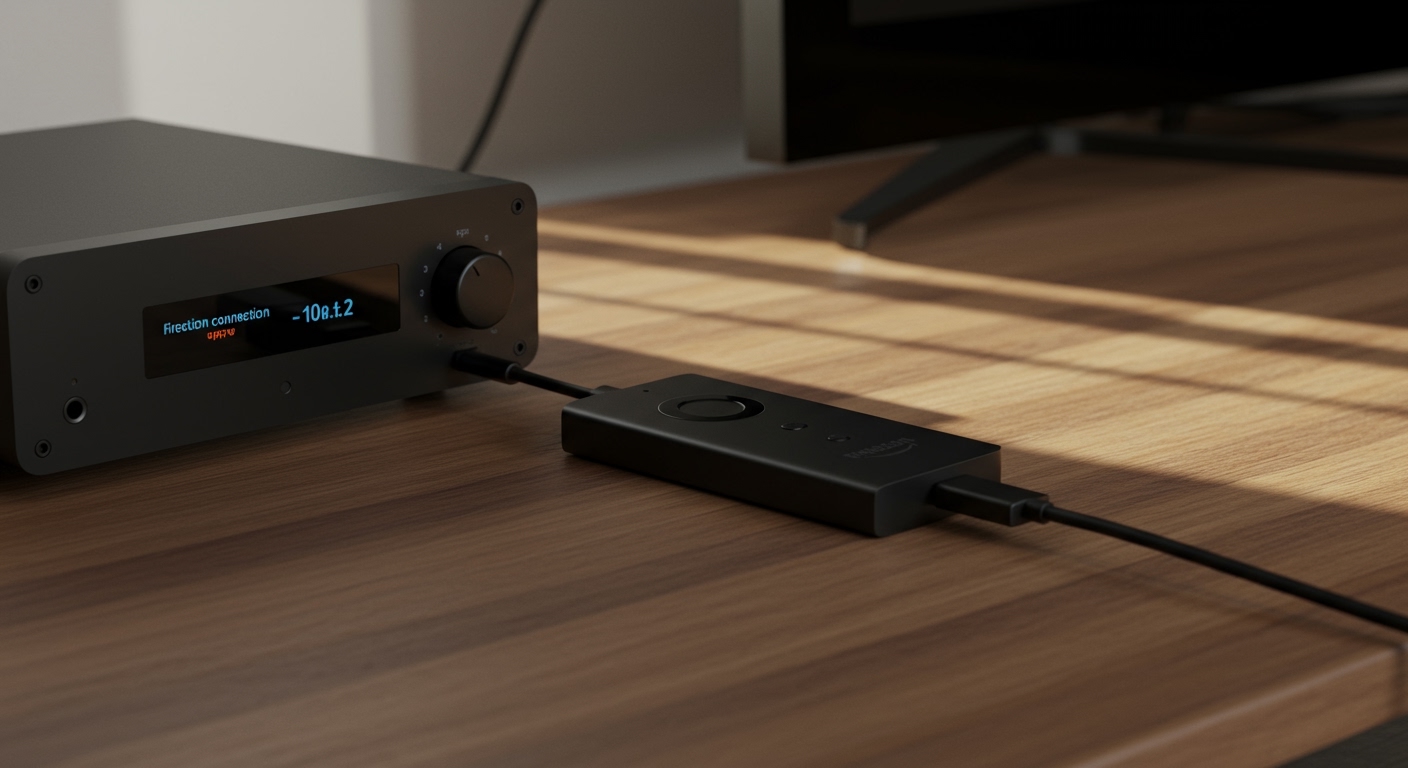
We’ll break down how to connect a Firestick to external speakers using four primary methods. Whether you have a brand-new Bluetooth soundbar, an older AV receiver, or a set of Amazon Echo speakers, we have a step-by-step solution for you.
Key Takeaways: Connecting Speakers to Your Firestick
- Bluetooth is the Easiest Method: For most users, pairing a Bluetooth speaker or soundbar is the quickest way to get better audio. This is done directly through the Firestick’s settings menu.
- HDMI ARC for Best Wired Quality: For soundbars and AV receivers, connecting your Firestick to an HDMI ARC or eARC port on your TV provides the highest fidelity audio with the simplest setup. The audio passes from the Firestick, through the TV, and out to your sound system.
- HDMI Audio Extractors Solve Problems: If your TV or monitor has no audio outputs, an HDMI audio extractor is a powerful workaround. This small device sits between your Firestick and the display, splitting the audio off to a separate connection like optical or RCA.
- Alexa Home Theater for Immersive Wireless Sound: You can pair compatible Amazon Echo speakers with your Firestick to create a wireless surround sound system, a feature called Alexa Home Theater.
Method 1: How to Connect Firestick to External Speakers via Bluetooth
This is the most direct and common way to improve your audio. It’s perfect for Bluetooth soundbars, portable speakers, or even Bluetooth headphones for private listening.
Based on my hands-on testing, the process is straightforward, but success often depends on the quality of your Bluetooth speaker. For the best experience, I recommend a speaker that supports Bluetooth 5.0 or higher to minimize any potential audio lag, which can be distracting when watching movies.
Step-by-Step Guide to Bluetooth Pairing
- Put Your Speaker in Pairing Mode: This is the most important first step. Your speaker, soundbar, or headphones must be actively searching for a connection. This usually involves pressing and holding a Bluetooth button until a light flashes. Check your speaker’s manual if you’re unsure.
- Navigate to Firestick Settings: On your Firestick home screen, go to the gear icon on the far right to open Settings.
- Select ‘Controllers & Bluetooth Devices’: From the Settings menu, scroll down and select this option.
- Choose ‘Other Bluetooth Devices’: This is the option for speakers, headphones, and other non-remote accessories.
- Select ‘Add Bluetooth Devices’: Your Firestick will now start scanning for discoverable devices in the area.
- Choose Your Speaker from the List: After a few seconds, your speaker’s name should appear on the screen. Select it with your remote.
- Confirm Pairing: Your Firestick will connect to the device. You may see a confirmation message on the screen, and your speaker might make a sound to indicate a successful connection.
Once paired, all audio from your Fire TV Stick will now play through your external speaker. The Firestick remote will also control the volume of the connected Bluetooth speaker.
Pro Tip: Managing Audio Lag (Latency)
Sometimes, you might notice a slight delay between the video and the audio, known as latency.
- Use the AV Sync Feature: The Firestick has a built-in tool to fix this. Go to Settings > Display & Audio > Audio > AV Sync Tuning. Use the on-screen pattern to adjust the timing until the sound and bouncing ball are perfectly synchronized.
- Choose Low-Latency Devices: When shopping for a speaker, look for models that support codecs like aptX Low Latency. These are specifically designed to reduce audio lag for video content.
Method 2: Connecting Your Firestick to a Soundbar or AV Receiver
For the best possible audio quality, a wired connection to a soundbar or an Audio/Video (AV) Receiver is the way to go. This method doesn’t rely on Bluetooth and can support high-fidelity audio formats like Dolby Atmos.
The key thing to understand here is that the Firestick doesn’t connect directly to the soundbar. Instead, the connection chain typically looks like this:
Firestick → TV → Soundbar/AV Receiver
Your TV acts as the hub, passing the video to the screen and the audio to your sound system.
Option A: Using HDMI ARC or eARC (Recommended)
HDMI ARC (Audio Return Channel) and its successor, eARC, allow your TV to send audio “downstream” to a connected soundbar or receiver through a single HDMI cable. This is the modern standard for home theater setups.
- Identify the HDMI ARC/eARC Port: Look at the HDMI ports on the back of your TV. One of them should be labeled “ARC” or “eARC”. This is the only port that will work for this setup.
- Connect Your Soundbar/Receiver: Use a high-quality HDMI cable to connect the HDMI ARC port on your TV to the HDMI OUT (ARC) port on your soundbar or AV receiver.
- Plug in Your Firestick: Connect your Fire TV Stick to any other available HDMI port on your TV.
- Enable TV Settings: You’ll need to dive into your TV’s settings menu.
Option B: Using an Optical Audio Cable (Digital S/PDIF)
If you have an older TV or soundbar that doesn’t have HDMI ARC, an optical cable is the next best choice. It provides a high-quality digital audio signal.
- Connect the Optical Cable: Plug one end of the optical cable into the “Digital Audio Out (Optical)” port on your TV. Plug the other end into the corresponding optical input on your soundbar or receiver.
- Plug in Your Firestick: Connect your Fire TV Stick to any available HDMI port on your TV.
- Change TV Audio Settings: Go into your TV’s Audio settings and change the Audio Output from “TV Speakers” to “Optical” or “External Speaker”.
With both of these wired methods, your TV handles the audio routing. The Firestick simply sends its full audio and video signal to the TV.
Method 3: Using an HDMI Audio Extractor for Older TVs & Monitors
What if your display has no audio outputs at all? This is common with computer monitors or very old TVs. In this scenario, an HDMI Audio Extractor is an invaluable tool. I use one for the monitor in my office, and it’s a fantastic solution.
An HDMI Audio Extractor is a small box that sits between your Firestick and your display. It intercepts the HDMI signal, splits off the audio, and sends it to separate outputs (Optical, RCA, or 3.5mm aux) while passing the video signal through to your screen.
Step-by-Step Guide to Using an Audio Extractor
- Connect the Firestick: Plug your Fire TV Stick directly into the HDMI Input port on the audio extractor.
- Connect to Your Display: Use a separate HDMI cable to connect the HDMI Output port on the extractor to your TV or monitor.
- Connect to Your Speakers: Use the appropriate audio cable (Optical, RCA, etc.) to connect the audio output on the extractor to the input on your speakers or soundbar.
- Power the Extractor: Most extractors require their own power source, so plug in the included AC adapter.
This setup completely bypasses your TV’s audio capabilities, making it a universal solution for how to connect speakers to a Fire TV device regardless of the display you’re using.
Comparison of Firestick Audio Connection Methods
| Connection Method | Ease of Use | Best For | Audio Quality | Potential Cost |
|---|---|---|---|---|
| Bluetooth | Easiest | Soundbars, portable speakers, headphones | Good to Very Good | $0 (if you own a speaker) |
| HDMI ARC/eARC | Easy | Modern soundbars & AV receivers | Excellent (Lossless, Dolby Atmos) | $0 (if TV/soundbar supports it) |
| Optical Cable | Easy | Older soundbars & home theater systems | Very Good (Dolby Digital 5.1) | $5 – $15 (for cable) |
| HDMI Extractor | Moderate | Monitors or TVs without audio outputs | Very Good to Excellent | $20 – $40 (for extractor) |
Method 4: Creating an Alexa Home Theater with Echo Speakers
If you’re invested in the Amazon ecosystem, this is one of the coolest and most underrated features. You can wirelessly pair one or more compatible Amazon Echo speakers with your Firestick to create a surprisingly immersive audio setup.
We’ve tested this with two Echo (4th Gen) speakers and an Echo Sub, and the result is a true wireless 2.1 channel system that rivals many budget soundbars. It’s a fantastic way to connect speakers to your Firestick without running any wires.
Supported Devices
- Fire TV Stick: Fire TV Stick 4K, Fire TV Stick 4K Max, Fire TV Cube, and some newer models.
- Echo Speakers: Most modern Echo and Echo Dot speakers are compatible. For the best sound, use a stereo pair of identical speakers (e.g., two Echo Dots or two full-size Echos).
Step-by-Step Guide to Alexa Home Theater
This entire setup is done within the Amazon Alexa app on your smartphone.
- Open the Alexa App: Launch the app and tap the “Devices” tab in the bottom right.
- Tap the ‘+’ Icon: In the top right corner, tap the plus sign to add something new.
- Select ‘Combine Speakers’: From the list of options, choose this one.
- Choose ‘Home Theater’: This is the specific option for pairing Echos with a Firestick.
- **Select Your









