What Are 2.1 Speakers and Why You Need Them
Tired of the tinny, lifeless sound coming from your monitor or laptop speakers? You’re not alone. The built-in audio on most PCs is an afterthought, leaving your music, games, and movies sounding flat and weak. This is where a 2.1 speaker setup comes in, offering a massive audio upgrade without the complexity or cost of a full surround sound system.
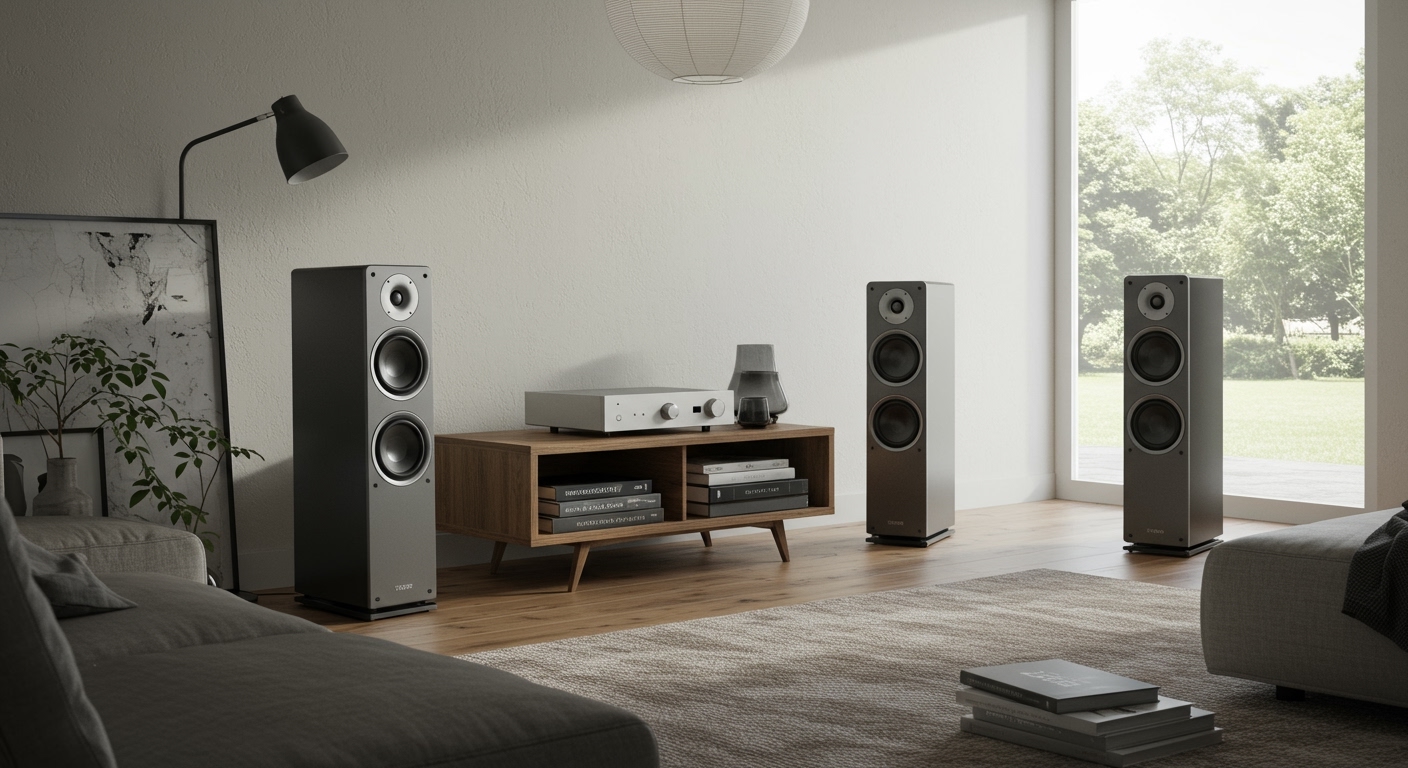
A 2.1 system consists of two satellite speakers (the “2”) for stereo highs and mids, and one subwoofer (the “.1”) dedicated to deep, impactful bass. This combination provides a full-range audio experience that built-in speakers simply can’t match. In this guide, I’ll walk you through everything from unboxing to advanced fine-tuning, drawing on my years of experience setting up dozens of PC audio systems. We’ll make sure you know exactly how to set up 2.1 speakers on your PC for the best possible sound.
Key Takeaways: Your Quick Setup Guide
- Identify Components: Unpack and identify your two satellite speakers, one subwoofer, and all necessary cables (usually a 3.5mm audio cable and power cord).
- Position for Success: Place the satellite speakers on either side of your monitor, angled towards you to form an equilateral triangle with your head. The subwoofer goes on the floor, ideally not crammed into a corner.
- Connect the Hardware: Plug the satellite speakers into the designated outputs on the back of the subwoofer. Then, connect the main audio cable (usually green) from the subwoofer to the green “line-out” port on the back of your PC.
- Configure in Windows/macOS: Go to your computer’s sound settings, select your speakers as the output device, and ensure the configuration is set to Stereo.
- Test and Tune: Play a high-quality audio track to test the sound. Adjust the dedicated bass knob on your subwoofer until the low-end blends seamlessly with the satellites.
A Step-by-Step Guide on How to Set Up 2.1 Speakers on a PC
Getting your new speakers up and running is a straightforward process. I’ve broken it down into simple, actionable steps. Follow along, and you’ll be enjoying rich, immersive sound in no time.
Step 1: Unboxing and Component Check
Before you plug anything in, let’s get organized. This simple first step prevents headaches later.
- Carefully Unbox: Open the box and lay out all the components on a clear, soft surface like a rug or towel to prevent scratches.
- Take Inventory: You should have the following items:
From my experience, I always recommend a quick visual inspection of the cables. Check for any bent pins or damage that might have occurred during shipping.
Step 2: Making the Physical Connections
This is where it all comes together. We’ll connect the speakers to each other and then to your computer. The subwoofer acts as the central hub for your entire system.
- Connect Satellites to Subwoofer: Look at the back of your subwoofer. You will see ports labeled “Speaker Output,” “L” (Left), and “R” (Right). The satellite speakers will have cables that plug into these ports. These are often RCA connectors (red and white) or simple speaker wire clips.
- Connect Subwoofer to PC: Now, take your 3.5mm audio cable.
- Connect to Power: Finally, plug the main power cable into the back of the subwoofer and the other end into a wall outlet or a surge protector. I strongly recommend using a surge protector to safeguard your new audio investment.
Step 3: Power On and Initial Sound Check
With everything connected, it’s time for the moment of truth.
- Turn On the Speakers: Locate the power button or knob, which is usually on the subwoofer or one of the satellite speakers (often the right one, which may also have the volume control).
- Set Volume Levels: Turn the volume on the speakers to about 25% and your PC’s system volume to about 50%. This prevents any sudden, loud pops.
- Play Some Audio: Play a song or video on your PC. You should hear sound coming from both satellite speakers and feel the bass from the subwoofer.
If you don’t hear anything, don’t panic! We’ll cover troubleshooting in a later section.
The Art of Placement: How to Position 2.1 Speakers
Proper speaker placement is just as important as the connections themselves. Simply putting them anywhere on your desk will work, but to get true stereo imaging and balanced bass, you need to be more strategic. This is where you can elevate your setup from “good” to “great.”
The “Golden Triangle” for Satellite Speakers
The goal for your satellite speakers is to create an immersive stereo soundstage.
- Create an Equilateral Triangle: Imagine a triangle between your head and the two satellite speakers. The distance between the two speakers should be roughly equal to the distance from each speaker to your ears.
- Aim for Ear-Level: If possible, position the tweeters (the smallest drivers on your satellite speakers) at the same height as your ears. This ensures the high-frequency sounds travel directly to you. You can use small stands or even a stack of books to achieve this.
- Angle Them Inward: Slightly “toe-in” or angle the speakers so they are pointing directly at your ears, not straight ahead. This focuses the sound and dramatically improves clarity and imaging. I’ve found this single tweak makes the biggest difference in sound quality.
The “Subwoofer Crawl” for Perfect Bass
Placing a subwoofer correctly is an art. If you just shove it in a corner, you’ll likely get boomy, undefined bass that overpowers everything else. The “subwoofer crawl” is a pro technique I use for every setup.
- Place the Subwoofer in Your Chair: Temporarily move the subwoofer and place it in your listening position—your desk chair.
- Play a Bass-Heavy Track: Put on a song with a consistent, repeating bass line.
- Get on the Floor: This is the “crawl” part. Get on your hands and knees and move around the area where you plan to place the subwoofer (along the front wall, beside your desk, etc.).
- Listen Carefully: You will notice the bass sounds dramatically different in various spots. In some places, it will be weak; in others, it will be overly boomy. You are listening for the spot where the bass sounds the most tight, clear, and balanced.
- Mark the Spot: Once you find that sweet spot, that’s where your subwoofer should go! It sounds silly, but this method works because it reverses the listening process and is based on your room’s unique acoustics.
Common Placement Mistakes to Avoid
Here’s a quick table summarizing what not to do. I’ve seen these mistakes countless times, and they are easy to fix.
| Mistake | Why It’s Bad | The Fix |
|---|---|---|
| Satellites Too Close | Creates a narrow, “mono” soundstage with no stereo separation. | Spread them apart to match the distance to your listening position (the triangle method). |