

Why You Might Need to Turn Off Your Back Speakers
Ever had a sleeping baby in the back seat and needed to kill the sound back there while keeping your navigation prompts or podcast up front? Or maybe you’re an audiophile like me, trying to create a perfect front-focused soundstage for the ultimate listening experience. Whatever your reason, knowing how to turn off back speakers in car stereos is a simple yet powerful trick.
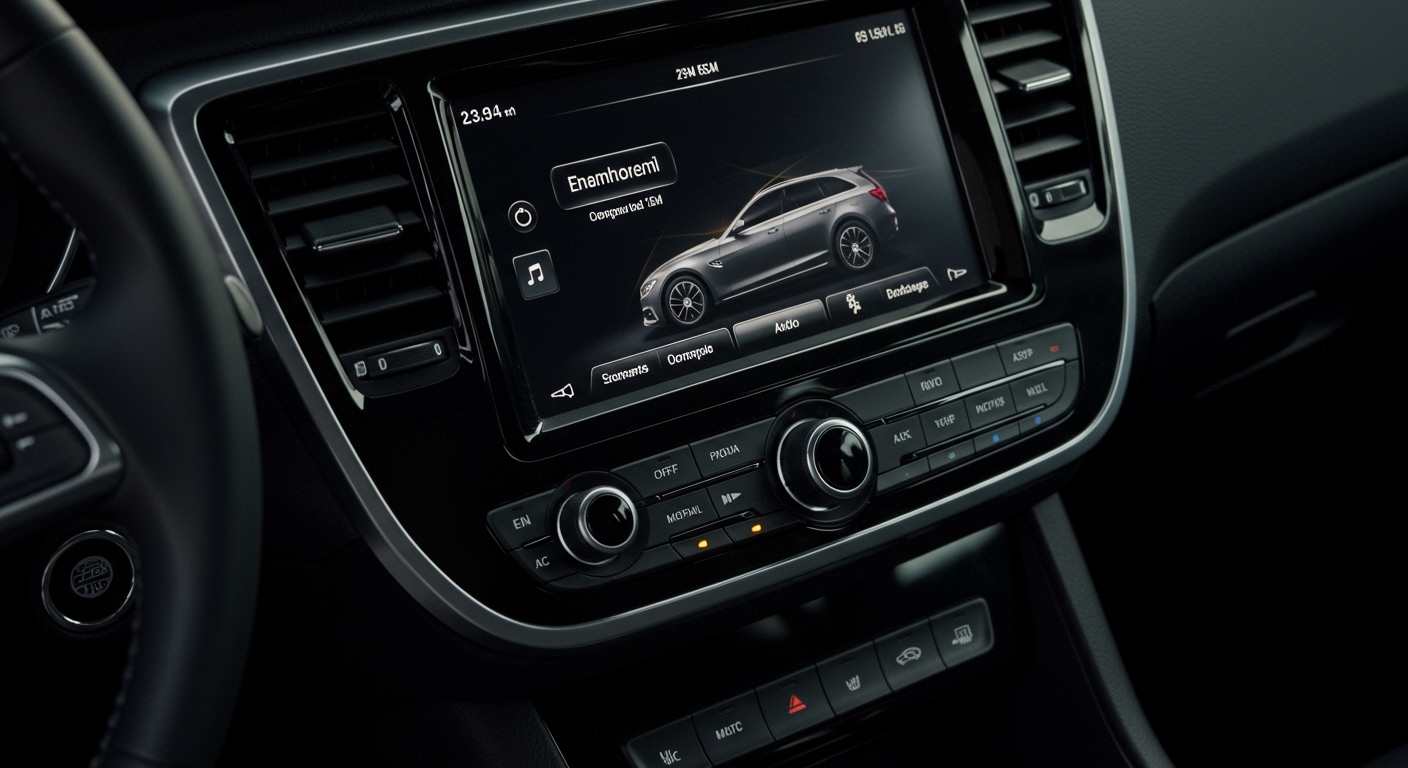
It’s not about cutting wires or needing special tools. In my years of installing and tweaking car audio systems, I’ve found that 99% of the time, this is a simple settings adjustment that takes less than 30 seconds. This guide will walk you through the exact steps for factory and aftermarket systems, so you can take full control of your car’s sound.
Key Takeaways (TL;DR)
- The easiest way to turn off rear speakers is by using the Fader control in your car stereo’s Audio/Sound Settings.
- The Fader controls the sound balance between the front and rear speakers.
- To turn off the back speakers, adjust the Fader all the way to the Front (F).
- To turn them back on, simply move the Fader back to the center position (usually marked ‘0’).
- The Balance control is different; it adjusts sound between the left and right speakers.
Understanding Your Car’s Core Audio Controls
Before diving into the settings, it’s crucial to understand the two primary controls that manage where sound goes in your vehicle: the Fader and the Balance. Confusing them is a common mistake, but they serve very different purposes.
Fader: The Front-to-Back Control
The Fader is the key to our goal. Its sole purpose is to distribute sound between the front and rear speakers.
- Centered Fader: Sound is distributed evenly between the front and rear speakers. This is the default setting.
- Fader to Front: All sound is directed to the front speakers, effectively turning off the rear speakers.
- Fader to Rear: All sound is directed to the rear speakers. This answers the question of how to turn on front speakers in car exclusively by doing the opposite.
Balance: The Left-to-Right Control
The Balance control manages the sound distribution between the left and right sides of your car. This is useful for optimizing the sound for a single person (usually the driver) but doesn’t affect the front/rear split.
Here’s a simple breakdown to make it crystal clear:
| Control Feature | Fader | Balance |
|---|---|---|
| Primary Axis | Front ↔ Rear (Vertical) | Left ↔ Right (Horizontal) |
| Main Use Case | Turning off rear speakers for passengers | Optimizing sound for the driver’s seat |
| Symbol/Label | Often F/R or FAD | Often L/R or BAL |
| Our Goal | Adjust this all the way to the Front | Keep this in the Center (usually 0) |
From my experience, I only adjust the Balance slightly to the left when I’m on a long solo drive to center the stereo image on my position. For everything else, including turning off the rear speakers, the Fader is the tool you need.
How to Turn Off Back Speakers in Car: Step-by-Step Methods
The exact steps to adjust your Fader can vary slightly depending on your stereo, but the principle is always the same. We’ll cover the most common types you’ll encounter.
Method 1: Using a Standard Factory Stereo (Touchscreen or Button-Based)
This applies to the vast majority of cars on the road today. Factory stereos, whether they have a large touchscreen or physical buttons and a small LCD, almost always have this feature readily accessible.
- Power On Your Vehicle and Stereo.
- Locate the Sound/Audio Settings Menu.
AUDIO, SOUND, TONE, or sometimes an equalizer icon. On a touchscreen, you’ll likely need to tap a Settings (often a gear icon) or Sound option on the main screen.
- Find the Fader/Balance Option.
Bass, Treble, Balance, and Fader. Select the Fader option.
- Adjust the Fader to the Front.
0 or in the center. Use the knob, buttons, or touchscreen slider to move the setting all the way to the Front.
* The display might show this as F9, +9 Front, or simply as far as the indicator will go towards an “F” icon.
- Confirm and Exit.
You have now successfully figured out how to turn off the back speakers in a car using the factory radio.
Method 2: Using an Aftermarket Head Unit (Pioneer, Kenwood, Sony, etc.)
If you have an aftermarket stereo, the process is very similar but the menus can look a bit more complex. These units often offer more granular control.
In our workshop, we install these daily. On a modern Pioneer or Kenwood touchscreen unit, for example, the steps are generally:
- Tap the Main Settings Icon.
- Navigate to the ‘Audio’ Sub-menu.
- Select ‘Fader/Balance’ or ‘Sound Position’.
FAD and BAL, or you can literally drag a crosshair icon to the very front of the car graphic.
- Drag the Sound Focus to the Front.
- Save and Test.
How to Turn On Back Speakers in Car (And Find the Perfect Balance)
So, the kids are awake, or you have a car









