

How to Connect Harman Kardon Speakers to iPhone: A Step-by-Step Guide
You’ve invested in a premium Harman Kardon speaker for its rich, detailed sound, and you have your iPhone loaded with your favorite playlists and podcasts. Now, you’re facing the final hurdle: getting them to work together. If you’re struggling with pairing or just want to ensure you’re getting the best possible connection, you’ve come to the right place. This guide will walk you through the simple process, from basic Bluetooth pairing to troubleshooting common issues, ensuring you can enjoy that signature Harman Kardon sound in minutes.
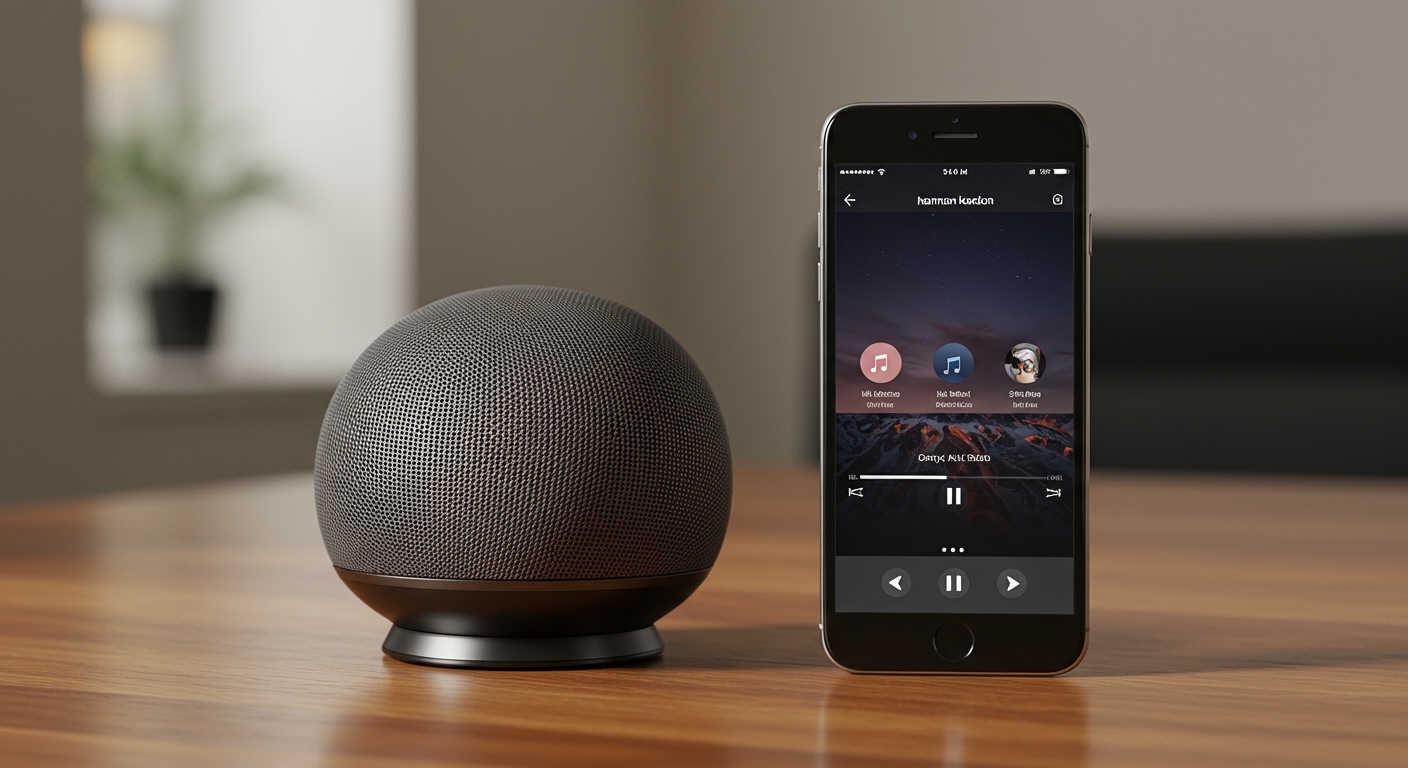
Key Takeaways: Connecting Your Speaker
- Enable Bluetooth: The primary method for how to connect Harman Kardon speakers to your iPhone is via Bluetooth. Ensure it’s turned on both on your speaker and your iPhone.
- Enter Pairing Mode: Most Harman Kardon speakers have a dedicated Bluetooth button. Press and hold it for 3-5 seconds until you hear a sound or see a flashing blue light.
- Select on iPhone: Open your iPhone’s Settings > Bluetooth. Find your speaker’s name in the “Other Devices” list and tap on it.
- Confirm Connection: Once connected, the speaker will appear under “My Devices” on your iPhone, and the light on the speaker will turn solid blue.
- Troubleshoot: If you have issues, try moving the devices closer, turning them off and on again, or using your iPhone’s “Forget This Device” option to restart the pairing process.
How to Connect Harman Kardon Speakers to iPhone via Bluetooth
Connecting your Harman Kardon speaker to your iPhone via Bluetooth is the most common and convenient method. In my experience testing various models like the Onyx Studio 7 and Aura Studio 3, the process is straightforward and consistent across the product line.
Follow these five simple steps to get your music playing.
Step 1: Prepare Your Harman Kardon Speaker
First, make sure your speaker is turned on and has enough battery life, or is plugged into a power source. I recommend placing your speaker and iPhone within a few feet of each other during the initial setup to ensure a strong signal.
Step 2: Enable Bluetooth on Your iPhone
This might seem obvious, but it’s a common oversight.
- Unlock your iPhone and go to the Settings app (the gear icon).
- Tap on Bluetooth.
- Make sure the toggle switch at the top is green, indicating that Bluetooth is active.
You can also access this through the Control Center by swiping down from the top-right corner of your screen and ensuring the Bluetooth icon is blue.
Step 3: Initiate Pairing Mode on the Speaker
This is the most critical step. Your speaker needs to broadcast a signal that your iPhone can find.
- Look for the Bluetooth symbol on your Harman Kardon speaker.
- Press and hold this button for about 3-5 seconds.
- You will typically hear an audible chime or a specific pairing sound.
- The LED indicator light (usually blue) will begin to flash rapidly. This signals that the speaker is now in “pairing mode” and is discoverable by other devices.
If you can’t find the button, consult your speaker’s specific user manual, as the location can vary slightly between models like the portable Go + Play and the stationary Aura Studio.
Step 4: Select Your Speaker on the iPhone
With your speaker in pairing mode, look back at your iPhone’s Bluetooth screen.
- Under the “OTHER DEVICES” list, you should see the name of your speaker appear (e.g., “HK Onyx Studio 7” or “Harman Kardon Aura”).
- It may take a few moments to show up.
- Tap on the speaker’s name in the list.
Step 5: Confirm the Connection & Test
Your iPhone will now attempt to pair with the speaker. Once successful:
- The speaker’s name will move up to the “MY DEVICES” list on your iPhone with the status “Connected.”
- The flashing blue light on your Harman Kardon speaker will turn solid.
- You will likely hear another confirmation sound from the speaker.
That’s it! Open your favorite music app, like Spotify or Apple Music, and play a track. The sound should now come from your Harman Kardon speaker.
Troubleshooting Common Connectivity Issues
Even with a simple process, sometimes technology doesn’t cooperate. If you’re having trouble with how to connect Harman Kardon speakers to your phone, don’t worry. I’ve run into nearly every issue imaginable during my tests. Here are the most common problems and their solutions.
| Problem | Quick Solution | Detailed Steps |
|---|---|---|
| iPhone Can’t Find Speaker | Re-enter pairing mode & move closer. | Turn the speaker off, then on. Press and hold the Bluetooth button again until it flashes. Ensure your iPhone is within 10 feet. |
| Connection Drops | Reduce distance & remove obstacles. | Physical barriers (walls, other electronics) can interfere. Also, update your iPhone’s iOS and the speaker’s firmware if possible. |
| “Pairing Unsuccessful” Error | Forget the device and restart. | On your iPhone, go to Settings > Bluetooth, tap the “(i)” icon next to the speaker, and select “Forget This Device.” Then, restart both devices and try pairing again. |
| Audio is Stuttering | Check for interference & other connections. | Disconnect other unused Bluetooth devices from your iPhone. Wi-Fi routers, microwaves, and other wireless devices can cause interference. |
My iPhone Can’t Find the Speaker
This is the most frequent issue. The first thing I always check is whether the speaker is truly in pairing mode. A solid light means it’s already connected to another device.
- Check for Previous Connections: Your speaker might be automatically connecting to a different device in your home (like a tablet or laptop). Turn off Bluetooth on those other devices temporarily.
- Restart Everything: The classic “turn it off and on again” works wonders. Power down your speaker and your iPhone, wait 10 seconds, and then power them back on and retry the pairing process from Step 1.
The Connection Keeps Dropping
A dropping connection is usually caused by distance or interference. Bluetooth technology has a limited range, typically around 33 feet (10 meters), but this can be significantly reduced by walls, furniture, and even other wireless signals.
To fix this, keep your iPhone in the same room as the speaker and try to maintain a clear line of sight.
How to Factory Reset Your Harman Kardon Speaker
If all else fails, a factory reset can clear any lingering software glitches or faulty connections. This process erases all previous pairings. The method varies by model, but here is a common procedure I’ve used on the Onyx series:
- Power on the speaker.
- Press and hold the “Volume +” and “Bluetooth” buttons simultaneously for about 10-15 seconds.
- The speaker will power off, indicating the reset is complete.
- Power it back on and attempt the pairing process from scratch.
Note: Always check your specific model’s manual for the exact reset combination.
Advanced Connectivity: Multi-Speaker Setups and Other Brands
Once you master the basics, you might wonder about more complex setups. Many users ask about connecting multiple speakers for a more immersive sound experience.
Can You Connect Sony Bluetooth Speakers with Harman Kardon?
The short answer is generally no, not for stereo or multi-room pairing. Harman Kardon uses its own proprietary technology, like Wireless Dual Sound or the HK Connect+ app, to link its speakers together. Sony uses a different system, often called “Party Chain.”
These systems are brand-specific and not designed to be compatible with each other. While you can’t create a synchronized stereo pair, you can sometimes connect to both speakers from a Mac computer using the Audio MIDI Setup utility, but this is not a practical solution for an iPhone.
Using Harman Kardon Wireless Dual Sound
Some models, like the Onyx Studio 5 and later, feature Wireless Dual Sound. This allows you to connect two compatible Harman Kardon speakers together for a true stereo soundstage.
- Connect your iPhone to the first speaker as described above.
- Press and hold the Bluetooth button on both speakers simultaneously for about 5 seconds.
- The speakers will connect to each other, with one acting as the left channel and the other as the right.
This is a fantastic feature I’ve used to fill a larger room with sound. It provides a much more immersive experience than a single speaker can offer.
Frequently Asked Questions (FAQ)
How do I put my Harman Kardon speaker in pairing mode?
Press and hold the dedicated Bluetooth button on your speaker for 3-5 seconds. You’ll know it’s in pairing mode when you hear an audible cue and the blue LED light begins to flash rapidly.
Why is my Harman Kardon speaker not showing up on Bluetooth?
This usually happens for one of three reasons: the speaker is not in pairing mode, it’s already connected to another device, or it’s too far from your iPhone. Ensure the blue light is flashing, turn off Bluetooth on other nearby devices, and bring your phone closer to the speaker.
How many devices can connect to a Harman Kardon speaker?
Most modern Harman Kardon speakers can remember multiple paired devices (often up to 8), but they can only actively connect to and play audio from one or two devices at a time. Some models support “Multi-Point” connection, allowing two phones to be connected simultaneously to take turns playing music.
Can I connect my iPhone to two Harman Kardon speakers at once?
Yes, if your speakers support a feature like Wireless Dual Sound or HK Connect+. You connect your iPhone to one “primary” speaker, which then relays the signal to the second speaker to create a stereo or multi-room setup. You cannot connect directly from your iPhone’s standard Bluetooth menu to two speakers independently.
How do I reset my Harman Kardon Bluetooth speaker?
To perform a factory reset, which clears all pairings, you typically press and hold a combination of buttons. For many models like the Onyx Studio, this is the Volume + and Bluetooth buttons held together for 10-15 seconds until the unit powers down. Always check your specific manual for the correct procedure.









