

Understanding Your Optical Audio Connection
Have you ever unboxed a new, sleek TV only to find its audio is thin and disappointing? You look at your trusty, great-sounding speakers and then at the back of the TV, and you see it: a strange, square-shaped port labeled “Digital Audio Out (Optical)”. This is a common scenario I’ve encountered countless times, and it leaves many people wondering how to bridge the gap between modern TVs and classic speakers.
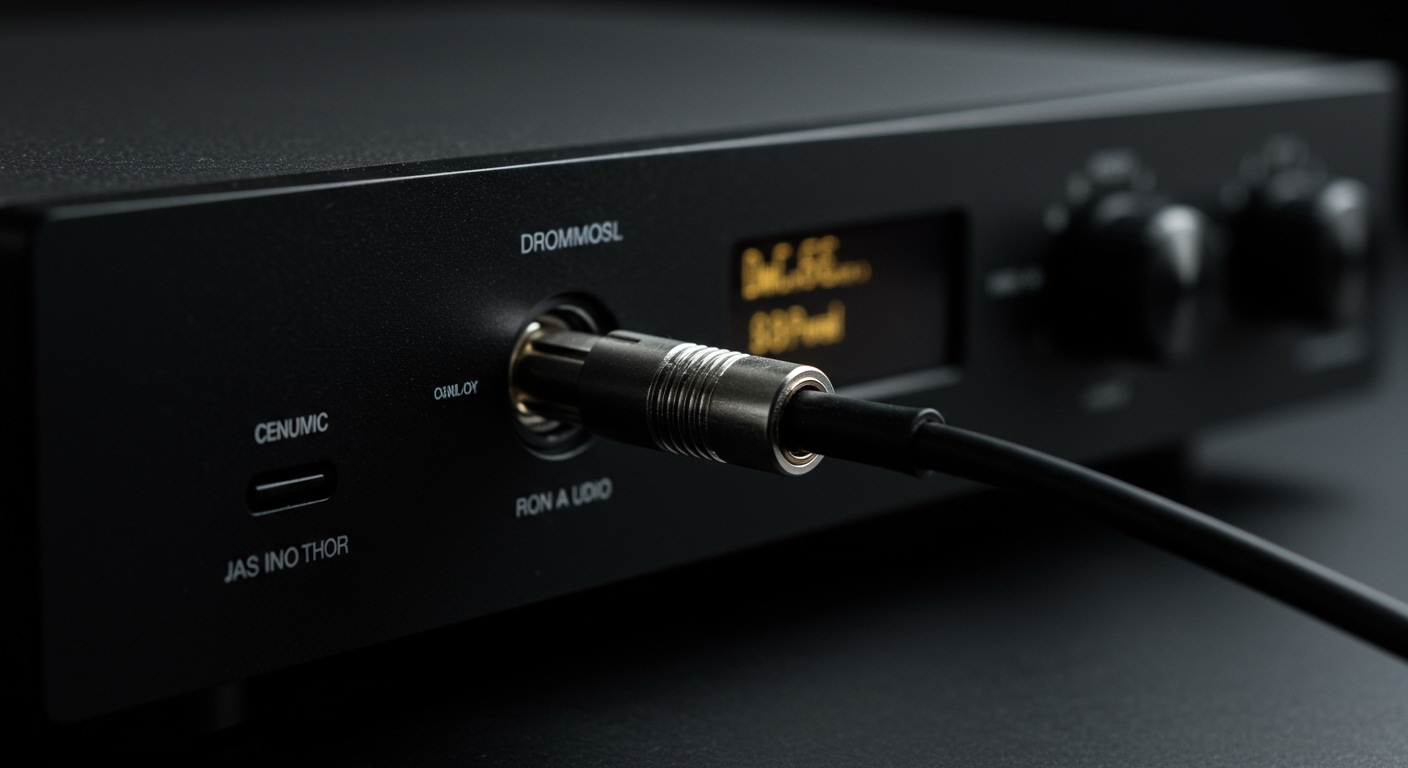
This guide is your complete roadmap. We’ll break down exactly how to connect optical audio output to speakers, even if your speakers are older and don’t have a matching input. Forget the confusion; let’s get you the rich, high-quality sound you deserve.
Key Takeaways: Quick Setup Guide
- Identify Your Ports: Locate the Digital Audio Out (Optical) port on your TV and the input ports on your speakers (usually red and white RCA or a single 3.5mm jack).
- Get a Converter: If your speakers are analog (with RCA or 3.5mm inputs), you absolutely need a Digital-to-Analog Converter (DAC). This is the most crucial component.
- Connect the Cables: Run the optical cable from your TV to the DAC’s input. Then, connect your speakers to the DAC’s output using an RCA or 3.5mm cable.
- Adjust TV Settings: Go into your TV’s audio menu. Change the Audio Output to “Optical” or “External Speaker”. Critically, set the Digital Audio Format to PCM. Most converters cannot process formats like Dolby Digital.
What Exactly is an Optical Audio Output?
An optical audio connection, technically called a TOSLINK connection, sends digital audio signals from one device to another using fiber optic cable and pulses of red light. It was developed by Toshiba in the early ’80s and is still a reliable standard today.
Why Modern Devices Still Use Optical Audio
You might wonder why we still use this technology in an age of HDMI. There are a few key reasons:
- Signal Purity: Because it uses light instead of electricity, an optical signal is completely immune to electrical and radio frequency interference (EMI/RFI). This means no buzzing or humming from nearby power cables or appliances.
- High-Fidelity Sound: It can carry high-resolution, uncompressed stereo audio (PCM) and compressed surround sound signals like Dolby Digital and DTS.
- Space-Saving Design: As TVs have become incredibly thin, there’s less room for bulky analog ports. The compact optical port is an ideal solution for outputting high-quality digital audio.
Identifying the Ports: What to Look For
Finding the ports is your first hands-on step.
- On Your TV (or Source Device): Look for a small, square-shaped port. It’s often covered by a tiny, spring-loaded flap to keep dust out. It will be labeled something like DIGITAL AUDIO OUT (OPTICAL) or TOSLINK. When the device is on, you might see a faint red light inside.
- On Your Speakers (or Receiver): This is where it varies.
The Core Challenge: Connecting Digital Optical to Analog Speakers
Here’s the fundamental issue you need to solve: can you connect a digital optical cable and speakers together directly? In most cases, the answer is no.
Digital vs. Analog: The Main Hurdle
Your TV’s optical port outputs a digital signal (data, in the form of 1s and 0s). Most traditional powered speakers, bookshelf speakers, and computer speakers are analog devices. They need an electrical, wave-like signal to produce sound.
You can’t just plug a digital signal into an analog input; they speak different languages. Trying to do so would be like plugging a USB cable into a wall outlet—the connection simply won’t work. This is the primary reason people get stuck.
The Essential Solution: A Digital-to-Analog Converter (DAC)
The hero of this story is a small, inexpensive device called a Digital-to-Analog Converter, or DAC. Its one and only job is to act as a translator.
- It takes the digital audio signal (light pulses) from your TV’s optical output.
- It “translates” that signal into an analog electrical signal.
- It sends that new analog signal out through its RCA or 3.5mm ports, which your speakers can understand perfectly.
For anyone asking, “can I connect optical audio to regular speakers?“, the answer is a resounding yes, but only if you use a DAC.
Step-by-Step: How to Connect Speakers to a TV with an Optical Cable
I’ve performed this setup hundreds of times, and it’s straightforward once you have the right components. Let’s walk through it step-by-step to guarantee success.
Step 1: Gather Your Equipment
Before you start pulling your entertainment center apart, let’s do a quick inventory. You will need:
- Your Source Device: Typically a TV, but could be a game console like a PlayStation 5 or Xbox Series X.
- Your Speakers: A pair of powered speakers, a soundbar, or an AV receiver.
- An Optical (TOSLINK) Cable: Make sure it’s long enough to comfortably reach between your devices.
- A Digital-to-Analog Converter (DAC): This is only needed if your speakers are analog. If your soundbar or receiver has an optical input, you can skip this.
- An Analog Audio Cable: This will be either an RCA-to-RCA cable (red and white plugs) or an RCA-to-3.5mm cable, depending on your speakers’ inputs.
Step 2: Power Down and Position Your Devices
For safety, turn off and unplug your TV and speakers. Position them where you want them, ensuring you have clear access to the back panels. This makes the next steps much easier.
Step 3: Connect the Optical Cable
This is the first physical connection.
- Locate the DIGITAL AUDIO OUT (OPTICAL) port on your TV.
- Take your optical cable and carefully remove the tiny plastic protector caps from both ends. I cannot stress this enough. I’ve troubleshooted “no sound” issues for clients countless times only to find these little caps were still on.
- Insert one end of the cable into the TV’s optical port. It’s shaped to only fit one way. You should feel a distinct “click” when it’s securely seated.
- If you’re connecting directly to a soundbar or AV receiver with an optical input, plug the other end in there and you’re almost done! If you’re using a DAC, proceed to the next step.
Step 4: Connect the Digital-to-Analog Converter (DAC)
Now, let’s introduce our translator.
- Take the other end of the optical cable and plug it into the OPTICAL IN or TOSLINK IN port on your DAC. Again, listen for the click.
- Most DACs require power. Plug its power adapter into the DAC and then into a wall outlet or power strip. A small LED should light up to show it’s receiving power.
Step 5: Connect the DAC to Your Speakers
We’re now on the analog side of the connection.
- Take your RCA or 3.5mm cable.
- Plug the RCA (red and white) or 3.5mm end into the corresponding OUTPUT ports on the DAC.
- Plug the other end of the cable into the INPUT ports on your main powered speaker. Match the red plug









