

Getting Started: Your Pre-Setup Checklist for the Sonos Era 100
Excited to unbox your new Sonos Era 100? I remember that feeling. Before you dive into the app, taking a few minutes to prepare can make the entire process incredibly smooth. Let’s ensure you have everything you need for a flawless setup.
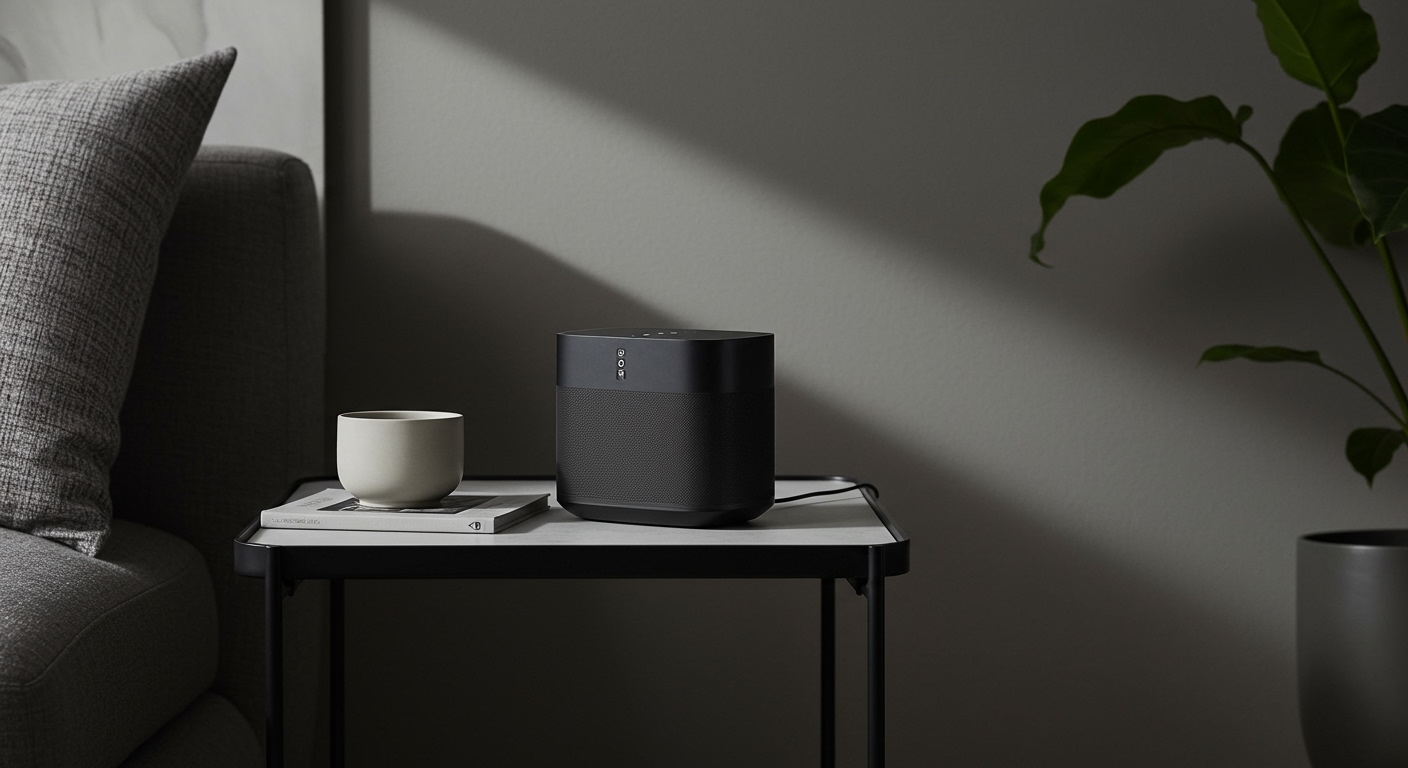
What’s in the Box?
First, let’s do a quick inventory. Your Sonos Era 100 box should contain:
- One (1) Sonos Era 100 speaker
- One (1) Power Cable (approximately 6 ft / 2 m)
- Quickstart Guide and legal/warranty documentation
That’s it. Sonos keeps it simple. If anything is missing, contact Sonos support or the retailer where you purchased it before proceeding.
Essential Tools and Network Requirements
You don’t need a toolbox, but you do need a few digital essentials. Based on my experience setting up dozens of these systems, having this ready is key:
- A Smartphone or Tablet: You’ll need an iOS or Android device to download and run the Sonos S2 app. This is non-negotiable for setup.
- Your Wi-Fi Network Name (SSID) and Password: Make sure you have your Wi-Fi password handy. The Era 100 connects to your home network, and you’ll need to enter these credentials in the app.
- A Stable Wi-Fi Connection: The Era 100 requires a 2.4 GHz or 5 GHz Wi-Fi connection. For the most reliable setup, I recommend being in a room with a strong, stable signal from your router.
Choosing the Perfect Placement
Where you place your speaker matters. Before you even plug it in, think about its primary location.
- For General Listening: Place it on a stable, level surface like a bookshelf, counter, or end table.
- Avoid Enclosed Spaces: Don’t put it in a deep cabinet or fully enclosed shelf, as this can muffle the sound and block the Wi-Fi signal.
- Humidity Resistance: The Sonos Era 100 is humidity-resistant, making it a great choice for bathrooms or covered patios, but it is not waterproof. Keep it away from direct contact with water.
Once you’ve got your spot picked out and your Wi-Fi password ready, you’re prepared for the main event.
How to Pair Sonos Era 100 Speakers: The Core Setup Process
This is the main part of the how to set up sonos era 100 speakers guide. We’ve found the Sonos app makes this process incredibly intuitive, but I’ll walk you through every screen and option so you know exactly what to expect.
Step 1: Power On Your Speaker
First, you need to know how to turn on sonos era 100 speakers. It’s simple: there’s no traditional power button.
- Take the included power cord and plug one end firmly into the bottom of the Sonos Era 100.
- Plug the other end into a working electrical outlet.
- You will see a small status light on the front of the speaker turn on. It will flash green, indicating it’s powered on and ready to be set up.
Step 2: Download the Sonos App
The Sonos app is the command center for your entire system.
- On your iPhone or iPad, go to the App Store.
- On your Android phone or tablet, go to the Google Play Store.
- Search for “Sonos” and download the official app (it has a black logo with “sonos” in white text). Ensure you are downloading the modern “S2” app.
Step 3: Create or Sign In to Your Sonos Account
Open the Sonos app. You will be prompted to either sign in to an existing account or create a new one.
- New Users: If this is your first Sonos product, you’ll need to create an account. This requires an email address and a password. This account saves your system settings and links your streaming services.
- Existing Users: If you already have Sonos speakers, simply sign in to your existing account.
Step 4: Add Your New Era 100 Speaker
Once you’re logged in, the app will often automatically detect a new speaker nearby.
- If a pop-up appears saying “New Sonos product found,” tap “Set up.”
- If it doesn’t appear, go to the Settings tab (the gear icon), tap System, and then select Add Product.
- The app will now guide you through the process, using a combination of sound and your phone’s camera or NFC to identify the speaker. You may be asked to tap your phone to the top of the speaker or enter a PIN found on the bottom. Follow the on-screen instructions precisely.
Step 5: Connect to Your Wi-Fi Network
This is the crucial step where your speaker joins your home network.
- The Sonos app will display a list of available Wi-Fi networks.
- Select your home Wi-Fi network from the list.
- Carefully enter your Wi-Fi password when prompted and tap “Continue.”
Your speaker will take a moment to connect. The status light will change from flashing green to solid white once it’s successfully connected to the network.
Step 6: Registration and Updates
Finally, the app will register the Sonos Era 100 to your account. It will also check for any available software updates.
I strongly recommend you install any updates during this initial setup. These updates often include new features, security patches, and performance improvements that ensure your speaker works perfectly from day one. This can take a few minutes, so be patient.
Once the update is complete, you’ll be prompted to name your speaker (e.g., “Kitchen,” “Living Room,” “Office”). Congratulations, your Sonos Era 100 is now set up and ready to play music!
Fine-Tuning Your Audio: Trueplay and EQ Settings
Setting up your speaker is just the beginning. To truly unlock its potential, you need to tune it to your specific room. This is where Sonos Trueplay technology comes in, and it’s a feature I use with every Sonos speaker I install.
What is Sonos Trueplay?
Trueplay is a sophisticated tuning technology that uses the microphone on your iOS device to analyze how sound reflects off the walls, furniture, and other surfaces in your room. It then customizes the speaker’s EQ for the best possible sound in that exact location. It can make a massive difference, turning good sound into great sound.
The Sonos Era 100 offers two types of Trueplay:
- Quick Tuning: Uses the speaker’s own microphones. It’s fast and available for both iOS and Android users.
- Advanced Tuning: Uses your iPhone or iPad’s microphone for a more precise and comprehensive analysis. This is the method I always recommend if you have a compatible Apple device.
How to Run Trueplay Tuning
Running Trueplay only takes a few minutes. For the best results, make the room as quiet as possible.
- Open the Sonos app.
- Go to the Settings tab (gear icon).
- Tap on System and select your Sonos Era 100 from the list of products.
- Tap on Trueplay, then Trueplay Tuning.
- The app will guide you through the process. For Advanced Tuning, you’ll be instructed to walk slowly around your room while waving your iPhone or iPad up and down.
It might feel a bit silly, but the acoustic data it gathers is incredibly valuable. Once completed, you can toggle Trueplay on and off to hear the difference for yourself. It’s usually night and day.
Manually Adjusting the Equalizer (EQ)
If you prefer to tailor the sound to your personal taste, you can manually adjust the EQ settings.
- In the Sonos app, navigate to the System menu and select your Era 100.
- Find the EQ setting.
- You will see sliders for Bass, Treble, and sometimes Loudness.
- Adjust these sliders to your preference. Increase the bass for more punch in hip-hop or electronic music, or boost the treble for more clarity in vocals and podcasts.
Advanced Sonos Era 100 Setup Configurations
The real magic of Sonos is its ecosystem. A single Era 100 is great, but its capabilities expand dramatically when you pair it with other speakers. Here’s how to pair Sonos Era 100 speakers in more advanced ways.
Creating a Stereo Pair
This is my absolute favorite way to use the Era 100s. Pairing two of them in the same room creates a true stereo pair, delivering a much wider, more immersive soundstage.
Benefits of a Stereo Pair:
- True Left/Right Separation: You’ll hear music as the artist intended, with distinct audio channels.
- Wider Soundstage: The sound feels like it’s filling the room rather than coming from a single point.
- Increased Volume and Detail: Two speakers working together provide a richer, more powerful listening experience.
How to Create a Stereo Pair:
- Make sure both of your Sonos Era 100 speakers are set up individually in the same room within the Sonos app.
- Go to the Settings tab > System.
- Under Products, tap one of the Era 100s you wish to pair









