

Where Are the Speakers on a Nintendo Switch? A Complete Guide
Ever been in the middle of a tense Mario Kart 8 Deluxe race or exploring the vast world of Zelda: Tears of the Kingdom and felt the sound was just… off? You might be wondering, where are the speakers on a Nintendo Switch anyway? It’s a common question, as their location isn’t immediately obvious and can easily be blocked, leading to muffled or quiet audio.
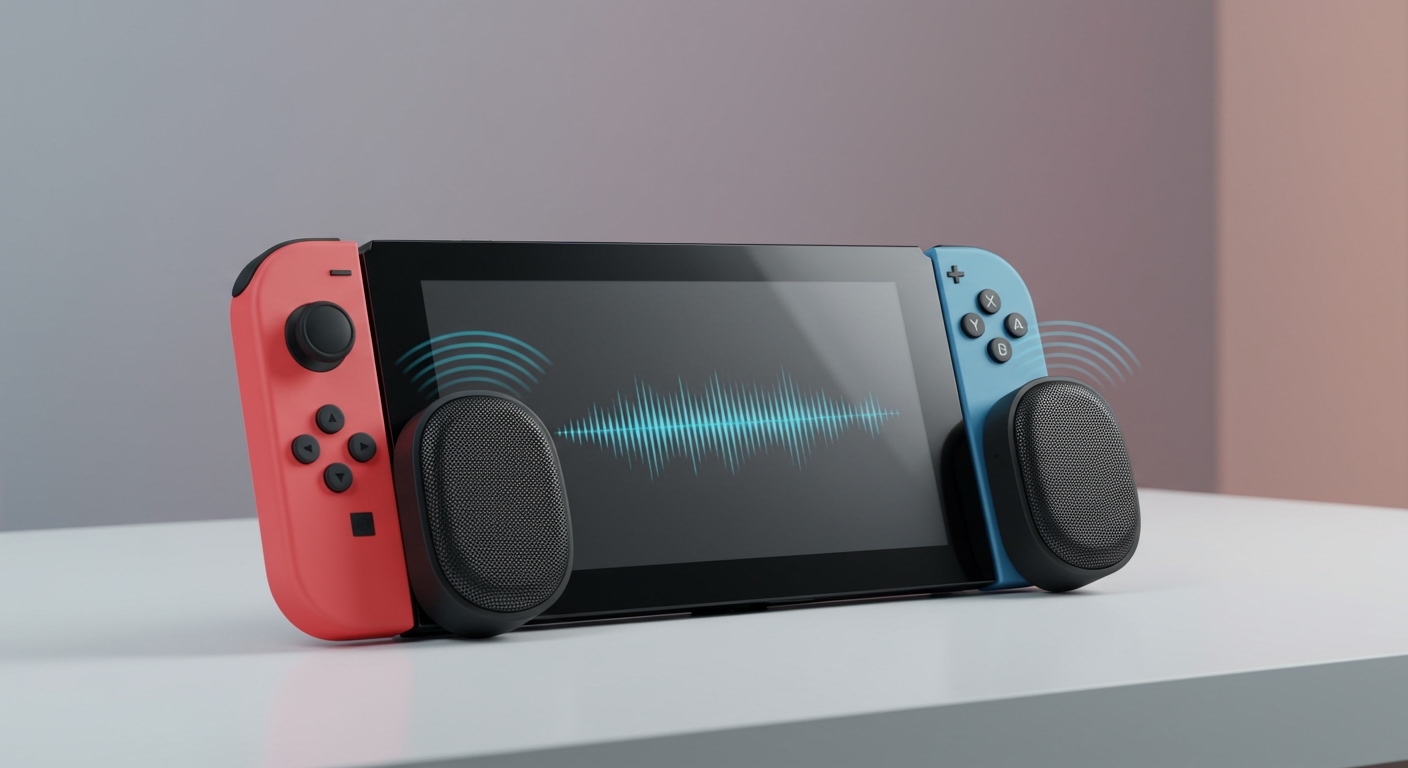
The main speakers on the Nintendo Switch and Nintendo Switch OLED Model are located on the front of the console, at the bottom-left and bottom-right corners of the screen. For the Nintendo Switch Lite, the speakers are in a similar position, found on the bottom edge of the device. This guide will not only pinpoint their exact location on every model but also show you how to clean them, troubleshoot common audio issues, and dramatically improve your gaming sound experience.
Key Takeaways: Your Audio Questions Answered
- Standard & OLED Switch: Speakers are two small vertical slits on the front, bottom-left and bottom-right of the console body, below the screen.
- Switch Lite: Speakers are two small grilles on the bottom edge of the handheld-only console.
- Common Issue: Muffled sound is often caused by your hands or fingers accidentally covering these speaker grilles during gameplay.
- Cleaning: Use a soft, dry brush (like a new toothbrush or an anti-static brush) to gently clean dust and debris from the speaker grilles.
- Audio Improvement: For the best sound, use the 3.5mm headphone jack or pair Bluetooth headphones directly with your Switch.
Finding Your Nintendo Switch Speakers: A Quick Guide
Locating the speakers on your Switch is the first step to understanding and improving your audio. Unlike a TV or a laptop where speakers are often prominent, Nintendo designed the Switch’s speakers to be discreet and integrated into the console’s form factor.
The primary goal of the design is to provide stereo sound directly to the player in handheld mode. This means there is a distinct left and right audio channel, which is crucial for immersive gameplay where directional sound cues are important.
Speaker Location on the Standard Nintendo Switch
On the original Nintendo Switch model, the speakers are easy to find once you know where to look.
- Hold the console in front of you as if you were playing in handheld mode.
- Look at the black bezel surrounding the screen.
- On the bottom-left and bottom-right, you will see two thin, vertical slits.
These are your speakers. I’ve noticed in my own gaming sessions, especially with games that require a firm grip, that the palms of my hands can easily cover these slits. This is the number one cause of suddenly muffled or quiet audio. A simple adjustment of my grip is often all it takes to fix the problem.
Speaker Location on the Nintendo Switch OLED Model
The Nintendo Switch OLED Model boasts “enhanced audio” as one of its key features. While the sound quality is noticeably clearer and fuller in my experience, the physical location of the speakers is identical to the standard model.
You will find them in the exact same place: two vertical slits on the front of the console, at the bottom corners of the main unit. The internal speaker hardware itself was upgraded for the OLED model, but their placement remains the same.
Where Are the Speakers on Different Nintendo Switch Models?
Nintendo has released three main versions of the Switch, and while they share a similar design philosophy, the speaker placement and audio experience have subtle differences. Understanding these can help you get the most out of your specific console.
Nintendo Switch vs. Switch Lite vs. Switch OLED
The biggest difference is between the handheld-only Switch Lite and its larger siblings. Because the Lite is a single, non-detachable unit, its speakers are placed on the bottom edge of the console’s shell, rather than on the front face.
Here is a quick comparison table to help you identify the speakers on your model.
| Feature | Standard Nintendo Switch | Nintendo Switch Lite | Nintendo Switch OLED Model |
|---|---|---|---|
| Speaker Location | Front-facing, bottom corners | Bottom edge of the console | Front-facing, bottom corners |
| Speaker Grille | Two thin vertical slits | Two small circular grilles | Two thin vertical slits |
| Audio Quality | Standard Stereo | Standard Stereo | Enhanced Stereo |
| Common Blockage | Palms of hands | Pinky fingers | Palms of hands |
As you can see, the Switch Lite’s design makes it more prone to being muffled by your pinky fingers if you’re supporting the console from below. I’ve had to consciously adjust how I hold my own Lite to avoid this.
Why Does My Nintendo Switch Audio Sound Muffled? (And How to Fix It)
Muffled audio is the most frequent complaint I hear from fellow Switch owners. Before you worry that your speakers are broken, let’s run through the most common culprits, which are almost always easy to fix.
Your Hands Are Covering the Speakers
This is the cause 90% of the time. In handheld mode, it’s natural for your hands to wrap around the bottom of the console for support.
- The Fix: Simply be mindful of your grip. Try to hold the console by the Joy-Con grips, allowing space between your palms and the front of the console. For the Switch Lite, try curling your pinkies underneath instead of resting them on the bottom edge.
Debris in the Speaker Grilles
Over time, dust, lint from pockets, and other tiny debris can accumulate in the speaker slits. This physically blocks the sound waves from traveling out, resulting in a tinny or muffled sound.
- The Fix: A gentle cleaning is required. We’ll cover the exact, safe steps in the next section. Never use compressed air, as it can force debris deeper into the console and damage the speaker cones.
Software and Sound Settings
Sometimes, a software setting can be the issue. The Switch has a few audio options that can affect volume and quality.
- The Fix: Navigate to System Settings > System.
Step-by-Step Guide: How to Safely Clean Your Switch Speakers
Cleaning your Switch speakers is a delicate process. The grilles are small and the internal components are sensitive. Follow these steps carefully to avoid causing damage.
What You’ll Need:
- A soft, dry, clean brush (a new, soft-bristled toothbrush, a small paintbrush, or an anti-static electronics brush works best).
- A microfiber cloth.
- Optional: A small amount of 99% isopropyl alcohol (for stubborn grime, applied to the brush, NEVER directly to the console).
Step 1: Power Down the Console
Before you begin, completely power off your Nintendo Switch. Hold the power button for three seconds, select “Power Options,” and then “Turn Off.” This prevents any accidental button presses and protects the electronics.
Step 2: Gently Brush the Speaker Grilles
Take your soft, dry brush. Angle the bristles and gently brush across the speaker slits. Use a light flicking motion, moving from the inside of the slit outwards. The goal is to dislodge and sweep away debris, not push it further in.
- Pro Tip: I like to hold the Switch upside down while brushing, so gravity helps the dislodged dust fall out of the console instead of into it.
Step 3: Address Stubborn Grime (Optional)
If you notice some grime that won’t come off with a dry brush, you can use isopropyl alcohol.
- Dampen the very tips of your brush bristles with a tiny amount of 99% isopropyl alcohol. The brush should not be wet or dripping.
- Gently scrub the affected area of the grille. The alcohol will help break down oils and grime and will evaporate quickly without causing damage.
- Immediately follow up with a dry brush to sweep away any remaining residue.
Step 4: Wipe Down the Console
Use your microfiber cloth to wipe down the entire console, including the area around the speakers. This removes any dust you’ve brushed loose.
Step 5: Power On and Test
Turn your Switch back on and load up a game or play a sound effect from the settings menu to test the audio. It should sound noticeably clearer.
Boosting Your Audio: Beyond the Built-in Speakers
While the built-in speakers are convenient for on-the-go gaming, they can’t compete with dedicated audio hardware. If you’re serious about your game audio, here are the best ways to upgrade your experience.
Using the 3.5mm Headphone Jack
This is the simplest and most reliable method for superior audio. The Nintendo Switch family of systems includes a standard 3.5mm headphone jack on the top edge of the console.
Benefit: Plugging in any pair of wired headphones or earbuds provides a direct, lag-free audio connection. You’ll get much richer bass, clearer highs, and better stereo separation, which is perfect for hearing enemy footsteps in games like Fortnite*.
Connecting Bluetooth Audio Devices
Nintendo added native Bluetooth audio support in a system update, which was a game-changer. You can pair your favorite wireless headphones or earbuds directly with the console.
How to Pair Bluetooth Headphones:
- Navigate to System Settings > Bluetooth® Audio.
- Select “Pair Device”.
- Put your Bluetooth headphones into pairing mode (check your headphone’s manual for instructions).
- Select your headphones from the list on the Switch screen to connect.
- Caveat: While incredibly convenient, Bluetooth audio on the Switch has limitations. You cannot use a Bluetooth microphone for in-game chat, and you may experience a very slight audio delay (latency), which can be noticeable in rhythm games. In my testing, high-quality headphones with aptX Low Latency codecs perform best, but the Switch doesn’t officially support this codec, so performance can vary.
Using Speakers in Docked Mode
When your Switch is docked and connected to a TV, the audio is routed through the HDMI cable to your TV’s speakers or a connected sound system. For the best experience, connect a soundbar or surround sound system to your TV. This provides the most immersive audio possible, especially for epic single-player adventures.
Frequently Asked Questions (FAQ)
Q1: Where are the speakers on the Nintendo Switch Lite?
The speakers on the Nintendo Switch Lite are located on the bottom edge of the console. They appear as two small, circular grilles. Be careful not to cover them with your fingers while playing.
Q2: Does the Nintendo Switch have stereo sound?
Yes, all models of the Nintendo Switch have built-in stereo speakers. This means they produce distinct left and right audio channels, which helps create a more immersive and spatially aware soundscape in games.
Q3: Can I use compressed air to clean my Switch speakers?
No, you should never use compressed air to clean your Switch speakers. The high-pressure air can force dust and debris deeper into the console, potentially damaging the delicate









