

Uncovering Why Your Bose Surround Speakers Are So Quiet
The most common reasons why your Bose surround speakers are so quiet are incorrect audio settings in the Bose Music app, improper system calibration using ADAPTiQ, and playing source content that is not encoded in a true surround sound format (like 5.1 or Dolby Atmos). Often, the issue isn’t a hardware fault but a simple software or source mismatch that can be quickly corrected.
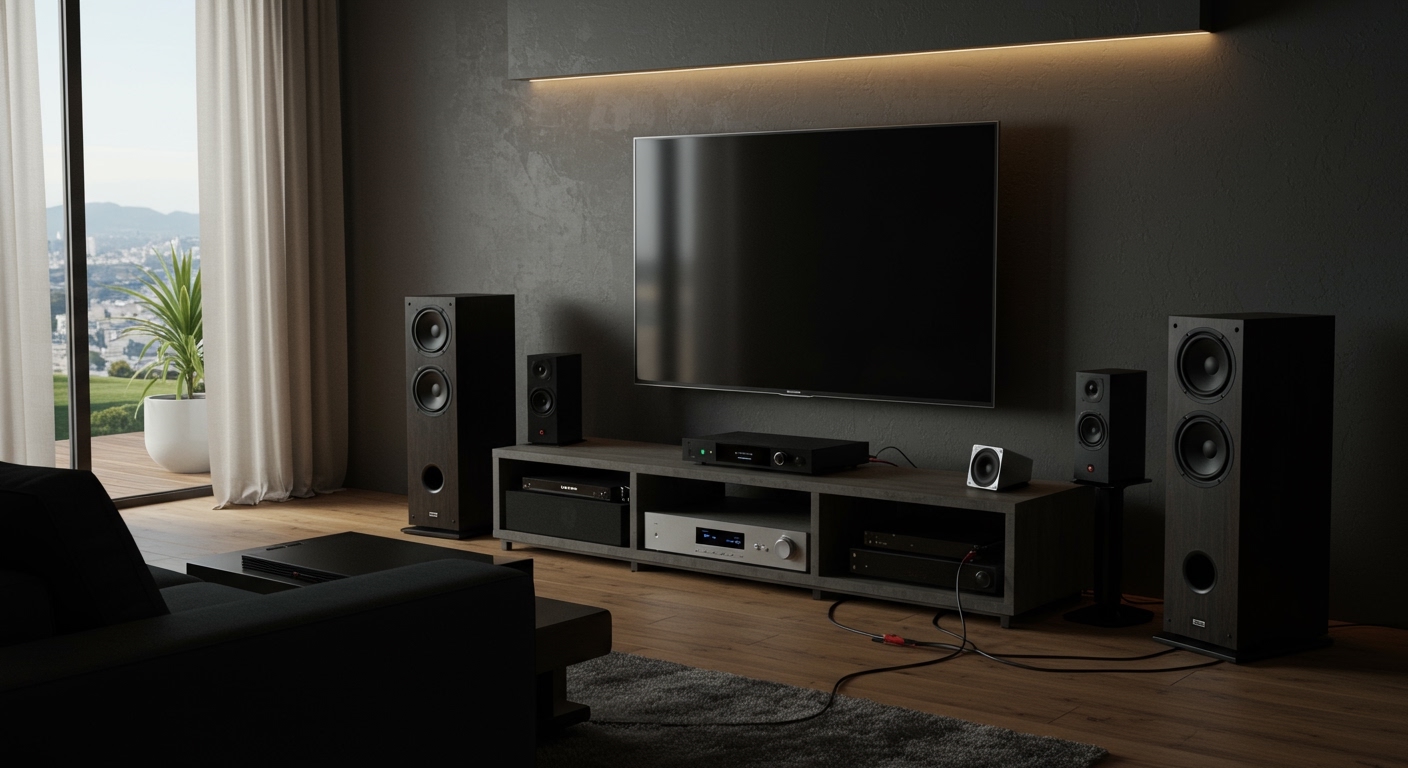
As a home theater specialist with over a decade of experience, I’ve seen the frustration firsthand. You invest in a premium Bose system, expecting immersive, room-filling sound, only to find the rear speakers are barely audible. It’s a surprisingly frequent problem, but the good news is that the fix is usually straightforward. We’ll walk through every step, from the basic checks to the advanced tweaks I use for my own clients, to get your system sounding the way it was designed to.
Key Takeaways: Quick Fixes for Quiet Bose Speakers
- Check the Bose Music App: The first place to look is the app. Navigate to your soundbar’s settings and find the “Surround Speakers” or “Audio” section. There is a dedicated volume control for the rear channels that might be set too low.
- Verify Your Source: Not all content is in surround sound. Many YouTube videos, music streams, and older TV shows are in stereo (2.0). Your rear speakers will be silent or very quiet with this content. Test with a known 5.1 surround sound source, like a movie on Netflix or a Blu-ray disc.
- Re-run ADAPTiQ Calibration: The ADAPTiQ audio calibration is crucial. If you’ve moved furniture, the speakers, or even just had people in the room during the initial setup, it can throw off the balance. Running it again in a quiet room ensures the system properly maps your space and speaker levels.
- Check Physical Connections: Ensure the wireless receivers for the surround speakers are properly plugged in, powered on, and have a solid connection status light. Interference can also be a factor, so try moving them away from other wireless devices like Wi-Fi routers.
Step-by-Step Guide to Fix Quiet Bose Surround Speakers
Let’s dive into the methodical process I use to diagnose and solve this exact problem. Follow these steps in order, as they move from the most common, simple fixes to more complex solutions.
Step 1: Adjust Levels in the Bose Music App
This is the most direct way to control your surround speaker volume and solves the problem for a majority of users.
- Open the App: Launch the Bose Music app on your smartphone or tablet.
- Select Your Product: Tap on the image of your soundbar (e.g., Bose Smart Soundbar 900) on the main screen.
- Go to Settings: Tap the settings icon, which usually looks like a gear, in the top-right corner.
- Find Audio Settings: Scroll down and select “Audio” or a similarly named option.
- Adjust Surround Levels: You should see a section for your accessory speakers. Locate the “Surround Speakers” or “Rears” volume slider. It is often set to a default of 0.
- Increase the Volume: I recommend increasing this in increments of +10. Start by moving the slider to +20 or +30 and then play a reliable surround sound test clip. You should notice an immediate difference. Find a level that sounds balanced to you.
Pro Tip: For some models, there might also be a “Center Channel” level. If dialogue is too loud and overpowering the surrounds, you can slightly decrease the center channel while increasing the surround channels for a more balanced experience.
Step 2: Test with a True Surround Sound Source
This step is critical. If you’re testing with the wrong content, you’ll be chasing a problem that doesn’t exist. Your surround speakers are designed to be quiet or silent when the source is stereo.
- Good Test Sources:
- Bad Test Sources:
How to Test: Find a dynamic action scene in a movie. You should hear ambient sounds, background music, and effects like explosions or fly-by sounds clearly coming from the rear speakers. If you hear it, your speakers are working—they were just quiet because your previous content was stereo.
Step 3: Re-Calibrate with ADAPTiQ
The ADAPTiQ system is Bose’s proprietary room correction technology. It uses a special headset with a microphone to listen to test tones and automatically adjust speaker levels, timing, and equalization based on your room’s unique acoustics.
- Prepare the Room: Ensure the room is as quiet as possible. Close windows, turn off fans, and make sure no one is talking.
- Find the Headset: Locate the ADAPTiQ headset that came with your soundbar.
- Initiate Calibration: In the Bose Music app, go to Settings > ADAPTiQ. The app will guide you through the process.
- Sit in Your Primary Spot: Put the headset on and sit in the main listening position (your favorite spot on the couch). The system needs to calibrate for this “sweet spot.”
- Follow the Prompts: The app will ask you to move to a few other common listening positions in the room. Stay still and quiet while the tones are playing.
Once completed, the system will have a much more accurate map of your room, and the surround speaker levels should be appropriately balanced. I’ve seen a proper calibration completely transform a system from underwhelming to incredibly immersive.
Advanced Troubleshooting for Why Surround Sound Speakers Are So Quiet
If the basic steps didn’t fully resolve your issue, it’s time to dig a little deeper. These solutions address less common but significant reasons why your surround sound speakers are so quiet.
Check Your TV’s Audio Output Settings
Your TV is the central hub of your system, and its settings can be a major bottleneck. It needs to be configured to pass the full surround sound signal to your Bose soundbar.
- Access TV Settings: Using your TV’s remote, go to the main Settings menu.
- Find Audio/Sound Menu: Look for a section labeled “Sound,” “Audio,” or “Speakers.”
- Locate Digital Audio Out: Find the setting for “Digital Audio Out,” “Audio Format,” or “HDMI Audio Format.”
- Set to Passthrough or Bitstream: The key is to stop the TV from processing the audio. Change the setting from PCM (which is often stereo) to one of the following, depending on what your TV calls it:
Setting it to Passthrough is usually the best option, as it sends the original, untouched audio signal directly from the source (like your Apple TV or Blu-ray player) to the soundbar.
Speaker Placement and Room Acoustics
Even with perfect settings, poor placement can ruin the surround effect. Surround speakers are meant to provide ambient, environmental sound, not direct, in-your-face sound.
- Ideal Placement: For a 5.1 setup, the surround speakers should be placed to the sides and slightly behind your main listening position.
- Angle: The ideal angle is between 90 and 110 degrees relative to where you’re sitting.
- Height: Place them at, or slightly above, ear level when you are seated.
- Avoid Obstructions: Make sure soft surfaces like curtains, couches, or wall hangings are not blocking the path of the sound from the speaker to your ears. These materials can absorb the higher frequencies and make the speakers sound muffled or quiet.
Troubleshooting Summary Table
To make this easier, here’s a quick reference table to guide your troubleshooting process.
| Priority | Troubleshooting Step | Common Cause | Solution |
|---|---|---|---|
| 1 | Bose Music App | Surround channel volume is set too low by default. | Open the app, go to Audio Settings, and increase the “Surround Speakers” level to +20 or higher. |
| 2 | Audio Source | Playing stereo (2.0) content instead of 5.1 surround. | Test with a Netflix movie, Blu-ray disc, or video game known to have a 5.1 or Dolby Atmos track. |
| 3 | ADAPTiQ Calibration | The system’s acoustic map of your room is inaccurate. | Re-run the full ADAPTiQ calibration process in a quiet room, starting from your primary seat. |
| 4 | TV Audio Settings | TV is downmixing surround sound to stereo (PCM). | Go into your TV’s sound settings and change the Digital Audio Out format to “Passthrough” or “Bitstream.” |
| 5 | Physical Placement | Speakers are poorly positioned or blocked by furniture. | Move speakers to be beside or slightly behind you, at ear level, with a clear path to your listening position. |
| 6 | Firmware & Resets | A software glitch is causing the issue. | Check for firmware updates in the Bose Music app. As a last resort, perform a factory reset on the soundbar. |
Last Resorts: Firmware and Factory Resets
If you’ve exhausted all other options, a software glitch could be the culprit.
- Check for Updates: Open the Bose Music app and go to Settings > Technical Info. The app will tell you if a new firmware version is available for your soundbar and speakers. Always install updates, as they often contain bug fixes.
- Power Cycle Everything: This is a simple but effective IT trick. Unplug your TV, your Bose soundbar, and the wireless surround speaker receivers from the wall outlet. Wait a full 60 seconds to allow the internal components to fully discharge, then plug them back in.
- Factory Reset: This should be your final step, as it will erase all your settings, including Wi-Fi and ADAPTiQ calibration. The method varies by model, but it typically involves pressing and holding a combination of buttons on the soundbar or remote. Consult your Bose user manual for the specific instructions for your model. After the reset, you will need to set up the entire system again from scratch.
Frequently Asked Questions (FAQ)
Why are my Bose surround speakers so quiet during dialogue scenes?**
This is by design. In a properly mixed 5.1 surround sound track, the vast majority of dialogue is sent to the center channel speaker in your soundbar. The surround speakers are primarily used for ambient noise, background music, and off-screen sound effects to create an immersive environment. They will naturally be much quieter during dialogue-heavy scenes.
Do Bose surround speakers work with music?**
It depends. If you are listening to standard stereo music, the surround speakers will likely be silent. However, some Bose systems have a “Full” or “All-Channel Stereo” mode that upmixes the stereo signal to play out of all speakers. Additionally, if you are listening to music specifically mixed in Dolby Atmos (available on services like Apple Music and Tidal), you will get a true, discrete surround sound music experience.
How can I test if my surround speakers are working at all?**
The easiest way is to use the setup feature in the Bose Music app. When you first add the surround speakers to your system, the app plays a test chime or static noise from each speaker individually so you can confirm they are connected and producing sound. You can also find “5.1 surround sound test” videos on YouTube that play audio from each channel one at a time, which is perfect for diagnostics.
Can wireless interference make my Bose surround speakers quiet?**
Yes, it’s possible. Bose surround speakers connect to the soundbar wirelessly, typically over a 2.4 GHz or 5 GHz frequency. If your Wi-Fi router, cordless phone, or other powerful wireless devices are placed directly next to the soundbar or the surround speaker receivers, it can cause signal interference. This usually results in crackling, popping, or dropouts, but in rare cases, it could cause a weak signal and lower volume. Try moving your router a few feet away to see if it helps.









