

Understanding Your Numark Mixer’s Outputs
Before you can plug anything in, it’s crucial to understand what you’re working with. If you’re feeling a bit lost looking at the back of your new controller, don’t worry. I’ve been there, and it’s simpler than it looks. Most beginner and intermediate Numark controllers are designed for easy setup.
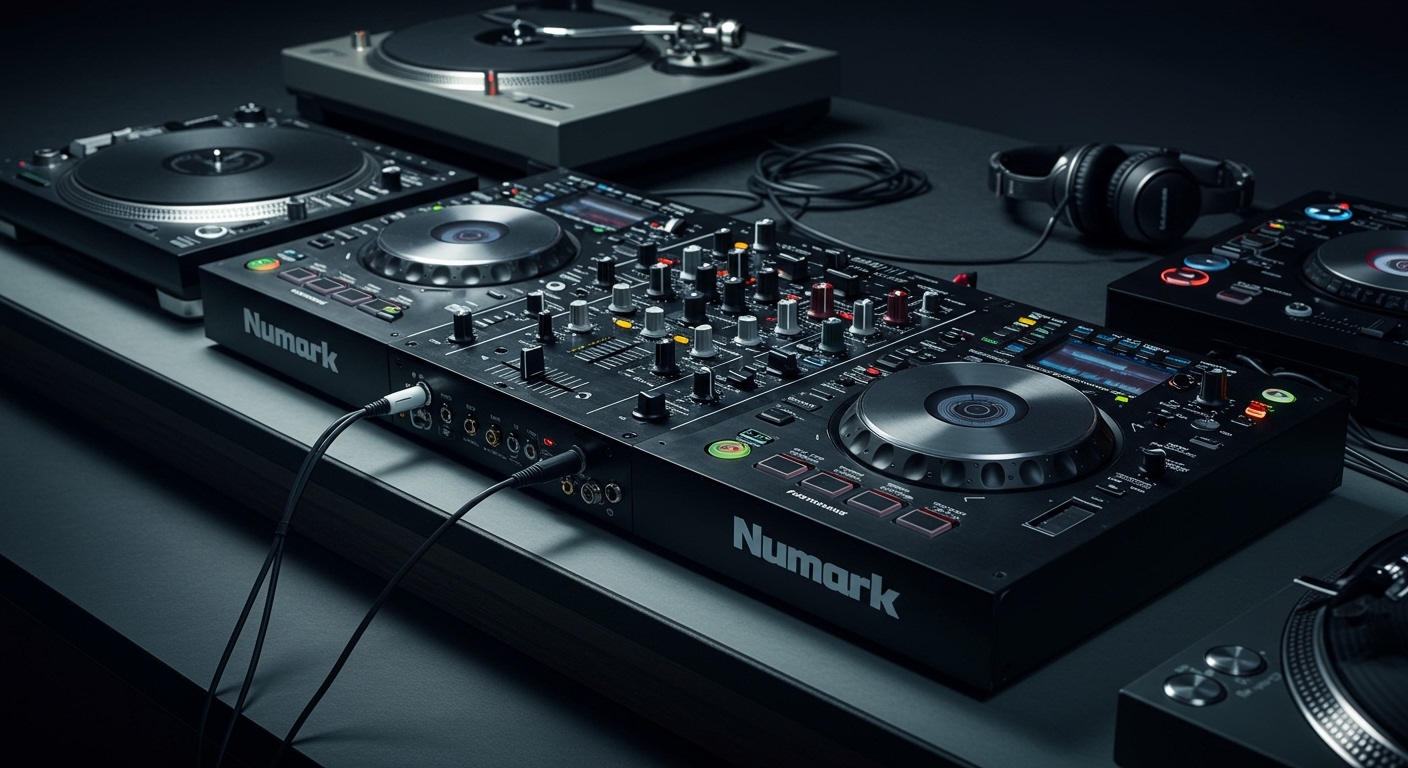
The most important connection on your controller is the Master Output. This is where the main audio mix—the music you want your audience to hear—is sent out. On the Numark Party Mix, Party Mix II, and even the popular Numark Mixtrack Platinum FX, this output uses a standard RCA connection.
- RCA Outputs: Look for a pair of red and white circular ports. The red port is for the right audio channel, and the white (or sometimes black) port is for the left channel. This is the primary way you’ll connect your Numark Party Mix to speakers.
- Advanced Outputs (XLR/1/4″): More advanced controllers might have larger, more robust outputs like XLR or 1/4-inch TRS for connecting to professional PA systems. However, for the Party Mix family, we will focus exclusively on the RCA outputs.
Choosing the Right Cables for Your Speaker Connection
The single biggest point of confusion for new DJs is selecting the correct cable. The right cable acts as a bridge between your controller’s RCA Master Output and your speakers’ specific input.
I’ve tested countless setups, and your choice boils down to what kind of speakers you have. You need a cable with two RCA plugs (red and white) on one end, and a plug that matches your speakers’ input on the other.
Most Common Cable Types for Numark Mixers
Here is a breakdown of the cables you’ll most likely need. My personal go-to for home practice is a high-quality RCA to 3.5mm cable, as it’s the most versatile.
| Cable Type | Connects Numark Party Mix To | Best For |
|---|---|---|
| RCA to 3.5mm (AUX) | Computer Speakers, Portable Bluetooth Speakers (wired), Home Stereos | Beginners, Bedroom DJs, Home Practice |
| RCA to Dual 1/4″ TS | Studio Monitors, Most PA Systems, Audio Interfaces | Aspiring Producers, Small Gigs, Live Streams |
| RCA to Dual XLR | Professional PA Speakers, High-End Studio Monitors | Mobile DJs, Connecting to Venue Sound Systems |
- For Computer Speakers: You almost certainly need an RCA to 3.5mm (AUX) cable. This is the same small plug your headphones use.
- For Studio Monitors: These typically use 1/4-inch inputs. You will need an RCA to Dual 1/4-inch TS cable.
- For PA Systems: For larger events, you might connect to a PA system that uses XLR inputs. An RCA to Dual XLR cable will be your best friend here.
Pro Tip: Always invest in decent quality cables. Cheap, flimsy cables are a common cause of buzzing, dropouts, and poor sound quality.
Step-by-Step Guide: How to Connect Numark Party Mix to Speakers
Ready to make some noise? Let’s get this done. I’ll walk you through the exact process I use, which ensures you won’t hear any loud pops or damage your equipment.
Step 1: Gather Your Equipment
Before you start, lay everything out. You will need:
- Your Numark Party Mix controller
- The USB cable for the controller
- Your laptop with DJ software installed (like Serato DJ Lite or VirtualDJ)
- Your speakers (powered speakers are recommended)
- The correct audio cable you identified in the previous step (e.g., RCA to 3.5mm)
Step 2: Power Everything Down
This is a critical habit for any DJ. Always make your connections with the power off. Turn your speakers and your laptop completely off. This prevents any sudden electrical surges that can damage your gear.
Step 3: Connect the RCA Cable to Your Numark Party Mix
Take the RCA end of your audio cable.
- Plug the red RCA plug into the red Master Out port on the back of your Party Mix.
- Plug the white RCA plug into the white Master Out port.
Ensure they are pushed in firmly for a solid connection. A loose connection is the #1 cause of sound only coming from one speaker.
Step 4: Connect the Cable to Your Speakers
Now, take the other end of the cable.
- If you’re using an RCA to 3.5mm cable, plug the 3.5mm end into the “AUX IN” or “LINE IN” port on your speakers.
- If you’re using an RCA to 1/4″ cable, plug the two 1/4″ plugs into the corresponding input jacks on your studio monitors.
Step 5: Connect and Power On Your Controller
Plug the square end of the USB cable into your Numark Party Mix and the other end into a free USB port on your laptop. The controller’s lights should flash on.
Step 6: Power On Your Speakers
Now it’s time to turn your speakers on. Set their volume to a low level to start. The golden rule of audio is: speakers are the last thing on and the first thing off.
Step 7: Configure Your DJ Software (The Crucial Final Step)
This is the step everyone forgets. Your computer doesn’t automatically know you want to send music through the controller. You have to tell it.
- Open your DJ software (Serato DJ Lite, for example).
- Navigate to the Settings or Preferences menu (usually a gear icon).
- Find the Audio tab.
- Under Audio Output Device, select your Numark Party Mix (it may be listed as “Party Mix” or a similar name). Do not choose your computer’s built-in speakers.
- Close the settings menu.
Now, load a track onto a deck in your software, press play, and slowly raise the Master Volume knob on your Numark Party Mix. You should hear crystal-clear audio coming from your speakers!
How to Connect Numark Mixtrack Platinum to Speakers
If you have a more advanced controller like the Numark Mixtrack Platinum FX, you’re in luck. The process is virtually identical.
The Numark Mixtrack Platinum FX also uses an RCA Master Output as its primary connection for speakers. Therefore, you can follow the exact same 7-step guide outlined above. You will use the same RCA to 3.5mm or RCA to 1/4″ cables to connect to your sound system.
The main difference with the Mixtrack series is the addition of more professional features, but the fundamental audio connection remains the same, making it an easy transition for DJs upgrading from a Party Mix.
Troubleshooting Common Connection Problems
Running into issues? It happens to all of us. After years of DJing, I’ve seen every problem imaginable. Here are the most common ones and how to fix them fast.
Problem: There’s No Sound at All!
This is the most common panic moment. Don’t worry, it’s usually a simple fix.
- Check Your Knobs: Is the Master Volume knob on the controller turned up? What about the channel fader and crossfader? Is the volume knob on your actual speakers turned up?
- Check Your Software: Double-check that you selected the Numark Party Mix as the audio output device in your software’s settings. This is the cause 90% of the time.
- Check Your Cables: Are all cables—USB and audio—plugged in securely at both ends?
Problem: Sound is Only Coming From One Speaker
This is almost always a physical connection issue.
- Wiggle the RCAs: Gently wiggle the red and white RCA plugs on the back of your controller. If the sound cuts in and out, you have a loose connection. Push them in firmly.
- Faulty Cable: The cable itself might be damaged. Try a different RCA cable to see if that resolves the issue.
Problem: There’s a Buzzing or Humming Noise
This annoying sound is often caused by a “ground loop.” This happens when multiple pieces of gear are plugged into different power outlets.
- Use One Power Strip: Plug your laptop, controller, and speakers all into the same power strip. This often solves the problem instantly.
- Laptop Power: Try unplugging your laptop’s power adapter









