

Getting Started: How to Connect Speakers to Raspberry Pi 4
Tired of your Raspberry Pi project sitting in silence? You’ve built an amazing retro gaming console, a slick media center, or a custom smart home hub, but without sound, it feels incomplete. Figuring out how to connect speakers to a Raspberry Pi 4 can seem confusing with all the different ports and settings. You don’t want to spend hours digging through forum posts just to play a simple sound.
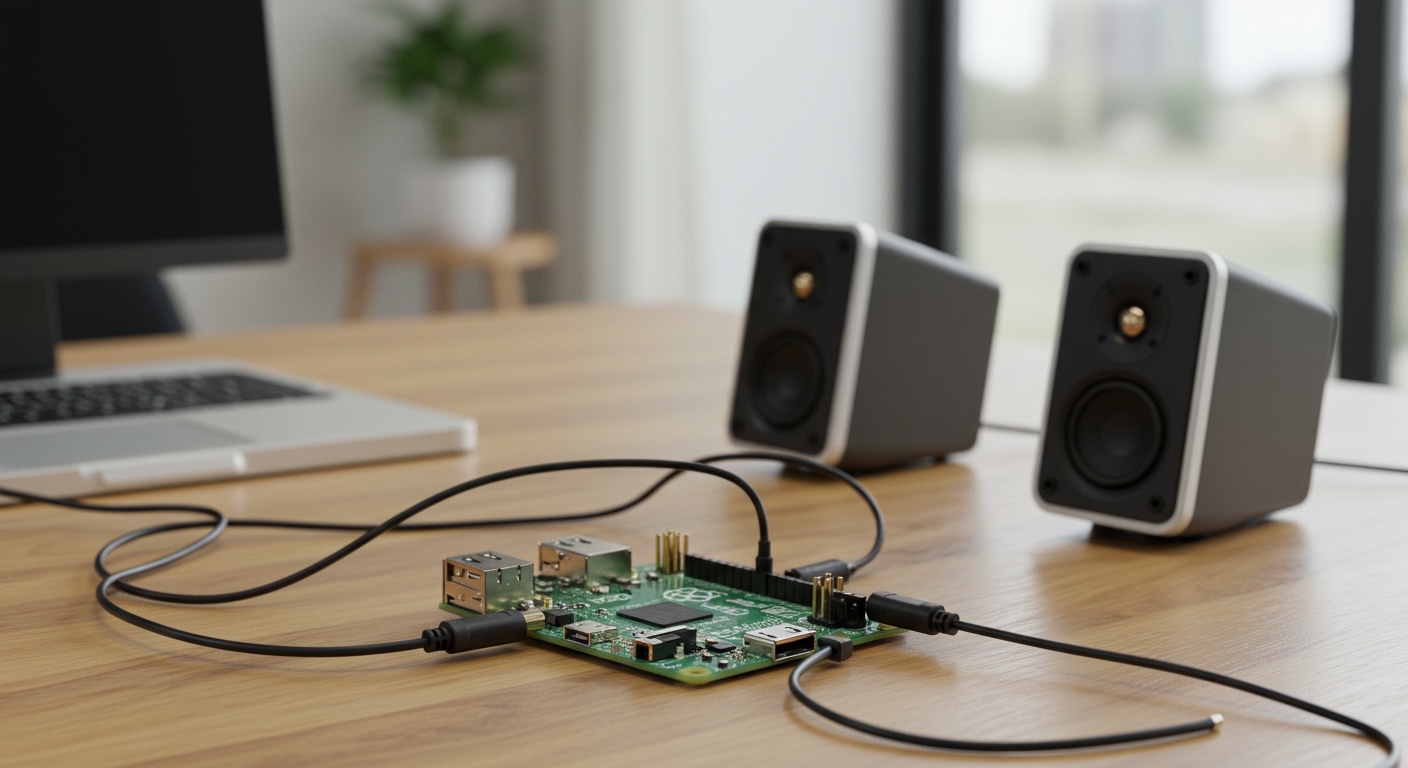
This guide is your definitive, one-stop solution. I’ve spent years working with Raspberry Pis for countless projects, from simple audio players to complex multi-room sound systems. I’ll walk you through five distinct methods, from the dead-simple 3.5mm jack to high-fidelity audio HATs, complete with step-by-step instructions and troubleshooting tips I’ve learned the hard way.
Key Takeaways: Connecting Pi 4 Speakers
- Easiest Method: The 3.5mm audio jack is the fastest way to connect standard powered PC speakers. It’s plug-and-play with a minor software tweak.
- For TVs & Monitors: Use the HDMI port if your display has built-in speakers. This combines video and audio into a single cable.
- Wireless Freedom: Bluetooth is perfect for connecting wireless speakers or headphones, offering a clean, cable-free setup.
- Best Sound Quality: For audiophiles, a USB DAC (Digital-to-Analog Converter) or a dedicated Audio HAT will bypass the Pi’s noisy onboard audio for crystal-clear sound.
- Critical Step: You must tell the Raspberry Pi OS which output to use. This is done easily through the desktop interface or the
raspi-configterminal command.
Understanding Your Raspberry Pi 4 Audio Options
Before we dive into the “how-to,” it’s crucial to understand the audio outputs available on your Raspberry Pi 4. Each has its own strengths and is suited for different projects. The great news is that these methods are also fully compatible if you need to know how to connect speakers to a Raspberry Pi 3.
Here is a quick comparison of the five primary methods we’ll cover:
| Connection Method | Best For | Pros | Cons |
|---|---|---|---|
| 3.5mm Audio Jack | Simplicity, basic desktop speakers | Universal, plug-and-play hardware | Basic audio quality, prone to electrical noise |
| HDMI | TVs, monitors with built-in speakers | Digital audio, single cable for A/V | Ties your audio output to a specific display |
| Bluetooth | Wireless speakers, headphones | Convenient, no wires | Can have latency, initial pairing can be tricky |
| USB Speakers / DAC | High-quality audio setups | Superior sound, bypasses Pi’s noisy DAC | Requires a free USB port, can be expensive |
| Audio HAT | Dedicated Hi-Fi projects | The best possible audio quality | Requires GPIO setup, more complex, added cost |
Now, let’s get into the step-by-step instructions for each method.
Method 1: How to Connect Speakers to Raspberry Pi 4 via 3.5mm Jack
This is the most straightforward method and the perfect starting point. You’ll be using the standard headphone-style jack on the Pi.
Step 1: The Physical Connection
First, you need the right kind of speakers. You cannot plug “passive” speakers (the kind that connect with raw speaker wire) directly into the Pi. You must use powered speakers, like the ones commonly used with desktop computers. These have their own power source and a built-in amplifier.
- Ensure your Raspberry Pi 4 is turned off.
- Plug your powered speakers into a wall outlet and turn them on.
- Connect the 3.5mm audio cable from your speakers into the 3.5mm audio jack on the Raspberry Pi. It’s located next to the HDMI ports.
Step 2: Select the Audio Output in Raspberry Pi OS
By default, the Pi often prioritizes HDMI audio. You need to tell it to send sound through the 3.5mm jack instead.
Using the Desktop (GUI)
This is the easiest way if you’re using the standard Raspberry Pi OS with a desktop.
- Boot up your Raspberry Pi.
- In the top-right corner of the screen, find the speaker icon.
- Right-click on the speaker icon.
- In the menu that appears, select “AV Jack”.
That’s it! The system will now route all audio through the 3.5mm port.
Using the Terminal (Command Line)
If you’re running a headless setup (no monitor) or prefer the command line, raspi-config is your best friend.
- Open a Terminal window.
- Type
sudo raspi-configand press Enter. - Use the arrow keys to navigate to 1 System Options. Press Enter.









