

Understanding the PS4 Slim’s Audio Output Problem
Tired of the tinny, flat sound coming from your TV speakers while gaming? You’re not alone. The PlayStation 4 Slim is a fantastic console, but its streamlined design created a significant challenge for audio lovers: it removed the Digital Optical Audio Out port found on the original PS4 and the PS4 Pro. This single change can make figuring out how to connect speakers to a PS4 Slim a frustrating puzzle.
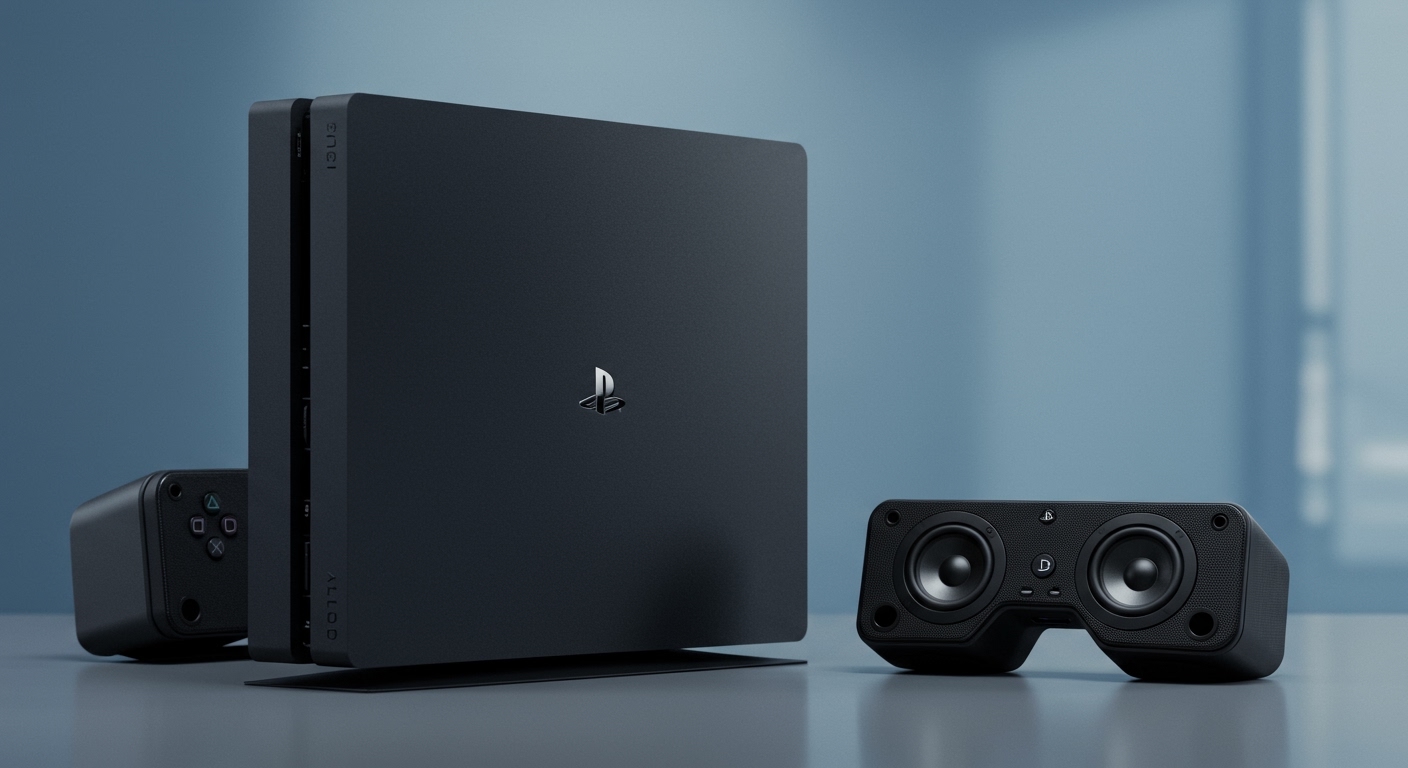
Don’t worry, you don’t have to settle for subpar sound. I’ve spent countless hours in my own gaming setup testing every possible workaround. This guide will walk you through five distinct methods, from the dead-simple to the audiophile-approved, to unlock the immersive, high-quality audio your games deserve.
Key Takeaways: Connecting Speakers to PS4 Slim
- No Optical Port: The PS4 Slim’s biggest limitation is the lack of a dedicated optical audio output, which is common on many soundbars and speaker systems.
- Best Quality Method: For the absolute best, lag-free audio, an HDMI Audio Extractor is the top choice. It splits the audio from the HDMI signal before it reaches your TV.
- Easiest Method: The simplest way is to connect your speakers directly to your TV or monitor’s audio output jack (like a 3.5mm headphone port or RCA ports).
- Wireless Solution: The PS4 Slim doesn’t natively support most Bluetooth speakers. You will need a USB Bluetooth Audio Adapter to connect wirelessly.
- Controller Hack: For a quick and easy setup, especially with PC speakers, you can plug them directly into the 3.5mm jack on your DualShock 4 controller.
Method 1: The Easiest Way – Connecting Speakers Directly to Your TV
This is the most straightforward method and requires no extra purchases if your TV and speakers are compatible. The logic is simple: your PS4 Slim sends both video and audio to your TV through the HDMI cable, and then your TV passes the audio along to your speakers.
I use this method for the console in my living room because it’s clean, simple, and requires zero extra configuration on the PlayStation itself. It’s a “set it and forget it” solution.
Step-by-Step Guide:
- Connect PS4 to TV: Ensure your PS4 Slim is connected to an HDMI port on your TV. This is the standard connection for video.
- Identify TV Audio Outputs: Look at the back or side of your TV. You’re looking for an audio output port. Common types include:
- Connect Speakers to TV: Use the appropriate cable to connect your speakers to the audio output port you identified on your TV. For example, use a 3.5mm-to-3.5mm cable for PC speakers or a 3.5mm-to-RCA cable for some bookshelf speakers.
- Change TV Audio Settings: Use your TV remote to go into the settings menu. Find the Audio or Sound section and look for an option like “Output” or “Speakers.” Change the setting from “Internal TV Speakers” to “External Speakers,” “Audio System,” or “Headphones.”
Pros and Cons of Connecting to Your TV
| Feature | Pro (Advantage) | Con (Disadvantage) |
|---|---|---|
| Simplicity | Incredibly easy to set up. | Relies on your TV’s internal audio processor (DAC), which may not be the best quality. |
| Cost | Usually free, as you likely have the cables. | Can sometimes introduce a small amount of audio lag (latency), though most modern TVs are good at this. |
| Compatibility | Works with virtually any speaker that can connect to a TV. | You are limited by the output ports available on your specific TV model. |









