

How to Listen to TV with Headphones and Speakers Simultaneously
Struggling to find the right volume balance in your living room? It’s a common problem: one person needs the TV louder to hear dialogue clearly, while another prefers a lower volume. Fortunately, you can absolutely listen to TV with headphones and speakers at the same time, creating a perfect audio experience for everyone. This guide will walk you through several methods, from simple built-in TV settings to easy-to-install hardware solutions.
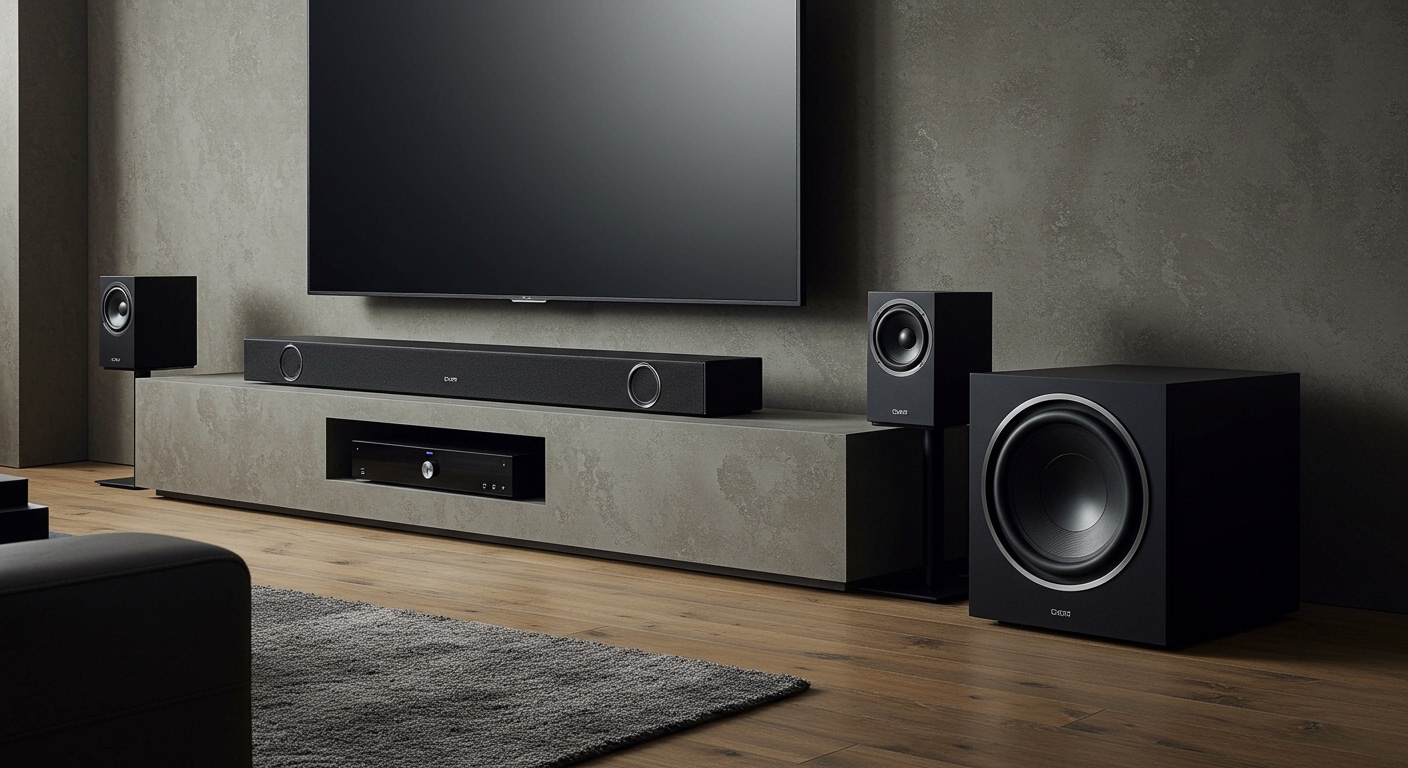
As a home theater enthusiast, I’ve personally set up and tested each of these methods to find what truly works. We’ll bypass the confusing technical jargon and give you clear, step-by-step instructions to get your ideal audio setup running in minutes. Whether you’re dealing with hearing loss, have a sleeping baby in the next room, or just want personalized volume control, there’s a solution here for you.
Key Takeaways: TV Audio with Headphones & Speakers
- Yes, it’s possible: You can play TV audio through both speakers and a pair of headphones at the same time.
- Check TV Settings First: Some modern TVs from brands like Samsung and LG have a built-in “Dual Audio” or “Simultaneous Audio Output” feature. This is the easiest solution if available.
- Bluetooth Transmitters are a Top Choice: A Bluetooth transmitter with an optical passthrough is the most popular and versatile method. It allows you to send audio to a soundbar and Bluetooth headphones independently.
- HDMI Audio Extractors are for ARC/eARC Setups: If your soundbar uses the HDMI ARC port, an HDMI audio extractor is the best way to split the audio signal for a headphone connection without losing quality.
- AV Receivers Offer Max Control: For a full home theater system, an AV receiver provides the most flexibility, often with a dedicated headphone jack that can play audio alongside the main speakers.
Why Listen to TV with Headphones and Speakers at the Same Time?
Before we dive into the “how,” let’s quickly cover the “why.” Understanding the use cases helps you choose the best method for your specific needs. This isn’t just a niche trick; it’s a practical solution for many households.
- Assisted Listening: The most common reason is to help someone who is hard of hearing. They can use volume-enhancing headphones to get crystal-clear dialogue at their preferred level, while everyone else listens through the TV speakers or soundbar at a normal volume.
- Personalized Volume: You and your partner simply can’t agree on the volume. One person can use headphones to dial in their perfect level without starting the “volume wars.”
- Late-Night Viewing & Gaming: Want to enjoy an action movie or an immersive gaming session late at night? Use headphones to get the full experience without waking up the rest of the house, while others can still listen quietly via the speakers.
- Language & Translation: In a multilingual household, one person could potentially listen to a dubbed audio track through the speakers while another listens to the original language via headphones connected to a separate streaming device.
The First Step: Check Your TV’s Native Audio Settings
Before you buy any new gadgets, it’s crucial to check if your TV can handle this task on its own. Many modern smart TVs, especially from brands like LG, Samsung, and Sony, have this functionality built right in. If yours does, you can save time and money.
I always start here when helping friends and family. You’d be surprised how many people have this feature and don’t even know it.
How to Check for Simultaneous Audio Output
- Connect Your Headphones: First, connect your headphones to the TV. If they are wired headphones, plug them into the 3.5mm headphone jack. If they are Bluetooth headphones, pair them to your TV through the Bluetooth settings menu.
- Navigate to Sound Settings: Grab your TV remote and press the Settings button (it often looks like a gear icon). Navigate to the Sound or Audio menu.
- Find the Audio Output Menu: Inside the Sound menu, look for an option labeled “Audio Output,” “Sound Out,” or something similar.
- Look for a “Dual” or “Simultaneous” Option: This is the critical step. You are looking for a specific setting that allows for multiple outputs. The name varies by brand:









