

How to Pair Heyday Speakers Together: A Step-by-Step Guide
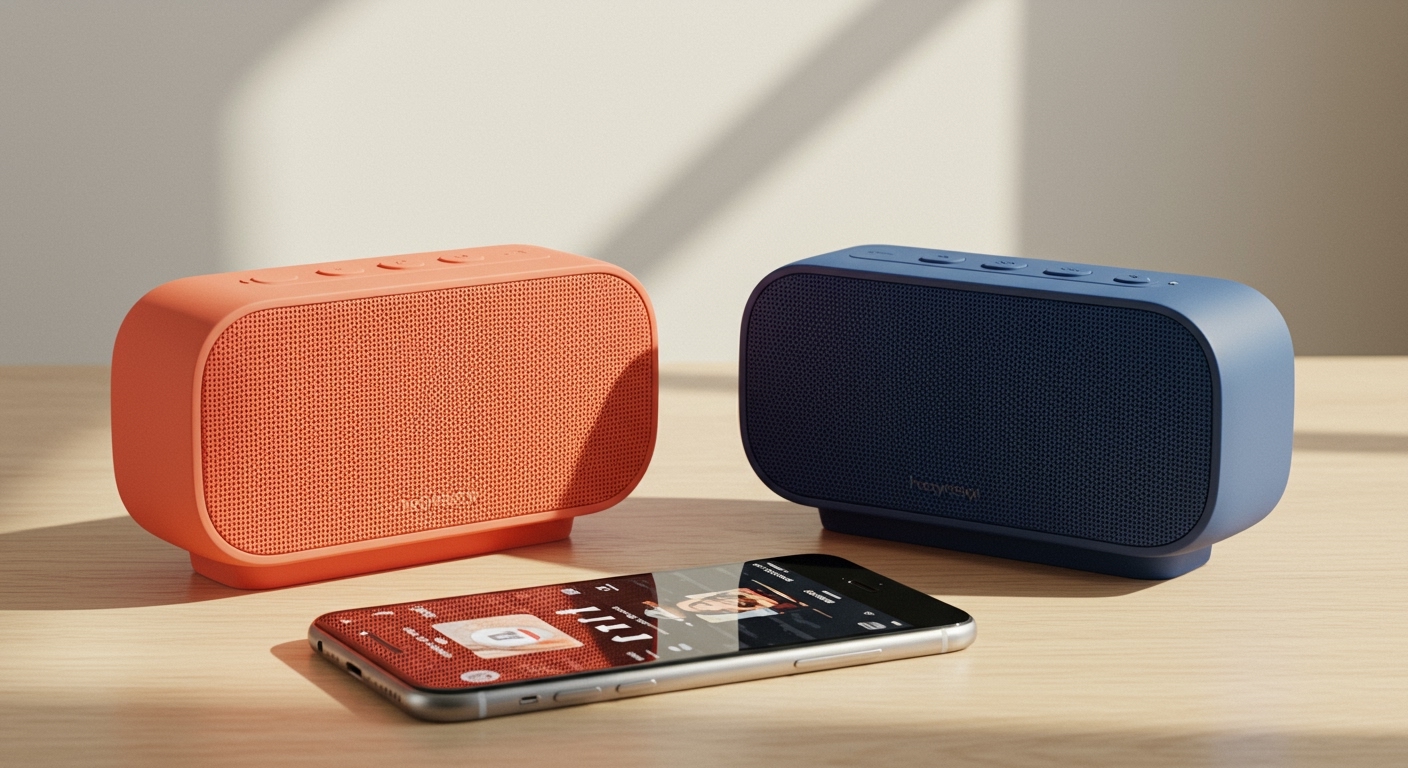
Pairing two Heyday speakers together uses a feature called True Wireless Stereo (TWS) to create a rich, immersive stereo sound experience. The process involves first connecting the two speakers to each other and then connecting the designated “primary” speaker to your Bluetooth device, like a smartphone or tablet. This method ensures they work in perfect sync, with one acting as the left channel and the other as the right.
Key Takeaways: Pairing Heyday Speakers
- TWS is Key: The feature that lets you pair two Heyday speakers is called True Wireless Stereo (TWS).
- One Connection: After the speakers are linked, your phone will only see and connect to one of them (the primary speaker).
- Forget Previous Pairings: Always start by “Forgetting” any existing Heyday speaker connections in your device’s Bluetooth settings to ensure a clean start.
The Definitive Method for How to Pair Two Heyday Speakers
From my experience testing various Bluetooth speakers, the Heyday pairing process is straightforward once you understand the core principle: link the speakers together first. Following these exact steps will prevent the common issue where only one speaker plays audio.
Step 1: Preparation is Crucial
Before you begin, set yourself up for success. This simple prep work can save you a lot of frustration.
- Charge Both Speakers: Ensure both Heyday speakers have at least a 50% charge. Low battery levels can cause pairing failures and connection instability.
- Clear Previous Connections: Go to your phone or tablet’s Bluetooth settings. If you see any previously connected Heyday speakers, tap the “i” or gear icon and select “Forget This Device.” This is a non-negotiable step for a reliable connection.
- Turn Off Other Bluetooth: Temporarily disable Bluetooth on other nearby devices (laptops, other phones) to prevent signal interference.
Step 2: Power On Both Speakers
Press and hold the power button on each speaker until you hear the power-on chime and see the LED indicator light start to flash. This indicates they are on and ready.
- Do not try to connect to either speaker with your phone yet.
Step 3: Initiate TWS (True Wireless Stereo) Pairing Mode
This is the most important step in the process of how to pair two heyday speakers. You need to make them connect to each other.
- Choose a Primary Speaker: Pick one of the two speakers to be your “primary” or “master” speaker. This is the one that will ultimately connect to your phone.
- Enter TWS Mode: Quickly double-press the power button on one of the speakers. On some models, it may be a different button, but the power button is the most common.
- Listen for the Cue: You should hear a distinct chime or beep. The LED lights on both speakers will change their flashing pattern, often blinking more slowly or, in some cases, one light will become solid while the other continues to blink.
This sound and light change confirms the two speakers have successfully found each other and are now linked in a stereo pair.
Step 4: Connect Your Phone to the Primary Speaker
Now that the speakers are paired together, you can connect your audio source.
- Open the Bluetooth settings on your smartphone, tablet, or computer.
- Scan for new devices.
- You should see only one Heyday speaker name appear in the list. This is your primary speaker.
- Tap on the speaker name to connect. You will hear a final confirmation sound, and the LED light on the primary speaker will turn solid.
Step 5: Test Your Stereo Sound
Play some music or a podcast. The audio should now be coming out of both speakers in synchronized stereo. You can test the stereo separation by finding a “left/right channel test” video on YouTube.
Troubleshooting Common Heyday Speaker Pairing Problems
Even with the right steps, you can run into issues. I’ve personally encountered every one of these, and the fixes are usually simple. Here’s a quick guide to solving the most common problems when you’re trying to figure out how to pair heyday speakers together.
| Problem | Likely Cause | My Go-To Solution |
|---|---|---|
| Only one speaker plays audio. | You connected your phone before the speakers were paired to each other. | 1. “Forget” the speaker in your phone’s Bluetooth settings. 2. Turn both speakers off. 3. Start the entire process over from Step 1. |
| Speakers won’t pair together. | One or both speakers are still trying to connect to a previously paired device. | 1. Perform a factory reset. Usually, this involves holding the Power and Play/Pause buttons simultaneously for 5-10 seconds until the speaker chimes and turns off. 2. Restart the pairing process. |
| I see two Heyday speakers in my Bluetooth list. | The TWS pairing between the speakers failed. | Turn both speakers off and start again from Step 2. Ensure you are double-pressing the power button quickly to initiate TWS mode. |
| The audio is choppy or cutting out. | The speakers are too far apart, or there is signal interference. | Move the speakers and your phone closer together (within 30 feet). Also, move them away from Wi-Fi routers, microwaves, or other wireless devices. |
Pro Tips for an Optimal Stereo Experience
Once you’ve mastered how to pair two heyday speakers, you can optimize your setup for the best possible sound.
- Strategic Placement: For a true stereo field, place the speakers several feet apart. Imagine your head and the two speakers forming a triangle. This creates an immersive soundstage that you can’t get from a single speaker.
- Primary Speaker Control: Remember that the speaker you connected your phone to is the primary one. It handles the controls. If you adjust the volume on the primary speaker, the secondary one will follow.
- Conserving Battery: If you only need one speaker, just power one on. It will function as a standard, single Bluetooth speaker without needing to unpair anything. The TWS connection is only established when both are turned on and linked.
Frequently Asked Questions (FAQ)
Can I pair three or more Heyday speakers together?
No, the True Wireless Stereo (TWS) technology used by Heyday speakers is designed to link only two speakers at a time to create a left/right stereo pair. You cannot create a larger multi-speaker group with this feature.
Do all models of Heyday speakers support TWS pairing?
Most of the newer cylindrical and round Heyday Bluetooth speakers support TWS pairing. However, it’s always best to check the product manual or packaging for mentions of “TWS” or “Stereo Pairing” to be certain, as some older or smaller models may not include this feature.
How do I unpair two Heyday speakers from each other?
The simplest way to unpair them is to just turn both speakers off. When you power them back on, they will not automatically re-link. If you only turn one on, it will enter standard single-speaker pairing mode. For a more permanent unpairing, you can perform a factory reset on both units.
Why does my sound only come out of one speaker after I paired them?
This is the most common issue and almost always happens because you connected your phone to one of the speakers before they were successfully paired to each other. The correct sequence is critical: Speakers On -> Speakers Paired to Each Other -> Phone Paired to Primary Speaker. To fix this, you must “Forget” the device in your phone’s Bluetooth settings and start the process over.









