

Understanding Your Gear: The First Crucial Step
Before you can learn how to play music from a USB drive to speakers, you need to understand the two key components you’re working with: your USB flash drive and your speakers. Getting these two things right is 90% of the battle and will save you a ton of frustration.
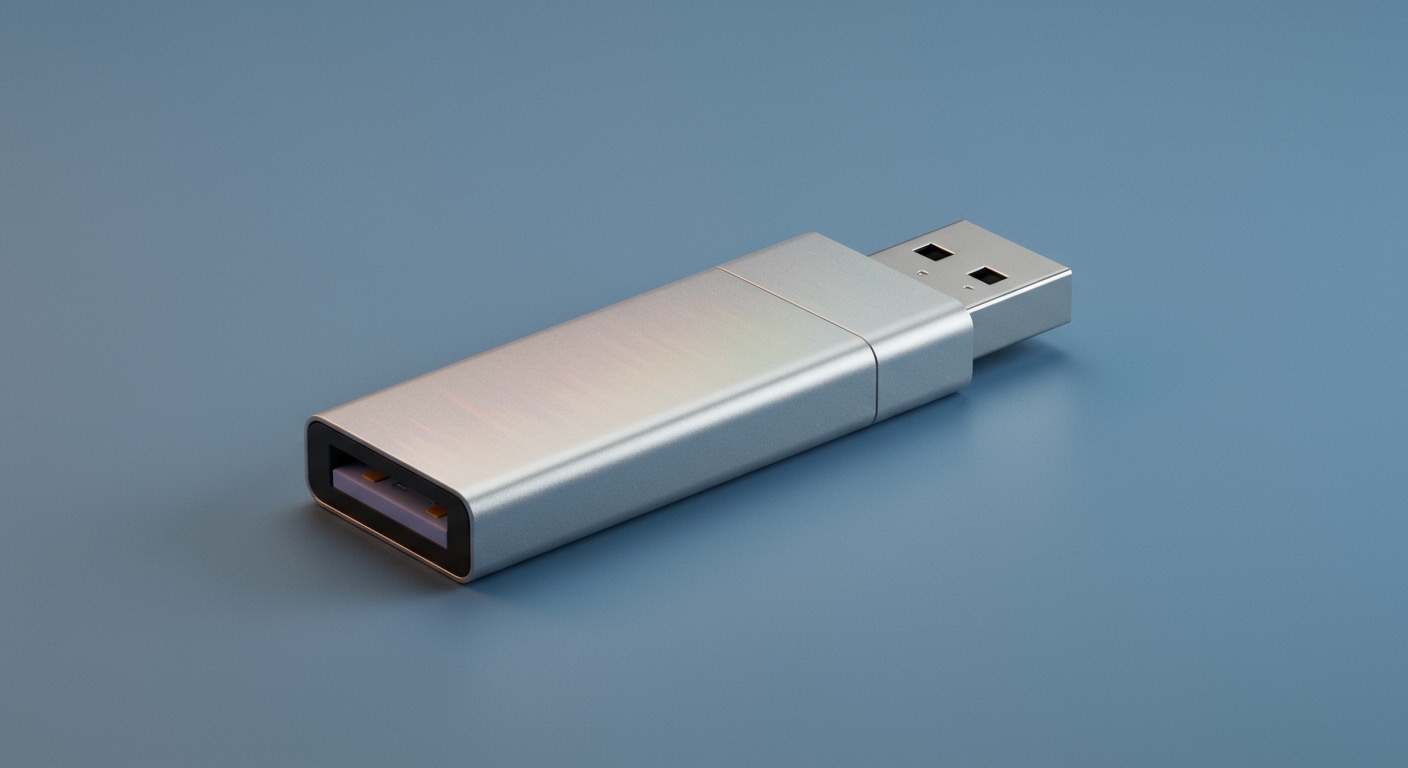
From my experience testing countless combinations, most playback issues aren’t with the speaker itself but with how the music is stored on the drive.
Checking Your USB Drive: File Format & System
Think of your USB drive as a mini-library. The way it’s organized (the File System) and the language the books are written in (the File Format) determines whether your speaker can read it.
- Audio File Format: This is the type of music file. While your computer can play almost anything, most simple devices are picky.
- File System: This is how the drive organizes data. For music playback on speakers, TVs, and car stereos, one format rules them all.
Pro Tip: To be safe, always format your USB drive to FAT32 and convert your music files to 320kbps MP3s for the best balance of quality and compatibility.
Identifying Your Speaker’s Inputs
Next, look at the back or side of your speaker(s). The available ports will determine which method you’ll use.
- USB Type-A Port: This is the rectangular port you’re looking for. If your speaker has this, you can likely play music directly from the drive. It often has a “play” symbol next to it.
- 3.5mm AUX In: The standard small, round headphone jack. This is a universal analog input.
- RCA In: Red and white circular ports, common on stereo systems and studio monitors.
- Bluetooth: No physical port, but a wireless connection option.
Method 1: The Easiest Way to Play Music From a USB Drive to Speakers (Direct Connection)
This is the dream scenario: plug the USB drive directly into the speaker and hit play. This method only works if your speaker has a built-in media player and a USB Type-A port. Many portable “party” speakers, soundbars, and home theater systems have this feature.
Here’s my step-by-step process for a direct connection:
- Prepare Your USB Drive:
- Load Your Music:
- Connect and Play:
Troubleshooting Direct Connections
- Speaker Won’t Recognize the Drive: Double-check that it’s formatted to FAT32. If it is, the drive might require more power than the port can provide; try a different, smaller USB drive.
- Music Skips or Stutters: This can happen with very old or slow USB 1.0 drives. Try a modern USB 2.0 or 3.0 drive.
Method 2: Using a Computer or Laptop as a Bridge
This is the most universal and powerful method because your computer can read any USB drive format and play any audio file. The computer acts as the “brain,” and the speakers simply produce the sound.
This is the setup I use daily in my office. My laptop can access my entire music library from an external drive, and I can output it to any speaker I’m testing.
Step-by-Step Guide
- Connect Speakers to Your Computer: You have several options here.
- Plug the Music USB Drive into the Computer: Insert the flash drive containing your music into any available USB port on your computer.
- Select Your Audio Output: Your computer needs to know where to send the sound.
- Play Your Music:
Method 3: Playing Music From a USB Using a Smart TV or Media Player
Your home entertainment center can be a fantastic jukebox. Most modern Smart TVs, gaming consoles (PlayStation, Xbox), and streaming boxes (Roku, Nvidia Shield) have USB ports and built-in media player apps.
This is a great solution for filling a living room with music without needing a computer.
Step-by-Step Guide
- Ensure Speakers are Connected: Your speakers should already be connected to your TV or AV receiver, typically via HDMI ARC, Optical cable, or a standard analog cable.
- Prepare and Insert the USB Drive: As before, make sure the drive is FAT32 formatted and loaded with standard MP3 or WAV files. Plug it into an available USB port on the back or side of your TV or media device.
- Launch the Media Player App:









