

Understanding Your PC’s Audio Outputs Before You Begin
Struggling to get audio from both your headset and speakers at the same time? It’s a common frustration. Your PC is designed to send sound to only one place by default, making it tricky when you want to share audio with someone in the room or create a more immersive experience. This guide will walk you through the exact steps to solve this, turning a confusing settings maze into a simple, one-time setup.
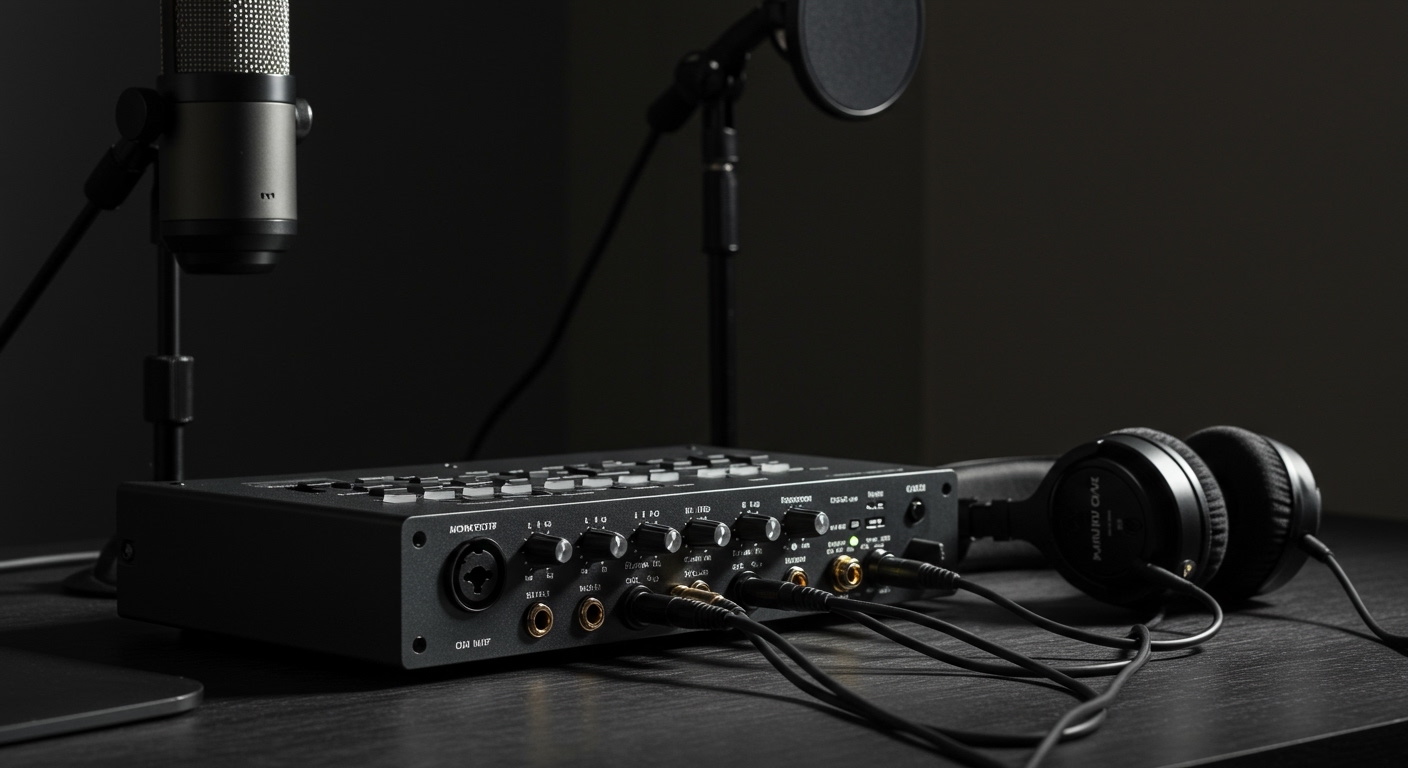
We’ll cover everything from the easy built-in Windows tools to more powerful free software that gives you ultimate control. Whether you’re on a Windows PC or a Mac, you’ll find a clear, actionable solution here.
Key Takeaways: Dual Audio Output
- Easiest Windows Method: The built-in “Stereo Mix” feature is the fastest way to duplicate your PC’s audio to a second device. You can enable it in your Sound settings under the “Recording” tab.
- Most Powerful Method: Free software like Voicemeeter Banana offers complete control, allowing you to route audio from different apps to different devices and adjust volumes independently.
- Mac Solution: macOS users can use the built-in “Audio MIDI Setup” utility to create a “Multi-Output Device,” which combines your headset and speakers into a single virtual output.
- Check Your Software: Some audio drivers, like the Realtek Audio Console, have built-in settings to enable simultaneous outputs, so it’s always worth checking there first.
Method 1: The Easiest Way to Play Sound Through Headset and Speakers on a PC (Stereo Mix)
The most direct method to play sound through your headset and speakers on a PC is by using a hidden feature in Windows called Stereo Mix. This virtual recording device captures all the audio your PC is playing and lets you “listen” to it through a second output device.
I often use this for a quick setup when a friend is over and wants to hear my game audio while I’m using my headset for voice chat. It’s simple, effective, and requires no extra software.
Step-by-Step Guide to Enable Stereo Mix
Follow these steps precisely to get your dual audio working in minutes.
- Open Windows Sound Settings:
- Navigate to the “Recording” Tab:
- Show Disabled Devices:









