

The Ultimate Guide to Audio Ports: Which Audio Jack for Speakers is Right for You?
Staring at the back of your new TV, computer, or sound system can feel like trying to decipher an ancient language. With a confusing array of colors, shapes, and labels, you’re left wondering which audio jack for speakers will actually work and give you the best sound. Making the wrong choice can lead to poor audio quality, frustrating crackles, or no sound at all.
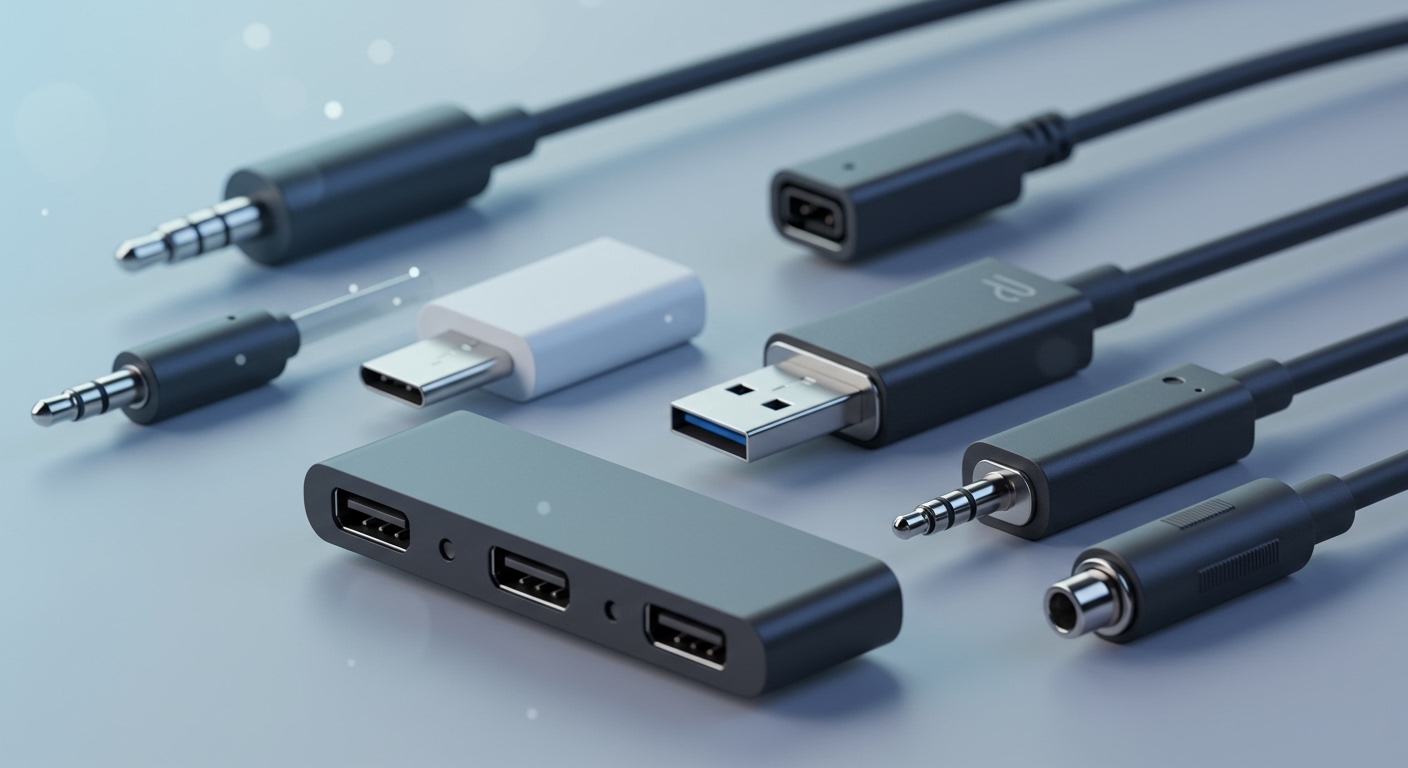
For most basic computer speakers, the green 3.5mm audio jack is your go-to connection. However, for home theater systems and more complex setups, you’ll want to use digital connections like Optical or, ideally, HDMI ARC/eARC for the highest fidelity sound. This guide will walk you through every common audio port, step-by-step, so you can connect your speakers with confidence and unlock their true potential.
Key Takeaways / TL;DR
- For PC & Laptops: The 3.5mm jack (headphone jack) is the most common and simple choice for stereo speakers.
- For Modern Home Theaters: HDMI ARC/eARC is the superior option, carrying both video and the highest quality uncompressed audio (like Dolby Atmos) in a single cable.
- For Soundbars & Older Receivers: An Optical (TOSLINK) cable is an excellent digital choice that supports surround sound and is immune to electrical interference.
- For Vintage Stereo Gear: RCA cables (the red and white plugs) are the standard for connecting components like turntables, CD players, and cassette decks.
- For Passive Speakers: You won’t use a typical jack. Instead, you’ll connect them to an amplifier or AV receiver using speaker wire with binding posts or spring clips.
Understanding Analog vs. Digital Audio Connections
Before we dive into specific ports, it’s crucial to understand the two main types of audio signals: analog and digital. The type of signal your cable carries has a significant impact on sound quality, especially over longer distances.
Analog Audio
An analog audio signal is a continuous electrical wave that directly mirrors the sound waves of the original audio. Think of it like a perfect, tiny electrical copy of the sound.
- Examples: 3.5mm headphone jacks, RCA cables, and speaker wire.
- Pros: Simple, widely compatible technology.
- Cons: Susceptible to interference from nearby power cables and electronics, which can cause buzzing or humming. The signal can also degrade over long cable runs.
Digital Audio
A digital audio signal converts the sound wave into a series of numbers (binary code: ones and zeros). This data is sent through the cable and then converted back into an analog signal by a device called a Digital-to-Analog Converter (DAC) right before it reaches the speakers.
- Examples: HDMI, Optical (TOSLINK), Coaxial Digital, and USB Audio.
- Pros: Highly resistant to interference. Can carry multiple channels of audio for surround sound in a single cable. No signal degradation over typical household distances.
- Cons: Requires a DAC for conversion (though this is built into virtually all modern audio devices).
From my experience setting up countless systems, I always recommend using a digital connection whenever it’s available, especially for home theater. The clarity and immunity to interference are undeniable advantages.
The Most Common Audio Jacks for Computer Speakers
When figuring out which audio jack for speakers to use with a computer, the options are generally straightforward. Your PC or laptop is designed for easy, plug-and-play connections.
The 3.5mm TRS Connector (The “Headphone Jack”)
This is the most recognizable audio jack on the planet. The 3.5mm connector, also known as an AUX jack or headphone jack, is the universal standard for simple stereo audio on computers.
- How it Works: The plug has three sections: Tip (T), Ring (R), and Sleeve (S). The Tip carries the left audio channel, the Ring carries the right audio channel, and the Sleeve is the ground.
- Where to Find It: On PCs, this port is typically color-coded lime green. On laptops and other devices, it’s often marked with a small headphone icon.
- Best For: Standard 2.0 or 2.1 computer speaker systems, headphones, and connecting a phone to a car’s AUX input.
How to Connect:
- Locate the lime green 3.5mm audio output port on the back of your computer’s motherboard or the headphone jack on your laptop.
- Plug one end of the 3.5mm cable into this port.
- Plug the other end into the corresponding input on your main speaker (usually labeled “Input” or “AUX In”).
- Ensure your speakers are powered on and the volume is up.
While incredibly convenient, the 3.5mm jack is an analog connection. For my own desk setup, I found that a cheap, poorly shielded 3.5mm cable picked up a noticeable buzz from my monitor’s power supply. Upgrading to a well-shielded cable solved the issue instantly.
USB Audio
Many modern computer speakers are ditching the 3.5mm jack in favor of a USB connection. This is a digital connection that offers a few key advantages.
- How it Works: When you connect speakers via USB, you are bypassing your computer’s built-in sound card. The speakers themselves have an integrated DAC that converts the digital signal from the computer.
- Why It’s Better: The DAC inside external speakers









