

Why Bother Playing Audio from Two Sources at Once?
Before we dive into the “how,” let’s quickly cover the “why.” You might be wondering if it’s worth the effort. Based on my experience setting up audio for everything from home offices to backyard parties, the answer is a resounding yes.
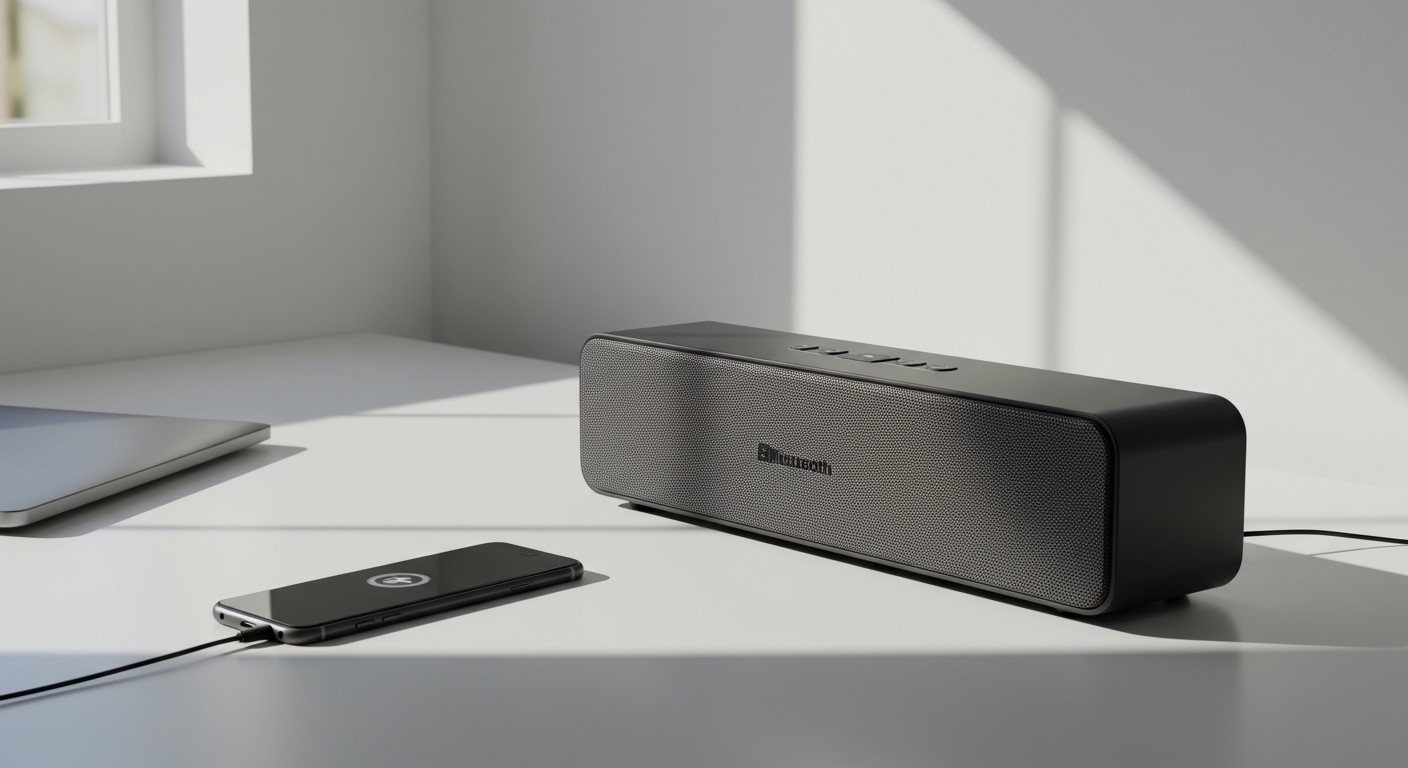
The primary benefit is creating a more immersive and room-filling sound experience. Your computer’s built-in speakers might be great for clarity, but they often lack bass. Pairing them with a bass-heavy Bluetooth speaker can give you the best of both worlds—a rich, full-range sound that you can’t get from either device alone.
- For Work & Productivity: In my home office, I combine my laptop speakers (for crisp highs in video calls) with a small Bose SoundLink on my desk for warmer voice tones and better background music. It makes long days of calls and focus work much more pleasant.
- For Entertainment: When watching a movie on my laptop, I’ll pair it with a larger JBL Bluetooth speaker placed across the room. This creates a pseudo-surround sound effect that makes the experience far more engaging than relying on the laptop’s tiny speakers alone.
- For Social Gatherings: You can easily fill a large room or even an outdoor space with sound by combining a laptop’s output with a powerful portable speaker, ensuring music is heard everywhere without blasting it from a single point.
How to Make Bluetooth Speakers & Computer Speakers Play Simultaneously on Windows
Getting Windows to play audio through two devices at once isn’t a one-click process, but it’s definitely achievable. We’ve tested two primary methods that work on Windows 10 and Windows 11.
Method 1: Using the Built-in “Stereo Mix” Feature
This is the native Windows method and doesn’t require any third-party software. However, its availability and reliability can depend on your computer’s audio drivers. If you don’t see “Stereo Mix,” your drivers may not support it, and you should skip to Method 2.
Here’s the step-by-step process:
- Connect Your Speaker: First, ensure your Bluetooth speaker is paired and connected to your Windows PC.
- Open Sound Settings: Right-click the speaker icon in your system tray (bottom-right of the screen) and select “Sounds”.
- Navigate to the Recording Tab: In the window that pops up, click on the “Recording” tab.
- Show Disabled Devices: Right-click anywhere in the blank space within the tab and make sure both “Show Disabled Devices” and “Show Disconnected Devices” are checked.
- Enable Stereo Mix: You should now see an icon for “Stereo Mix”. Right-click it and select “Enable”.
- Configure Stereo Mix: Right-click on “Stereo Mix” again and select “Properties”.
- Set Up Listening: Go to the “Listen” tab. Check the box that says “Listen to this device”.
- Select Your Output: From the “Playback through this device” dropdown menu, select your Bluetooth speaker. Click “Apply” and then “OK”.
- Set Your Default Device: Now, go back to the “Playback” tab in the main Sound window. Right-click on your computer’s main speakers (e.g., “Speakers / Realtek High Definition Audio”) and select “Set as Default Device”.
Audio should now play from both your PC speakers and the selected Bluetooth speaker. You can control the master volume through the PC, but you may need to adjust the Bluetooth speaker’s physical volume buttons to get the balance right.
Method 2: Using Voicemeeter (The Advanced Solution)
If Stereo Mix isn’t available or you’re experiencing issues, a free virtual audio mixer called Voicemeeter is an incredibly powerful alternative. I use this for my streaming setup, and it offers far more control than the native Windows options.
Follow these steps to get it working:
- Download and Install: Go to the VB-Audio website and download Voicemeeter. Install the application and—this is critical—restart your computer. The program won’t work correctly until you do.
- Set Your Hardware Outputs:
- Set Voicemeeter as Default:
Now, all system audio will be routed through Voicemeeter, which will then send it to both your designated outputs (A1 and A2). You can use the volume faders within Voicemeeter to perfectly balance the sound between your PC speakers and your Bluetooth speaker.
How to Make Bluetooth Speakers & Computer Speakers Play Simultaneously on macOS
Apple makes this process incredibly simple and elegant with a built-in utility. There’s no need for third-party software. I use this method daily on my MacBook Pro, and it’s been flawless.
Using a “Multi-Output Device” in Audio MIDI Setup
The key is to create a virtual device that combines your physical speakers into one single output option.
- Connect Your Speaker: Ensure your Bluetooth speaker is paired and connected to your Mac.
- Open Audio MIDI Setup:
- Create the Multi-Output Device:
- Select Your Devices:
- Assign the Master Device & Drift Correction:
- Select Your New Output:
Your Mac will now play all audio through both sets of speakers simultaneously. You can control the master volume using your Mac’s volume keys, and it will adjust both outputs together.
How to Make Bluetooth Speakers & TV Speakers Play Simultaneously
Many modern smart TVs, especially from brands like Samsung, LG, and Sony, have a built-in feature that allows you to play audio through the TV’s internal speakers and a Bluetooth device at the same time. This is often an accessibility feature designed for users with hearing impairments, but it works perfectly for creating a fuller sound.
For Samsung Smart TVs (Multi-output Audio)
Samsung is a popular choice









